How to get help on any screen
Every screen has a Help link that opens its own page, in your language. Follow it from the maker portal and the Platform Shell, in English and in Persian. How-to video H014, step by step.
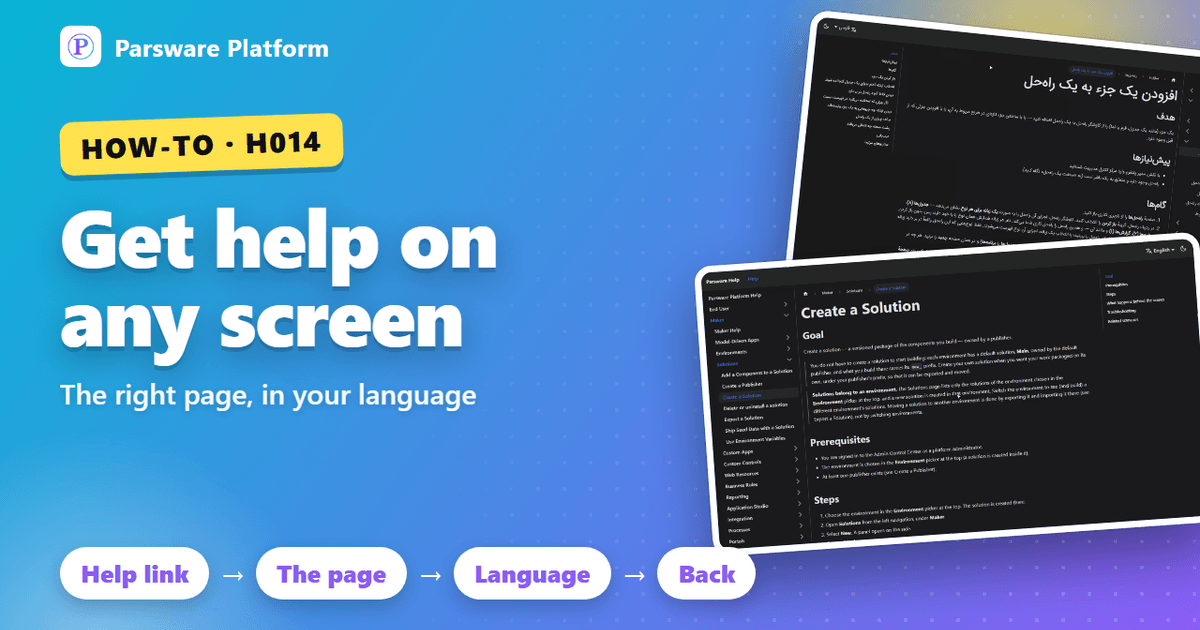
How-to H014 · 2 min 22 s. A complete tutorial: every click the video makes to find the help for the screen in front of you, in your own language, and get back to work. Every picture is a frame of the video.
Nobody reads a manual from the front. They want the page for the screen in front of them, now. In this tutorial you use the Help link every screen has, in the maker portal and in the Platform Shell, in English and in Persian.
Before you start
- You are signed in to the maker portal, in the Sales Test environment.
- The Sales Tracker solution from H011 and the Room Bookings app from H012, so there are screens to ask about. Any solution and any app will do.
Step 1: Find the Help link
Every screen has a Help link: the question mark at the top right, just before the language menu. It is in the same place on every screen.
Open Solutions, the list of solutions in this environment.
Step 2: Open the page for this screen
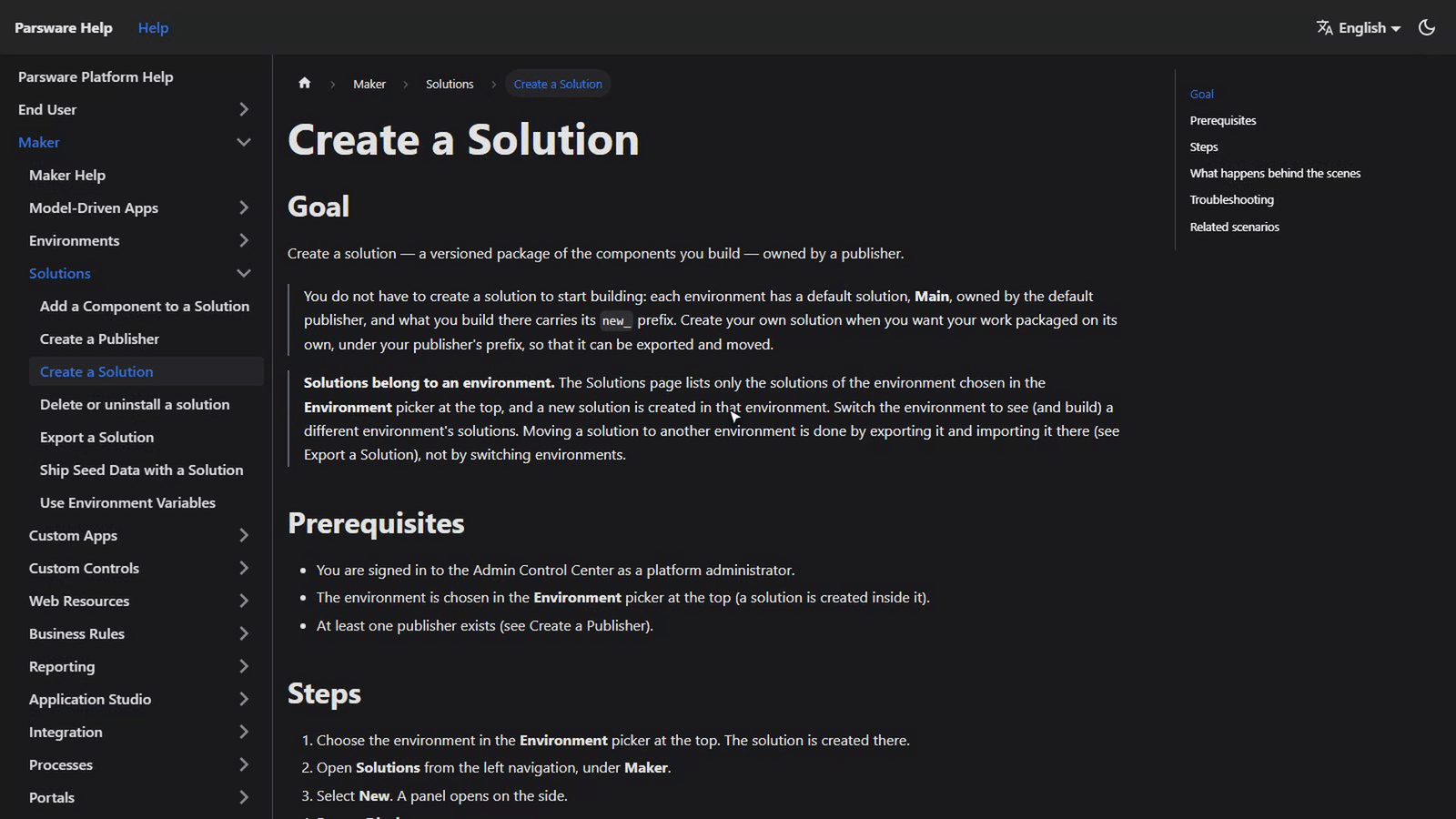
Select the question mark. The help opens in a new tab, on the page for the screen you were on. From Solutions, that is Create a Solution.
Step 3: Read the page
Every page has the same shape:
| Part | What it tells you |
|---|---|
| Goal | What the page helps you do. |
| Prerequisites | What you need before you start. |
| Steps | Numbered, one click at a time. |
| Troubleshooting | The messages you might see, and what each one means. |
| Related | The pages around it. |
| On the right | The page's own contents: jump straight to any part. |
| On the left | The other pages, grouped by who they are for: makers, administrators, the people using an app. |
Step 4: Go back to your work
The help is in a tab of its own, so the portal is still exactly where you left it. Close the tab.
Step 5: Another screen, another page
The link follows you from screen to screen.
- Open the Sales Tracker solution.
- Select the question mark again.
This time it opens a different page: Add a component to a solution. Its steps describe the screen you came from.
| Screen | The page its Help link opens |
|---|---|
| Users | the page about users |
| Solutions | Create a Solution |
| A solution's Overview | Add a component to a solution |
| Tables | Create a Table |
| A list in an app (Shell) | Work with records in a view |
Step 6: Help in your language
- In the portal, open the language menu and pick فارسی (Persian). The portal changes at once.
- Select the question mark. The same page opens in Persian, reading from right to left.
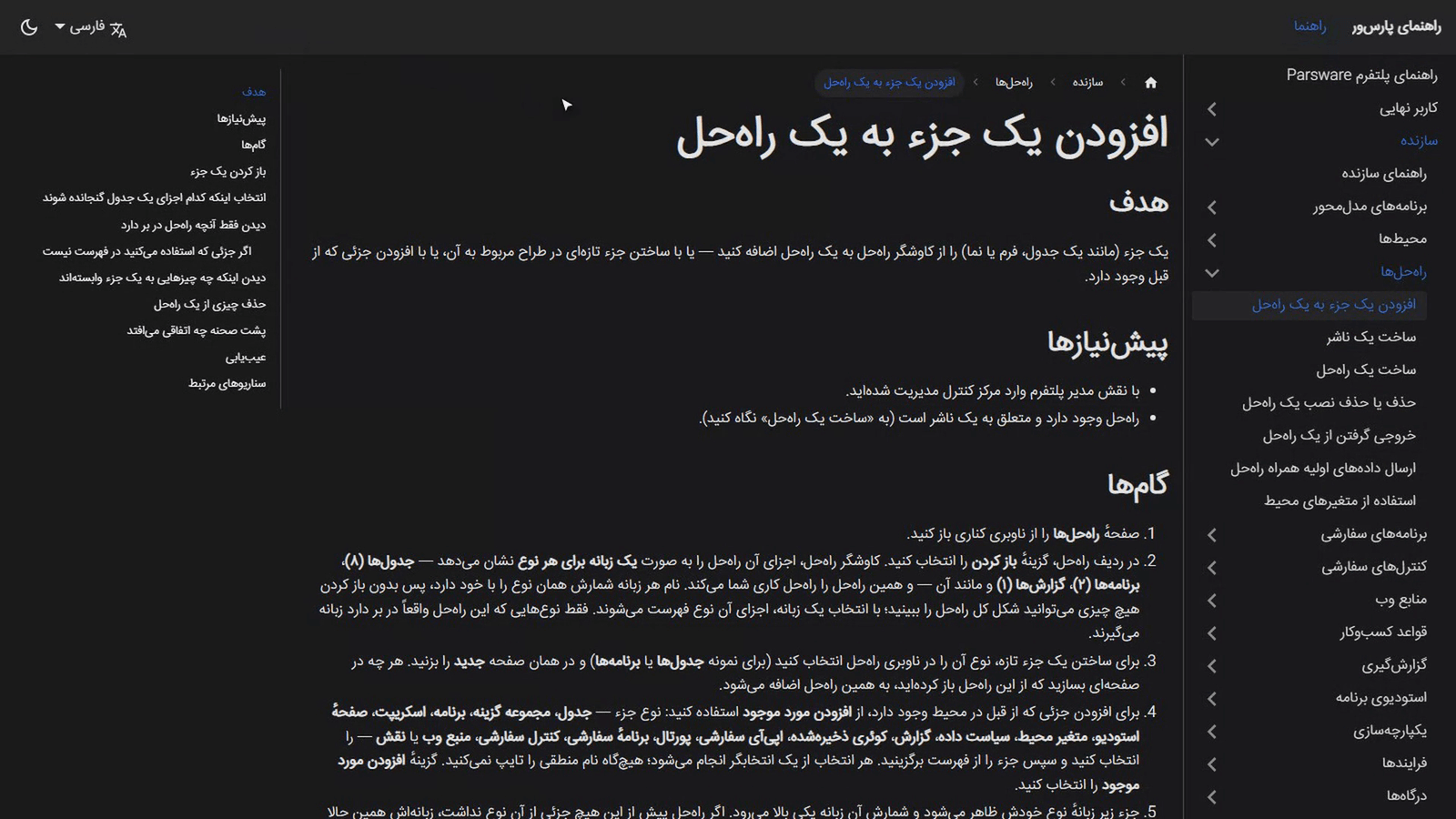
The help comes in every language the portal does: English, Deutsch, Español, Français, Nederlands, فارسی and العربية.
- Close the tab. The portal is still in Persian, where you left it.
- Open the language menu again and pick English.
Step 7: Help in the Platform Shell
The Shell, where people use your apps, has the same Help link.
- Open the environment's address, then Room Bookings, then its list of Rooms.
- Select the question mark.
Here it opens a page written for the people using the app: Work with records in a view.
If something goes wrong
- The page opens in English though you work in another language. The portal's language is what the link carries. Check the language menu, then select Help again.
- The page doesn't match what you see. Tell us, with the screen's name. Every screen is meant to have its own up-to-date page.
What you know now
Where the help for any screen is, in your language, from the maker portal and from every app. When you are stuck, it is the first place to look.
Read more
- The help page: Find Your Way Around, the page this screen's Help link opens.
- The feature, explained: Help on every screen.
- The next how-to: How to create a table.
- Every how-to: the How-tos category.
Is there a task you would like to see done step by step? Tell us. parsware.com/contact