How to find your way around the maker portal
A tour of the Admin Control Center: Home, the rail, a solution's own rail, the environment picker, lists and drawers, the Help link and the language menu. How-to video H008, step by step.
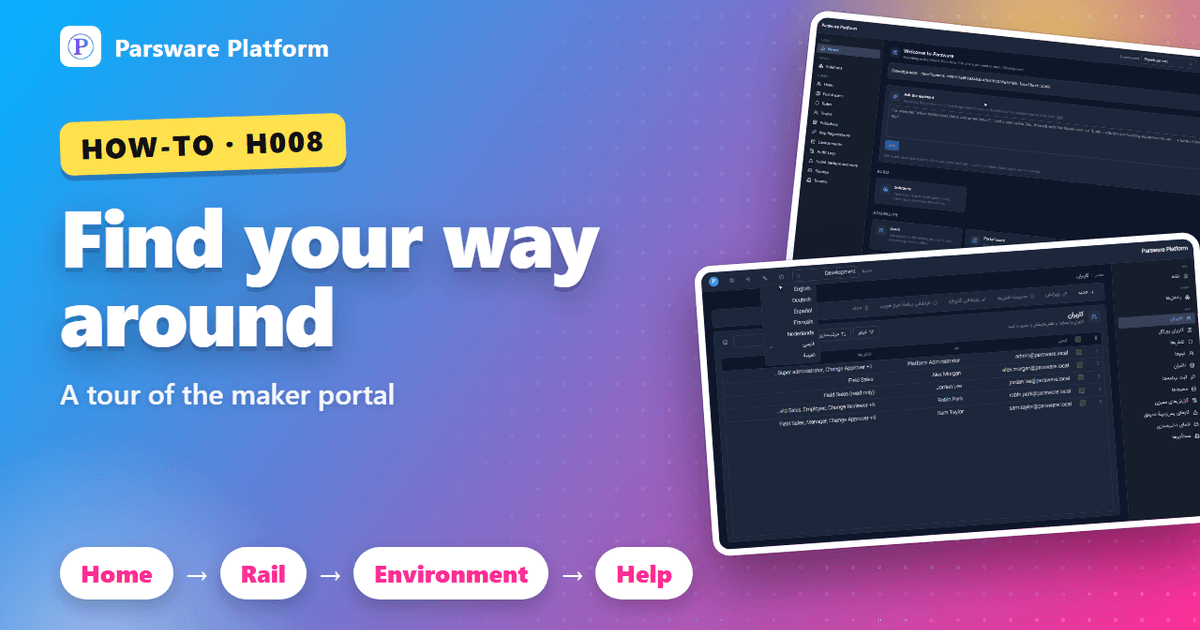
How-to H008 · 2 min 54 s. A complete tutorial: a guided walk round the Admin Control Center, in the order the video takes, with what each part is for. The picture is a frame of the video.
Every later how-to starts somewhere in the Admin Control Center, the maker portal. This tutorial walks you round it once, so that "open Solutions" or "pick the environment" never leaves you looking. Follow along with the portal open beside you.
Before you start
You are signed in to the Admin Control Center, as in How to sign in for the first time. To try the environment picker, your tenant needs a second environment. If it has only one, skip step 3 for now and come back after How to create an environment.
The screen at a glance
| Where | What it is |
|---|---|
| Top bar, right | The environment picker, the Help link (?) and the language menu. |
| Rail, left | Every place you can go. It stays with you on every screen. |
| Middle | The screen you are on: Home, a list, a designer. |
| Side panel | A drawer that opens over a list when you select a row or New. |
Step 1: Home
Home is the first screen after you sign in.
- At the top, the environment you are working in, and its address. The button beside it opens the Shell, where people use your apps.
- Below that, the assistant. Ask a question in plain words. Tick Allow changes and it can do the work for you.
- Then the cards, one for every place you can go, in two groups: Build, where you make things, and Administer, where you look after your tenant.
Step 2: The rail
The same places are in the rail on the left.
- Home is first, so you are never more than one click from here.
- Under Maker is Solutions. Almost everything you build lives in a solution.
- Open a solution. The rail changes to that solution's own parts: Tables, Option Sets, Forms, Apps, Studio apps, Reports, Processes and the rest.
- Select Back to Solutions, at the top of the rail, to leave it again.
- Select Home.
Step 3: The environment picker
Each environment is separate, with its own tables and data, so most of what you see belongs to the environment chosen here.
- Select the environment picker, at the top right.
- Type a few letters to narrow the list, and pick another environment. The video picks Expenses.
- Switching reloads the portal and brings you back to Home, now in that environment.
- Switch back the same way. The video goes back to Development.
Before you build anything, check this picker. It is the most common reason something "has disappeared": it was made in another environment.
Step 4: A list and its drawer
Under Admin in the rail are the screens that look after your tenant. Select Users. Most screens look like this:
- A command bar along the top, with New first.
- The list. Select a column heading to sort by it, and type in the search box to narrow the rows.
- Select a row to open it in a drawer. It slides in from the side, with the list still behind it.
- Change what you need and select Save. Or select Cancel, or press Escape, to close it without saving.
The same pattern works on Publishers, Environments, Roles, and on every list inside a solution.
Step 5: Help
The question mark in the top bar is Help.
- Select it. It opens the help page for the screen you are on, in a new tab. On Users, that is the page about users.
- Close the tab to go back. The portal is exactly where you left it.
Every screen has one, so when you are stuck, it is the first place to look. How to get help on any screen goes further.
Step 6: Your language
Beside Help is the language menu.
- Open it and pick فارسی (Persian). The whole portal changes at once, without signing out. Persian and Arabic read from right to left, so the rail moves to the right-hand side.
- Select Help: it opens the Persian page.
- Open the language menu again and pick English to come back.
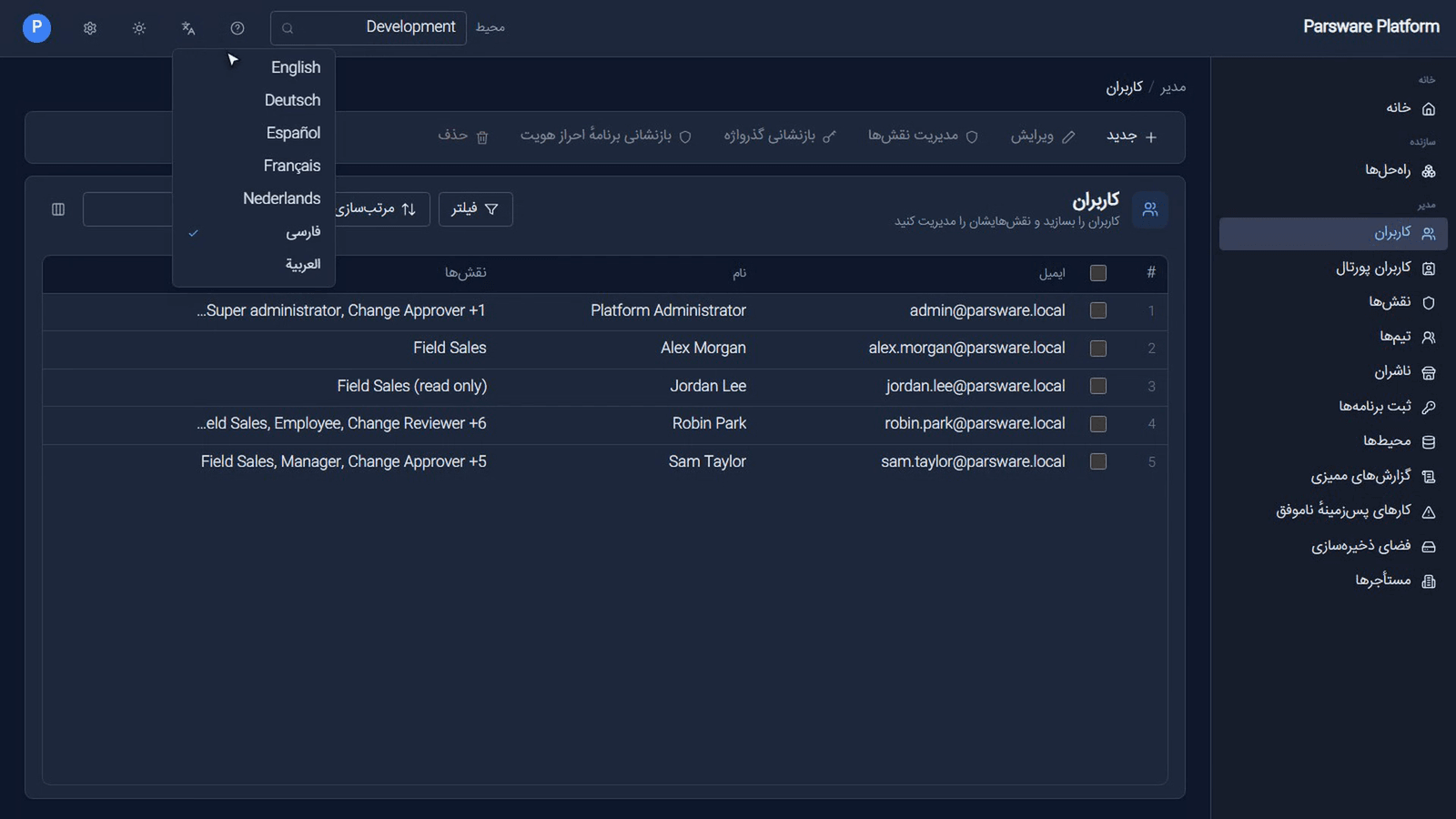
The portal offers English, Deutsch, Español, Français, Nederlands, فارسی and العربية.
What you know now
| You want to… | Go to… |
|---|---|
| Build a table, an app or a process | Solutions, then the solution |
| Work in another environment | The environment picker, top right |
| Add a person or give them a role | Admin › Users |
| Open the apps as their users see them | The button beside the environment on Home |
| Find out how a screen works | ? in the top bar |
| Change the language | The language menu, beside ? |
Read more
- The help page: Find Your Way Around, the page this screen's Help link opens.
- The feature, explained: Find your way around the Parsware maker portal.
- The next how-to: How to create an environment.
- Every how-to: the How-tos category.
Is there a task you would like to see done step by step? Tell us. parsware.com/contact