How to sign in to the maker portal for the first time
From the welcome email to the maker portal's Home: set a password, set up an authenticator app, sign in with a code and find where to build. How-to video H007, step by step.
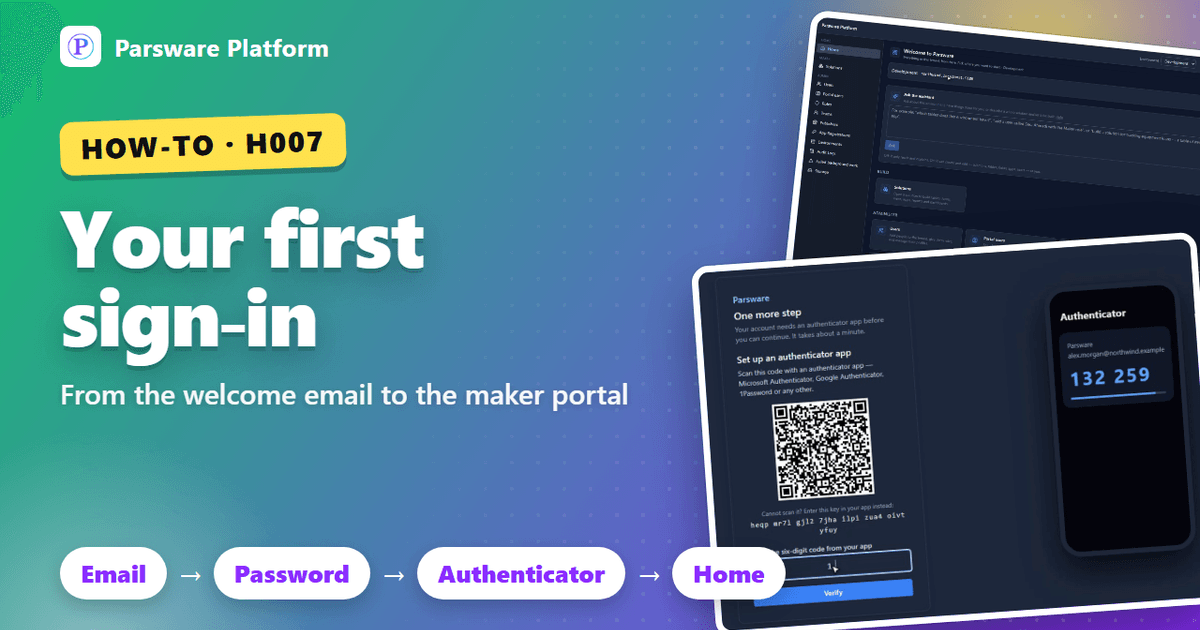
How-to H007 · 2 min 52 s. A complete tutorial: every screen between the welcome email and the maker portal's Home, in order. The picture is a frame of the video.
Everyone's first minute on the platform is the same: an email, a password, a code. This tutorial follows Alex Morgan, a new administrator at Northwind Traders, from the welcome email to the place where apps are built.
It takes about five minutes. You need your phone.
Before you start
- The welcome email. It arrives when your company starts a trial, or when an administrator adds you as a user. It is called Your Parsware tenant is ready.
- An authenticator app on your phone: Microsoft Authenticator, Google Authenticator, 1Password or any other app that shows six-digit codes. Every platform account needs one.
- A safe place for ten recovery codes, such as a password manager.
Step 1: Open the welcome email
The email names your tenant (your company on the platform) and the address your environment lives at. There is no password in it. There is one link, which works once, for seven days.
Select Set my password and sign in.
If the link has expired or was already used, ask your administrator to send a new welcome email.
Step 2: Set your password
The link opens the welcome page, on your environment's own address.
- Type a password of at least twelve characters.
- Type it again.
- Select Set my password.
The page says the password is set, and names the email address you sign in with. Select Go to sign in.
Step 3: Sign in with your password
The email address is already filled in. Type your password and select Sign in.
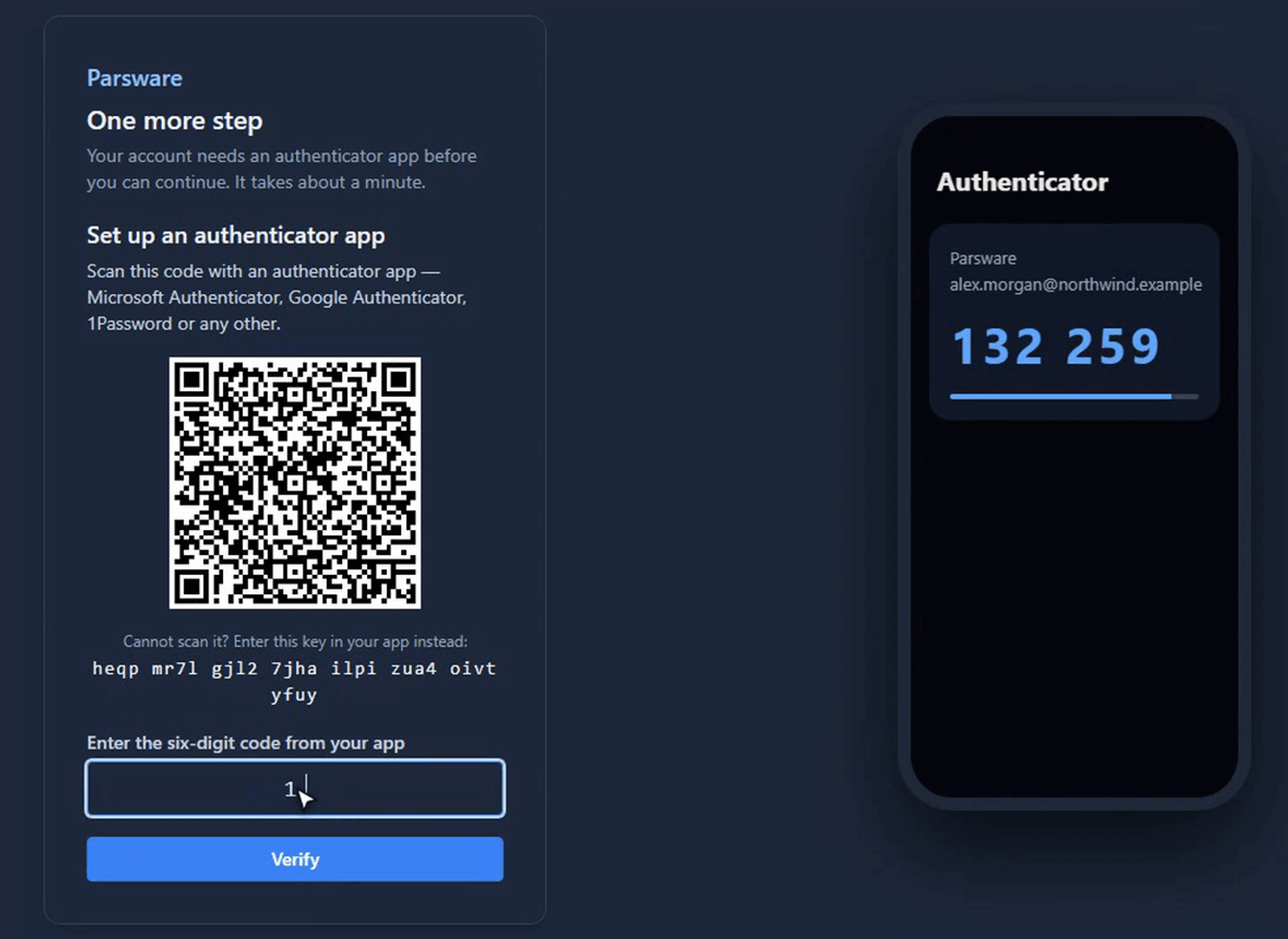
Step 4: Set up the authenticator app
Because this is your first sign-in, the platform goes straight to setting up two-step sign-in.
- Open the authenticator app on your phone and add an account.
- Scan the square code on the screen. If the camera won't read it, type the key shown under it instead.
- The app now shows a six-digit code for your account, which changes every thirty seconds. Type the current one and select Verify.
Step 5: Keep your recovery codes
Next come ten recovery codes. Each one signs you in once, if you lose your phone.
- Copy them into your password manager, or somewhere just as safe. They are shown only now.
- Tick that you have saved them.
- Select Finish setup.
Step 6: Sign in with a code
Sign in once more, this time with a code from the app as well:
- Type your email address and password, and select Sign in.
- Type the six-digit code your phone shows now.
Each code works once. If the one on your phone is about to run out, wait a moment for the next.
From now on, signing in is always these two steps: your password, then the code on your phone.
You are now in the Platform Shell, where people use the apps in your environment. A new environment has one app so far.
Step 7: Go to the Admin Control Center
You build in the Admin Control Center, also called the maker portal.
- Open the user menu, at your initial in the top right corner.
- Select Admin Control Center. The menu offers it to administrators.
- It is a separate app, so sign in there the same way: your email, your password, and a code from your phone.
The code you used a minute ago won't work a second time, so wait for a fresh one.
Where you are now
This is Home in the Admin Control Center:
| Part of the screen | What it is for |
|---|---|
| The environment, at the top | The environment you are working in, and its address. |
| The assistant | Ask a question in plain words, or have it do the work. |
| The cards | Everything you build and administer starts from here. |
| The rail, on the left | Solutions, where you build, and the screens that administer your tenant. |
Every other how-to in this series starts from this page.
If something goes wrong
- The link in the email doesn't work. It works once, for seven days. Ask an administrator to send the welcome email again.
- The code is refused. Check the date and time on your phone are set automatically: the codes depend on it. Then wait for the next code and try again.
- You lost your phone. Type one of your recovery codes in place of the six-digit code, then move two-step sign-in to the new phone (Replace your authenticator app). If the recovery codes are gone too, a tenant administrator has to reset your authenticator.
- There is no Admin Control Center in the user menu. Your account isn't an administrator. Ask the person who added you.
Read more
- The help page: Set your password from the welcome message, the page this screen's Help link opens.
- The feature, explained: Two-step sign-in.
- The next how-to: How to find your way around the maker portal.
- Every how-to: the How-tos category.
Is there a task you would like to see done step by step? Tell us. parsware.com/contact