Parsware Platform
Two-step sign-in
Every account that signs in to the Shell or the Admin Control Center needs an authenticator app as well as a password. We followed Alex Morgan's first sign-in: the setup screen, a code refused because it was out of date, ten recovery codes, and the next sign-in asking for a code.
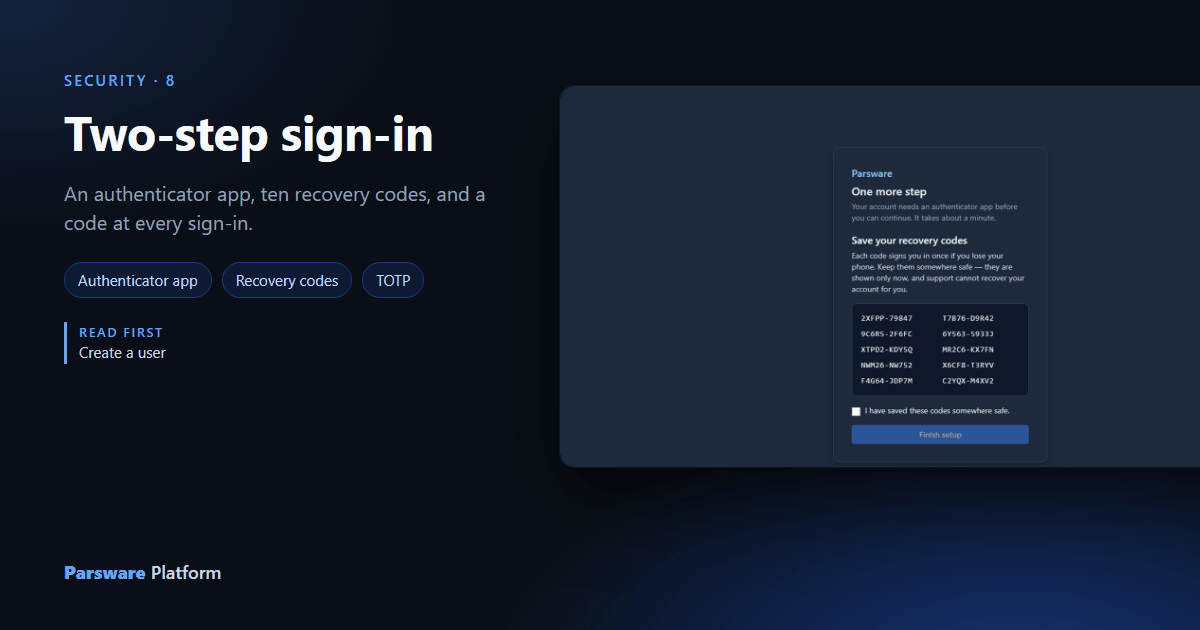
A password on its own is one leak away from somebody else. Two-step sign-in adds a second thing only the person has: a phone with an authenticator app that shows a new six-digit code every thirty seconds.
For the people who use the Shell and the Admin Control Center, it isn't optional. Those screens hold every customer record, so an account without an authenticator app is taken to set one up the first time it signs in, and can't go anywhere else until it's done. Customers signing in to a portal or to parsware.com are offered it, not made to.
Any standard authenticator app works: Microsoft Authenticator, Google Authenticator, 1Password, Bitwarden, Authy.
The first sign-in
Alex Morgan, from Create a user, signs in with email and password and gets this instead of the launcher:
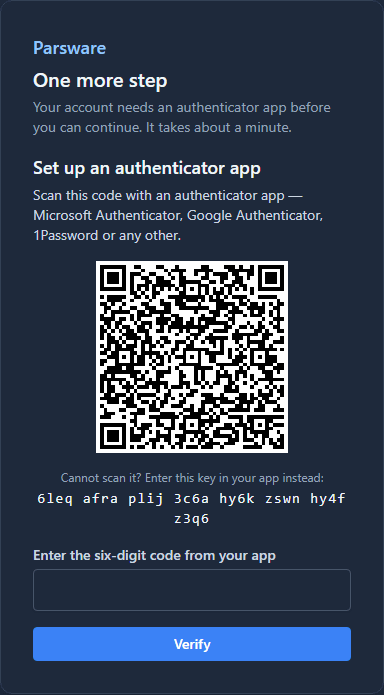
Scan the square with the app. If the camera won't read it, add an account by hand and type the key underneath; the spaces are only there to make it readable.
The code
The app now shows a code. Type the current one and select Verify. Codes are worked out from the time, so a phone whose clock is a few minutes out produces codes that are refused:
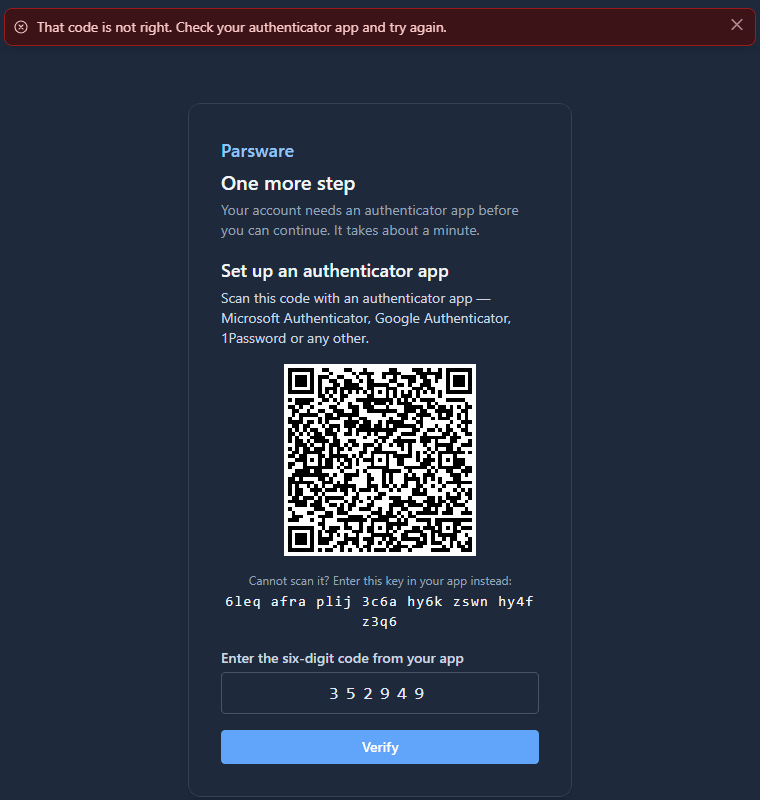
That's almost always the cause. Turn on automatic date and time on the phone, and the next code works.
Recovery codes
A correct code brings up ten recovery codes. Each one signs you in once without the phone:
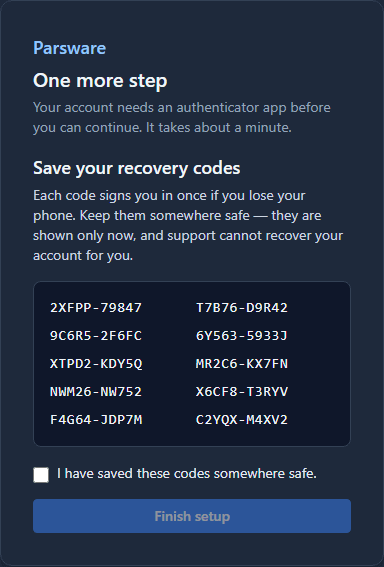
This is the only time they're shown. They're stored the way a password is, so nobody, support included, can read them back later. Put them in a password manager, tick I have saved these codes somewhere safe, and select Finish setup.
Nothing about the account changes until that button. Close the tab before it and the account is exactly as it was, with no authenticator app half switched on behind codes nobody kept.
Every sign-in after
Alex is asked to sign in again, and from now on the sign-in page asks for a code as well:
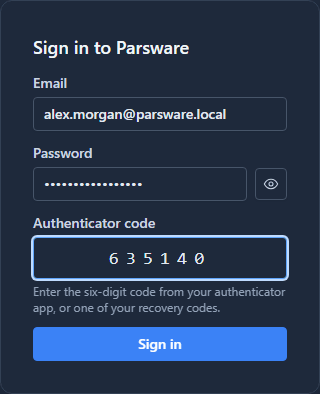
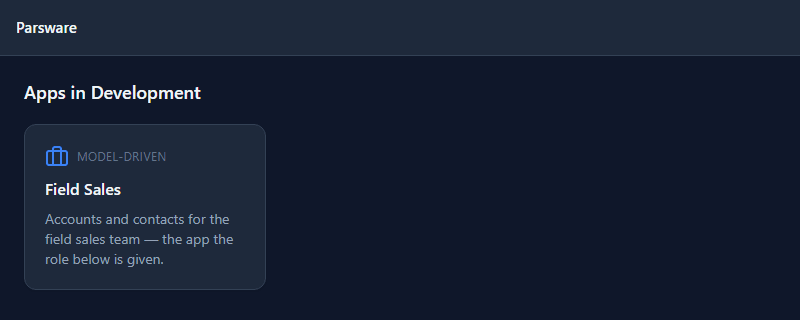
The same box takes a recovery code. Then the launcher, as before:
A few actions ask for a code again even while signed in, such as an administrator changing somebody's roles or resetting their authenticator: an unlocked laptop shouldn't be enough to do those.
What we fixed
Starting the setup sometimes failed with The authenticator app could not be set up before the QR code appeared. The screen asked for a key twice at once (a development build does that by design, and two open tabs can do it anywhere); both requests created one, and the second failed. The second request now gets the key the first created. If you met that message, signing in again sets up normally.
Good to know
- Lost the phone? Sign in with a recovery code and set up the new phone. Without the codes, an administrator can reset the authenticator; the next article covers both.
- It doesn't stop a fake sign-in page. A site that collects the password and the code can use both within thirty seconds. Check the address before you type either.
- Each recovery code works once. Cross one off when you use it.
Try it
Create a test user, sign in as them in a private window, and set up an authenticator app on your own phone.
Next: Lost phone: replace or reset an authenticator.