Parsware Platform
Create a user
A new user is an email, a name and a password you hand over yourself. We added Alex Morgan, had a short password refused, gave Alex the Field Sales role, and watched their first sign-in open on the one app that role is shared with.
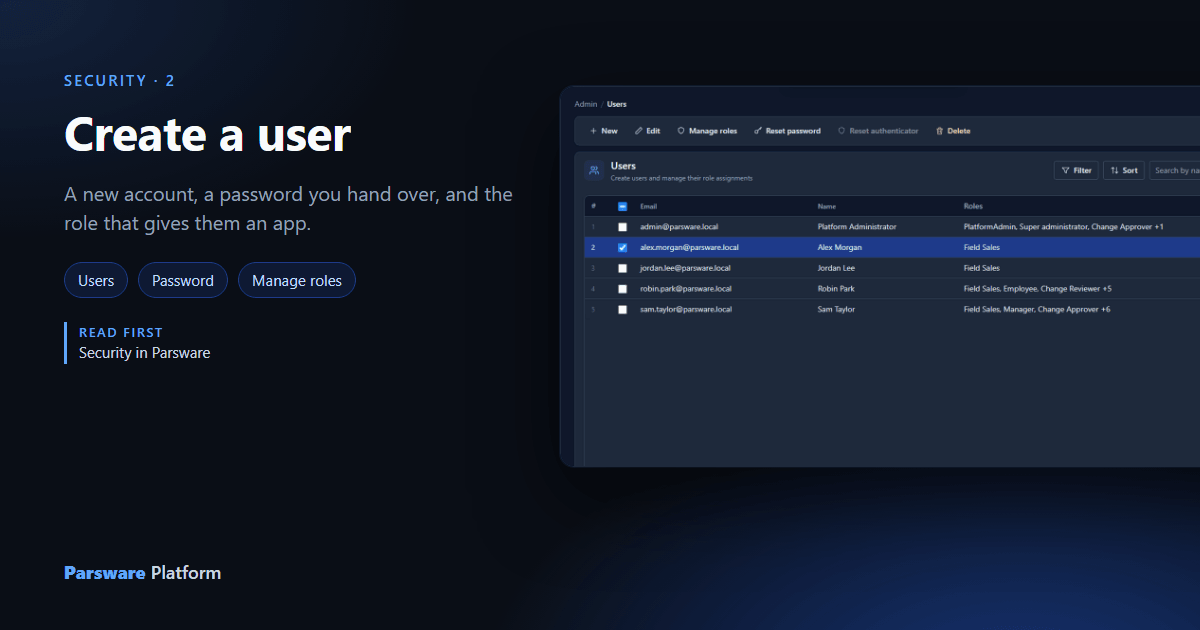
Alex Morgan has joined the field sales team and needs the Field Sales app. Two steps: an account, then a role. Both are in the Admin Control Center under Users.
To follow along, the An app that arrives shared with the people who need it sample should be imported; it brings the Field Sales app and its role.
The account
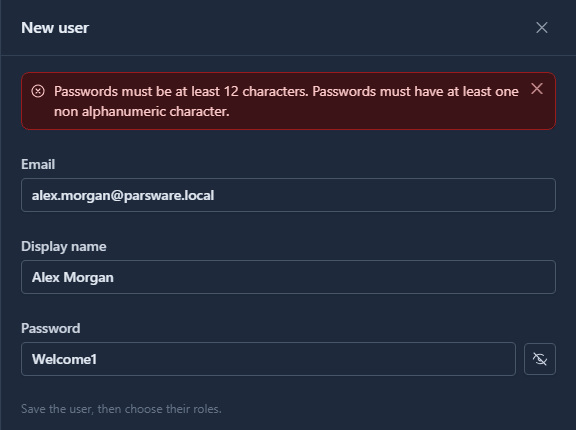
On Users, select New. The panel asks for an email, a display name and a password. The eye button beside the password shows what you typed, because you're about to pass it on to somebody and that is the only way to check it.
A password has to be at least 12 characters, with at least one character that isn't a letter or a digit. Welcome1 is neither:
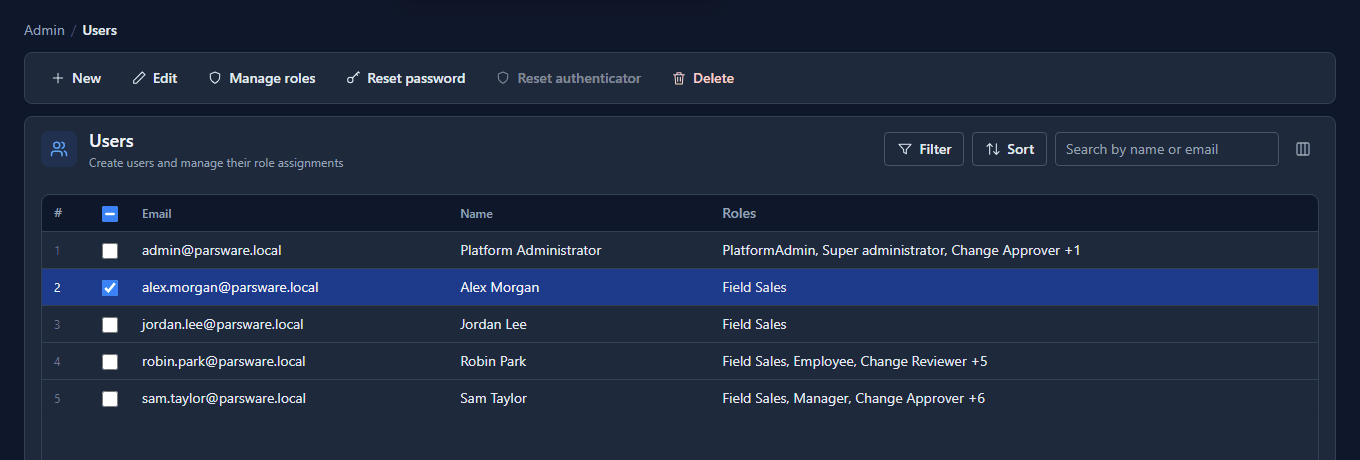
With a longer password, Add creates the account. Alex is in the list, holding nothing:
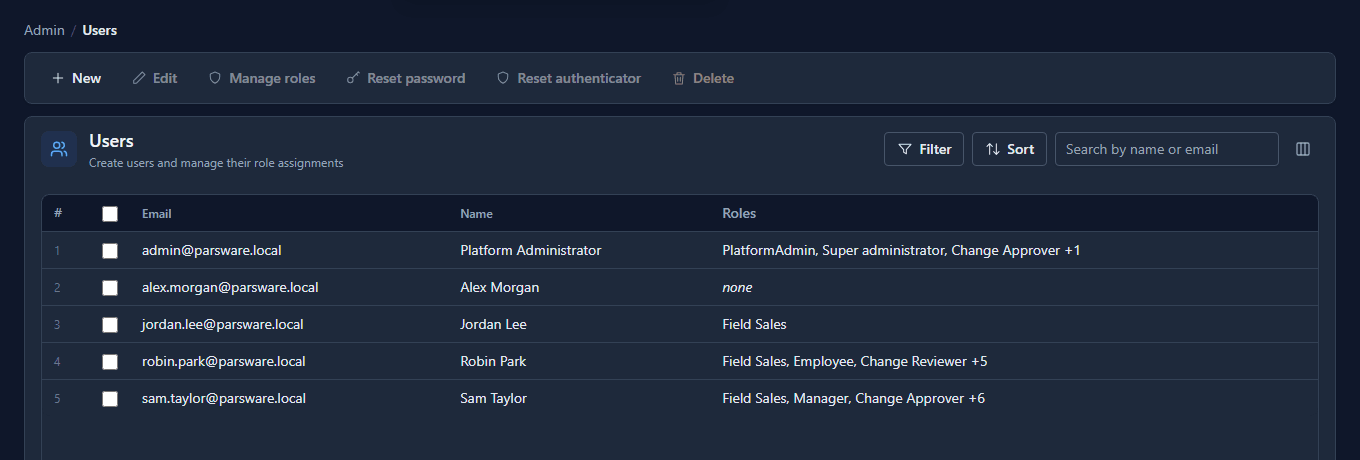
No email goes out. The platform doesn't send a new user a welcome message or a link. You give Alex their email address, the password and the address of the Shell yourself. The account works straight away.
The role
Alex could sign in now, but would see an empty launcher: an account on its own can do nothing. Tick Alex's row and select Manage roles. The panel lists every role in the tenant, with a search box:
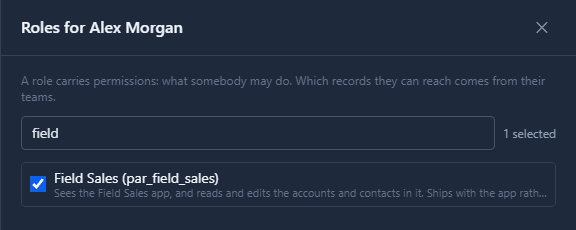
Tick Field Sales and Save:
Alex signs in
Alex signs in to the Shell, and the launcher has one app on it, the one Field Sales is shared with:
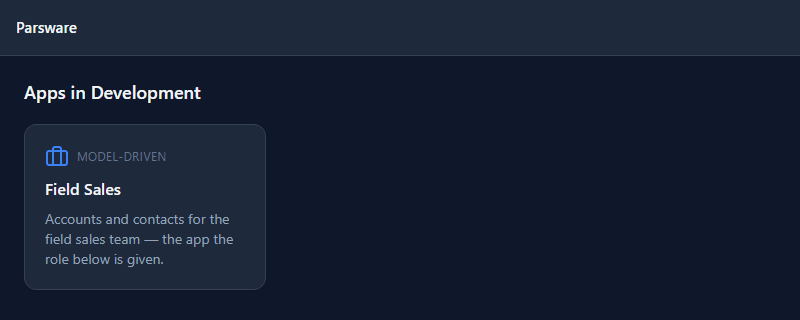
Opening it lists accounts and contacts, with New on the bar, because the role may create and update both. The next article is about exactly those permissions.
What we fixed
The refusal used to read Passwords must be at least 12 characters.; Passwords must have at least one non alphanumeric character. The administrator's user screen joined the reasons with a semicolon after a full stop; every other screen used a space. The reasons are now joined in one place, so they read as sentences everywhere.
Good to know
- The account is tenant-wide. Alex signs in to every environment with it, and sees in each one the apps their roles are shared with there.
- A role given here reaches Alex at their next sign-in. If Alex was already signed in, they need to sign out and back in. A role given through a team doesn't wait.
- A profile is optional. Open the user with Edit to add a photo, a job title, a department and a phone number.
Try it
Create a user, give them one role, and sign in as them in a private window. Then take the role away again and sign in once more.
Next: Security roles in practice.