Parsware Platform
Security in Parsware
Who may open an app, what they may do with a table, and which of its records they see are three separate questions in Parsware, answered by users, roles, teams and policies. This is the map: what each piece is, where it lives, and which question it answers.
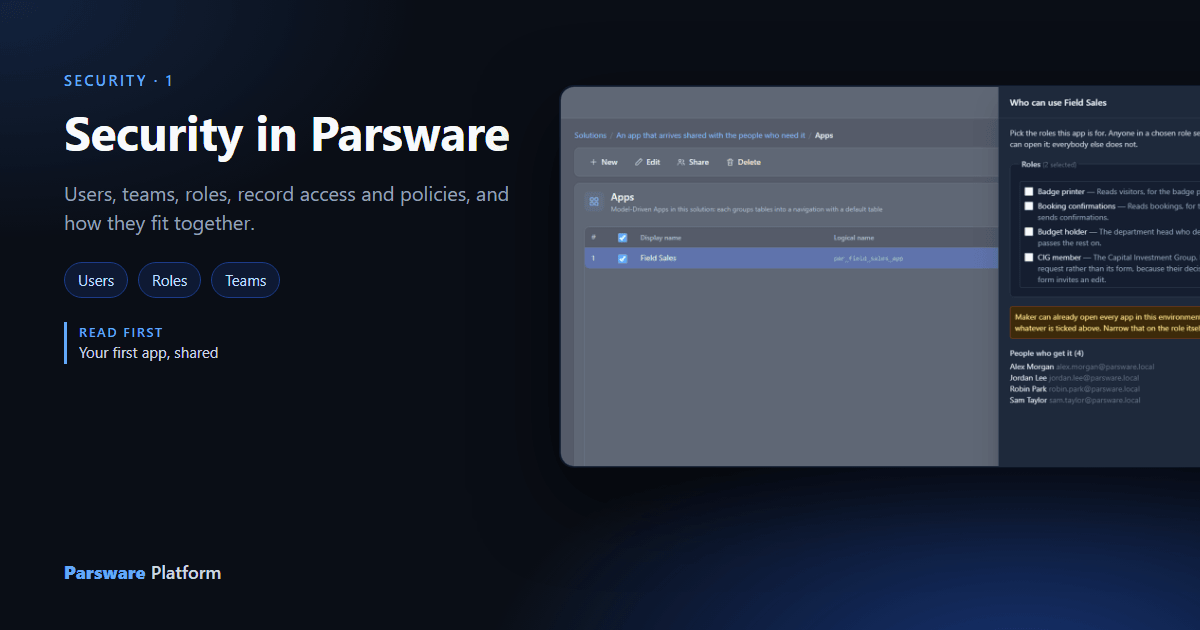
Every request somebody makes in Parsware gets three questions asked about it:
- May they open this app at all?
- What may they do with this table? Create, read, update, delete.
- Which of its records does that reach? Their own, their team's, their unit's, or every one.
Four pieces answer them: users, roles, teams and policies. Each is simple on its own. This article is the map of how they fit, and the next few articles go through them one at a time with the Field Sales sample from Your first app, shared.
Users
A user is a person's account: an email, a name, a password, and optionally an authenticator app. Users belong to the tenant, not to an environment, so the same person signs in to Development, Test and Production with one account.
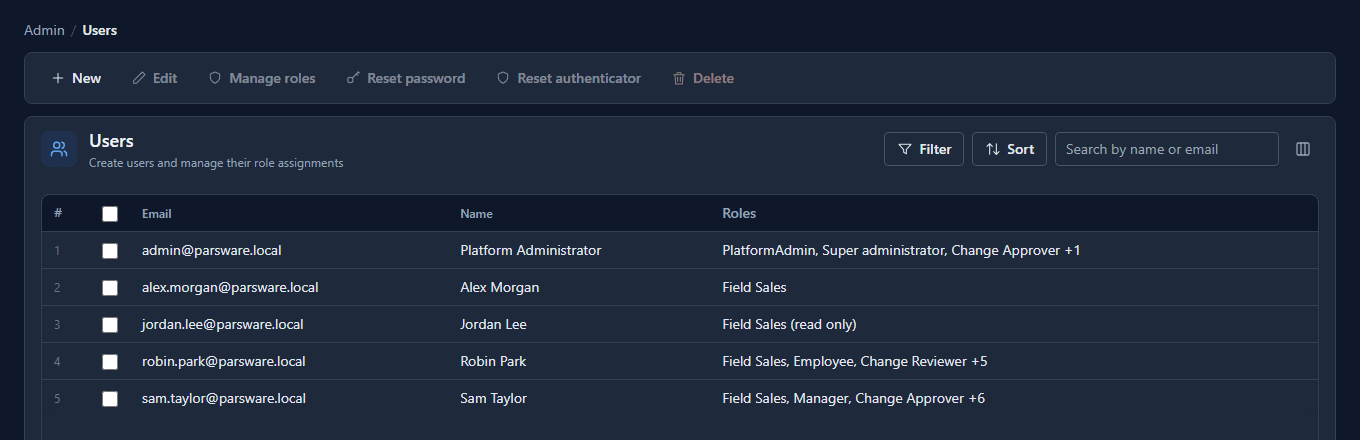
A user on their own can sign in and do nothing. Everything they can do comes from roles.
Roles
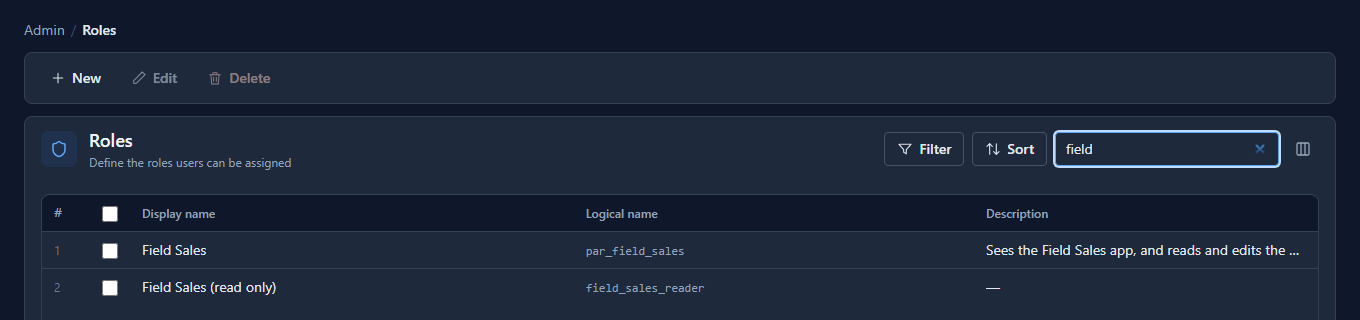
A role is a name for a job: Field Sales, Claim Reviewer, Change Approver. Like users, roles belong to the tenant. The Roles page holds each role's name and what it's for:
What a role may do is decided somewhere else: inside a solution, one environment at a time. Open a solution, choose Roles, and each table gets four cells, Create, Read, Update and Delete. Each cell holds a policy that says which records the permission reaches:
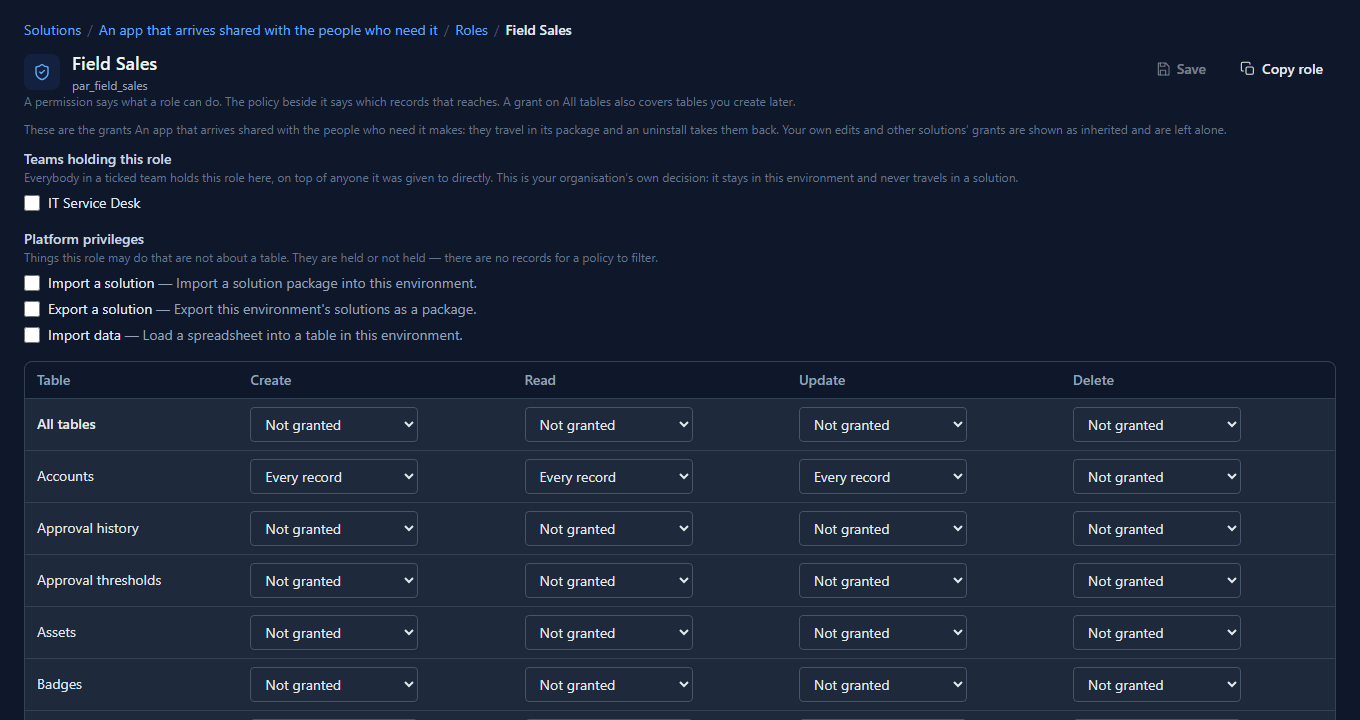
That split is the most important thing on this page. A role's name is tenant-wide, so a person holds Field Sales everywhere. A role's permissions travel in the solution, so Development can grant it more than Production does, and an import is how Production gets the same grants.
Policies: which records
The built-in policies run from narrow to wide: Records I own, Mine and my teams', My teams' records, My unit, My unit and below, My unit and above, My whole branch, Every record. They read two things: who owns each record, and where people sit in the organisation.
When none of them says what you mean, a data policy does: a rule of your own, such as claims in my units, written once and chosen in the same cells.
Teams
A team is a group of people that a record can belong to. Like users and roles, teams are tenant-wide:
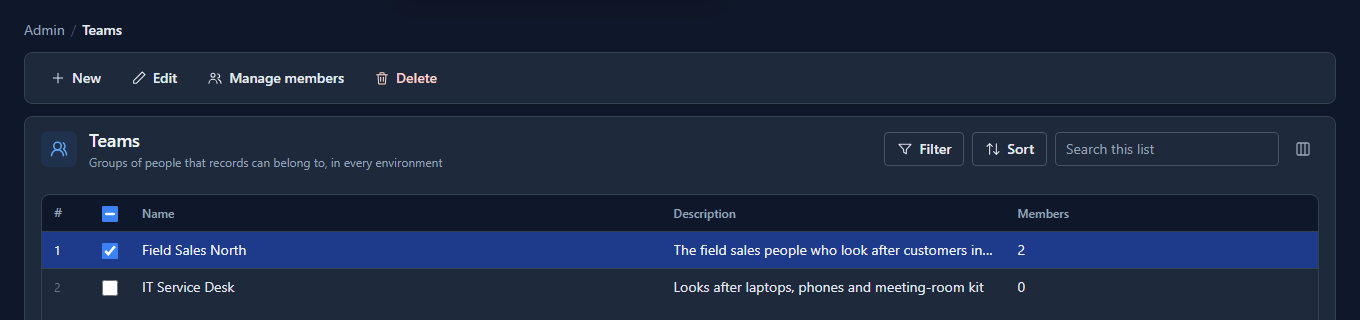
A team does two jobs. It decides which records the team policies reach: my teams' records means records owned by a team you're in. And a team can hold a role in an environment, so everybody in it gets the role without being given it one by one.
Apps
Sharing an app is a permission like the others: Open on the app, granted to roles. The Share panel turns that into the people it reaches:
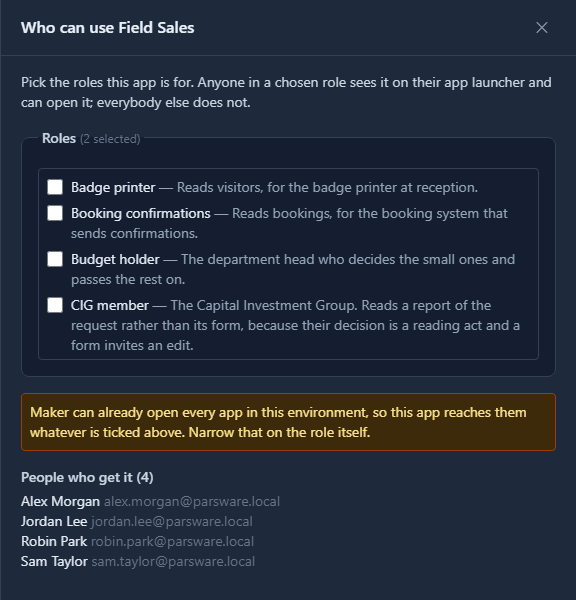
How a request is checked
When Jordan opens the Accounts list, the platform:
- collects Jordan's roles: those given to Jordan directly, plus those held by any team Jordan is in, in this environment;
- looks up what those roles may do with account in this environment, and under which policy;
- turns the widest policy into part of the database query, so records outside it never leave the server;
- and, on a save, runs any data policy that judges the record.
The screen follows the same answer. A person who may not create gets no New button, and a person who may not update gets the record without Save. The check on the server happens anyway, every time.
One account is outside all of this: the tenant administrator bypasses roles entirely, so nobody can revoke the grant that would put access back.
Where each piece lives
| Piece | Belongs to | Answers |
|---|---|---|
| User | The tenant | Who is asking |
| Role | The tenant (its name) and each solution (its permissions) | What they may do |
| Policy | Each environment, chosen per permission | Which records that reaches |
| Team | The tenant (its members) and each environment (the roles it holds) | Whose records, and roles for a group |
| App sharing | Each solution | Who sees the app |
What we fixed
The Users list named each person's roles by their logical names, par_field_sales, while the
Manage roles panel beside it called the same role Field Sales. The list now shows the
names people read, with the logical name when you point at it.
Good to know
- Nothing is granted by default. A new role permits nothing, and a new environment grants only the Maker role.
- A role given on the Users page reaches a signed-in person at their next sign-in. A role reached through a team takes effect on their next click. Teams shows both.
- Who holds a role never travels in a solution. The package brings the role and what it may do; which of your people hold it is your decision in each environment.
The articles in this part
Create a user, Security roles in practice, Teams, then record access, row-level security, setting up your organisation, two-step sign-in, passwords, the audit log, tenants and object storage.
Next: Create a user.