How to create a solution
Create a solution owned by your publisher, the package everything you build goes in, and open its own rail to start building. How-to video H011, step by step.
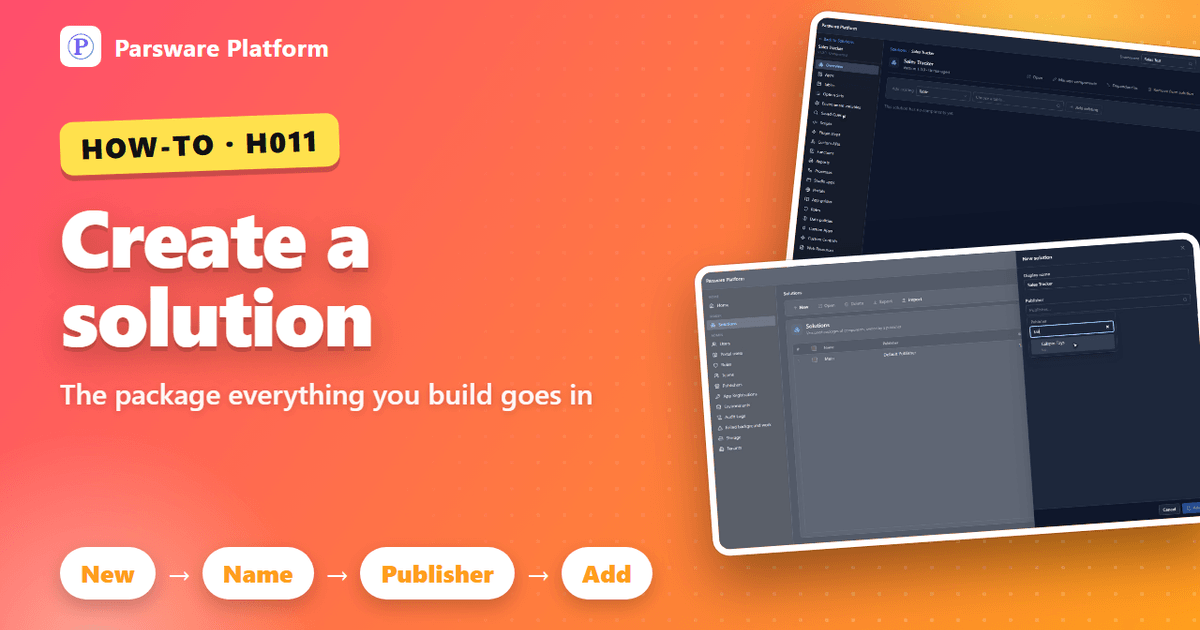
How-to H011 · 1 min 47 s. A complete tutorial: every click and value the video uses, and what the solution's own screen offers once it opens. Every picture is a frame of the video.
A solution is the package you build in. Its tables, forms, views, apps, processes and reports travel together, so the whole thing can be exported and imported into another environment. In this tutorial you create Sales Tracker, owned by the Tailspin Toys publisher, which the next how-tos build a sales app in.
Before you start
- The Sales Test environment from How to create an environment.
- The Tailspin Toys publisher, prefix
tsp, from How to create a publisher.
Step 1: Check the environment
A solution lives in one environment: the one selected in the environment picker at the top right. Check it reads Sales Test. If not, pick it.
Step 2: Open Solutions
Select Solutions in the rail, under Maker.
There is already one solution, Main, owned by the Default Publisher. You could build in it, but
your work would carry its prefix, new_. Make your own instead.
Step 3: Name it
- Select New.
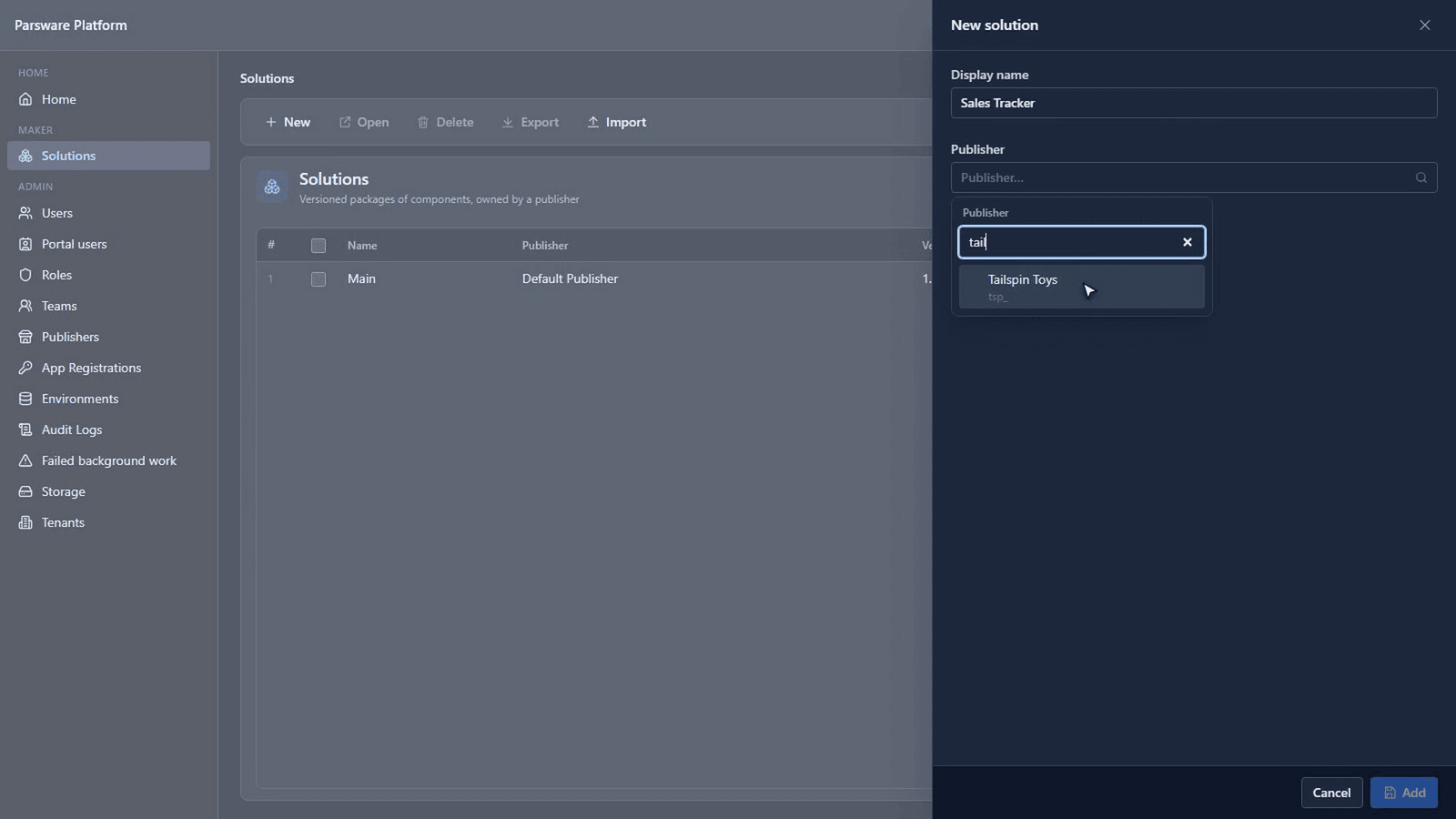
- Type the display name:
Sales Tracker.
Step 4: Choose the publisher
- Open the Publisher list and type a few letters,
tail, to narrow it. Each publisher shows its prefix under its name. - Pick Tailspin Toys, with the prefix
tsp_. Everything you build in this solution will carry it.
Add stays greyed out until a publisher is chosen. Now it is ready.
Step 5: Add it
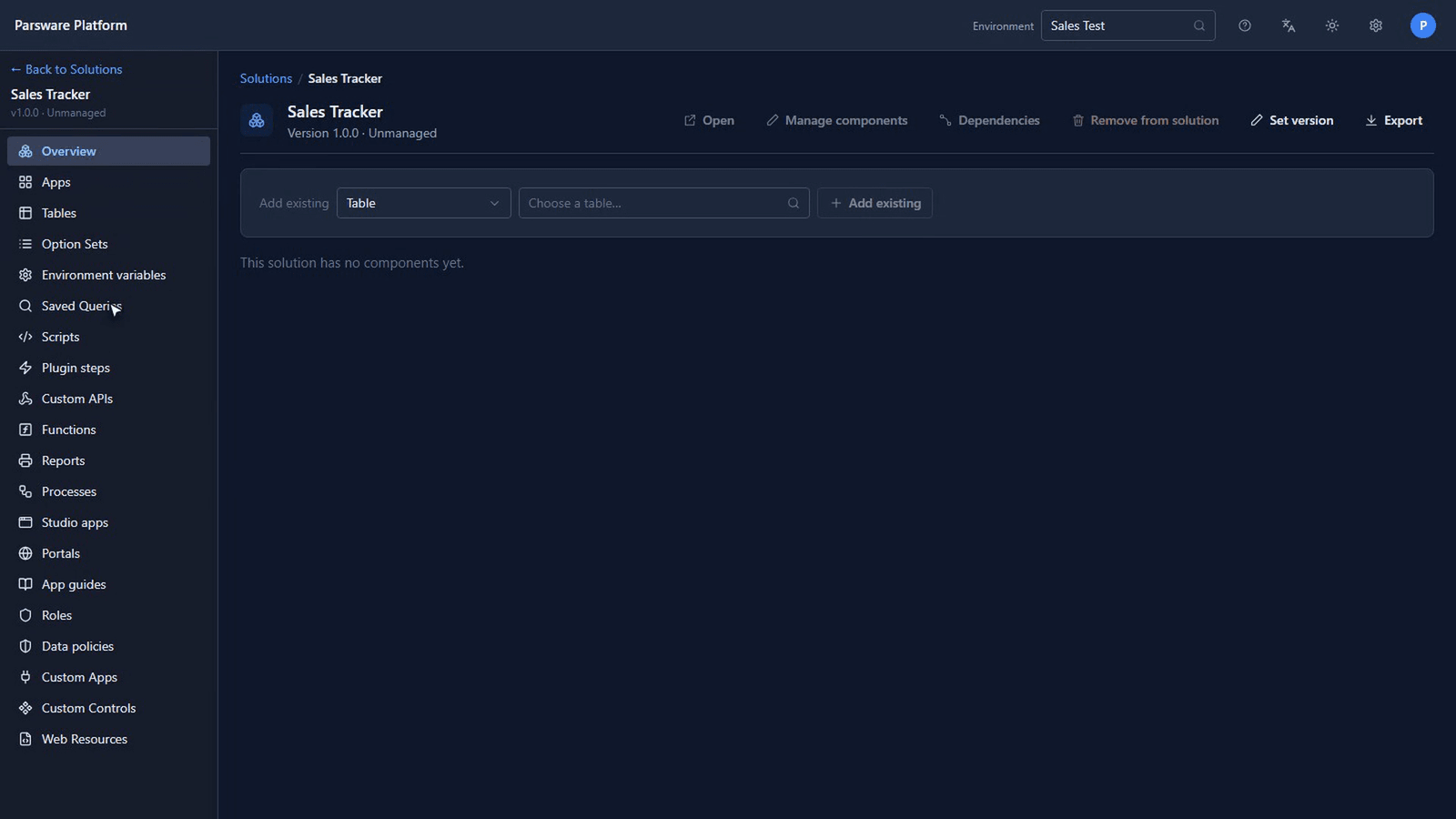
Select Add. The solution opens straight away on its Overview:
| What it shows | Value | What it means |
|---|---|---|
| Version | 1.0.0 | Every export carries the version. |
| Type | Unmanaged | You can still change everything in it. An import into another environment makes it Managed. |
| Publisher | Tailspin Toys | The tsp_ prefix on everything inside. |
Step 6: Find your way around the solution
The rail now belongs to this solution:
| In the rail | What you build there | The how-to |
|---|---|---|
| Tables | One kind of record each, with its fields, forms and views | H015 |
| Option Sets | Lists of choices any field can use | H019 |
| Apps | Model-driven apps people work in | |
| Studio apps | Drawn apps, for a desk or a phone | H003 |
| Processes | Approvals and other work with people in it | H002 |
| Reports, Saved Queries | Printable pages and the queries behind them | |
| Roles | What each kind of user may do |
At the top of the Overview:
- Set version changes the version when you are ready to ship a new one.
- Export packages the whole solution as one file, to import into another environment.
- Add existing brings a component that already exists in the environment into this solution.
Back to Solutions, at the top of the rail, takes you out again.
The solution as text
Like everything on the platform, a solution is plain text underneath. Its own details are a short
document (the sample solutions keep it as solution.json):
{
  "publisherName": "Tailspin Toys",
  "publisherPrefix": "tsp",
  "solutionName": "Sales Tracker",
  "version": "1.0.0"
}
Each component in it, a table, a form, an app, is a document of its own beside it.
If something goes wrong
- Add stays greyed out. No publisher is chosen yet.
- Your publisher isn't in the list. Publishers are tenant-wide, so it should be. Check you are signed in to the right tenant, and that the publisher was saved (step 5 of H010).
- The solution isn't in the list later. The environment picker is on a different environment.
What you built
An empty solution to build in, owned by your publisher, at version 1.0.0. The next how-tos build a table in it.
Read more
- The help page: Create a Solution, the page this screen's Help link opens.
- The feature, explained: Publishers and solutions in Parsware.
- The next how-to: How to import a sample solution.
- Every how-to: the How-tos category.
Is there a task you would like to see done step by step? Tell us. parsware.com/contact