Parsware Platform
Seed data that travels with a solution
A solution can carry rows as well as tables. Each table's Seed data view decides which rows travel, and says what they are: configuration the solution needs, which every import brings, or demonstration data, which comes only when you ask for it, and never into Production.
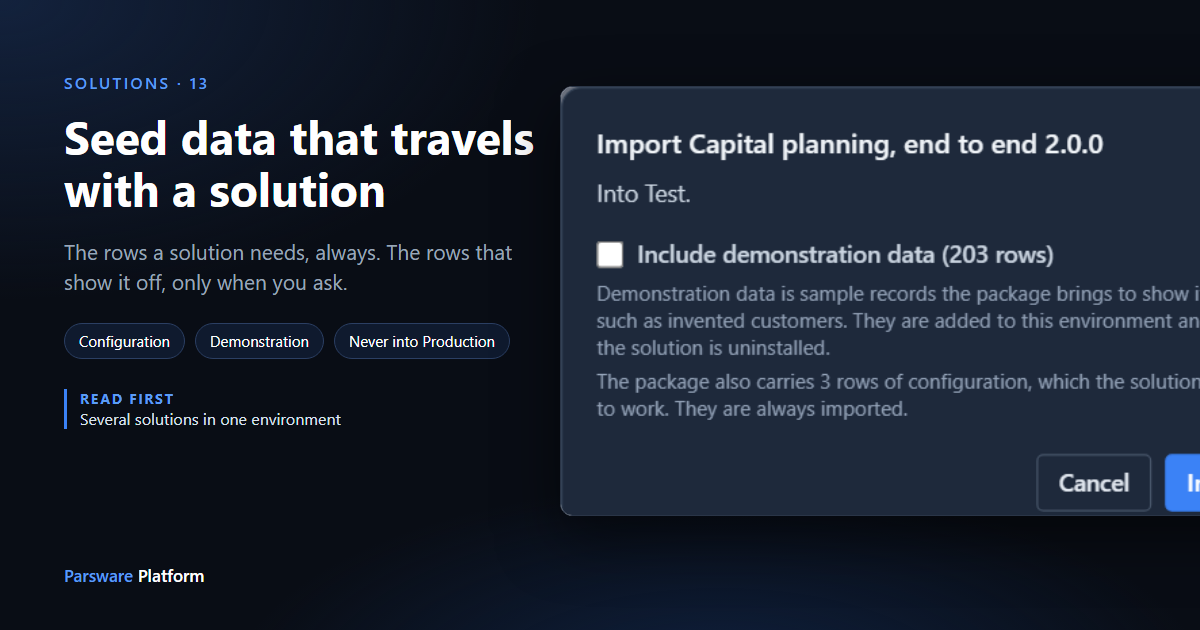
A solution is mostly metadata: tables, forms, views, apps. But some applications don't work until certain rows exist, and some only make sense with rows in them. So a solution can carry rows too, called seed data, and an import writes them into the environment along with everything else.
We'll use the Capital planning, end to end sample from the walk-through. Its rows are both kinds there are:
- Three approval threshold bands. The approval process reads them to decide who approves a request, so without them the application doesn't work. These are configuration.
- A year of a capital programme: a programme, 14 budget lines, 32 requests, 47 approval records and 109 cashflow rows. They show the application off, and nobody wants them in Production. These are demonstration.
A table's Seed data view decides what travels
A table opts in with a view whose View type is Seed data. Nobody ever sees it as a list. It is the question an export asks the table:
- its filter decides which rows travel;
- its columns decide which fields of those rows travel.
Open the sample's Approval threshold table, then Views, and open Thresholds that ship with the solution:
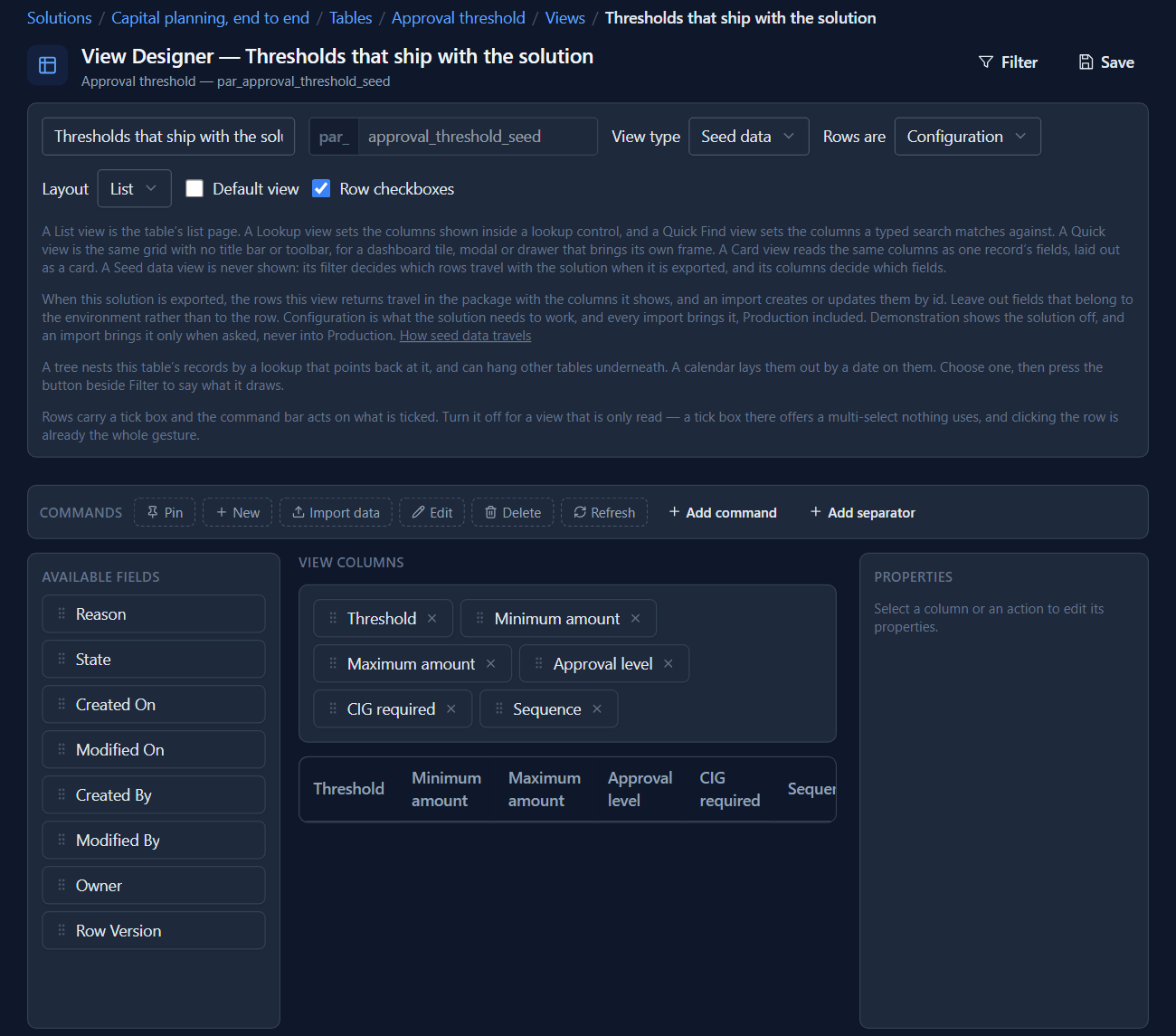
A Seed data view says what its rows are, in Rows are. This one is Configuration. Its filter is empty, so every band travels, with the six columns the process reads.
The Capital budget table's seed view, Budget lines that ship with the solution, is Demonstration, and it does have a filter. Press Filter:
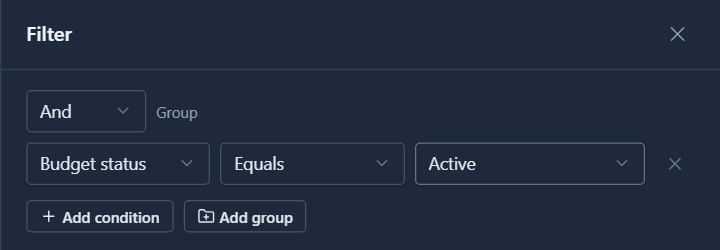
Only active budget lines travel. A closed line from an old programme stays where it is.
We fixed a bug here while writing this article. This filter is stored in a simpler form that the export reads, but the view designer didn't show it. The panel said No conditions yet, and the export still sent only the active lines. Now the designer shows the condition, and saving the view stores it in the same place as every other filter.
Columns matter as much as rows. Leave out a field whose value belongs to the environment, not to the row: a counter, or a total the environment works out for itself. Everything in the view's columns is overwritten by the next import.
Exporting carries the rows
Nothing else changes when you export. Export on the solution runs each table's Seed data view and packs the rows with the tables. Each row keeps its id, and that id is the same in every environment. That's what lets one seed row look up another, and what lets the next import find a row again.
Some things never travel: who owns a row (users belong to each environment's tenant), when it was created or changed, and files or images.
Importing: configuration always, demonstration when you ask
Open Solutions in Test, choose Import and pick the package. The dialog counts both kinds:
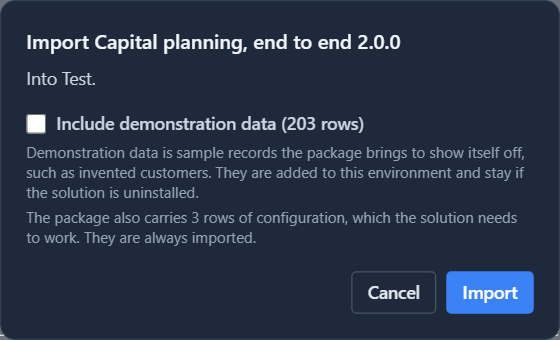
The 3 rows of configuration aren't a choice: the solution needs them, so they always come. The 203 demonstration rows are behind a box, unticked to start with.
We ticked it and pressed Import:
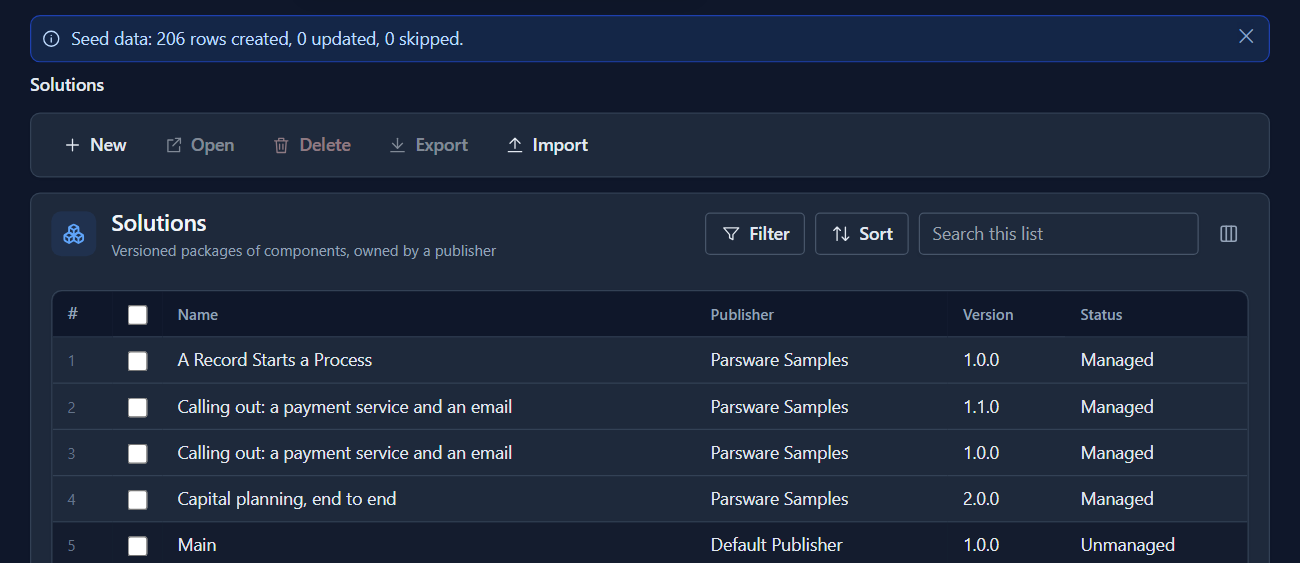
All 206 rows: the 3 bands and the 203 demonstration rows.
Into HR Pilot we imported the same package with the box left unticked:

Only the thresholds came. The approval process works in HR Pilot, and its tables are empty for real requests.
Never into Production
Choose the same package in Production and the box can't be ticked:
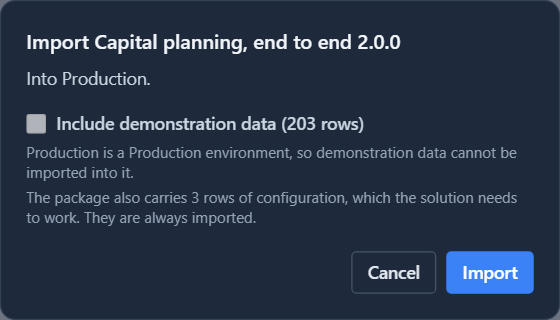
The configuration rows still come. The demonstration rows can't, whatever the request says. In Production they'd sit among your real records with nothing to tell them apart, and they'd stay behind if the solution were uninstalled. An environment's tier is set when it's created (Create and delete an environment).
The rule is safe the other way too. A seed view that doesn't say what its rows are counts as Demonstration. Missing samples in a trial is a cheaper mistake than samples in Production.
Importing again updates, by id
Import the same package into HR Pilot a second time:

0 created, 3 updated. The import found each band by its id and updated it. So an upgrade can change a band's limits, and every environment picks up the change. Three things follow from this:
- Only the view's columns are written. A field that isn't in the Seed data view is left as the environment has it.
- Nothing is deleted. A row the new package no longer carries stays.
- An edit in the target is overwritten. If someone changed a band in HR Pilot, the next import puts the package's value back. That's the point of configuration: the solution owns it.
Good to know
- Rows go through the normal record checks. Validation, lookups and server plugin steps all run. A row that's refused is skipped and named in the message, and the rest of the import still lands.
- A seed row doesn't start a process. The sample's requests arrive in their statuses, some of them waiting for approval, but nobody has a task for them. A process starts when somebody creates a request, and a seeded row is a picture of a table, not a request somebody made.
- Uninstall doesn't remove seed data by itself. Rows in a table the solution owns go with the table. Rows it added to somebody else's table stay.
- A table can carry up to 10,000 rows. More than that is refused at export, by name, rather than cut short.
Try it
Give a table of your own a Seed data view, mark it Configuration or Demonstration, and filter it to the rows you mean. Export the solution, import it into Test with the box ticked and into another environment without it, and compare the messages.