Parsware Platform
Create and delete an environment
Creating a Parsware environment takes a name and a tier. The address is made from the name, the tier can't be changed later, and deleting the environment removes its schema, its solutions and everything that was built in it.
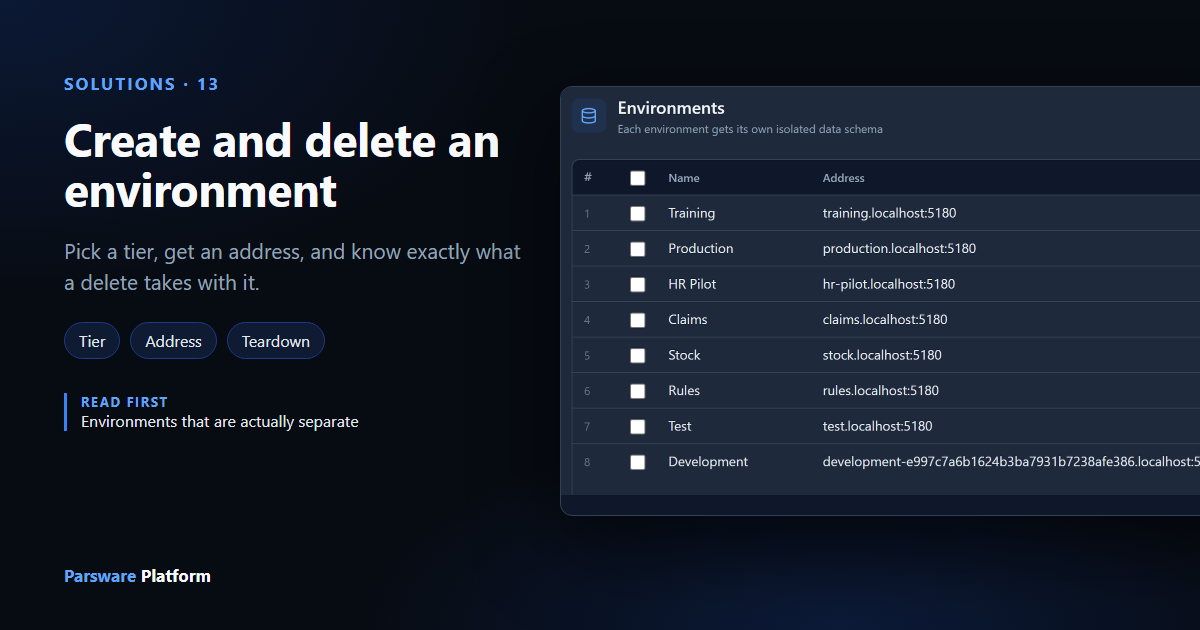
Environments that are actually separate showed that each environment keeps its records in its own database schema. This article creates an environment called Training, looks at what it starts with, changes its address, and then deletes it.
Create an environment
Under Admin, Environments, select New. The panel asks for two things:
- Name: what the environment is called in lists and in the environment picker at the top of the Admin Control Center. Names are unique within your tenant.
- Tier: Development, Test or Production.
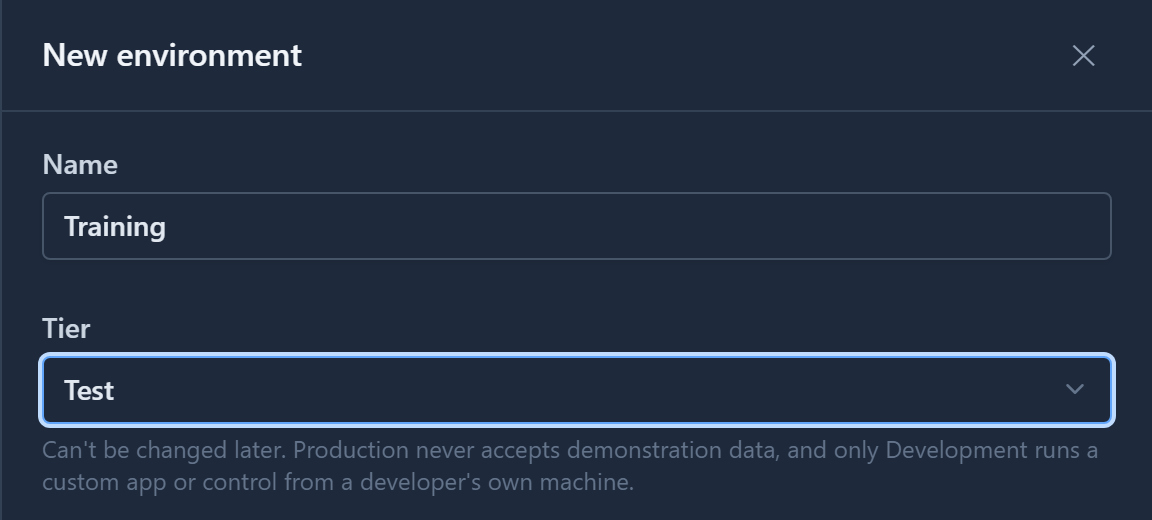
Select Add. Creating an environment takes a few seconds, because Parsware builds its schema while you wait. When it's done, the environment is at the top of the list with the status Active:
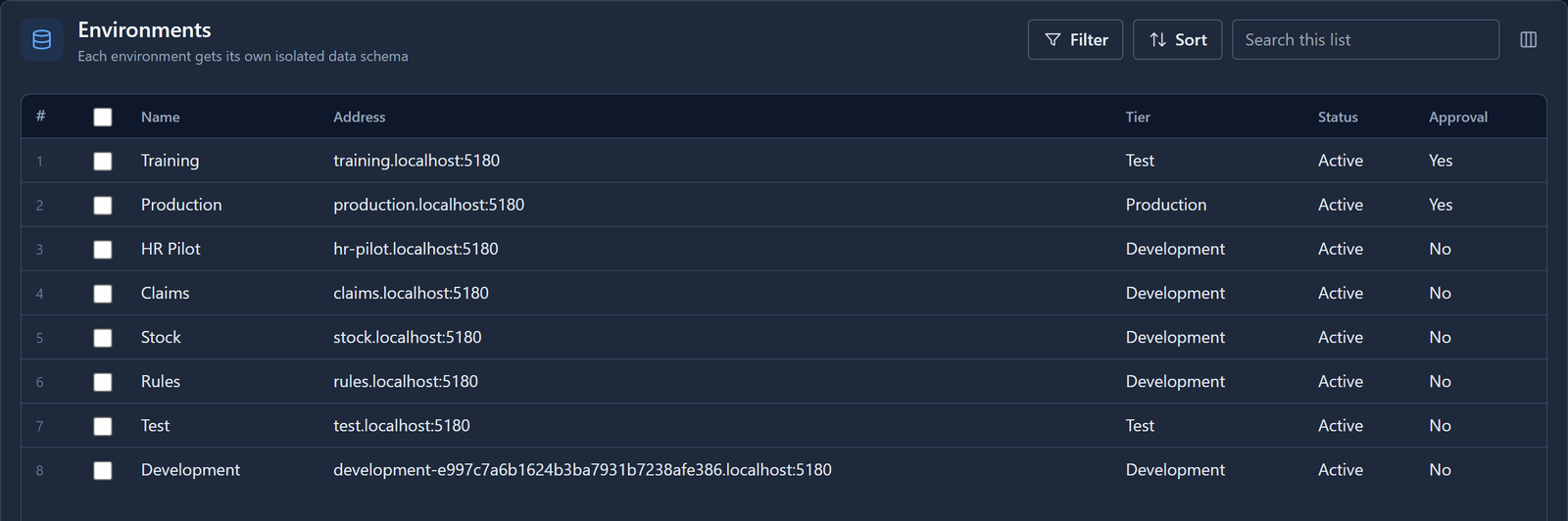
If the schema can't be created, the status shows Failed. Delete the environment and create it again.
What a new environment starts with
Switch the environment picker at the top to Training and open Solutions. There is one solution, Main, from the Default Publisher. It's the environment's own solution for anything you build directly in it. Its tables are already there:
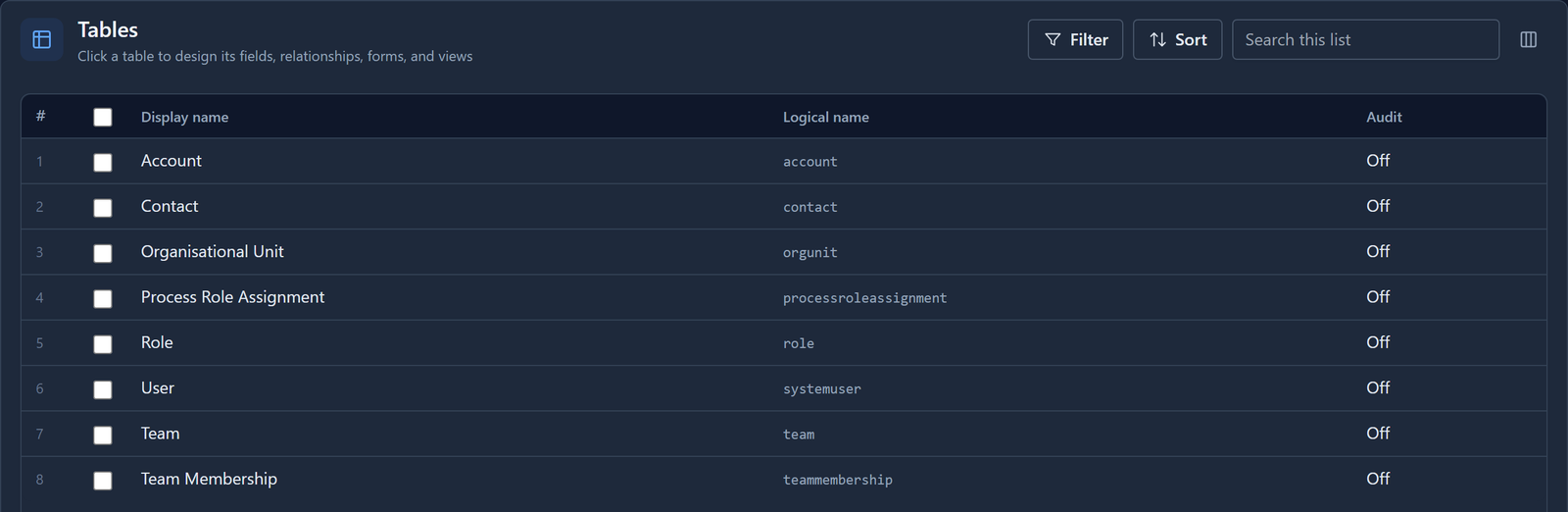
Account and Contact are standard tables you can build on. The others hold the people in your tenant so that records can point at them:
- User lists everybody in the tenant, so that Created By, Owner and any user lookup work from the first record.
- Role, Team and Team Membership hold the tenant's security roles and teams, so a permission can name a role and a record can belong to a team.
- Organisational Unit and Process Role Assignment are where your organisation chart goes, for processes that route work to "the requester's manager".
These come from the tenant. When you add a user to the tenant later, the user appears in each environment's User table the first time they save something there.
On a development installation, like the one these screenshots were taken on, Parsware also fills Account and Contact with 100 sample records each. A real installation doesn't. Sample data is switched off outside development, so a new environment's tables start empty.
What the tier changes
The tier is chosen once. The Edit panel doesn't offer it, because moving an environment from Development to Production is a decision about how the environment is run, not a typo to correct. The tier changes three things:
| Development | Test | Production | |
|---|---|---|---|
| Demonstration rows when importing a solution | Allowed | Allowed | Never |
| A custom app or control served from a developer's machine | Allowed | No | No |
| Approval column when created | No | Yes | Yes |
- Demonstration data. A solution can carry sample rows marked as demonstration data. The import dialog offers to include them everywhere except Production, and the server refuses them in Production even if a request asks. Rows in Production can't be told apart from your customers' real ones.
- Hosted custom apps and controls. While you develop a custom app or control, Development can load it straight from your own machine, so a change shows up as soon as you save it. Test and Production only run code that came in a solution.
- Approval. The Approval column records whether imports into the environment should wait for somebody to approve them. Today an import still applies straight away in every tier. The approval step will get its own screen, and its own article. It's set when the environment is created and no screen changes it yet, which is why our older Test environment still shows No.
The environment's address
Every environment has its own address. Apps in Training open at training.localhost:5180 on this
machine, and at something like training.yourcompany.com on a real installation. That address is
how Parsware knows which environment, and so which schema, a request is for.
You don't type the address when you create the environment. Parsware makes it from the name:
lower case, with spaces and punctuation turned into hyphens, so HR Pilot became hr-pilot. If
another environment already has that address, it adds -2. Addresses are unique across the whole
installation, not just within your tenant.
To change it, select the environment and choose Edit. As you type, the panel shows the full address underneath:
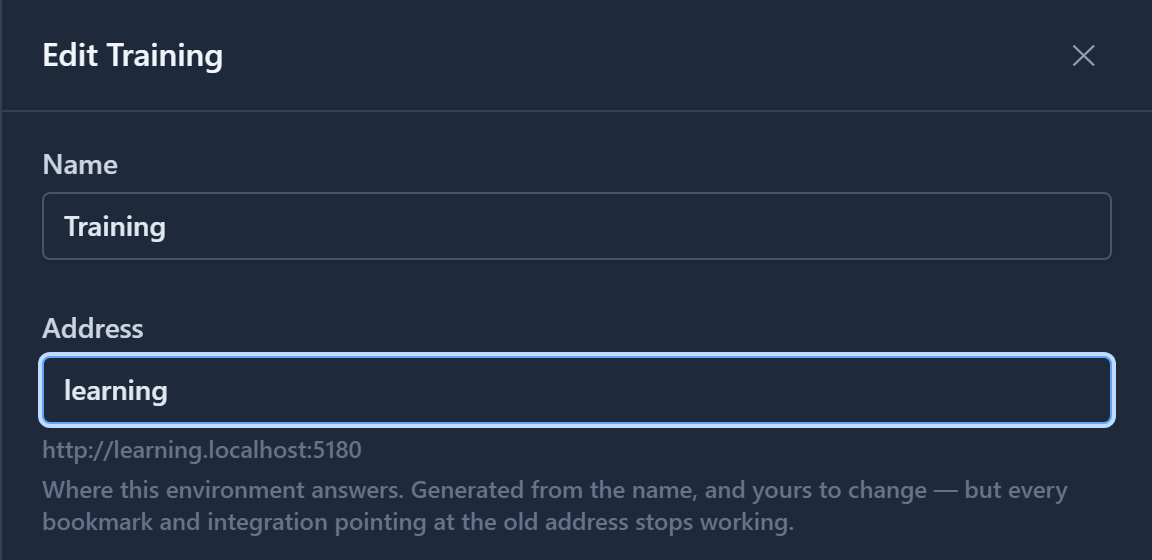
An address is 3 to 60 letters, digits and hyphens. A few names are kept for the platform itself,
such as www, api, admin, login and docs. dev, test and staging aren't reserved.
The hint means what it says. After we saved learning, the old address answered with
No environment answers on 'http://training.localhost:5180'. Bookmarks, links in emails and
outside systems that call the old address all stop working. Change it before people start using
the environment, not after.
Delete an environment
Select the environment, choose Delete, and confirm:

While Parsware works, the status shows Deleting. When it's done, the environment is gone from the list:
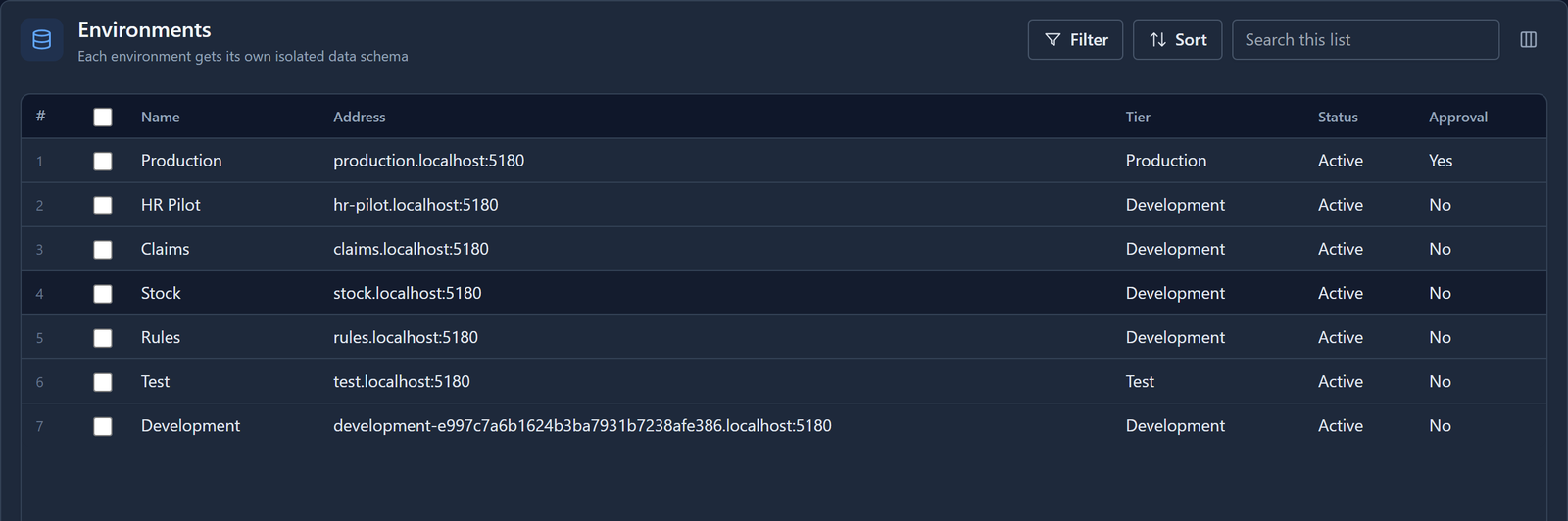
Deleting removes:
- The schema, with every table in it: all records, record files, the audit log, running processes and background work.
- Its solutions and the components in them: tables, forms, views, apps, reports, processes, plugin steps, and the definitions behind them.
- Custom apps and controls installed in it, and its import history.
- Large record files that were moved to object storage, and the environment's social accounts and posts.
After we deleted Training, the database had nothing left with its name on it: no
env_71433896… schema, and no solution or table definition pointing at its id.
Deleting doesn't touch anything that belongs to the tenant: users, teams, security roles, publishers and app registrations stay as they were. Other environments aren't affected either. They never shared a table with Training to begin with.
If something goes wrong partway, the status shows Failed and the environment stays in the list. Select Delete again once the problem is fixed. The environment is the last thing removed, so a delete that stopped halfway can always be finished.
Before you delete
There is no undo and no recycle bin. Before deleting an environment that holds anything you need:
- Export the solutions you built in it. An exported solution carries the tables, forms, apps and the rest, and can be imported into another environment.
- Keep the records some other way. A solution export carries the tables, not the records in them, apart from rows the solution ships as seed data.
- Tell people who use its address. Their bookmarks are about to stop working.
Try it
Create an environment called Training with the tier Test. Switch to it and look at Main's tables. Then change its address, and delete it.
Next: adding existing components to a solution.