How to open an app in the Platform Shell
Open an environment's address, pick an app, and find your way round it: the navigation, a calendar, a list, a record, pinning and the way back. How-to video H013, step by step.
How-to H013 · 1 min 56 s. A complete tutorial: every click the video makes, from the environment's address to a pinned record and back. Every picture is a frame of the video.
The maker portal is where apps are built. The Platform Shell is where people use them. In this tutorial you look at an app the way its users do: open it, move around it, open a record, keep it close at hand, and leave.
Before you start
- The Room bookings sample, imported into Sales Test in How to import a sample solution, with its three demonstration rooms.
- An account that may use Sales Test. The administrator who created it can.
Step 1: Open the environment's address
Every environment has its own address, and the Shell opened there works in that environment.
Sales Test's address is sales-test. followed by your platform's domain. You find it on the
Environments screen in the maker portal, or from the button beside the environment on Home.
- Open the address and sign in.
- Look at the top bar. The environment's name is there, under the amber Test banner.
To work in another environment, you open that environment's address. There is nothing to switch inside the Shell.
Step 2: Pick an app
The Shell opens on Apps in Sales Test. Each tile is one app: what kind it is, its name, and a line saying what it is for.
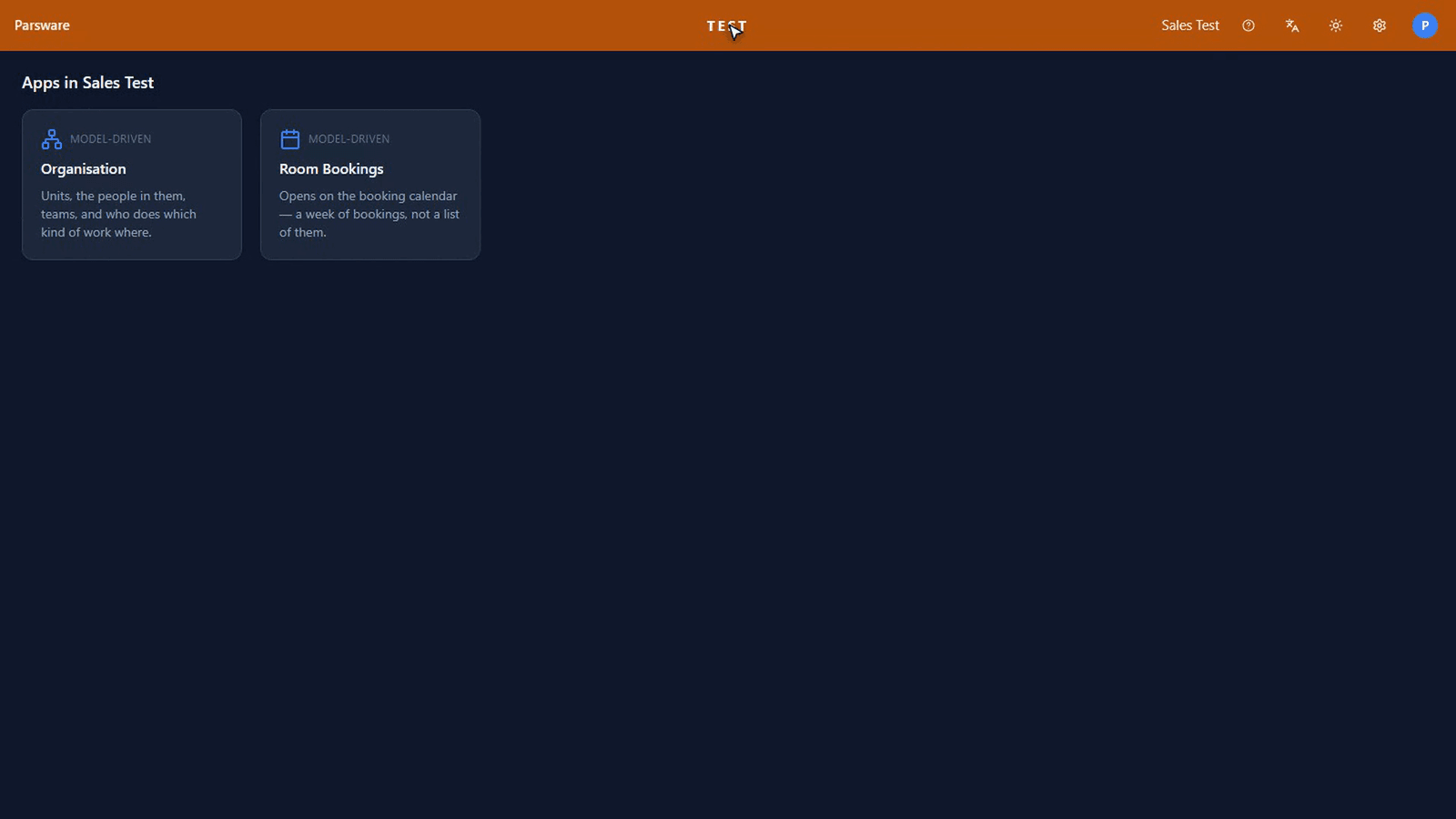
You only see the apps shared with one of your roles. Select the Room Bookings tile.
Step 3: Find your way around the app
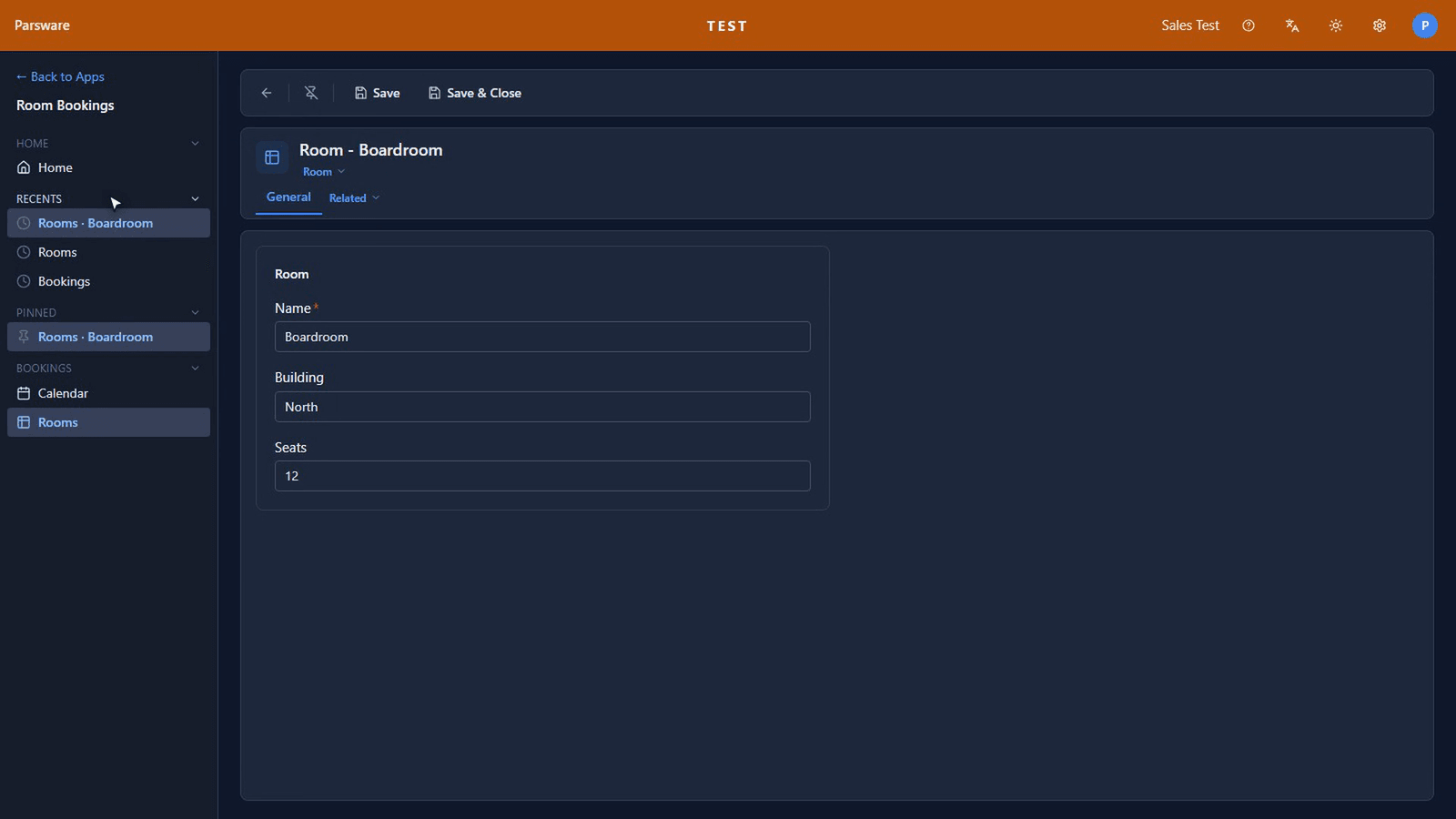
The app opens under the same top bar. Its navigation is on the left:
| In the navigation | What it is |
|---|---|
| Back to Apps | Leaves the app. |
| Home | The app's home page, which its maker chose. Here, the booking calendar. |
| Recents | The last five places you opened, filled in as you go. |
| Pinned | The records you pinned. |
| Calendar, Rooms | The app's own pages, in the groups its maker set. |
Step 4: Use the calendar
The calendar opens on a week.
- Select Month to see the whole month.
- Select Week to come back.
Step 5: Open a list, then a record
- Select Rooms. It is a list: the three demonstration rooms, with their building and seats.
- Double-click the Boardroom row to open its record.
The address in the browser changes with every page, so a record can be bookmarked or sent to somebody.
Step 6: Pin it
Select the pin on the record. The Boardroom is now under Pinned in the navigation, one click away from anywhere in the app.
Step 7: Go home, and leave
- Select Home. It takes you back to the app's home page, the calendar, and stays inside the app.
- Select Back to Apps, at the top of the navigation. That is also how you open a different app.
If something goes wrong
- No tiles, or not the one you expect. The app isn't shared with any of your roles. Ask the app's maker to share it, or an administrator to give you the role.
- You are in the wrong environment. Check the name in the top bar. Each environment has its own address, so open the right one.
- Rooms is empty. The sample was imported without its demonstration data. Add a room with New.
What you know now
The four things people do all day in an app: open it, find a list, open a record, and come back. Every app on the platform works the same way.
Read more
- The help page: Open an app, the page this screen's Help link opens.
- The feature, explained: Sign in and open an app.
- The next how-to: How to get help on any screen.
- Every how-to: the How-tos category.
Is there a task you would like to see done step by step? Tell us. parsware.com/contact