Parsware Platform
Sign in and open an app
The first time anybody signs in to a new Parsware tenant, it starts with an email: the welcome message for its first administrator. We followed one from the inbox to an open app: the link, choosing a password, the link refusing a second use, signing in, and the apps list.
This is the first article for the people who use Parsware apps rather than build them, so it starts where they start: with no password at all. We followed Morgan Diaz, whose company, Wide World Importers, has just started a trial, from the welcome message to an open app.
The welcome message
When a trial starts, the platform creates the company's tenant, a first environment to work in, and an administrator for it, and sends that administrator one message:
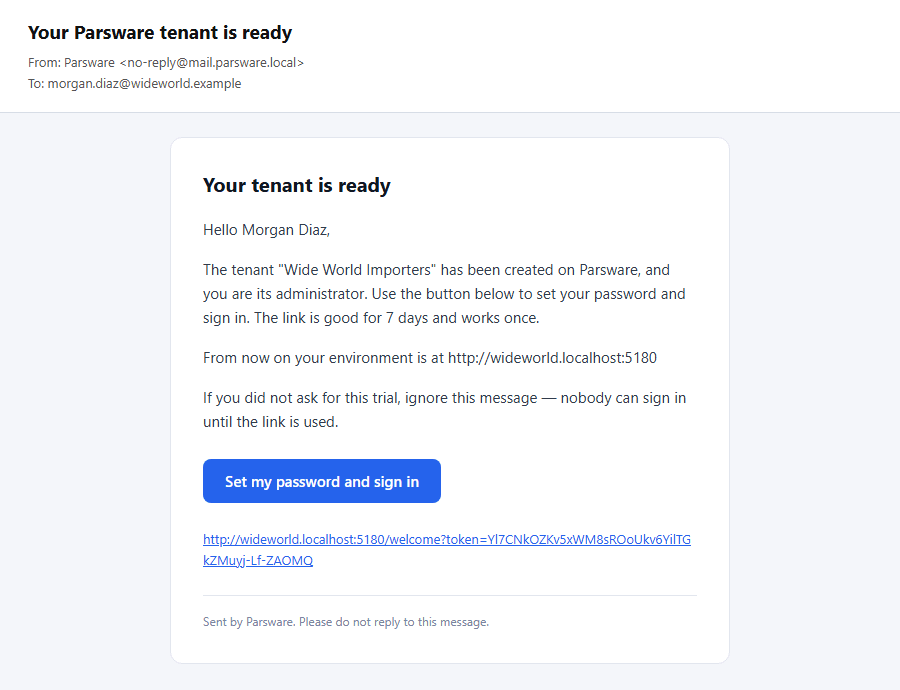
There's no password in it, ever. It carries a link that lets you choose one, and it names the address your environment lives at. That address is where you'll sign in from now on, so it's worth bookmarking.
Choose a password
The button opens the welcome page, on the environment's own address:
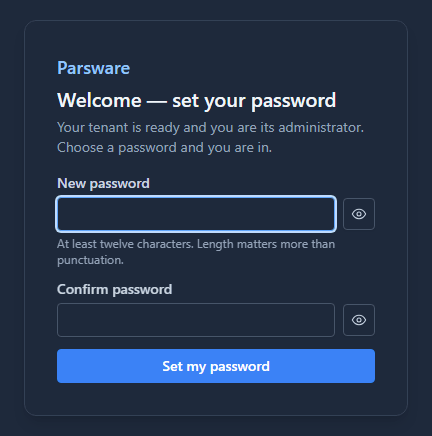
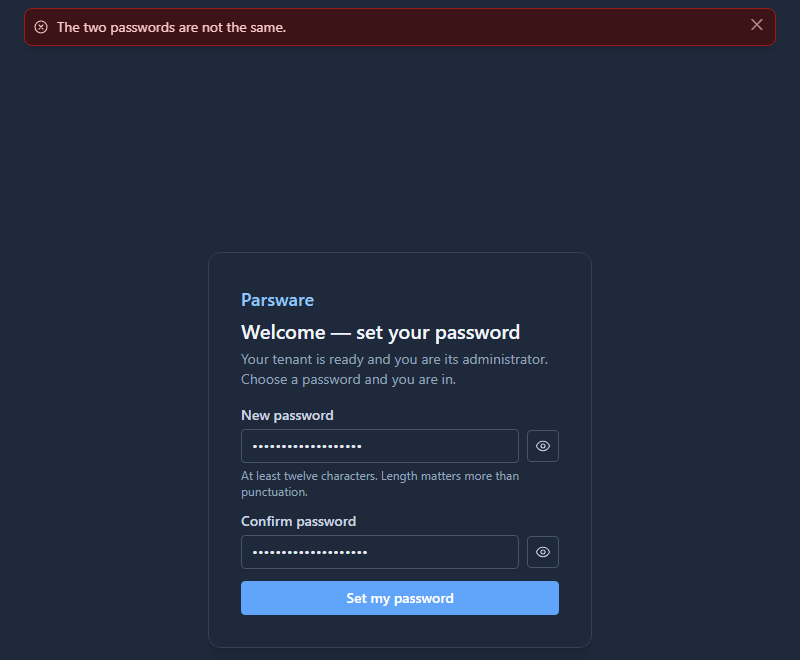
Type a password of at least twelve characters, twice. A long phrase is better than a short one full of symbols. If the two don't match, nothing is sent:
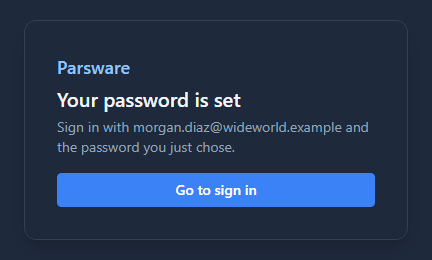
When they do, the page says so and names the address to sign in with:
The link works once
The link is good for seven days and for one use. Open it again and it refuses, without saying whether it expired or was spent:
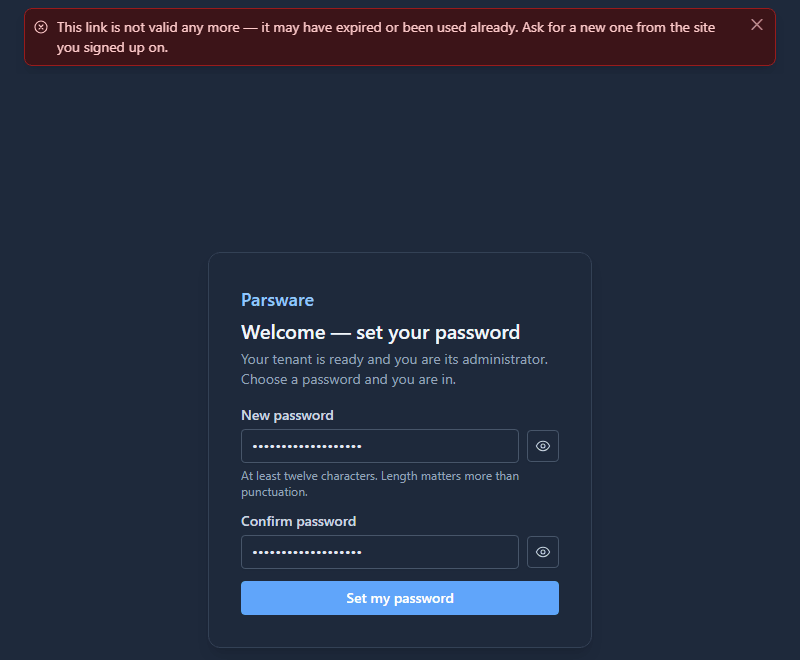
A link that kept working would keep letting in whoever had a copy of the message. If yours has run out, ask for another from the account area on parsware.com: the new message comes with a new link, and the old one stops working the moment it's sent.
Sign in
Go to sign in opens the sign-in page with your address already in the box, so all that's left is the password you just chose:
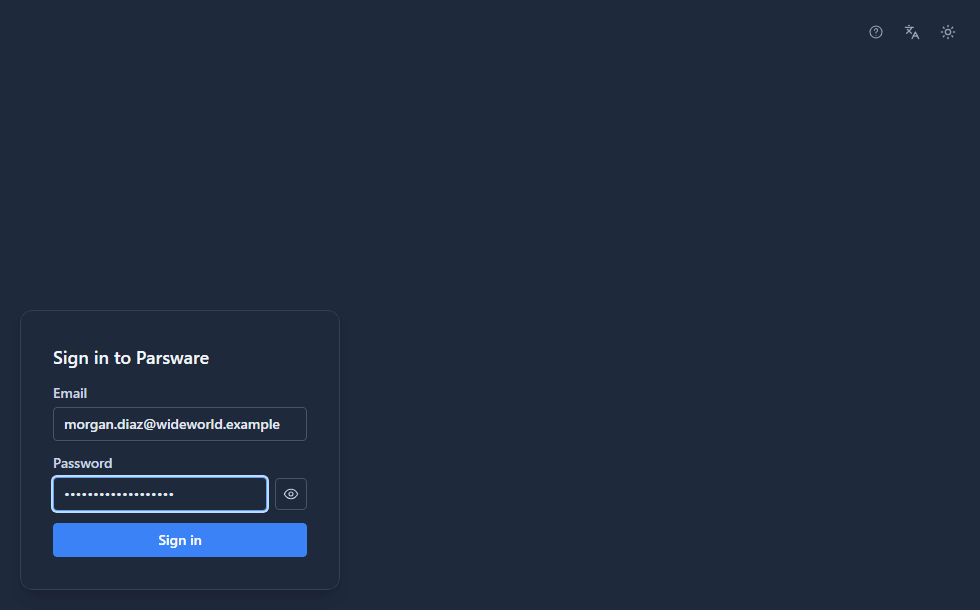
This is the page everyone signs in on, whether or not they ever had a welcome message. Anyone else in the company gets their account and first password from an administrator (see Create a user), and if they've turned on two-step sign-in, the page asks for a code from their authenticator app next (see Two-step sign-in). The administrator also signs in to the Admin Control Center, where apps are built, with the same account and password.
The apps list
After signing in, the Shell opens on the apps you can use in this environment:
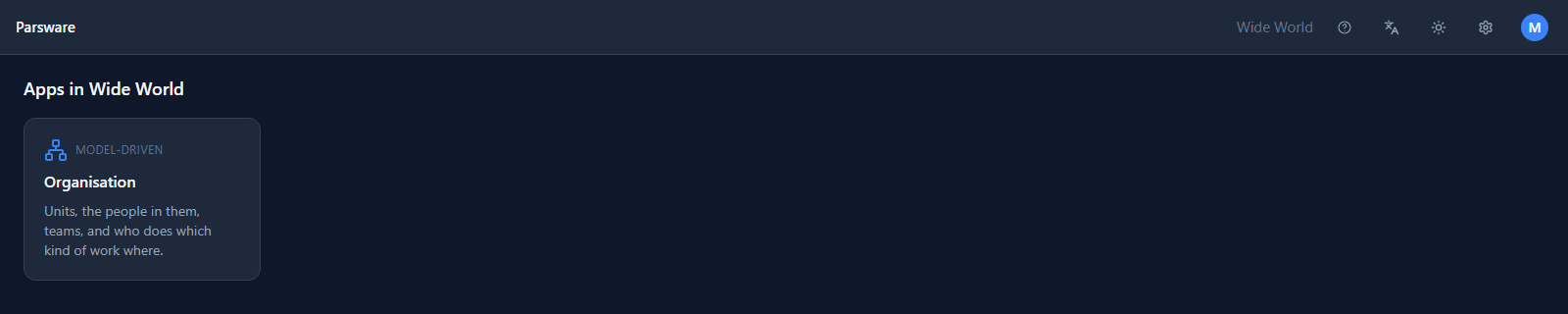
A new environment comes with one app, Organisation, for the company's units, people and teams. Every app an administrator imports or builds, and shares with one of your roles, joins it here. The environment's name sits in the top bar, next to Help, the language, light or dark and your own menu.
Open an app
Select a tile. The app opens in the same page, with its navigation down the left:
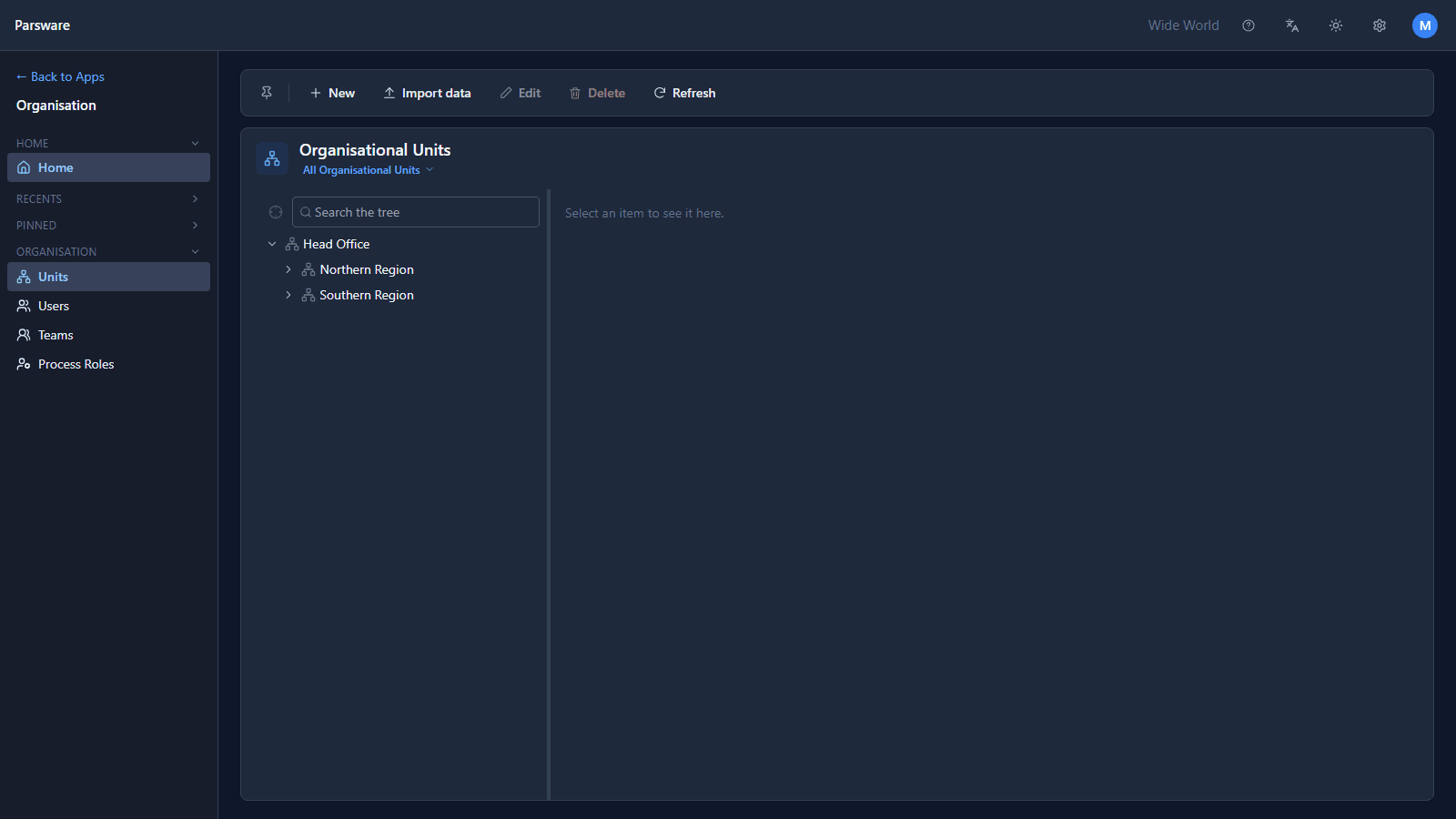
Back to Apps at the top of the navigation returns to the list. You stay signed in while you move between apps, and the session renews itself in the background, so a tab left open overnight is still signed in the next morning.
What we fixed
- The sign-in page had no Help link. Every screen keeps one in the top corner, before the language menu, and the welcome page had it, but the sign-in page, in both the Shell and the Admin Control Center, showed only the language and theme buttons. Both now link to Sign in to the platform, which also says how a first administrator gets in and that the Admin Control Center signs in the same way, in all seven languages.
Try it
Start a trial on parsware.com, follow the link in the message, and open the Organisation app.
Next: Work with records in a view.