How to walk through the capital-planning sample
Import the capital-planning sample, give two people their roles, raise a request on the phone screen, watch its amount choose the approver, approve it and read the two reports. How-to video H006, step by step.
How-to H006 · 3 min 52 s. A complete tutorial: every click and value the video uses, and the script that lets a table, not the code, decide who approves. Every picture is a frame of the video.
The studio-capital-planning sample is a whole application: six tables, an approval process, two reports and a phone screen. In this tutorial you take one request through every part of it: a hospital department asks for a £150,000 ultrasound scanner on a phone, its amount decides that the finance director approves it, and the approval shows up in the budget report.
Before you start
- An empty environment. The video uses one called Capital Planning.
- The sample's package,
studio-capital-planning.solution.json. How to import a sample solution shows the import in detail. - Two people: Robin Park, who raises the request, and Sam Taylor, who approves it.
Part 1: Import the sample
1.1 Import it with its data
- In Solutions, select Import and pick
studio-capital-planning.solution.json. - Tick Include demonstration data. It brings a year of a capital programme: budget lines, thirty-two requests, their decisions and their cashflow.
- Select Import. When it is done, the note says 206 rows arrived with the solution.
1.2 Look at what it brought
Open the solution, then its Tables:
| Table | What one row is |
|---|---|
| Capital programme | A year's programme of spending, with its budget. |
| Capital budget | One budget line: a department and a kind of spend. |
| Capital request | One request, charged to a budget line. |
| Approval threshold | One band of amounts, and who approves inside it. |
| Approval history | One decision: who, when and why. |
| Capital cashflow | When the money is spent. |
There is also an approval process, two reports and the Capital planning app, which starts on a phone screen. They are all components of the one solution, so they arrive together and leave together.
1.3 The table that decides who approves
Open Approval threshold. Its three rows are the whole approval policy:
| Band | From | To | Approved by |
|---|---|---|---|
| 1 | £0 | £100,000 | Department head |
| 2 | £100,000.01 | £500,000 | Finance director |
| 3 | £500,000.01 | £99,999,999 | Executive board, and the capital investment group (CIG) sees it |
Moving a band is a row edit. Nothing has to be rebuilt.
1.4 How the process reads it
Open Processes, then the capital approval process in the designer, and select the process itself. Its On start script runs when a request is submitted. It finds the band the amount falls in and remembers who should approve:
// Which band is this amount in? The threshold table answers, so moving a band is a row edit.
var request = getRecord("par_capital_request", getRecordRef("record"));
var bands = runQuery({
  entity: "par_approval_threshold",
  filter: {
    connector: "And",
    conditions: [
      { field: "par_minamount", operator: "LessOrEqual", value: request.par_amount },
      { field: "par_maxamount", operator: "GreaterOrEqual", value: request.par_amount }
    ]
  }
});

// No band covers it: the finance director decides, and CIG sees it.
var level = 100000002;
var cig = true;
if (bands.length() > 0) {
  level = bands[0].par_approvallevel;
  cig = bands[0].par_cigrequired;
}

var approver = "par_finance_director";
if (level == 100000001) { approver = "par_budget_holder"; }
setVariable("level", level);
setVariable("approver", approver);
setVariable("cig_required", cig);

updateRecord("par_capital_request", getRecordRef("record"), {
  "par_status": 100000002,
  "par_approvallevel": level,
  "par_cigrequired": cig
});
| Part | What it does |
|---|---|
runQuery({ entity, filter }) |
Reads the threshold rows whose from is at most the amount and whose to is at least it. |
setVariable("approver", …) |
Keeps the role's logical name for later in the run. |
updateRecord(…) |
Marks the request awaiting approval and writes its approval level onto it. |
The approval task then goes to that role. Its Assigned to is:
role(getVariable("approver"))
No amount is written in the script. The table holds them.
1.5 Give the two people their roles
The sample brings four roles: Capital requester, Budget holder (the department head), Finance director and CIG member.
- In the rail, under Admin, select Users and open Robin Park.
- Select Manage roles, type
capitalin the search box, tick Capital requester and select Save. - Open Sam Taylor, and give Sam Finance director the same way.
Part 2: Raise a request on the phone
- Sign in to the Capital Planning environment as Robin and open Capital planning. It opens on the phone screen, because raising a request is what most people come to do.
- Say what is needed:
Ultrasound scanner for Radiology. - Under Choose a department, pick Radiology. Under Choose a category, pick Medical equipment. Together they name one budget line, and the panel shows what that line has available.
- Type the amount
45000. The panel shows what would be left on the line, and Approval: Department head. - Change the amount to
150000. The panel now reads Approval: Finance director: the amount crossed into band 2.
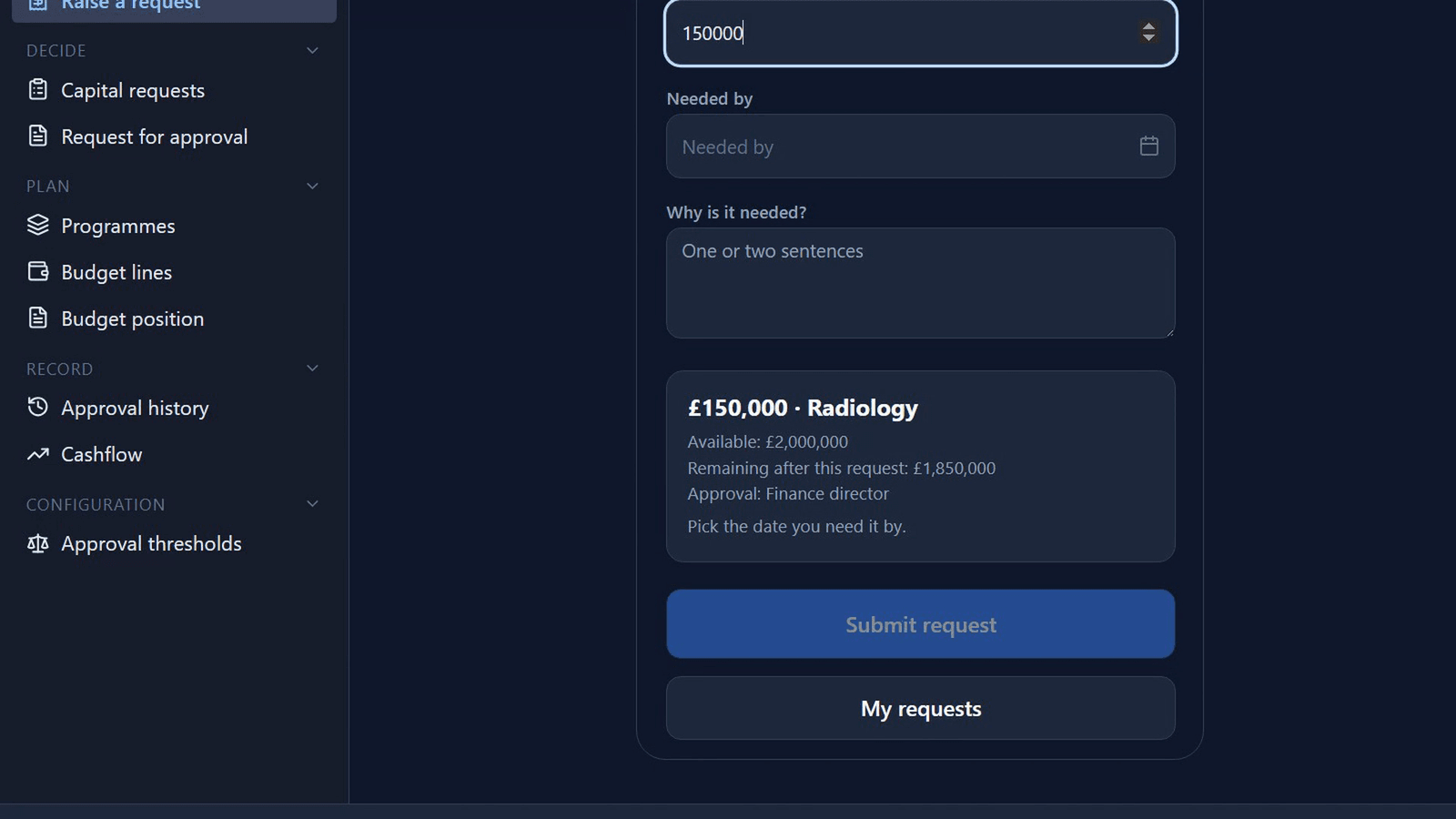
- Under Needed by, pick a date. In the box that asks why (One or two sentences), type
The current scanner is eleven years old.The panel says Ready to send. - Select Submit request. The app says Request submitted.
- Select Refresh. The request is in My requests, already awaiting approval: the process picked it up straight away.
Part 3: Approve it
- Sign in as Sam and open the same app. A task is waiting in My tasks. It went to the Finance director role, because that is what band 2 named.
- Open it. The task brings up the request's own form, with the request number the platform gave it, the budget line it is charged to, and the approval level.
- Select Decide, write the comment
Approved. Order before the end of December.and approve it. The comment is kept with the decision.
Part 4: See where it went
- Open Approval history. The new row says who decided, when and why.
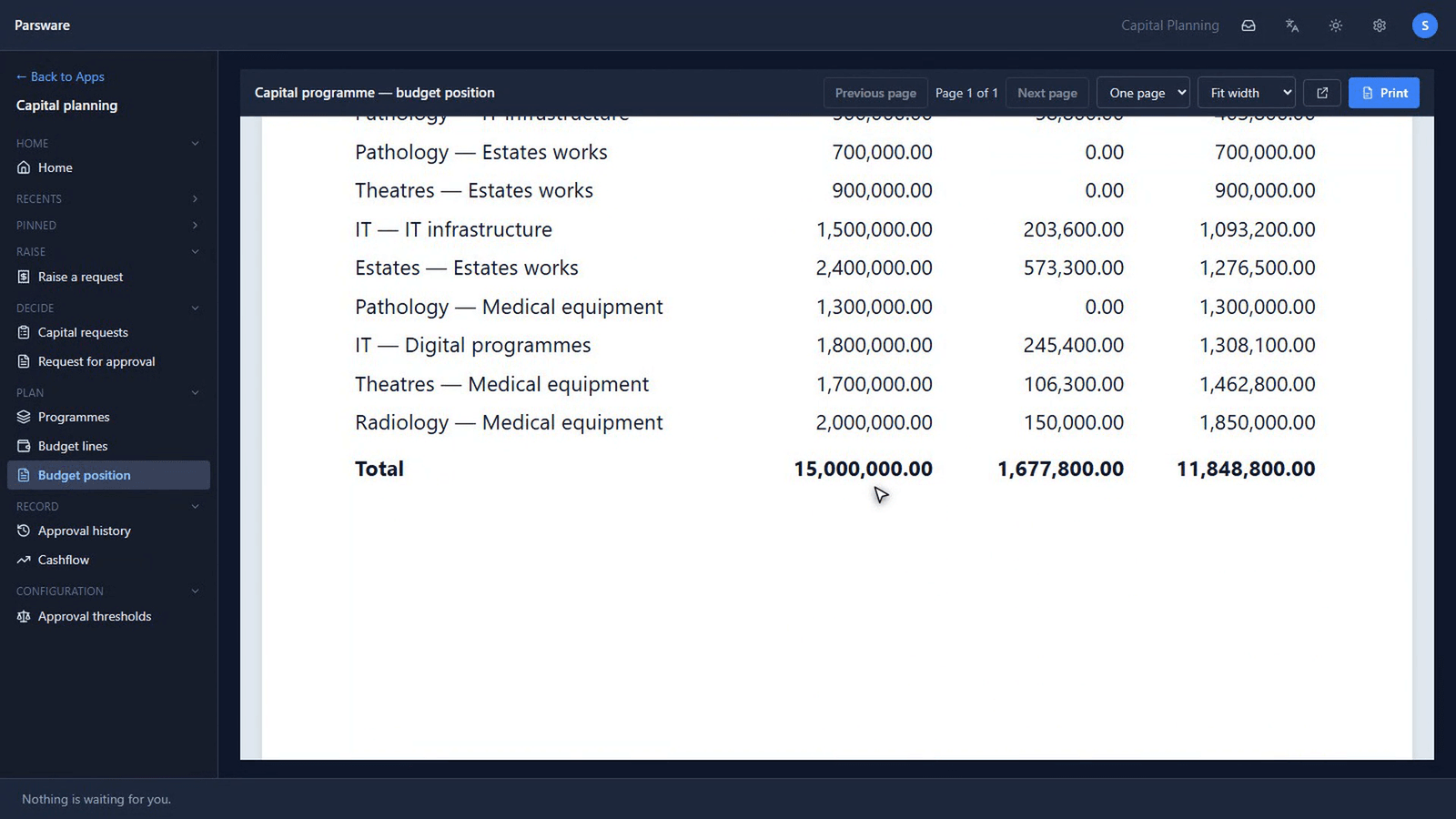
- Open the Capital programme — budget position report. It lists every budget line, least left first. The £150,000 is now committed on Radiology's medical-equipment line.
- Open the Request for approval report. It prints every request with its level and amount, biggest first.
Try it yourself: move a band
- As the maker, open the Approval threshold table's rows.
- Change band 1's To from
100000to200000. Band 2's From moves with it: the sample's rules keep the bands meeting, with no gap or overlap. - Raise another £150,000 request as Robin. This time the panel names the Department head.
Nothing was rebuilt or republished. The policy is data.
If something goes wrong
- Robin sees no app. Robin doesn't have Capital requester.
- Sam has no task. Sam doesn't have Finance director, or the amount fell in another band. The panel on the phone says who the request goes to before it is sent.
- The import brings no rows. Include demonstration data wasn't ticked, or the environment is a Production one, which never accepts demonstration data.
What you built
One request through the phone screen, the approval process, the history and two reports. The amount, not a branch in a script, decides who approves, because the thresholds sit in a table the finance team can edit.
Read more
- The feature, explained: Capital planning: a whole application, walked through.
- The next how-to: How to sign in to the maker portal for the first time.
- Every how-to: the How-tos category.
Is there a task you would like to see done step by step? Tell us. parsware.com/contact