How to move a finished app from Dev to Test to Prod
Export an app as a managed solution, import it into Test, ship a change as a new version over the old one without losing records, take it to Prod and uninstall it cleanly. How-to video H005, step by step.
How-to H005 · 4 min 35 s. A complete tutorial: every click and value the video uses to ship an app, upgrade it and take it out again. The picture is a frame of the video.
Building an app in the environment people use is how a typo reaches everyone at once. In this tutorial you move the expense-claims app from Dev to Test to Prod, ship a change to it as a new version, and take it out of Test again.
| Environment | Tier | What happens there |
|---|---|---|
| Expenses | Development | Where the app is built and changed. |
| Expenses Test | Test | Where 1.0.0 is tried, then upgraded to 1.1.0, then uninstalled. |
| Expenses Prod | Production | Where 1.1.0, as tested, goes live. |
Before you start
- The Expense Claims solution from How to build a complete app, in an environment called Expenses. It plays Dev, and it is at version 1.0.0, Unmanaged.
- Robin Park, who has the Expense User role in Dev. Users belong to the whole tenant, so Robin can sign in to every environment.
The two words to know
| Word | What it means |
|---|---|
| Unmanaged | The solution you build in. You can change everything in it. It lives in Dev. |
| Managed | What an import makes. It can be upgraded or uninstalled, but not edited, so Test and Prod run exactly what was shipped. |
Changes are always made in Dev and shipped as a new version. Never in Test or Prod.
Part 1: Ship 1.0.0 to Test
1.1 Export the solution
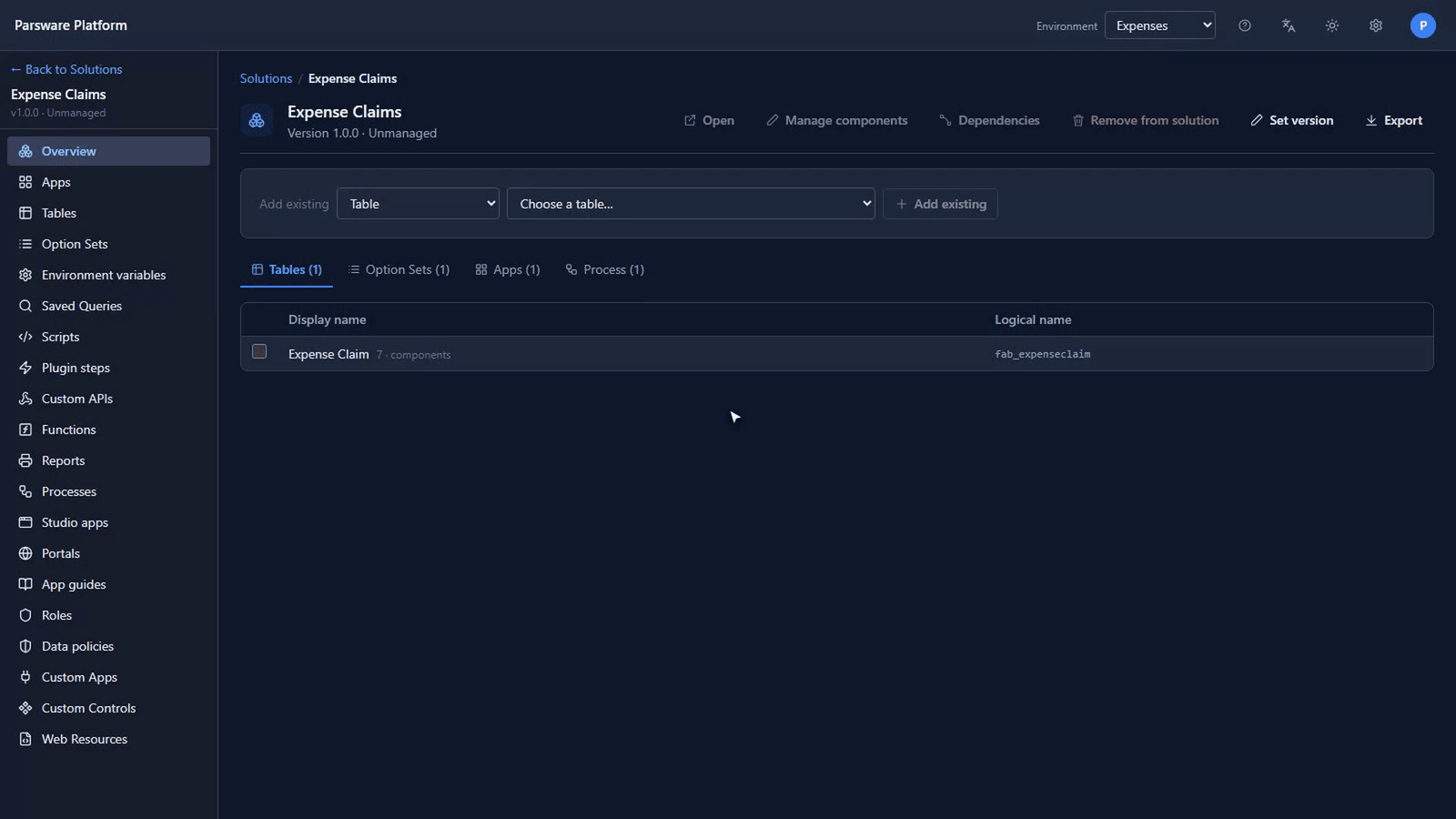
- In Expenses, open Solutions and select Expense Claims.
- Select Export.
The whole solution is saved as one file: the table, its form and view, the app, the role, the approval process and the report. Records are not in it.
1.2 Create the Test environment
- In the rail, under Admin, select Environments, then New.
- Type the name
Expenses Testand pick the tier Test. - Select Add.
Setting up a new environment takes about half a minute. When its status reads Active, it is ready, with its own data, so nothing entered in Dev ends up here.
1.3 Import into Test
- In the environment picker at the top right, switch to Expenses Test.
- Open Solutions. There is only the environment's default solution.
- Select Import and pick the file you exported in step 1.1.
- Select Import in the dialog. The import runs in the background.
Expense Claims arrives at version 1.0.0, as Managed.
1.4 Use it in Test
- Open Expenses Test's own address and sign in as Robin Park. The Expenses app is on the list, because the solution brought its sharing with the Expense User role.
- Open it. There are no claims: records stay in the environment they were entered in.
- Select New, type the amount
42.00and the nameTaxi to the airport, and select Save & Close. - Select Refresh. The status reads Submitted: the approval process came across too, and has already started.
Part 2: Ship a change as 1.1.0
Testers ask for one more thing: the receipt number.
2.1 Make the change in Dev
- Switch back to Expenses. Open the solution, then Tables, then Expense Claim.
- Select New. Type the display name
Receipt Numberand leave the data type on Text. - Select Save.
- Select Forms and open Information. Drag Receipt Number from Available fields into the General section, and select Save.
2.2 Give it a new version
Test already has 1.0.0, so the change ships as a new version.
- Go to the solution's Overview and select Set version.
- Type
1.1.0and select Save. - Select Export. The file name carries the new version.
2.3 Upgrade Test
- Switch to Expenses Test, where 1.0.0 is installed.
- In Solutions, select Import and pick the 1.1.0 file.
This import is an upgrade. Version 1.1.0 replaces 1.0.0 and keeps everything 1.0.0 had, records included.
2.4 Check the upgrade
- As Robin, open Expenses in Test and open the taxi claim raised before the upgrade. It is still there, and it now has a Receipt Number box.
- Type
R-20417and select Save.
Part 3: Ship 1.1.0 to Production
- In Environments, select New. Type
Expenses Prod, pick the tier Production and select Add. Wait for it to be Active. - Switch to Expenses Prod, open Solutions, select Import and pick the same 1.1.0 file Test was upgraded with.
What reaches Production is exactly what was tested. Production never accepts demonstration data, so the import brings the app and nothing else.
Part 4: Take a solution out
- Switch back to Expenses Test, select Expense Claims and select Uninstall.
- Read the confirmation. Uninstall removes what the solution brought: the table goes, with the claims in it, and so do the app, the process and the report.
- Confirm it. Only the default solution is left.
Robin has no app to open in Test any more. Dev still has the unmanaged solution to keep building on, and Production runs version 1.1.0.
If something goes wrong
- The import is refused as a downgrade. The file's version is lower than the one installed. Set a higher version in Dev and export again.
- Robin sees no app in Test. The app's sharing travels in the solution, so check that the app was shared with Expense User inside the solution in Dev, and that Robin has the Expense User role (Admin › Users).
- You want to change something in Test. You can't, because a managed solution is read-only. Make the change in Dev and ship a new version.
What you built
A release path: build in Dev, try a numbered version in Test, put the same file in Production, and upgrade without losing records. Work moves between environments only as a versioned package, never by copying.
Read more
- The help page: Export a Solution, the page this screen's Help link opens.
- The feature, explained: Moving work from Dev to Test to Prod.
- The next how-to: How to walk through the capital-planning sample.
- Every how-to: the How-tos category.
Is there a task you would like to see done step by step? Tell us. parsware.com/contact