Parsware Platform
Moving work from Dev to Test to Prod
The whole path a change takes in Parsware: build it in Development, raise the solution's version, export one file, and import that same file into Test and then Production, where the new version replaces the old one. Plus the habits that keep the three environments in step.
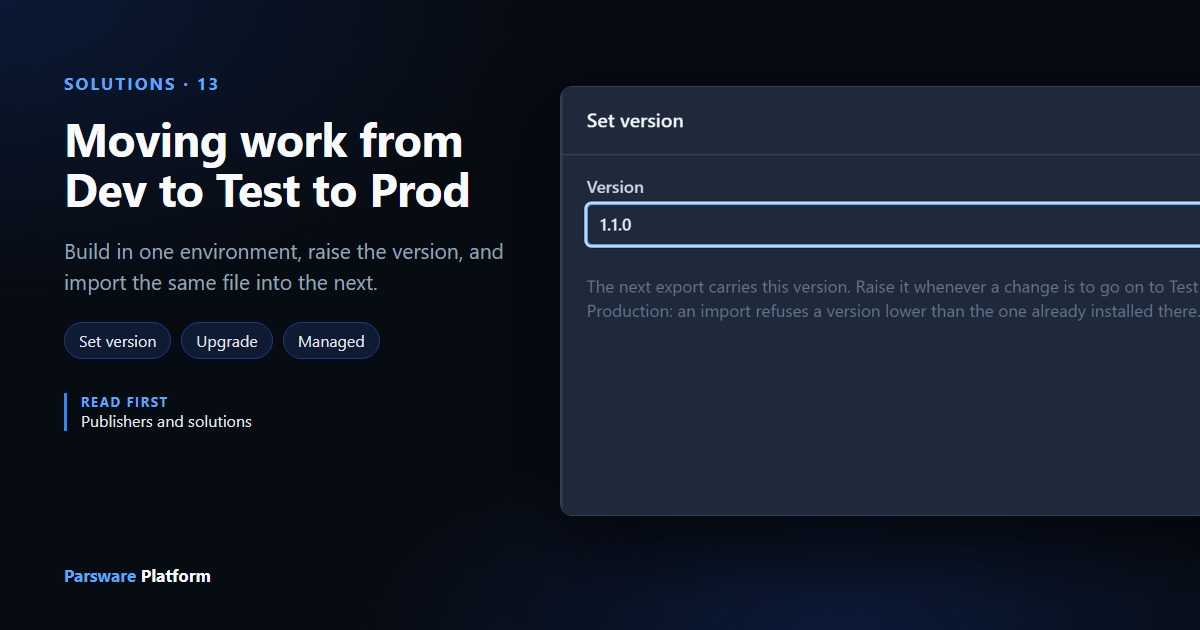
Your work moves between environments as one file. You build in Development, export the solution, and import that same file into Test. When it passes, you import it into Production. Nobody rebuilds anything by hand in Test or Production, so what people use in Production is what you tested.
Publishers and solutions made that trip once. This article follows a solution through it twice, because the second trip is the one that matters: a change to something people already use.
Three environments
Under Admin, Environments lists the tenant's environments, each with a tier:
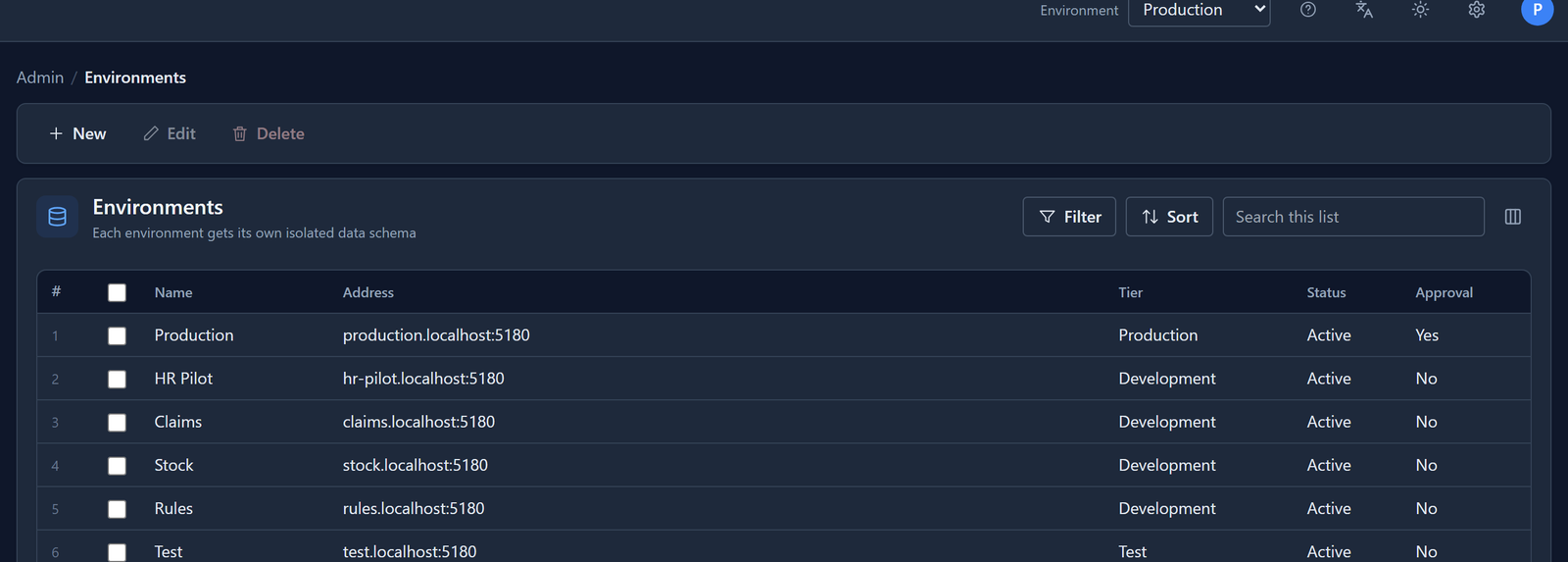
Each environment has its own database schema, its own records and its own address. The tier says what it is for: you build in Development, check in Test, and people work in Production. A few rules depend on it. Production, for example, never takes a solution's demonstration rows.
1. Build in Development
In Development we made the publisher Northwind Traders (prefix nw) and the solution
Visitors, with one table, Visitor, and a Company field. It starts at version
1.0.0 and it's unmanaged, which means you can edit it:
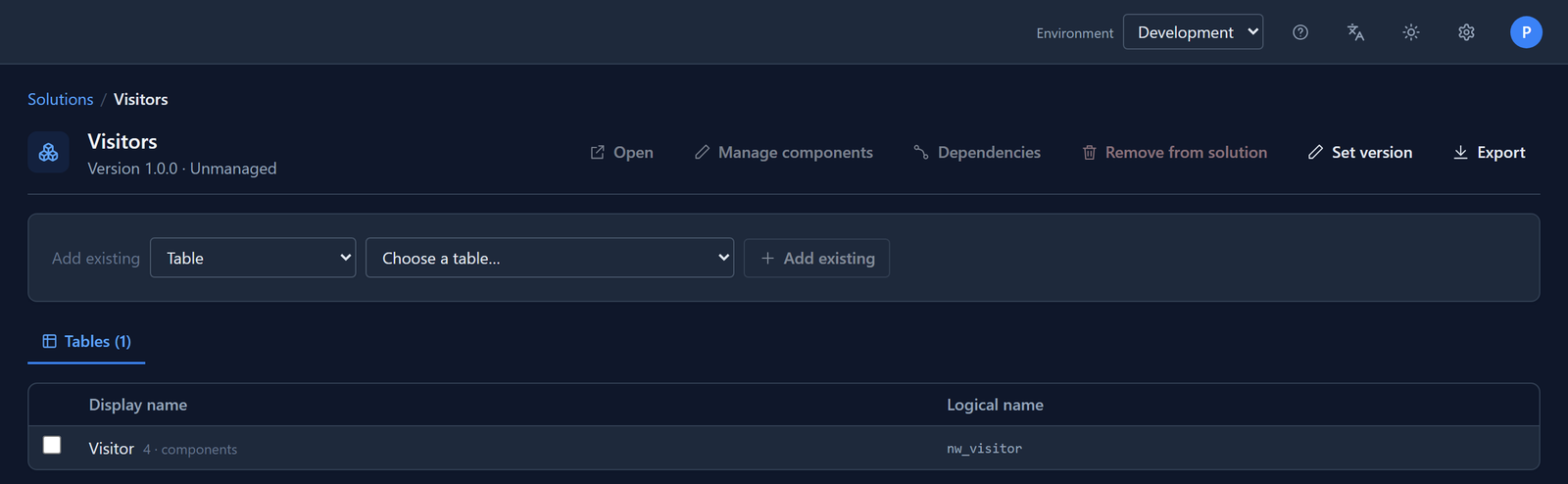
Press Export. The solution downloads as Visitors-1.0.0.json. Switch the Environment at
the top to Test, open Solutions, press Import and choose the file. Visitors arrives in
Test as a managed solution at 1.0.0.
2. Make a change, and raise the version
Some time later, reception wants to record each visitor's badge number. Back in Development, we added a Badge number field to Visitor.
Before you export again, raise the version. Open the solution, press Set version, type
1.1.0 and press Save:
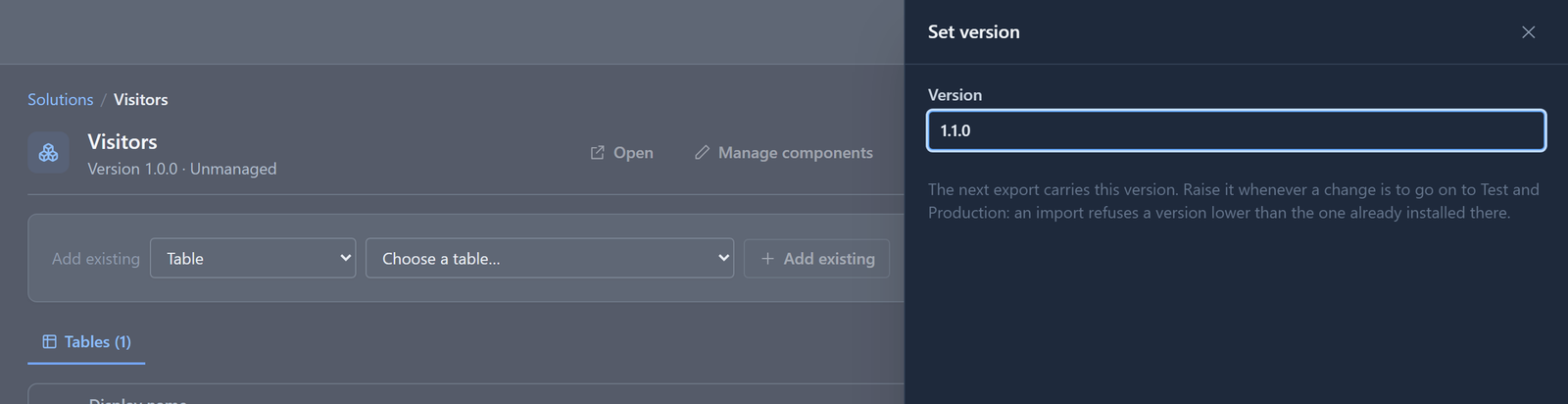
A version is two to four numbers separated by dots. Raise the last number for a small change and
an earlier one for a bigger change. Press Export, and the file is Visitors-1.1.0.json.
The version is how Test and Production know which file is newer. Without a new version, the import just applies the same version again.
3. Upgrade Test
Switch to Test and import Visitors-1.1.0.json. Version 1.0.0 was already there, so this is an
upgrade: 1.1.0 replaces 1.0.0, and the list shows one Visitors, at 1.1.0:
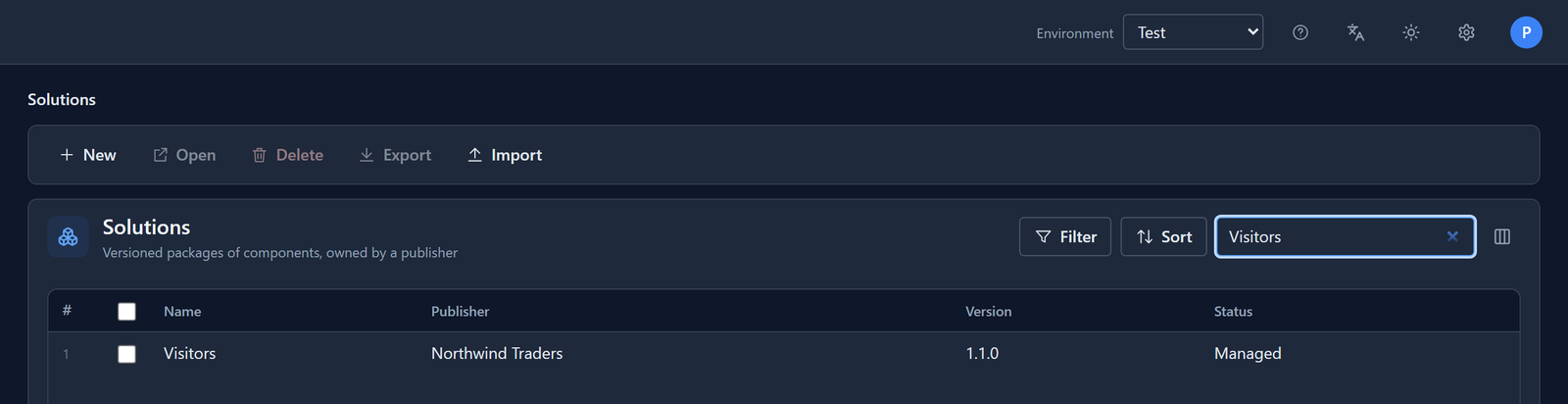
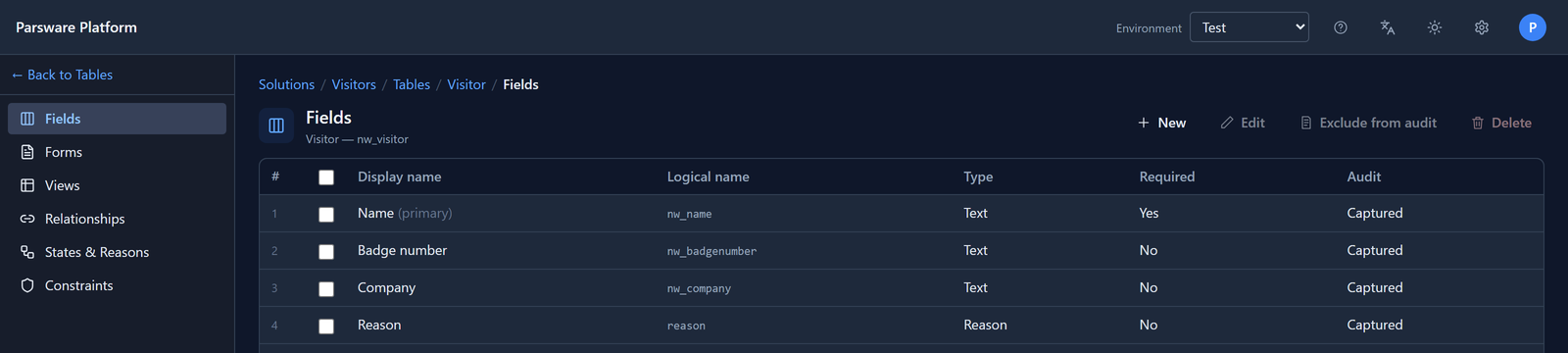
Everything 1.1.0 carries stays and now belongs to 1.1.0. The Visitor table isn't dropped and built again, so the visitors already recorded in Test stay too. Anything 1.0.0 had that 1.1.0 no longer carries is removed, as an uninstall would remove it. Test ends up the way a fresh install of 1.1.0 would leave it. Open the table and the new field is there:
4. An older file is refused
Files get mixed up. If somebody imports Visitors-1.0.0.json into Test now, the import is
refused before anything changes:

So an old file can never take an environment back to an earlier version.
5. Production
When the change has passed in Test, switch to Production and import the same file,
Visitors-1.1.0.json. Don't export again: a new export would be a different file from the one you
tested.
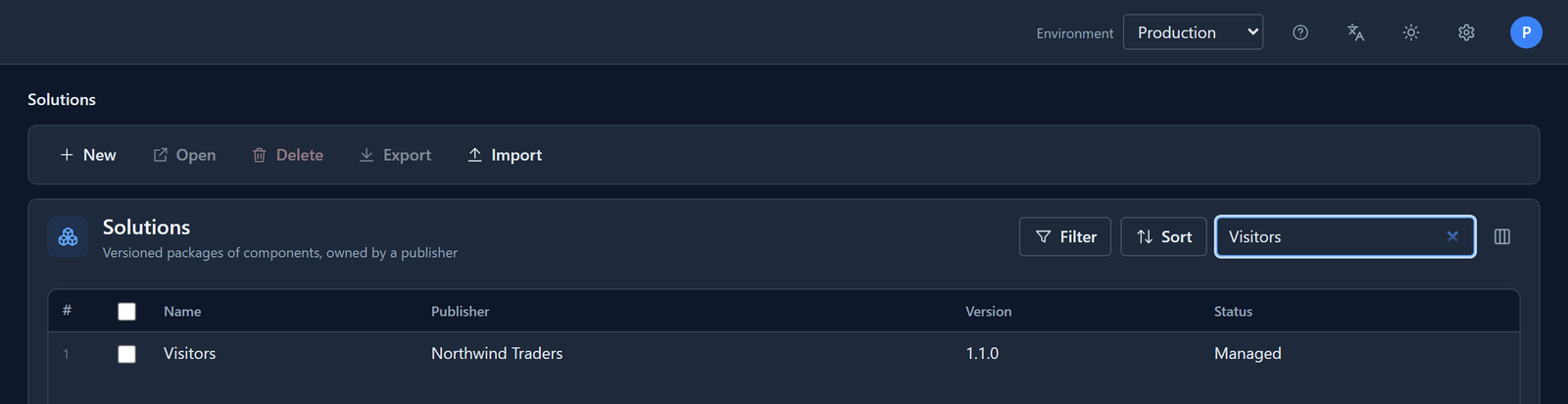
The Environments list shows Approval: Yes for Production. A screen for approving an import before it's applied is still to come, so for now an import into Production applies straight away, the same as in Test. Decide who is allowed to do it.
Habits that keep environments in step
- Change things in Development only. In Test and Production a solution is managed, and its changes arrive only by import. A field added by hand in Test isn't in Development, so the next export doesn't carry it, and Test and Production stop matching.
- Raise the version before every export. It's the only way an import can tell a change from the same file again.
- Import into Production the file you tested. Keep the file. It's plain JSON, so it can live in source control next to the rest of your work.
- Keep what differs between environments in environment variables. An address or a setting that is different in Test and Production is a value you set in each environment, not an edit to the solution.
- Use demonstration data in Development and Test only. Production refuses it: invented rows there would sit among real ones with nothing to tell them apart.
- Don't uninstall an old version to tidy up. An upgrade removes it for you.
What we fixed
Writing this article turned up three problems, now fixed:
- A solution's version couldn't be changed. It was set when the solution was created, so every export of a changed solution carried the same version. Set version is new, on any solution you build in.
- An upgrade kept the old version installed. After importing 1.1.0 over 1.0.0, Test listed both, and the forms and views 1.1.0 was using still belonged to 1.0.0. Uninstalling the old row, the obvious way to tidy up, would have deleted them. An upgrade now replaces the old version.
- The message for an older file mentioned "Force". That option isn't on any screen. The message now says what happened and what to do, in every language the product ships.
What this series covers
- Moving work from Dev to Test to Prod (this one).
- Environments that are actually separate: one database schema each, and why.
- Creating and deleting an environment.
- Adding existing components to a solution.
- Managed layers and clean uninstalls.
- Several solutions in one environment.
- Seed data that travels with a solution.
- Environment variables across environments.
- Keeping solutions in source control.
- Import approval for Test and Production.
Try it
Make a small solution in Development and import it into Test. Add a field, press Set version, export, and import the new file into Test. Then try to import the first file again.
Next: environments that are actually separate.