A case board
Cases in three columns by stage, New, In progress and Resolved, with a button on each card that moves it on to the next column.
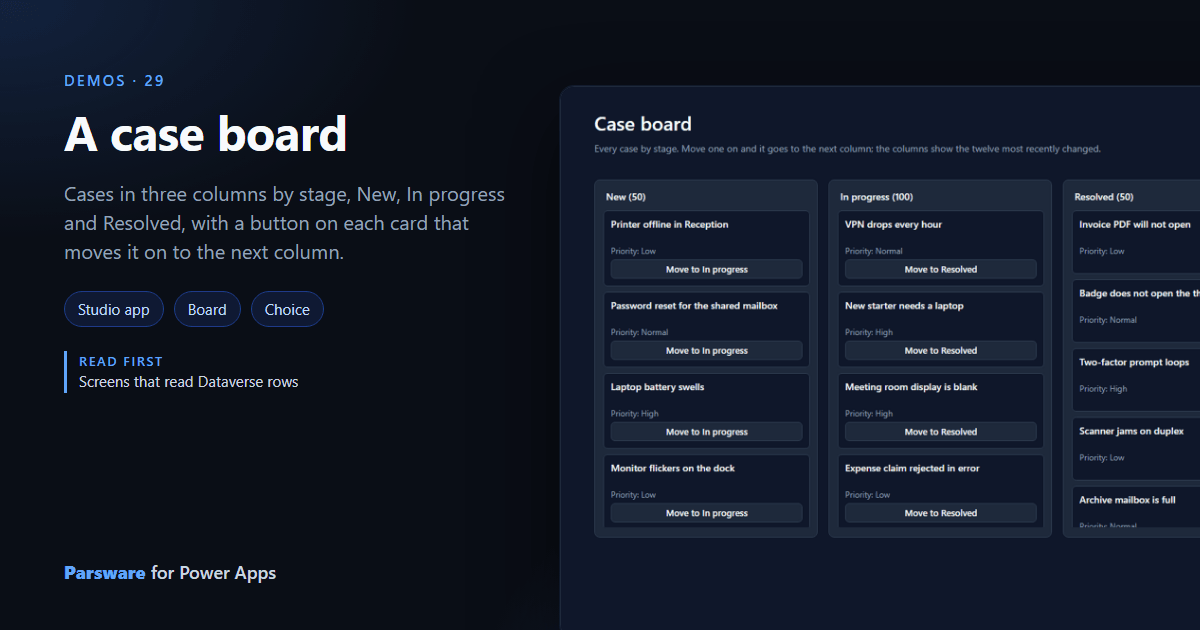
A list of cases sorted by stage is a list. The same cases in columns, one per stage, show where the work is piling up. This demo is a board: Demos → Case board.
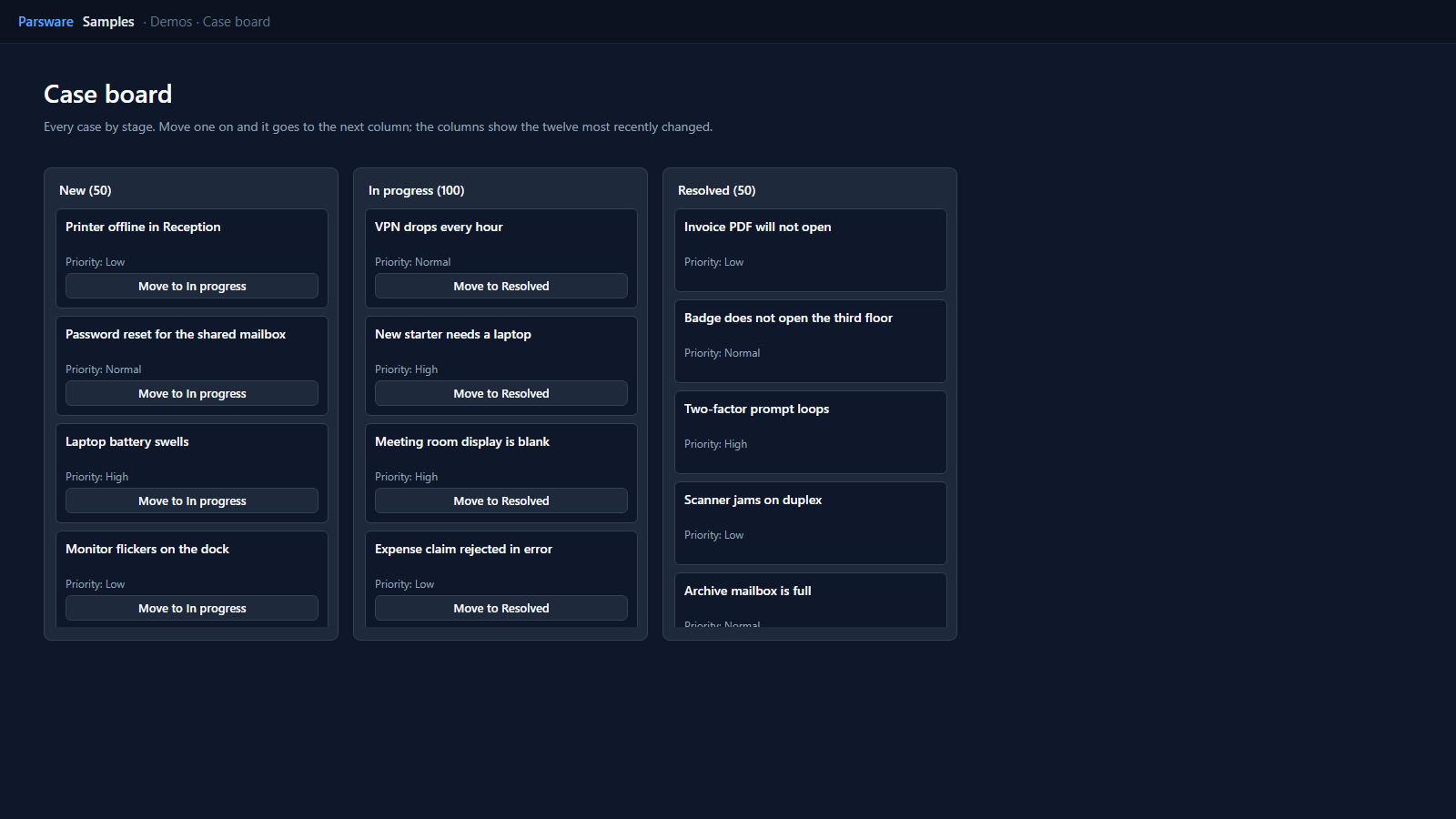
Three reads, three columns
Each column is its own read of the cases, filtered by the new Stage choice and counted by Dataverse:
loadRecords("par_case", "doing", {
  where: { par_stage: 100000002 },
  orderBy: "modifiedon",
  descending: true,
  top: 12,
  countInto: "doingCount"
});
A column shows the twelve most recently changed, and its heading says how many there are in all.
Move it on
A card’s button writes the next stage and reads the columns again:
updateRecord("par_case", row.id, { par_stage: 100000002 });
notify("Moved to In progress.");
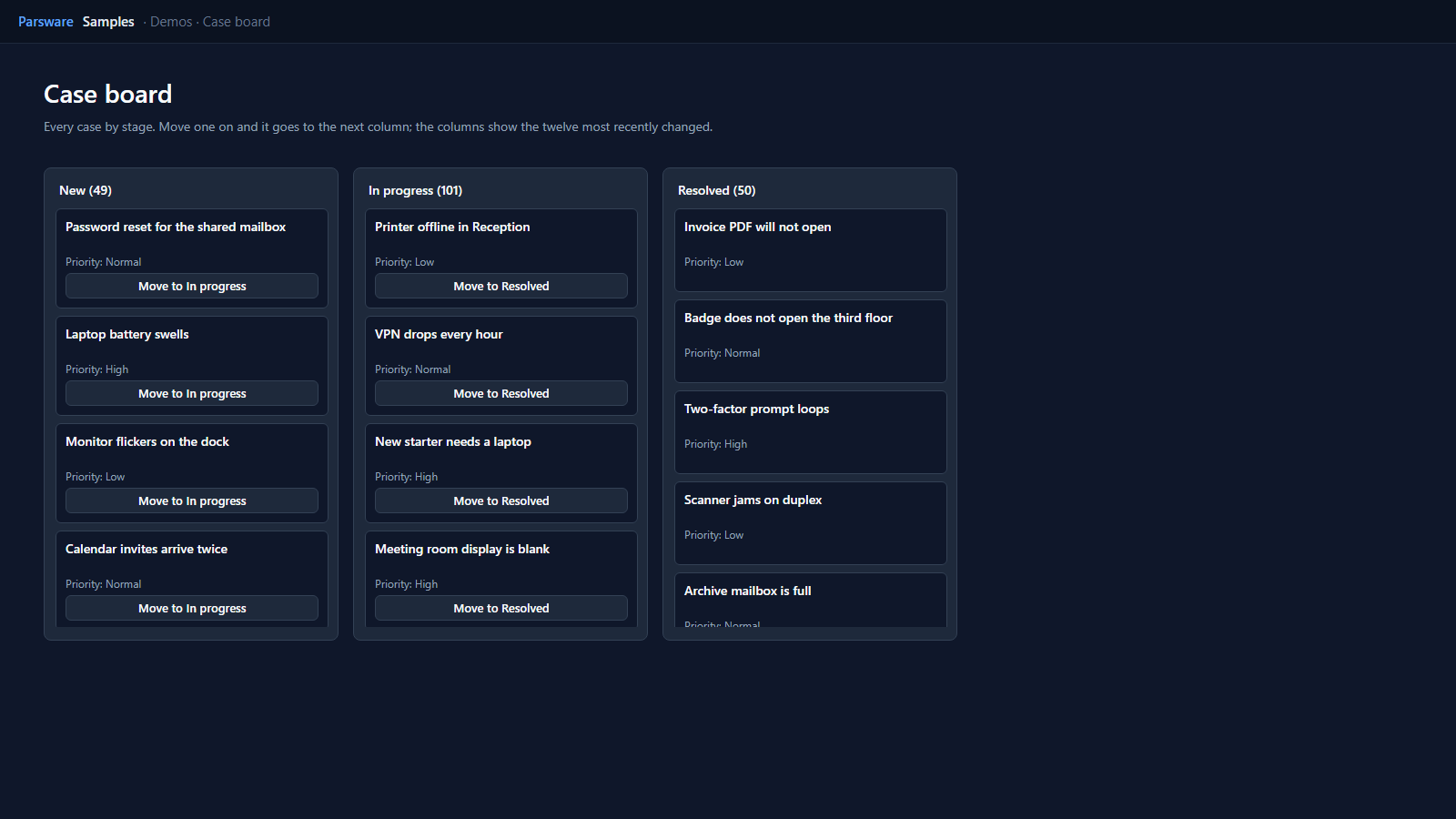
The stage is the same column the Stage stepper draws on the case form, so a case moved on either is moved on both.
Try it
- Install the three Parsware for Power Apps solutions, samples included (Install it).
- Open Sample data and press Replace, so the newest columns are filled (The samples, and sample data).
- Open Demos → Case board.
The pictures show the shipped design running on demo data in Parsware’s own runtime. In Power Apps it is a page of the model-driven app, with the app’s own dialog and side pane.