A booking calendar on Dataverse
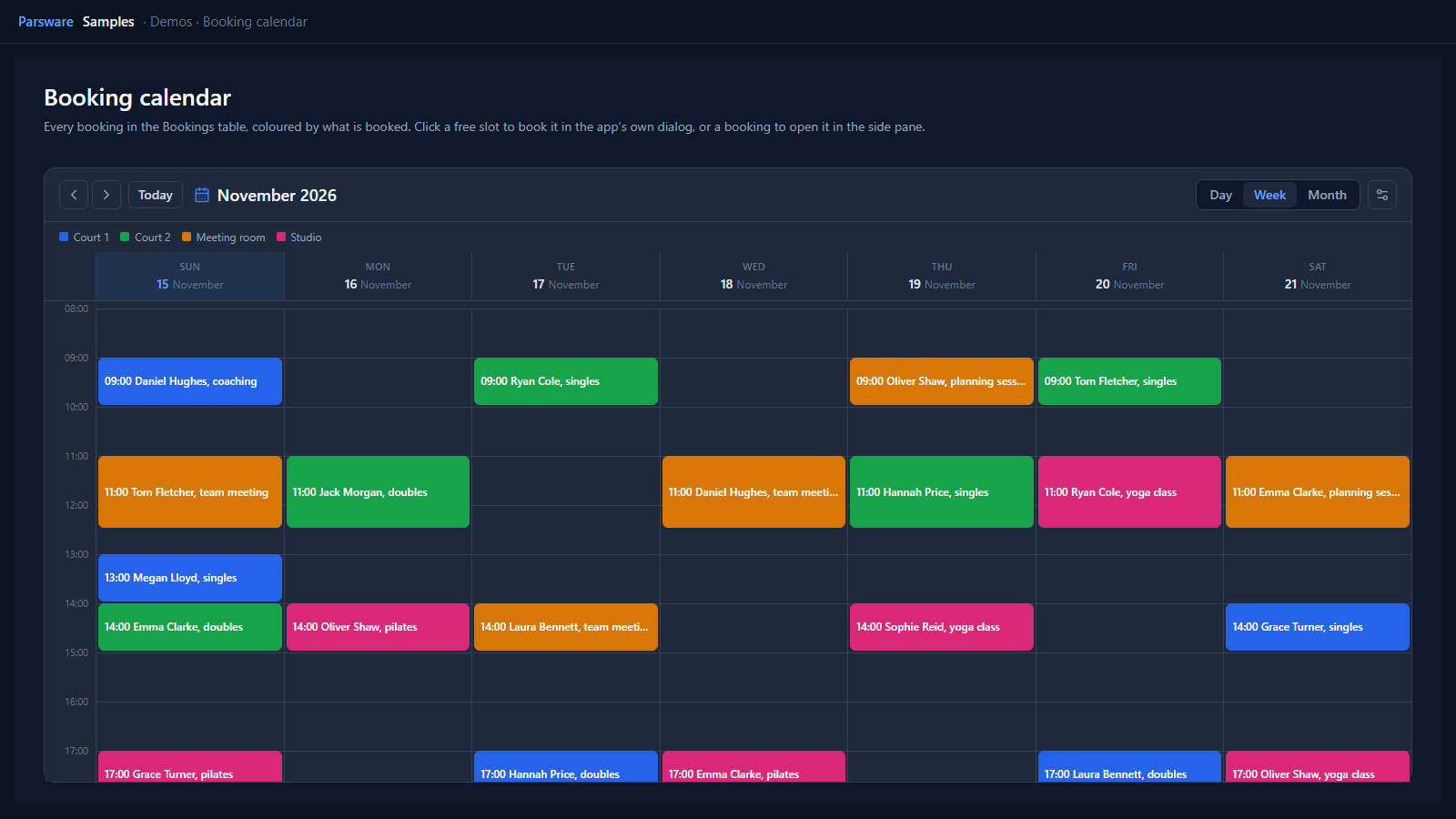
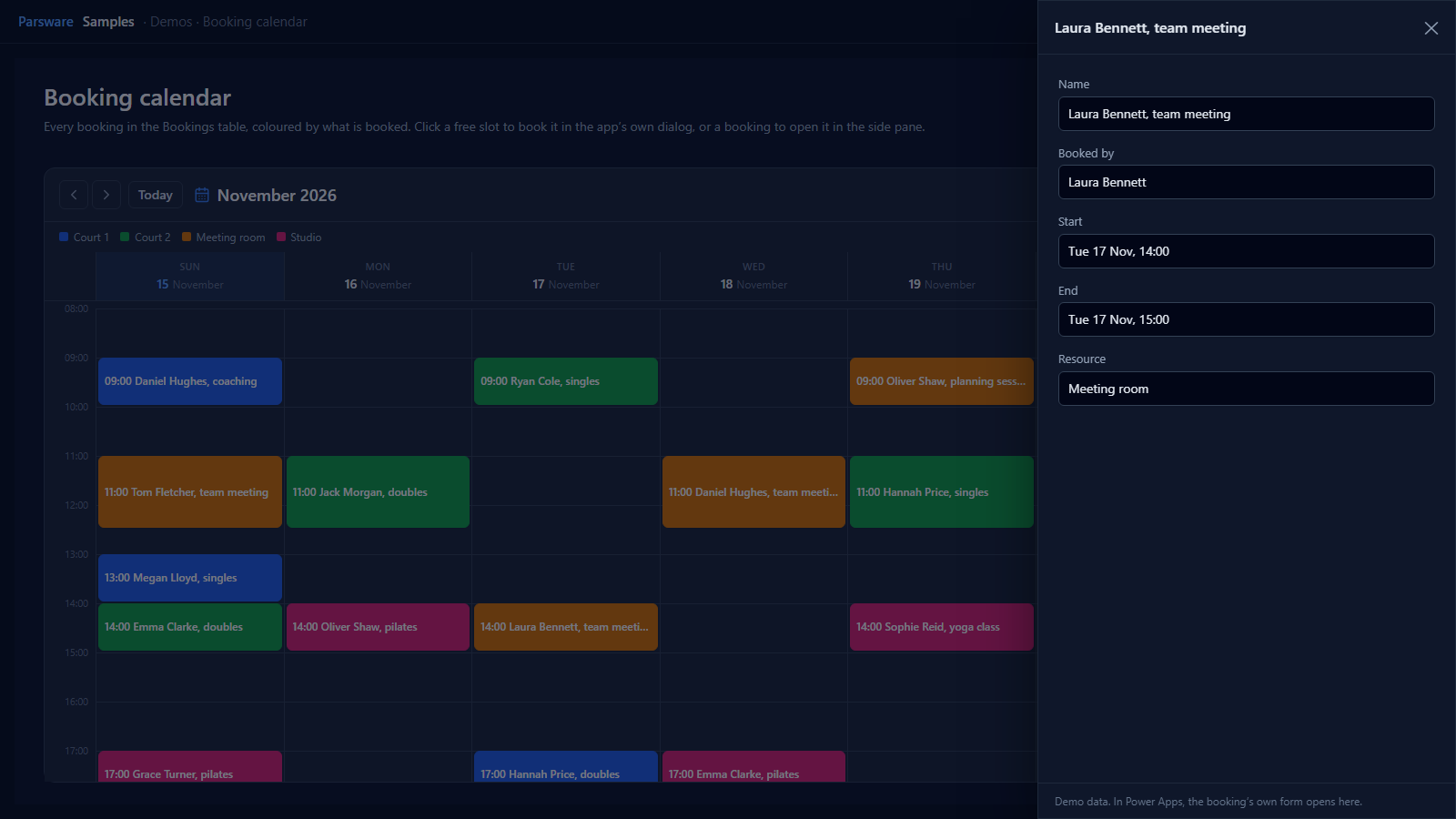
A Dataverse table of bookings drawn as a week you can click, on a page of a model-driven app. A free slot opens a new booking with its times filled in, and a booking opens in the side pane, in the table's own form.
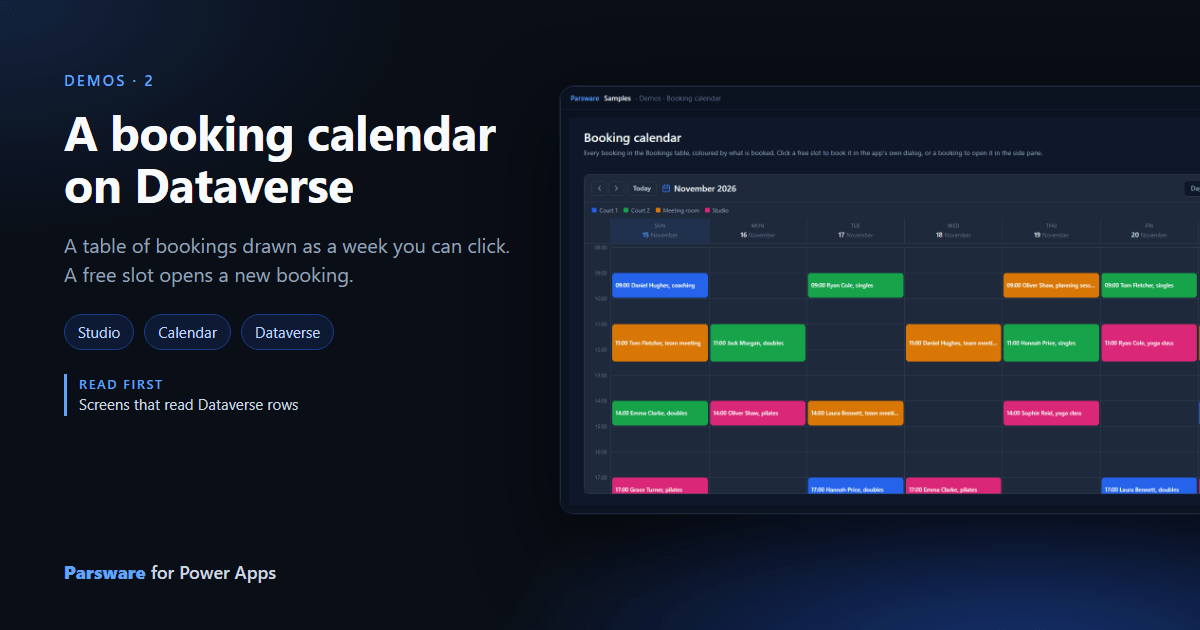
Who has the court on Thursday afternoon? In a model-driven app, a table of bookings is a list of dates. You sort by start, scroll, and work out where the gaps are in your head.
This demo is one small idea: draw the table as a calendar. It's a page in a model-driven app, drawn in Parsware Studio, and the calendar on it reads the Bookings table straight from Dataverse. It ships in the samples solution: open Parsware Samples, then Demos → Booking calendar.
The table
par_booking is an ordinary Dataverse table with five columns: Name, Booked by, Start,
End, and Resource, a choice of Court 1, Court 2, Meeting room and Studio. The
sample data fills two weeks of bookings from the Monday of the week you fill it, so the calendar
never opens on an empty week.
The calendar is one part on the page
On the page, the calendar is a single Table view or form part. In the inspector:
| Setting | Value |
|---|---|
| Table | Bookings (par_booking) |
| Shows | A calendar of its rows |
| Starts at | Start |
| Ends at | End |
| Title | Name |
| Colour by | Resource |
| First hour / Last hour | 8 and 21 |
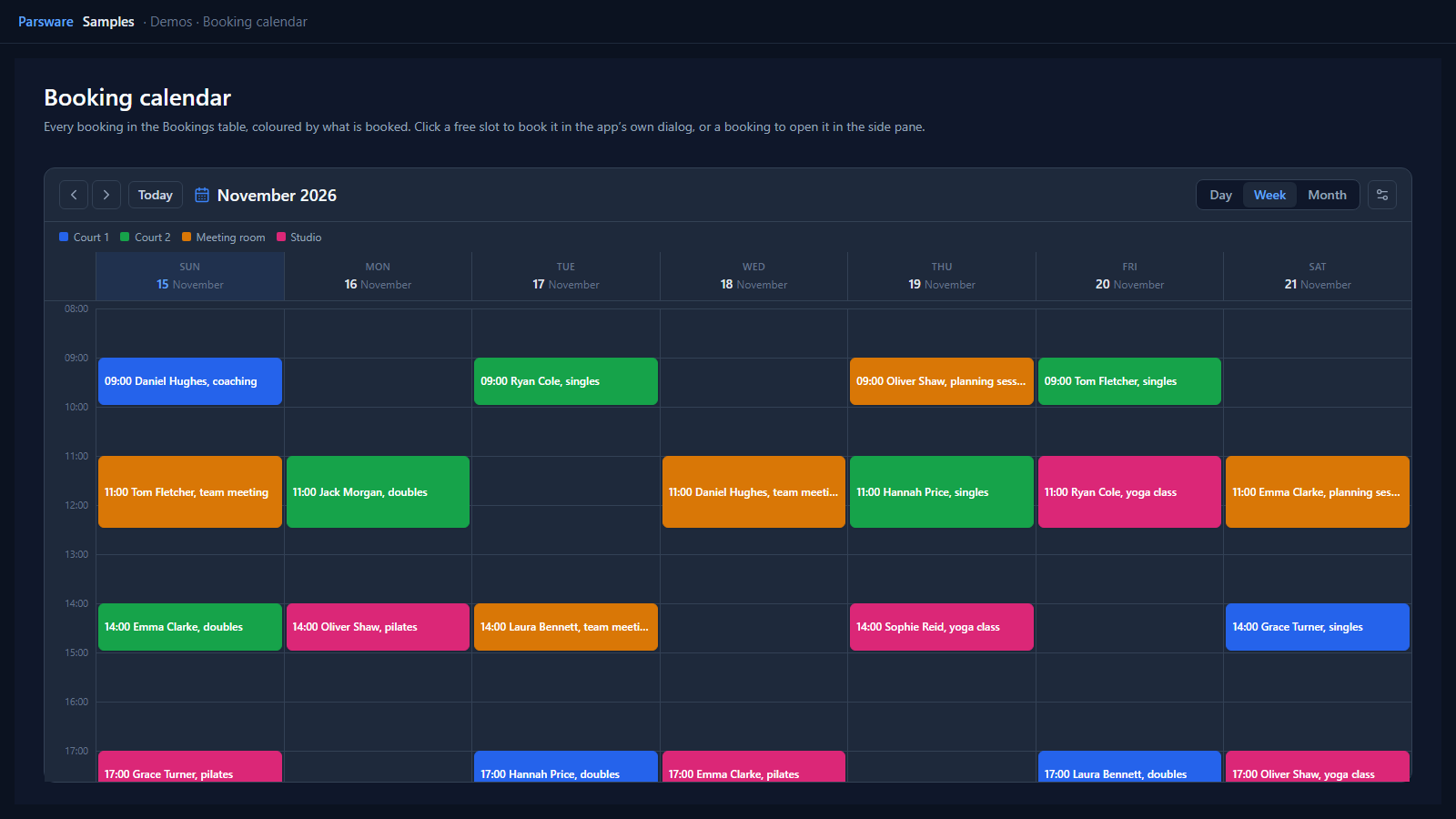
That's all of it. There's no script on this page. Each row is a booking: it's placed by its start and end, labelled with its name, and coloured by its resource. A choice column keeps the colours you gave its options in Dataverse. One you never coloured gets a palette in option order.
Week, month and day
The calendar opens on a week of seven day columns. The arrows move a week at a time, Today comes back, and Month and Day change the scale.
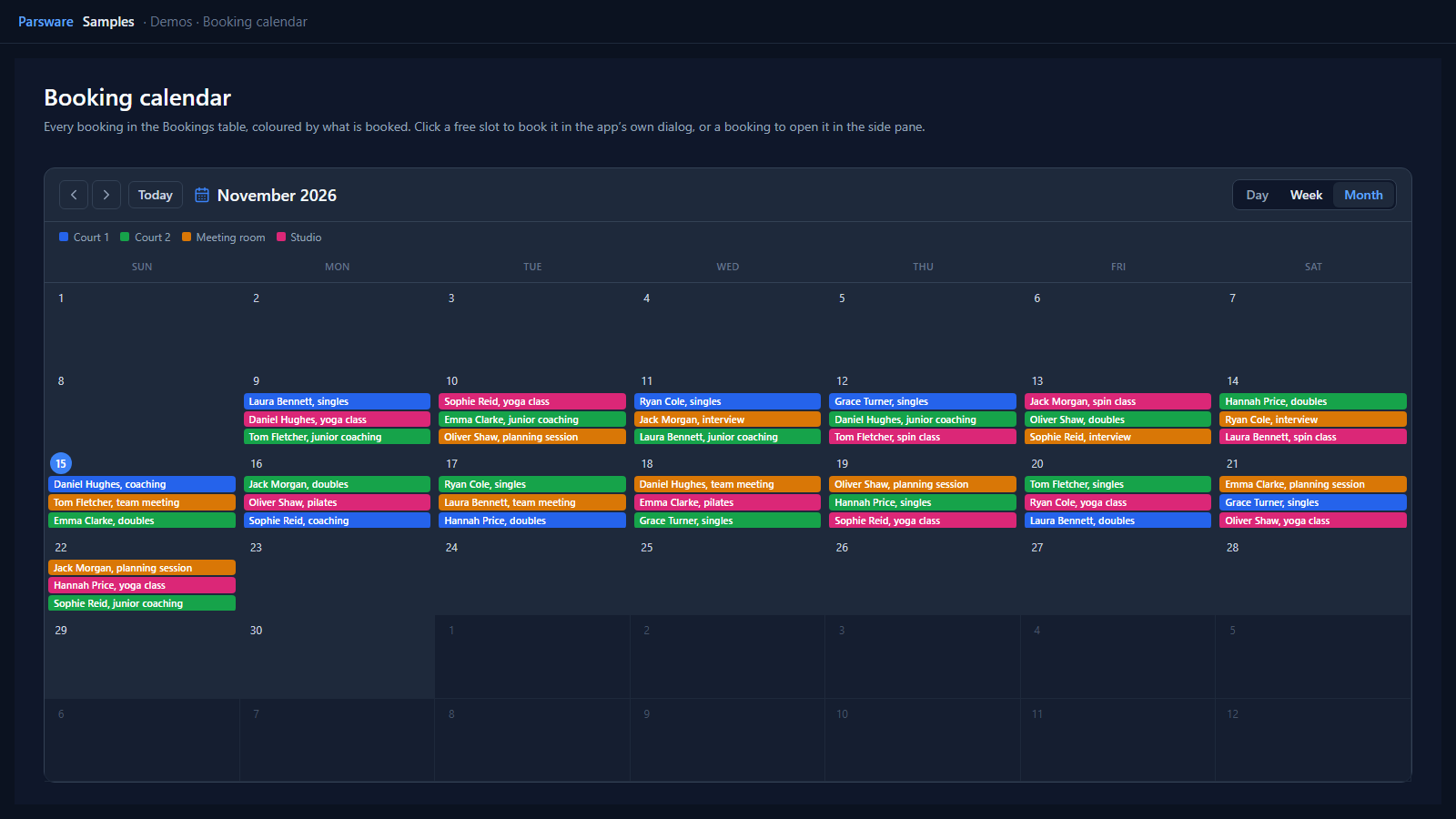
The calendar asks Dataverse only for the rows in the period on screen, through the reader's own session. So a booking the reader isn't allowed to see is never on the sheet, and Dataverse security decides that, not the page.
Click a free slot to book it
Click an empty slot and a new booking opens in the app's dialog, with Start and End already filled in for that slot (an hour, until somebody changes it):
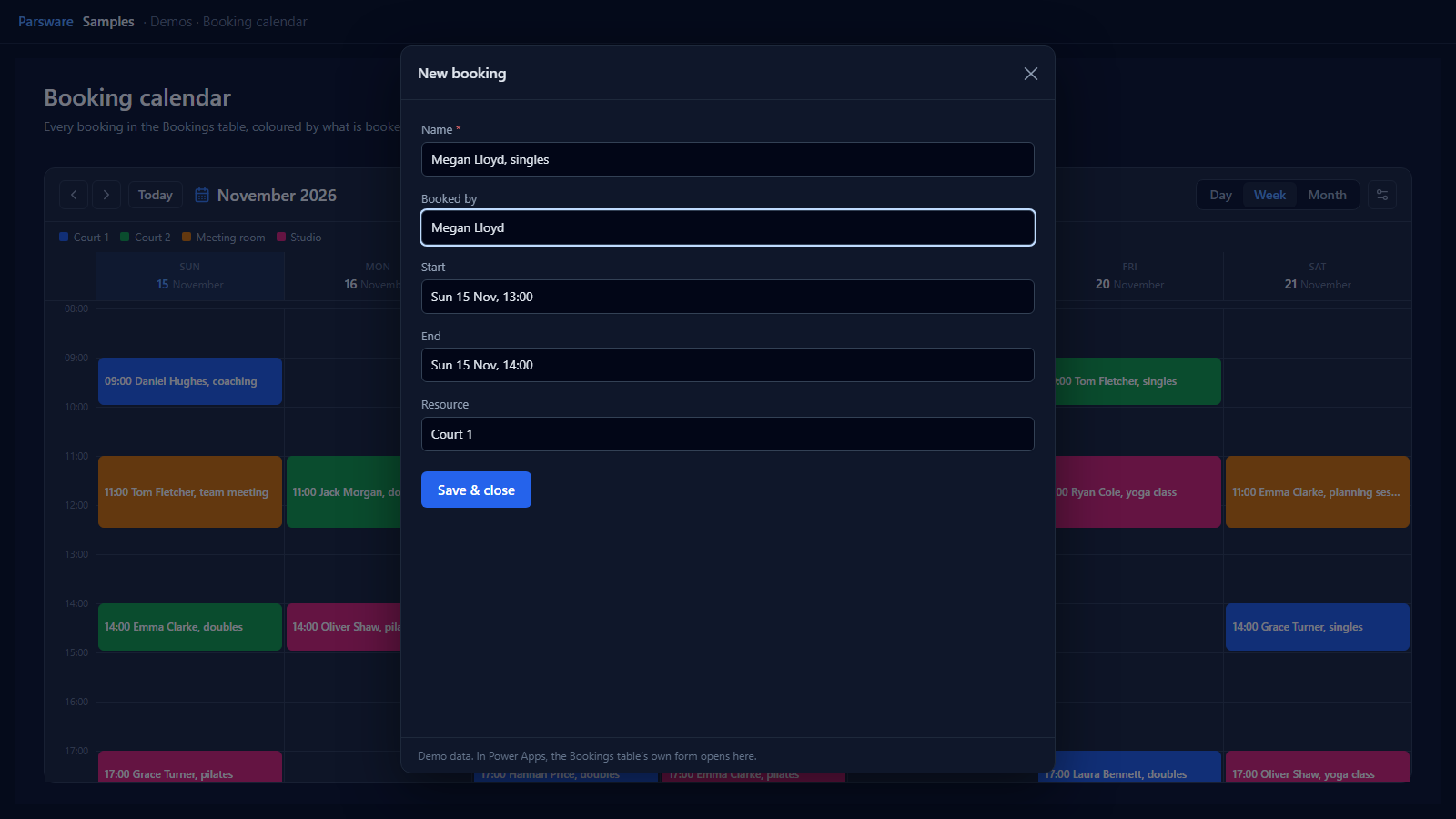
In Power Apps this is the table's own main form, opened with Xrm.Navigation.navigateTo. So
its required fields, its business rules and its security roles all apply. The calendar doesn't
have a second idea of what a booking needs. Save and close, and the calendar reads its rows again:
It's a dialog rather than quick create on purpose. Quick create is a per-table switch with a form of its own, and a table without one would open its main form full-page, taking the reader off the calendar they were booking from. The dialog works for every table.
Click a booking to open it
Click a booking and it opens in the app's side pane, beside the week, again in the table's own form. Close the pane and the calendar reads its rows again, so a changed time or resource moves straight away.
Your own table
Any table with a date-and-time column can be a calendar: rooms, vehicles, site visits, shifts. Copy Booking calendar in Parsware Studio (Start from a shipped design), pick your table, and choose its columns in the same six settings. A table with no end column works too: each booking lasts an hour from its start.
Three limits worth knowing:
- 500 bookings per sheet. A busy month can reach it, and the calendar says so when it does.
- A free slot needs the app. In the designer's preview there's no app to open a form in, so a free slot does nothing there rather than pretending.
- One table per calendar. Two tables on one calendar is two parts on the page.
Try it
- Install the three Parsware for Power Apps solutions, samples included (Install it).
- Fill the sample data (The samples, and sample data).
- Open Parsware Samples → Demos → Booking calendar.
The pictures in this article show the shipped design running on demo data in Parsware's own runtime and its calendar. In Power Apps the dialog, the side pane and the booking form are the app's own.