For Power Apps
Generate a screen with AI
Describe a screen in a sentence and the Parsware designer draws it, on your own Dataverse table, with the scripts that make it work. Here is a case triage screen with a count, a search box and a button on every row, generated in about twenty seconds, then changed by hand.
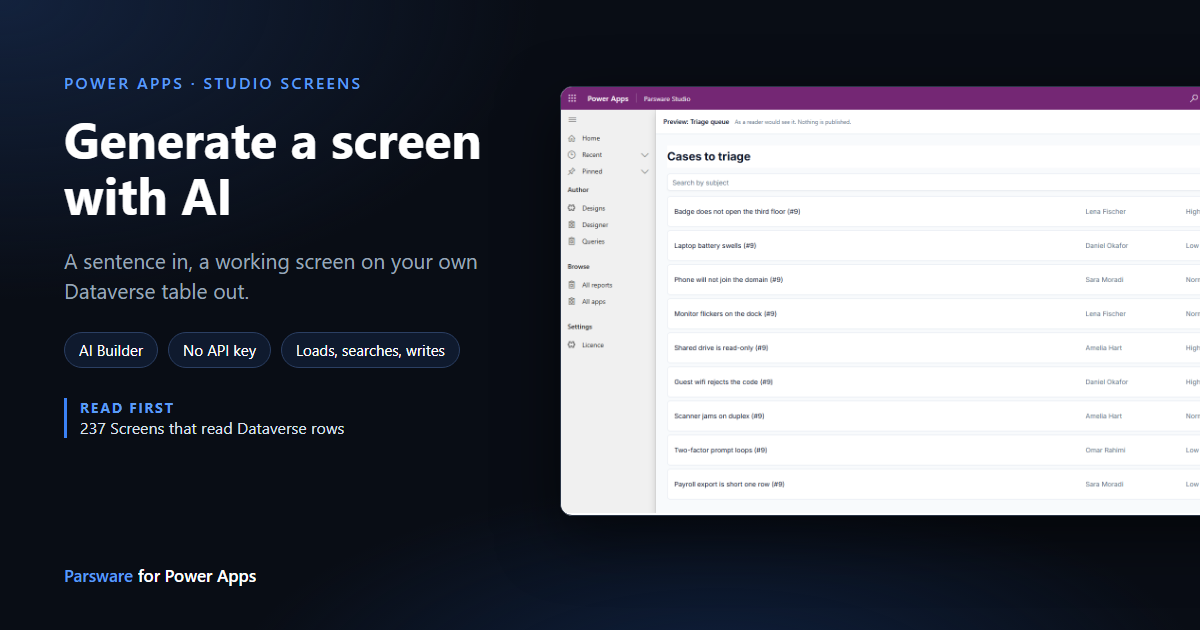
A working screen is more than its drawing. The list has to load its rows when the screen opens, the count has to read them, the search box has to filter them, and a button has to write something back. The designer's AI button does all of that from a sentence: it draws the screen and writes its scripts, bound to your own table's columns. You then change what you want, the same way as any other screen.
We'll generate a triage screen for the Case table from the samples.
Where the AI runs
The AI button calls an AI Builder prompt that comes with Parsware Studio, Parsware screen generation. It runs inside your own environment and is paid from your tenant's Copilot credits, about one credit an attempt. There's no API key to set up, no connector, and nothing sent to a service of ours.
A trial environment has credits already. In production, an administrator adds Copilot credits or a pay-as-you-go plan in the Power Platform admin center. If there are none left, the designer says so.
1. Create the design
In Parsware Studio, open Designs, press New, give it a Name (ours is Triage queue), set Kind to App, then Save. Open it in Designer.
A new app design starts with a Styles board: its colours, text styles and shapes. The generated screen uses them, so it matches whatever you set there.
2. Describe the screen
Press AI on the toolbar and describe the screen. We typed:
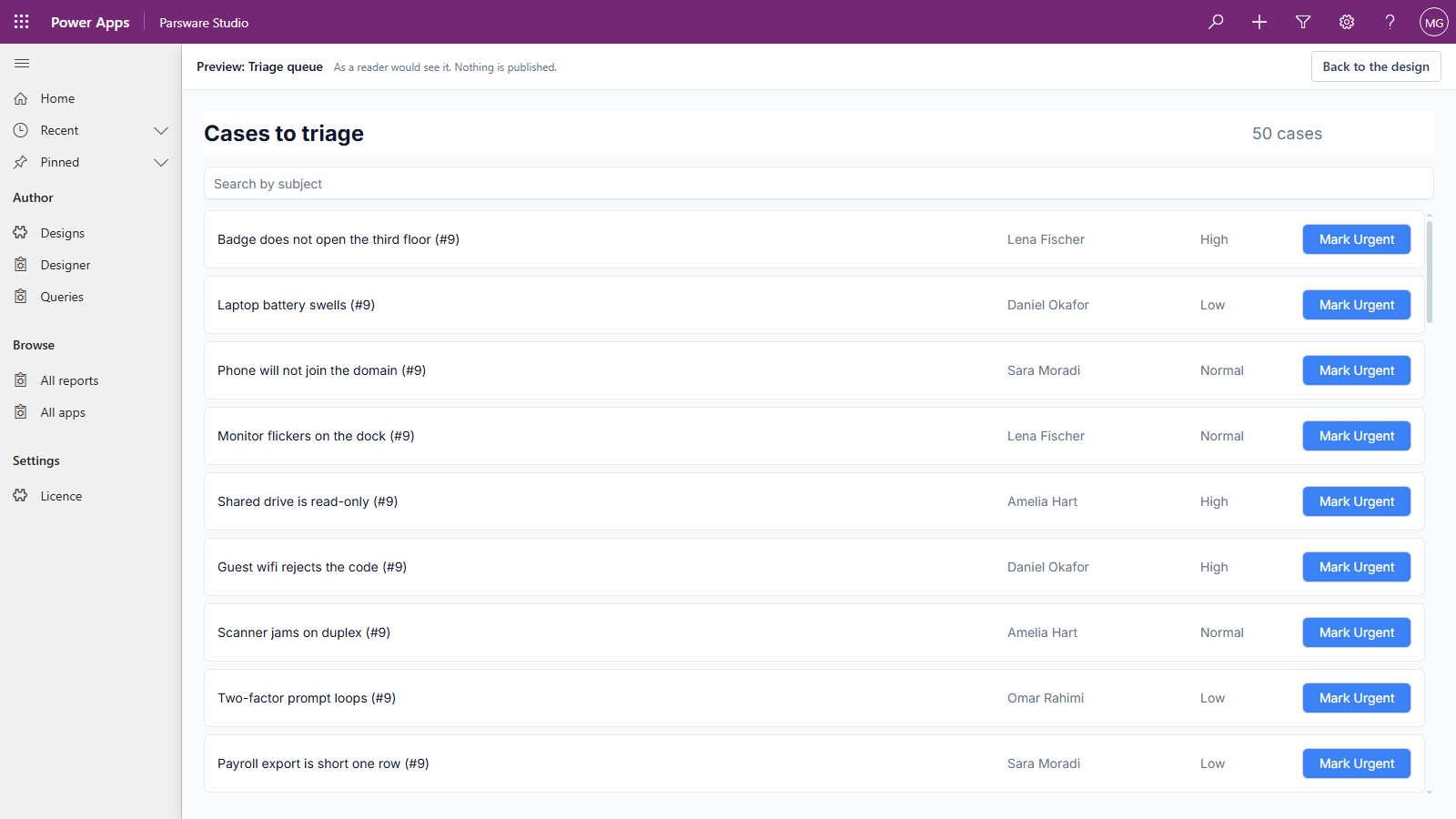
A screen for triaging cases. At the top, the heading Cases to triage and the number of cases. Below it, a list of the Case table's rows, newest first, showing each case's subject, contact and priority. Each row has a button that marks the case urgent. A search box above the list filters it by subject.
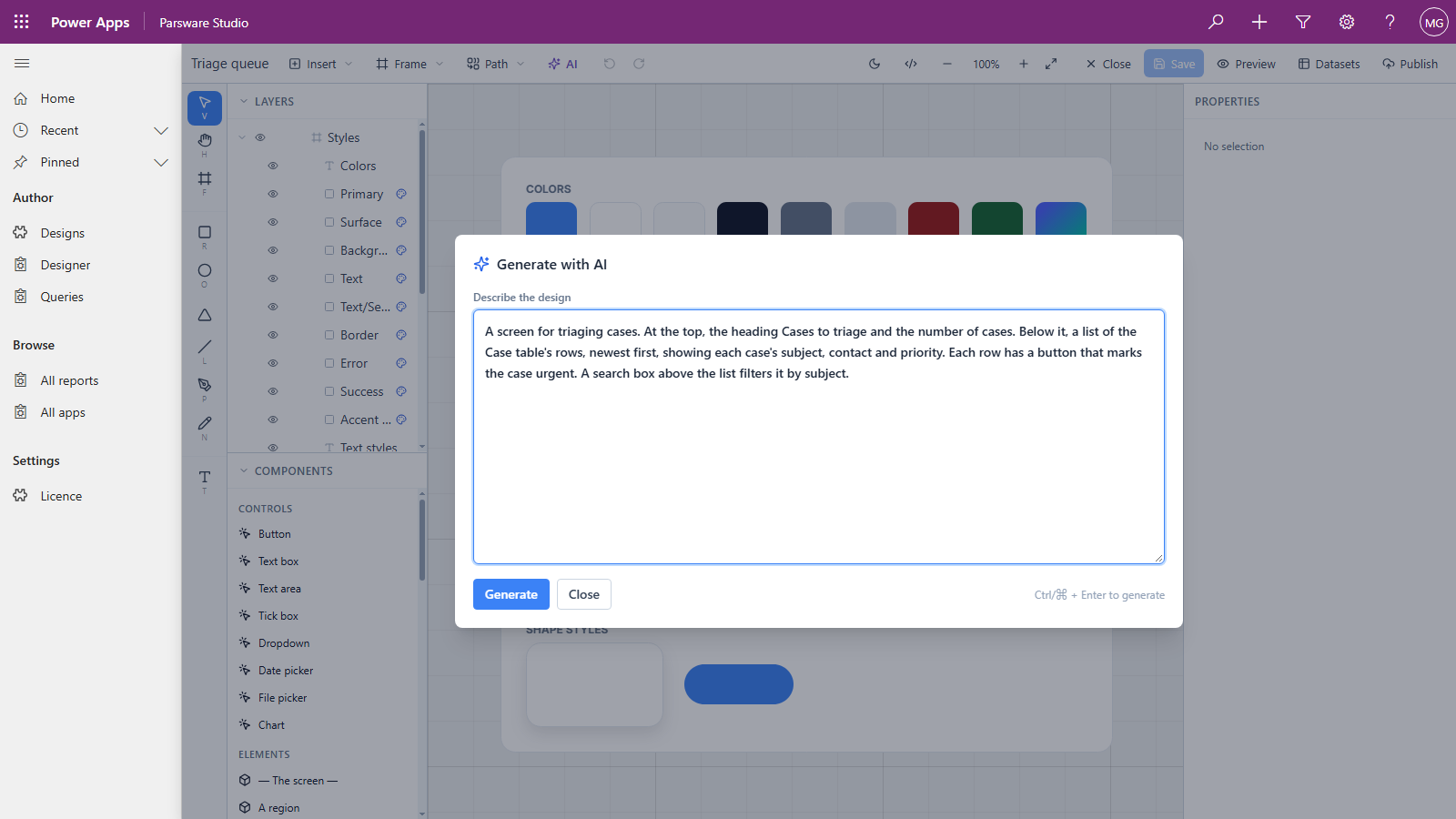
Name the table. The Case table in the sentence is how the designer knows which table you mean.
It looks up that table's columns in your environment and sends them with the request, so the AI uses
par_name and par_contact rather than guessing. Name every table the screen uses, up to four.
Say what goes on the screen, in which order, and what each control does. Press Generate, or Ctrl + Enter. Ours took about twenty seconds.
When it corrects itself
Before anything reaches the canvas, the designer checks the answer. Scripts on a screen are written in BS, which is not JavaScript, and an AI often writes JavaScript out of habit. Ours did. Its first answer sorted the list in a script, which BS can't do, and drew a Mark Urgent button that nothing answered. So the dialog said Correcting… attempt 2 of 3:
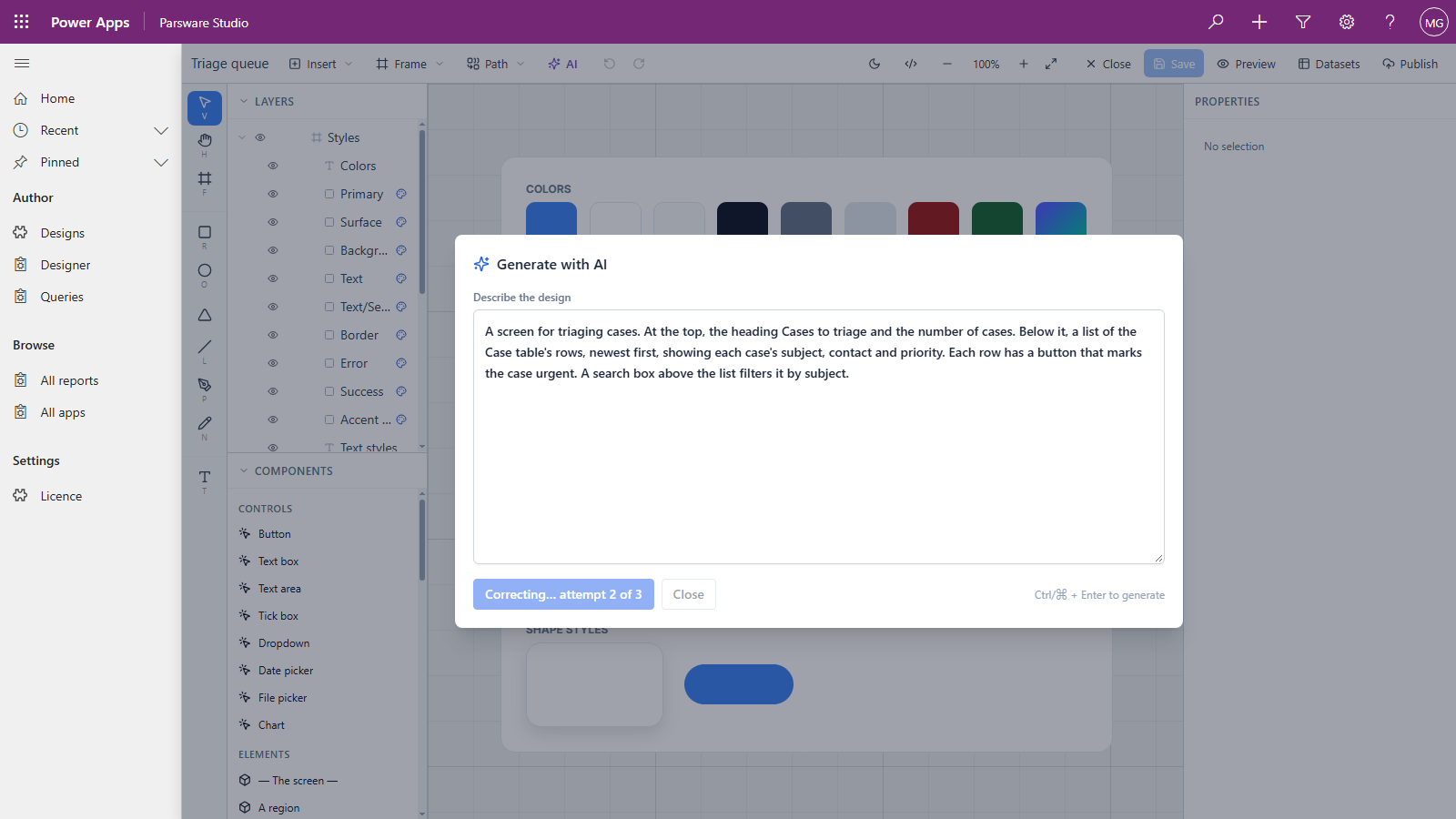
The designer sends the answer back with what was wrong and asks again, and you don't need to do anything. The second answer loaded the rows newest first instead, and gave every row's button something to do.
3. What it drew
The screen is added to the canvas beside the Styles board. Its parts are in the Layers list: Header with Title and Count, Search box, and Cases list holding a Case row.
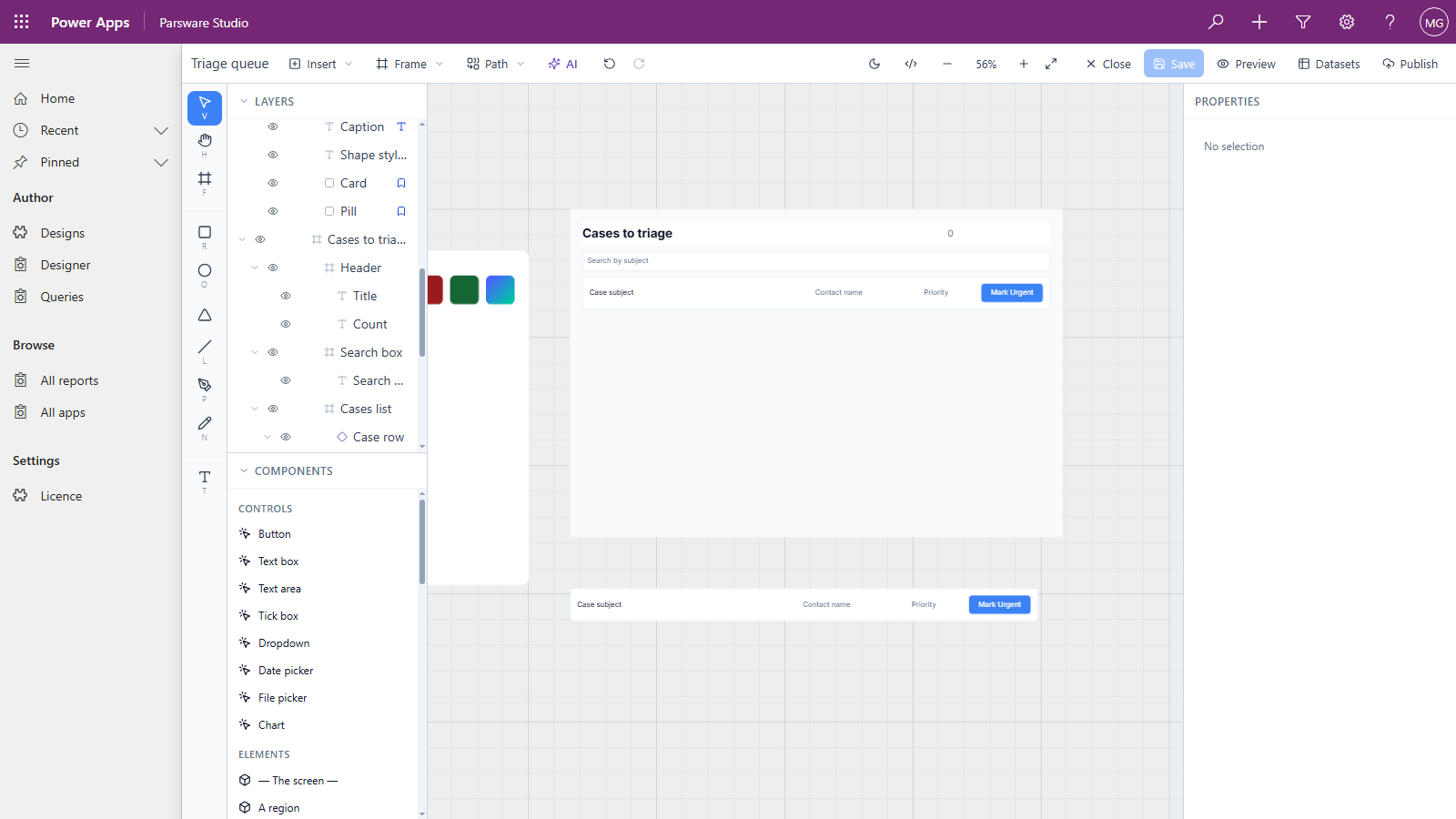
The row is a component: it's drawn once, below the screen, and the list repeats it for every case. Change the component and every row follows (see Components in Power Apps designs).
The canvas shows placeholders and a count of 0, because nothing has loaded yet. Nothing is saved until you press Save.
4. Preview it
Press Save, then Preview:
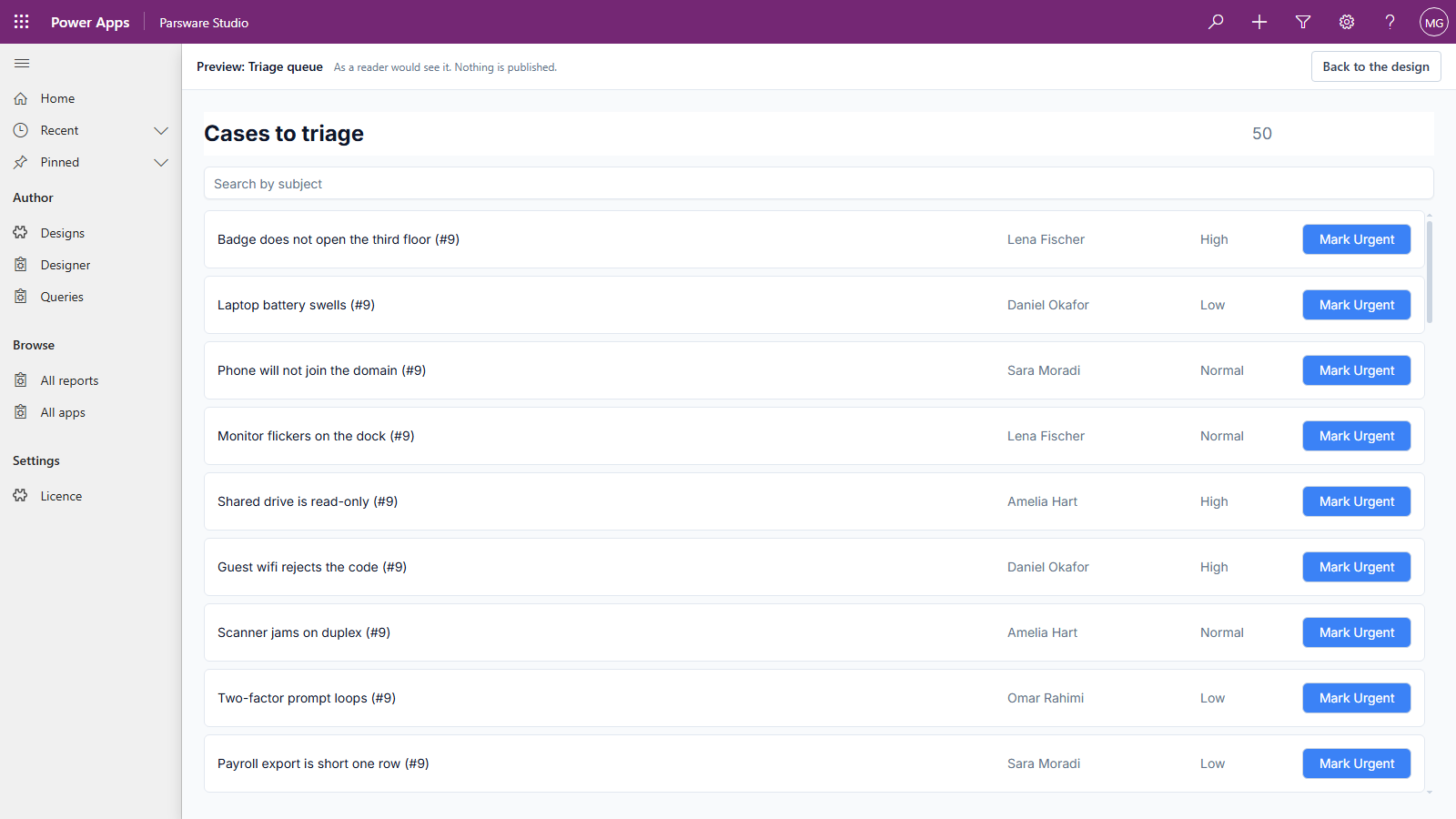
These are the screen's own scripts running, as the signed-in user:
- When the screen opens, it loads the fifty newest cases:
loadRecords("par_case", "cases", { top: 50, orderBy: "createdon", descending: true }). - Contact prints the contact's name, not an id, and Priority its label.
- The count reads how many rows the list is showing.
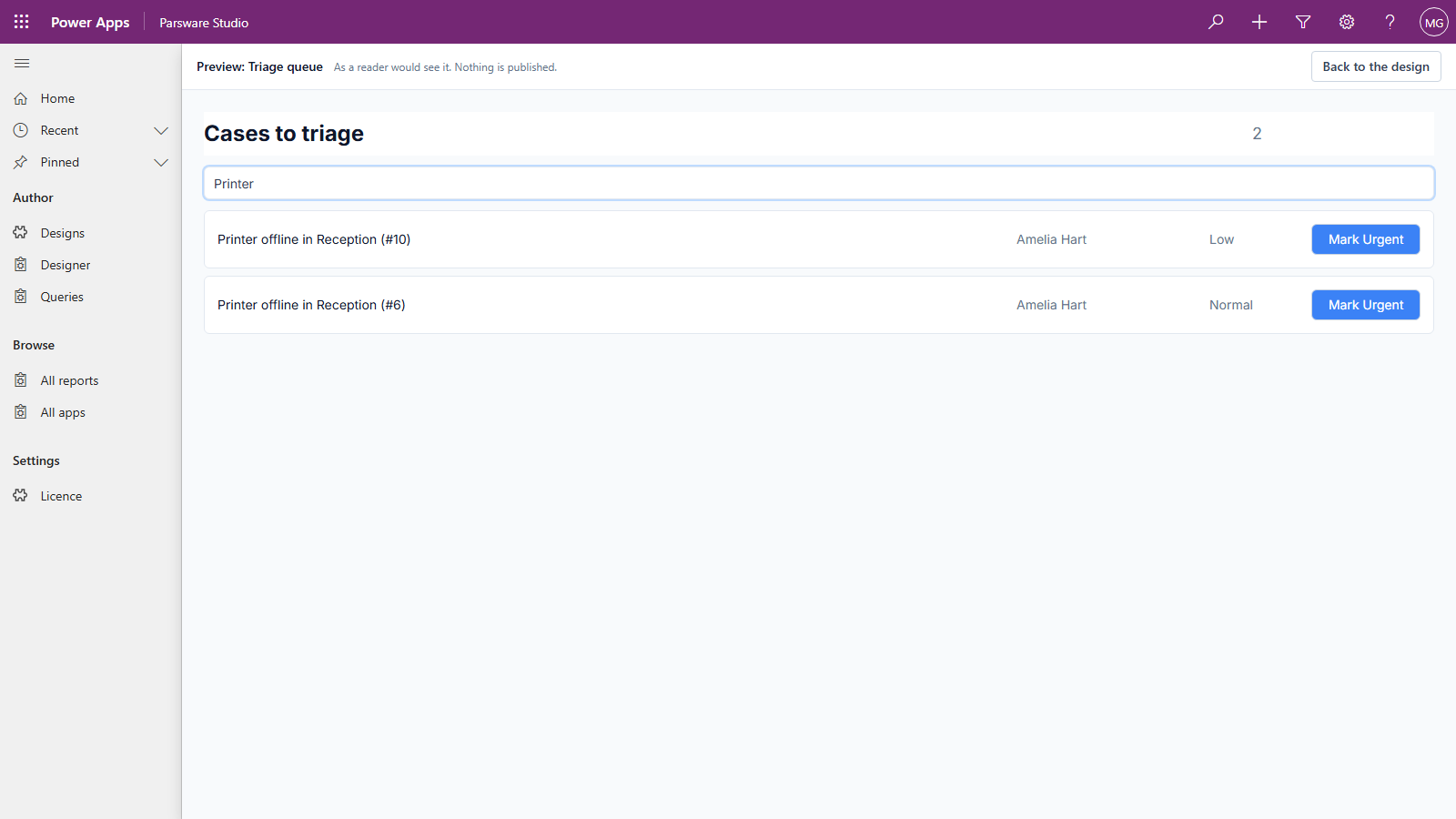
Type in the search box and the list narrows as you type, and the count with it:
Press Mark Urgent on a row and the case is updated in Dataverse:
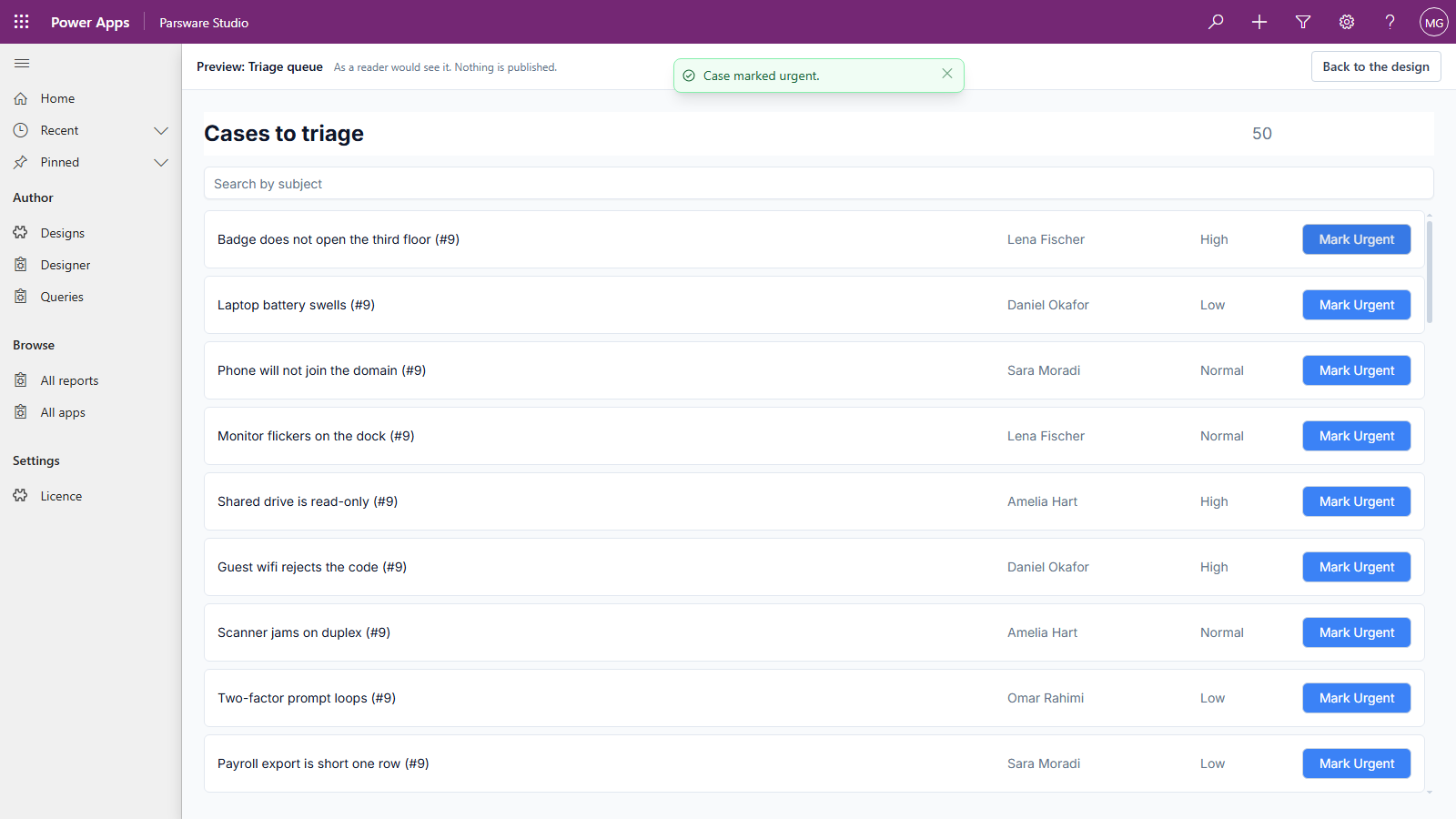
The button belongs to the row component and only says mark this one urgent. The screen decides
what that does, with updateRecord("par_case", event.payload, { par_urgent: true }). So the same
row component could do something else on another screen.
5. Change what you don't like
Say a bare 50 in the corner doesn't say much, and we'd rather it read 50 cases.
Select Count in the layers list and press </> (Write code) on the toolbar. Its binding,
Text, counts the rows that match the search. Add the word to the end:
text(state.cases.filter(c => c.par_name.includes(state.searchText)).length()) + " cases"
text() turns the number into words, so it can be joined to more words with +.
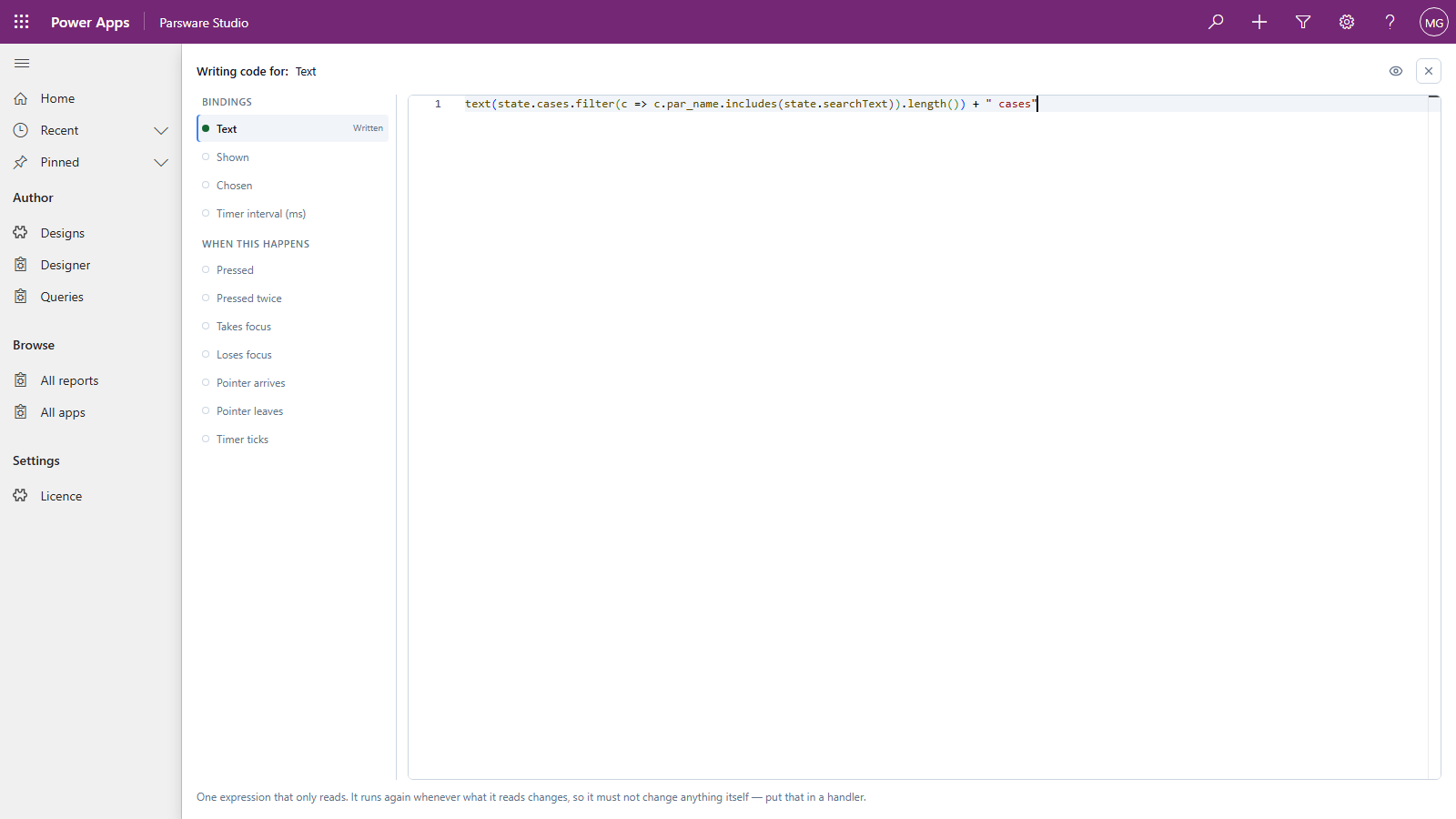
Close the code page, Save, and preview again:
The same goes for anything else: a heading's words, a colour, a column's width. To change every row at once, change the Case row component's own drawing, below the screen.
Good to know
- It always adds; it never changes what's there. Press AI again and you get a second screen beside the first. Delete the one you don't want.
- Search matches capitals exactly. The generated search uses
includes, so printer doesn't find Printer. - It searches what it loaded. Ours loads the fifty newest cases, so the search box filters those
fifty. To search them all, filter where the rows are loaded instead, with
loadRecords'contains(see Screens that read Dataverse rows). - Check the preview, not just the canvas. The canvas shows placeholders. The preview runs the scripts against your data.
- The same sentence won't draw exactly the same screen twice. Each answer is new, so names and layout can differ. What the designer checks every time is that the scripts are BS and that every button is answered.
- It's a draft, and yours. Save it, publish it, and place it on a form like any other screen (see A drawn screen on a form).
Next
The designer inside Power Apps is a tour of Parsware Studio: designs, the designer, queries and where each one lives. The whole series is in the reading list.