Parsware Platform
One login, many apps: the Platform Shell
The people who use Parsware apps never see three products. They sign in once to the Platform Shell, and every app in the environment is a tile on its home page: model-driven apps, drawn Studio apps and custom React apps, all in the same page, the same top bar and the same session.
A platform that builds applications can easily end up with a different place to use each kind: a portal for the forms, another site for the dashboards, a third login for the one somebody wrote in code. Parsware has one. The Platform Shell is where everybody who uses an app signs in, finds it, and uses it, whatever kind of app it is.
One sign-in
Each environment has its own address, and the Shell at that address asks once who you are:
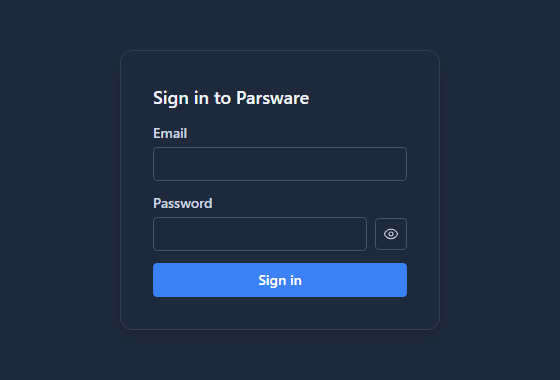
The account is the same in every environment of the tenant; what it may see in each is decided by the roles it holds there. Alongside the password, the platform asks for a code from an authenticator app (see Two-step sign-in).
Every app on one page
After signing in, the home page lists every app in the environment that's been shared with one of your roles:
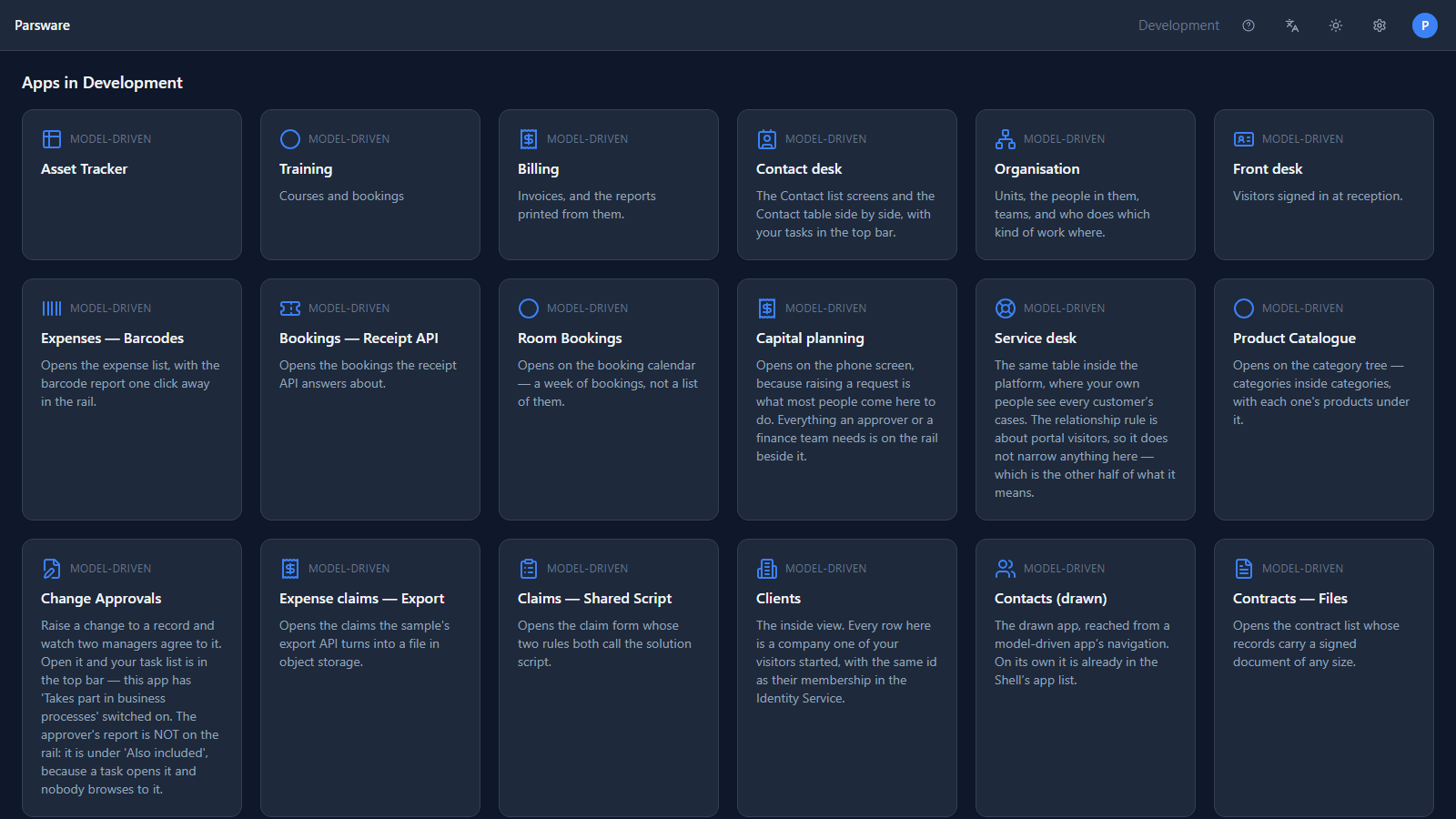
Further down, the same grid holds the other two kinds. Each tile says which kind it is, and nothing else about using them is different:
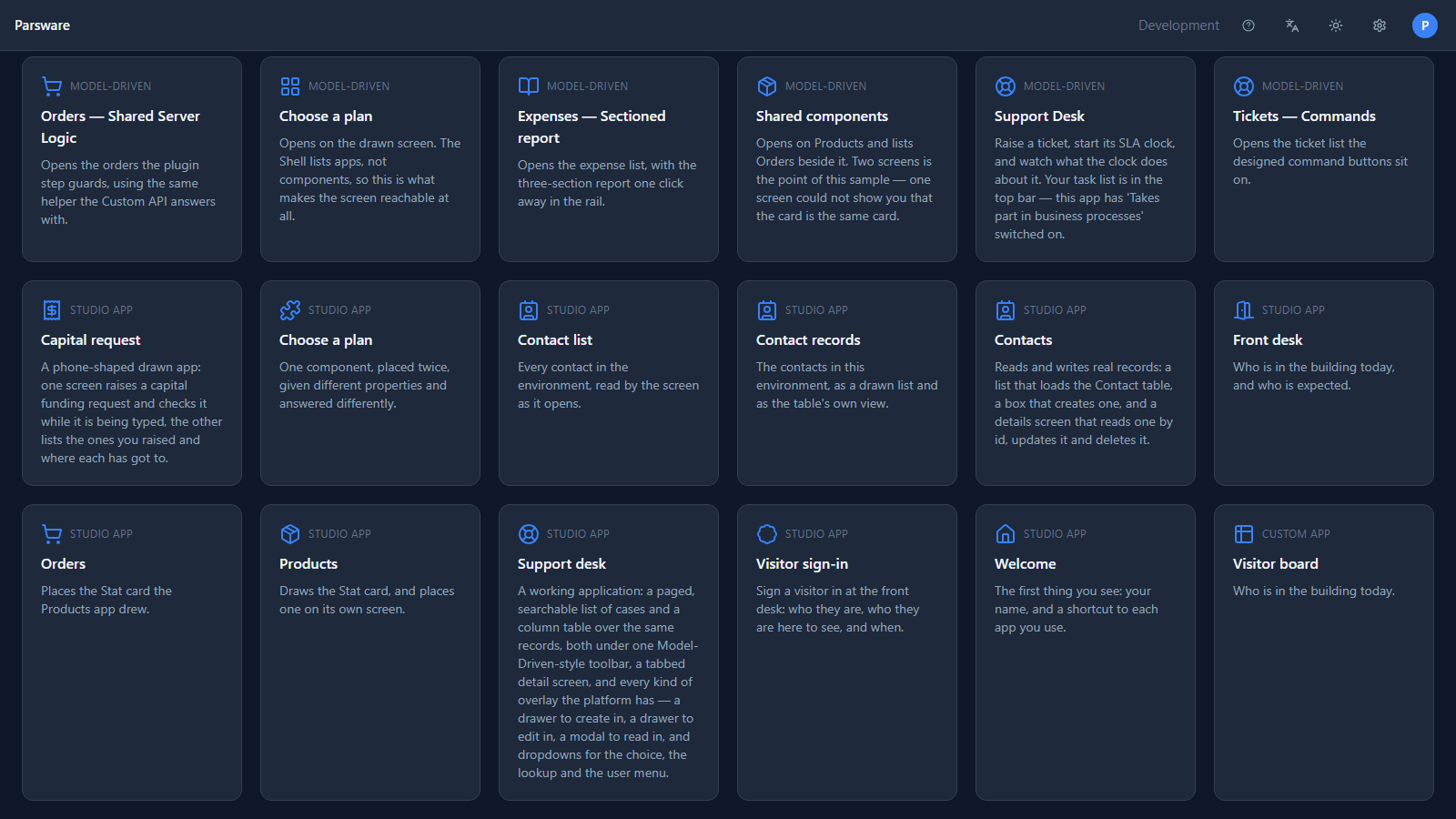
- A model-driven app is built from tables, forms and views.
- A Studio app is drawn on a canvas, screen by screen.
- A custom app is written in React by a developer, packed, and imported like anything else.
The same top bar everywhere
Whichever app is open, the top bar is the Shell's: the environment's name, the tasks waiting for you, Help, the language, light or dark, appearance settings and your own menu. In the capital planning app, with two tasks waiting:
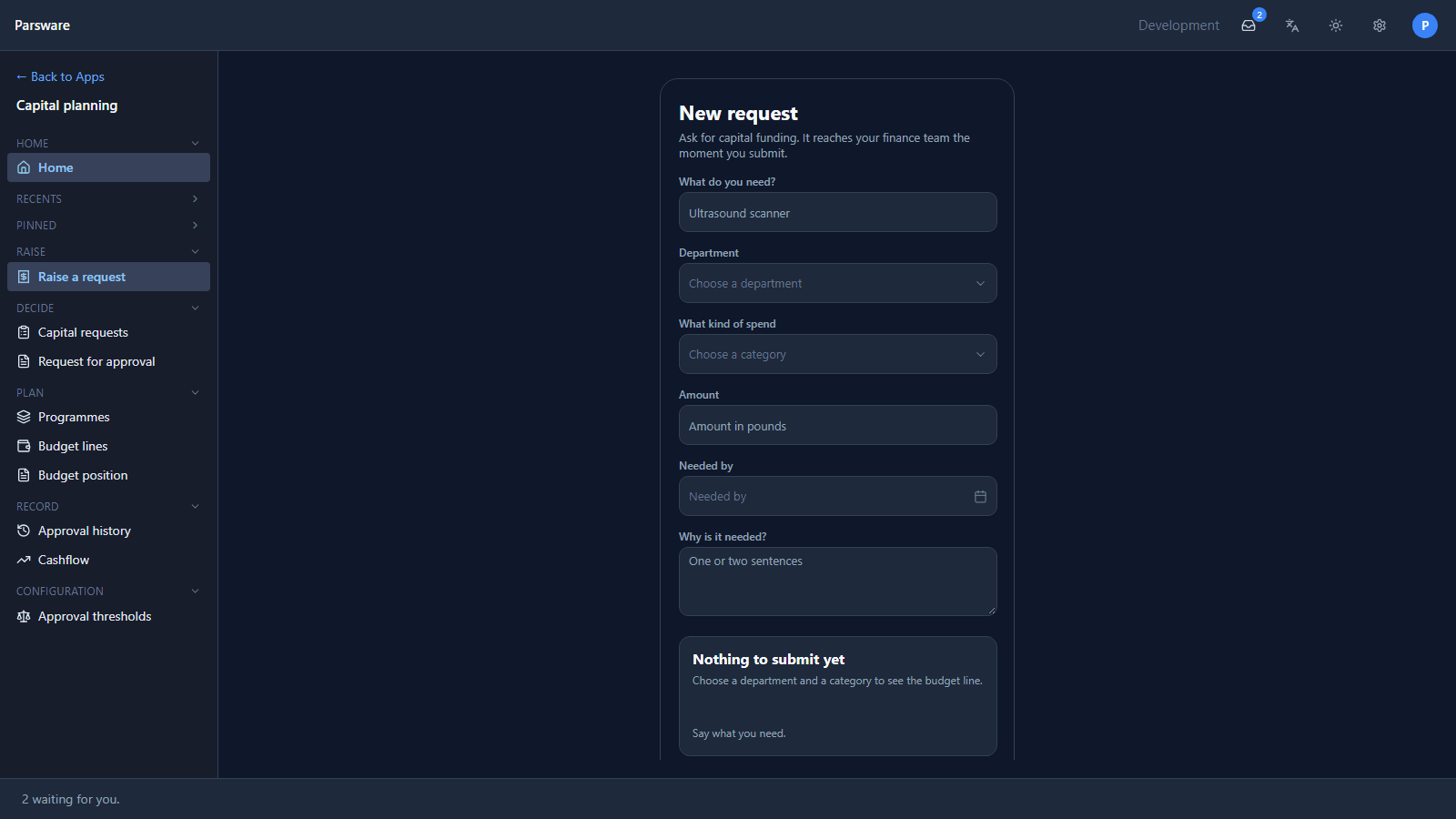
Change the language or the theme there and every app follows, because they're all in the same page.
Custom apps share the Shell's runtime
A custom app isn't a website in a frame. The Shell loads its code into its own page, with the Shell's own copy of React, and hands it the Runtime SDK: who is signed in, which environment this is, and a way to read and write records as that person. So the Visitor board, a custom app built in Build a custom React app, knows where it is and who is looking without asking anybody to sign in again:
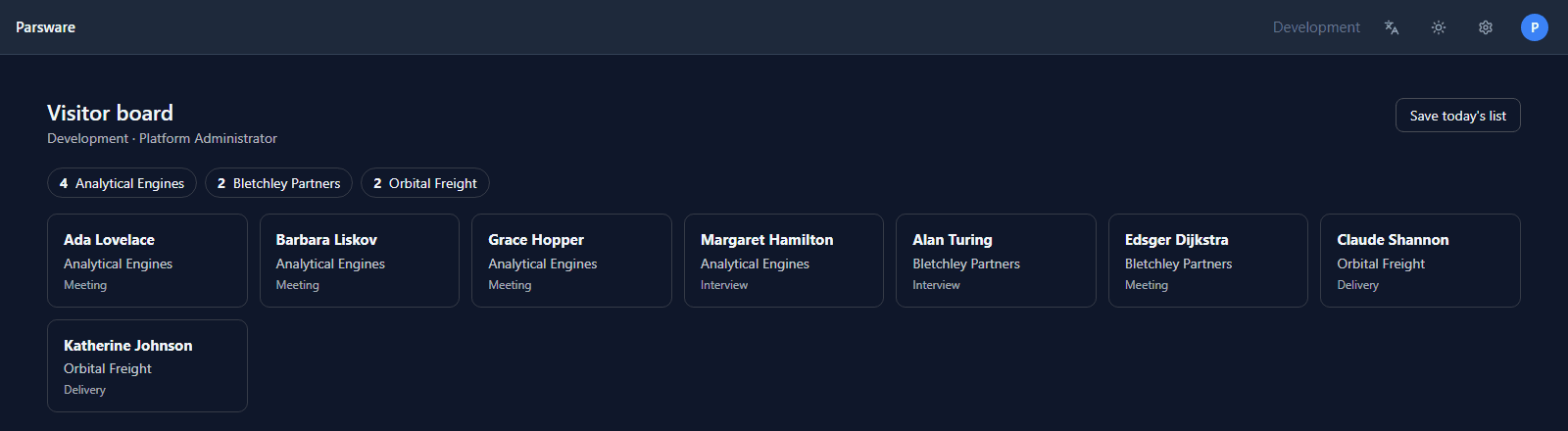
Because it reads through the SDK as the signed-in person, a custom app can never see more than that person could see in any other app.
What we fixed
- The home page's Help link wasn't in the top bar. Every screen keeps its Help link in the same corner, just before the language menu, except the app list and the Security page, which drew their own beside their heading. They use the top bar's now.
Try it
Sign in to an environment's Shell and open one app of each kind. Switch the language in the top bar while one is open, then go back to the home page.
Next: Every designer is code first.