Parsware Platform
An invoice
A printed invoice is one record and its lines. Two datasets with record fields say so: the invoice by its id, and the lines by their lookup to it. The designer's Invoice sample supplies the layout, and each of its texts is pointed at the real columns on the Code page.
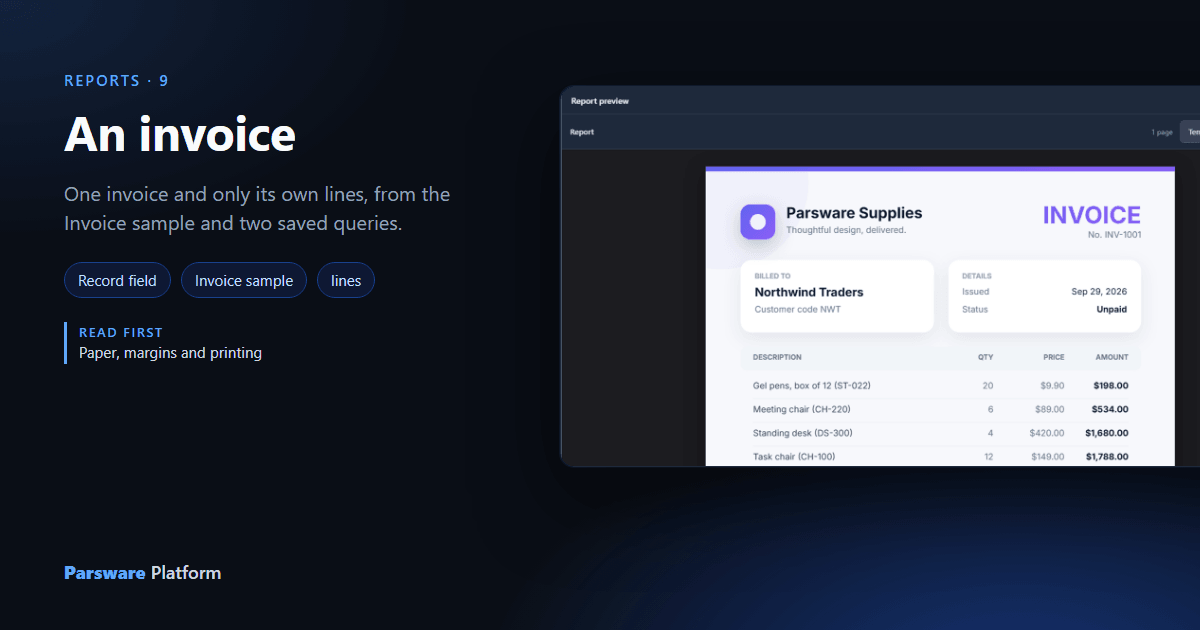
Every report in this series so far has been about a whole table: all the claims, grouped and totalled. An invoice is the other kind. It is about one record, the invoice, and the rows that belong to it, its lines. This article builds one, from the invoices in the Invoices — Credit Check sample.
1. The data
The sample's Invoice table has a reference (INV-1001), a customer and an amount, but no
lines. So we added a table to the Main solution, Invoice line, with four fields:
- Invoice, a lookup to Invoice
- Product, a lookup to the Product table
- Quantity, a whole number
- Unit price, a decimal
INV-1001 got four lines and INV-1002 four more, adding up to each invoice's amount. Then two saved queries (article 047 shows how a query is built):
- Invoice, to print reads the invoice, with the customer's name and code joined in from the Customer table.
- Invoice lines, to print reads every line, with the product's name and code joined in.
2. Two datasets, each narrowed to the record
In Reports, New, we called the report Invoice and gave it two datasets:
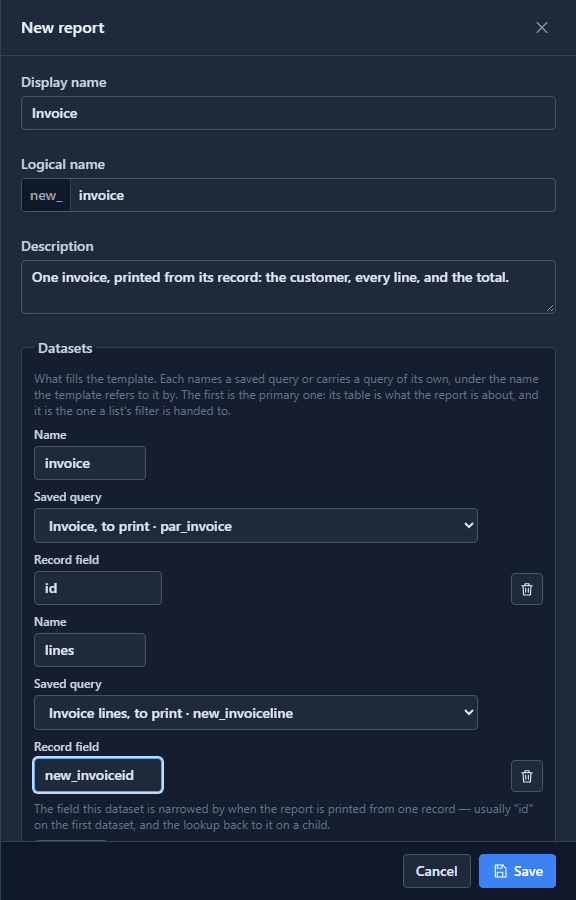
Record field is what makes this an invoice rather than a list of invoices. When the report is printed from one record, each dataset with a record field keeps only the rows where that field holds the record's id:
- on
invoice, the field isid, so the dataset is this invoice and no other; - on
lines, it isnew_invoiceid, the lookup back to the invoice, so it is this invoice's lines.
The first dataset is the primary one. Its table, Invoice, is what the report is about.
3. Start from the Invoice sample
Open the report with Design, then Insert → Sample reports → Invoice. It drops a finished invoice page on the canvas: a letterhead, Billed to and Details cards, a table of items and a total.
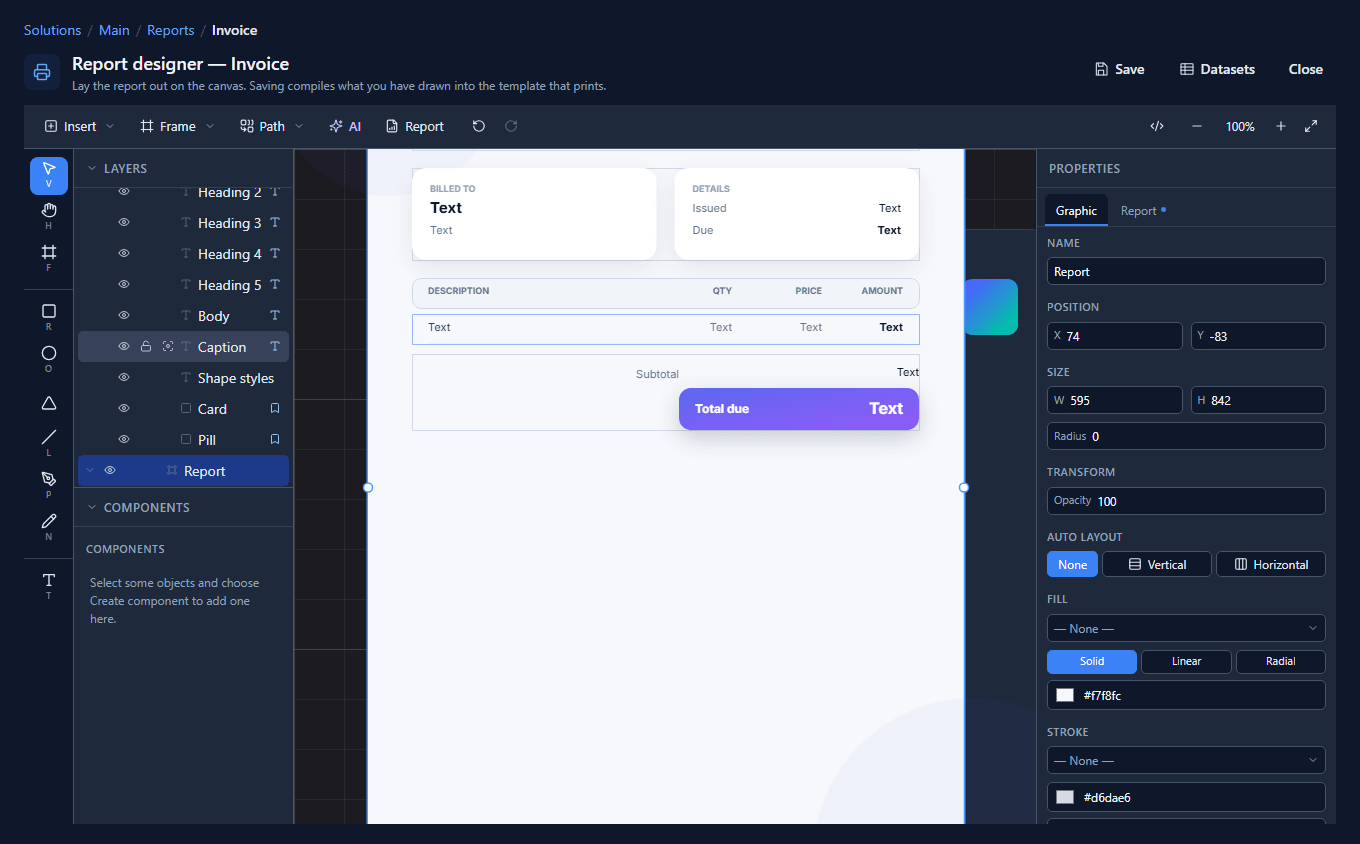
Its texts are bound to a made-up dataset called items, with columns like desc and qty. Each
one has to be pointed at a real column instead.
4. The table walks the lines
Select the Item row frame. On the Report tab, set Repeat over to lines:
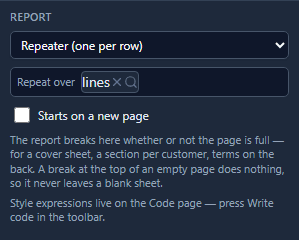
Changing what a repeater walks clears the bindings inside it, because they name the old dataset's columns. The designer asks before it does.
5. Point each text at a column
For each text, select it, press Write code, and type in What it shows. Outside the
repeater there is no row, so the invoice is reached as invoice[0], the first (and, when printed
from a record, only) row of the invoice dataset:
- the number:
concat('No. ', invoice[0].par_name) - the customer:
![The Code page for the customer's name: What it shows, Written, with invoice[0]['cust.par_name']](/blog/144-an-invoice/04-the-customer.png)
A column the query joined in from another table is named after the join, cust.par_name, and
the dot means it can't be written as invoice[0].cust.par_name. Square brackets with the name in
quotes, invoice[0]['cust.par_name'], reach it.
- the date issued:
format(invoice[0].created_at_utc, 'date') - the status:
invoice[0].par_status, with its label changed from Due to Status
Inside the repeater, each line is row:
- the description:
![The Code page for a line's description: concat(row['prod.par_name'], ' (', row['prod.par_sku'], ')')](/blog/144-an-invoice/05-each-line.png)
- the quantity and the price:
row.new_quantityandrow.new_unitprice - the amount, which no table stores, is worked out on the spot:
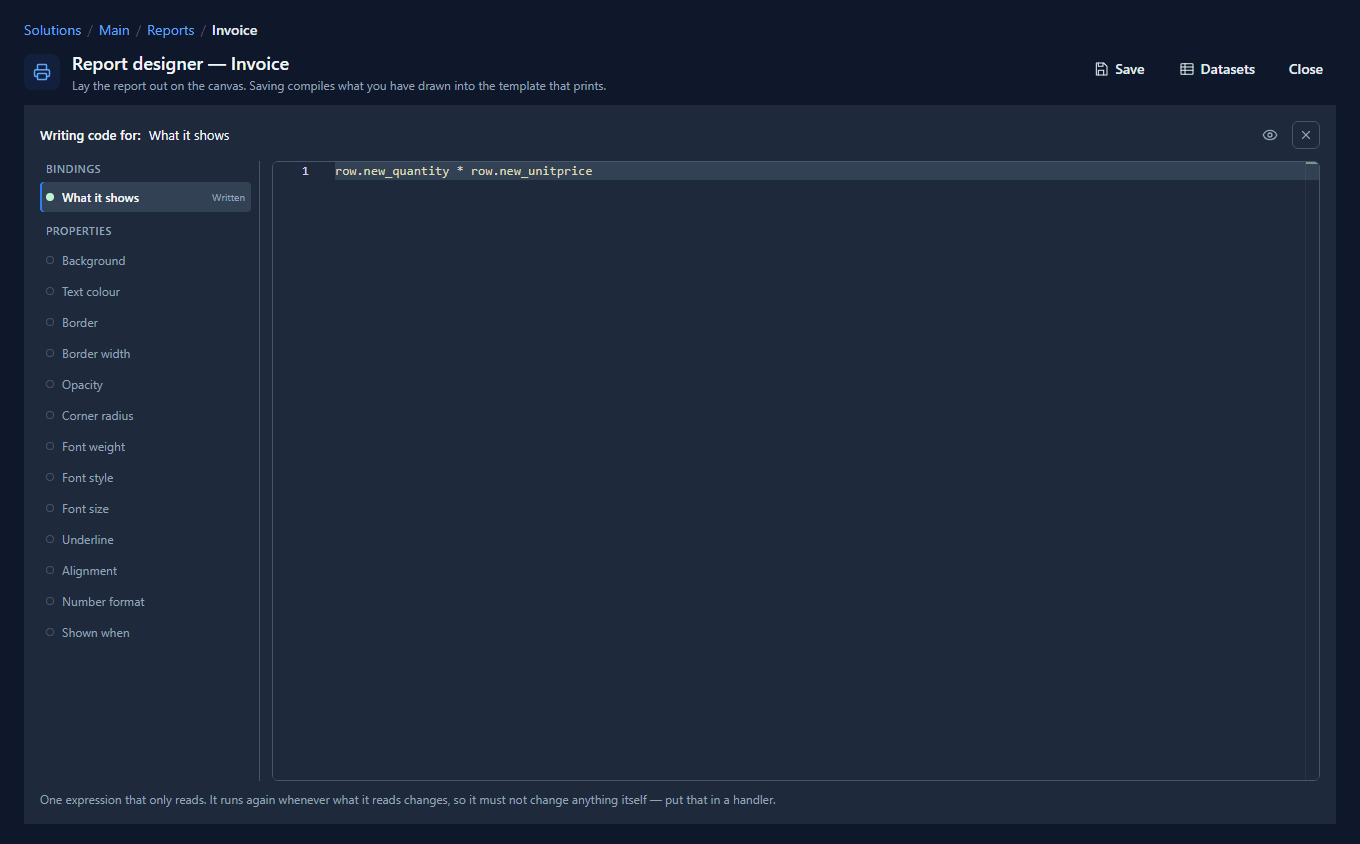
Under the table, the Subtotal line became Lines with count(lines), and Total due shows
invoice[0].par_amount. The company name at the top is plain text in quotes, 'Parsware Supplies'.
6. The preview
Press Report:
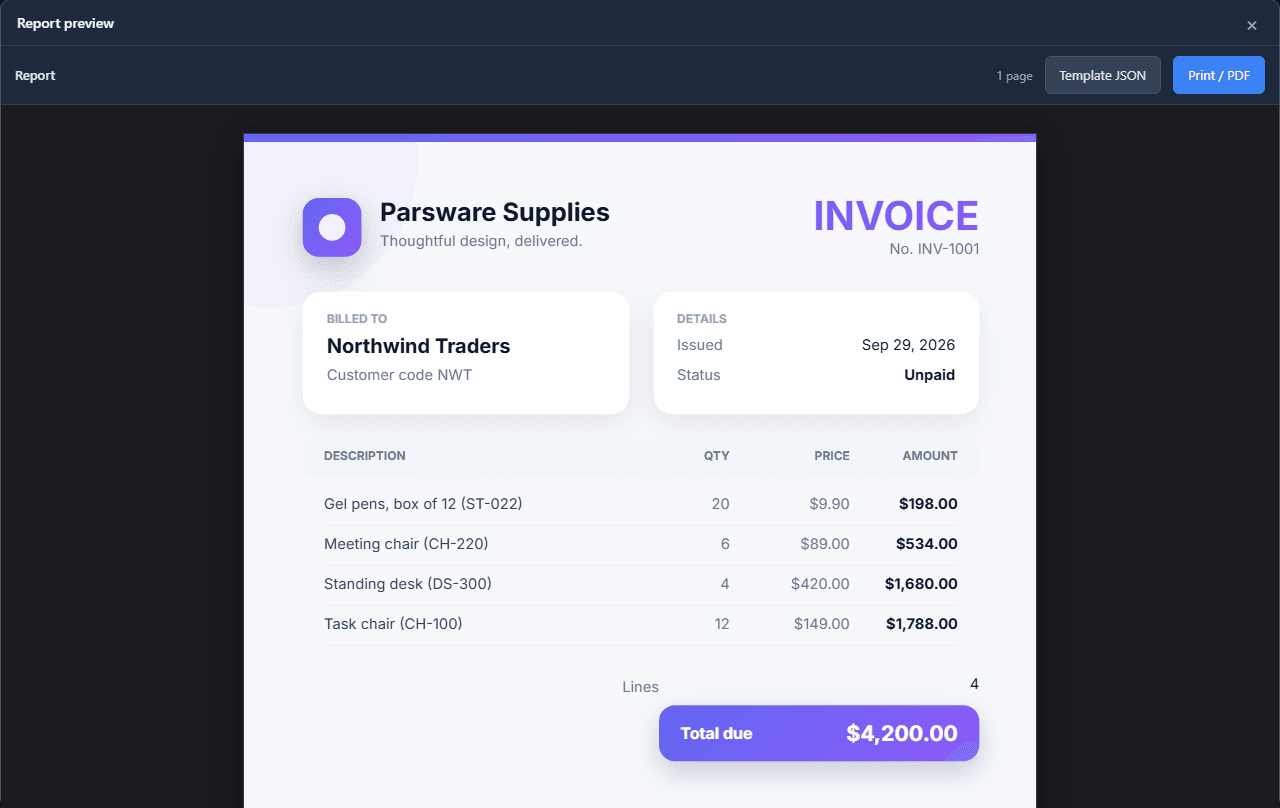
There is no record in the designer, so the preview treats the first invoice, INV-1001, as the one being printed, and shows only its four lines. INV-1002's lines are in the same table and don't appear. The four amounts add up to the total due.
7. On paper
Print / PDF, on A4:
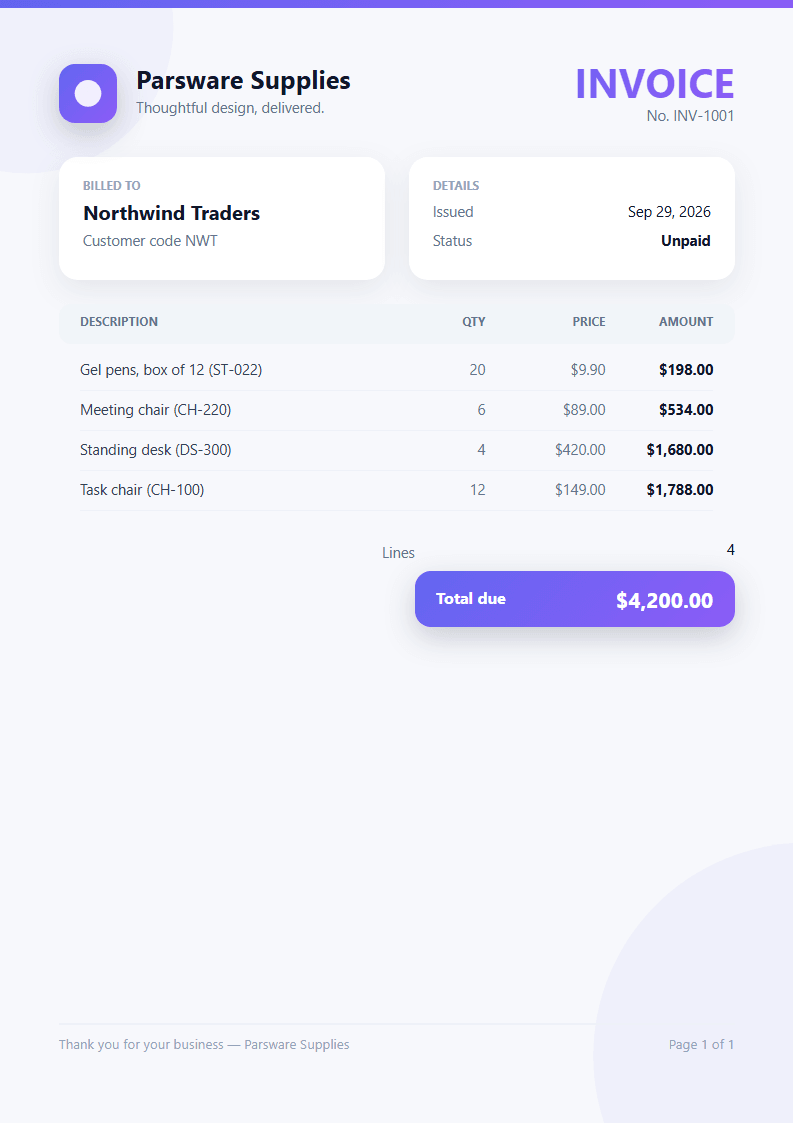
The report is saved and ready. What it doesn't have yet is a way for somebody to print it: nothing in an app opens it, and a report printed for one record needs to know which record. That's the next article.
What we fixed
Building this turned up a problem, now fixed:
- The preview showed every invoice's lines. The designer's preview read each dataset over the whole table and ignored the record fields, so the invoice showed INV-1001 at the top and the lines of every invoice underneath: a page the report could never print. The preview now takes the first row of the primary dataset as the record and narrows every dataset with a record field to it, the way printing does.
Try it
Insert the Invoice sample into a report of your own and point its texts at your columns. Start with Repeat over, so the row's bindings offer the right dataset's fields.
Next: a report inside an app.