Parsware Platform
Paper, margins and printing
A report's page frame is its sheet of paper: 595 by 842 is A4. Turning Claims by status landscape is a matter of telling the bands to follow the paper, then swapping the width and the height. The margin decides how much of each sheet the rows get, and Print / PDF prints exactly that sheet, with nothing the browser adds.
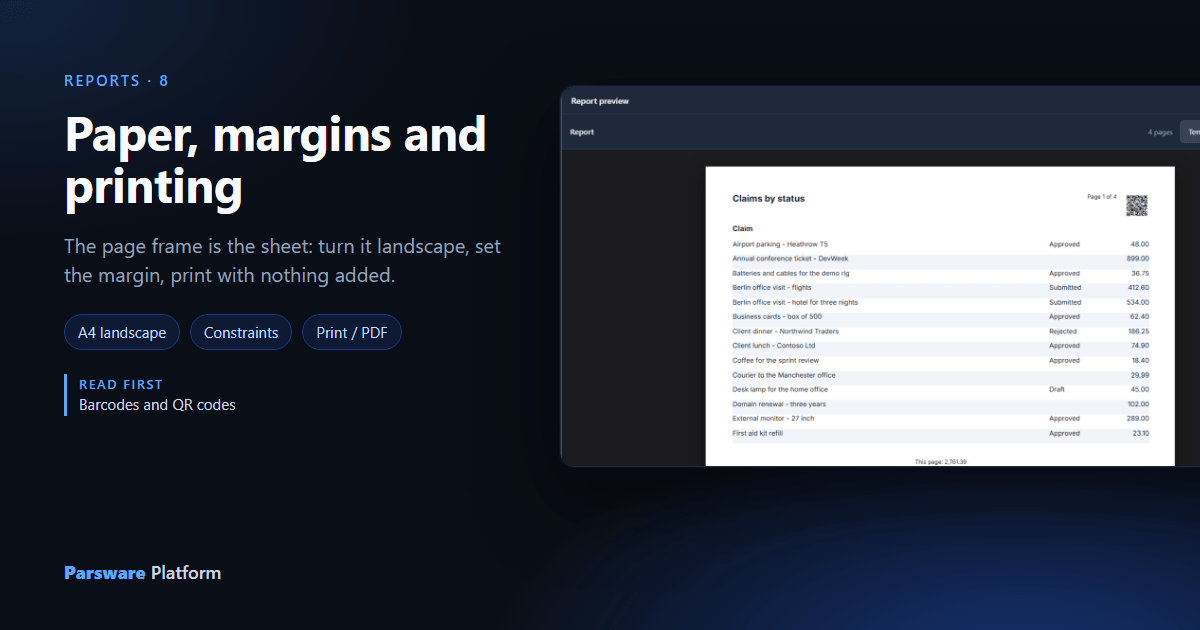
So far Claims by status has printed on A4, upright, because that is what Insert → Report page gives you. This article turns it on its side, changes its margin, and looks at what reaches the printer.
1. The page is the paper
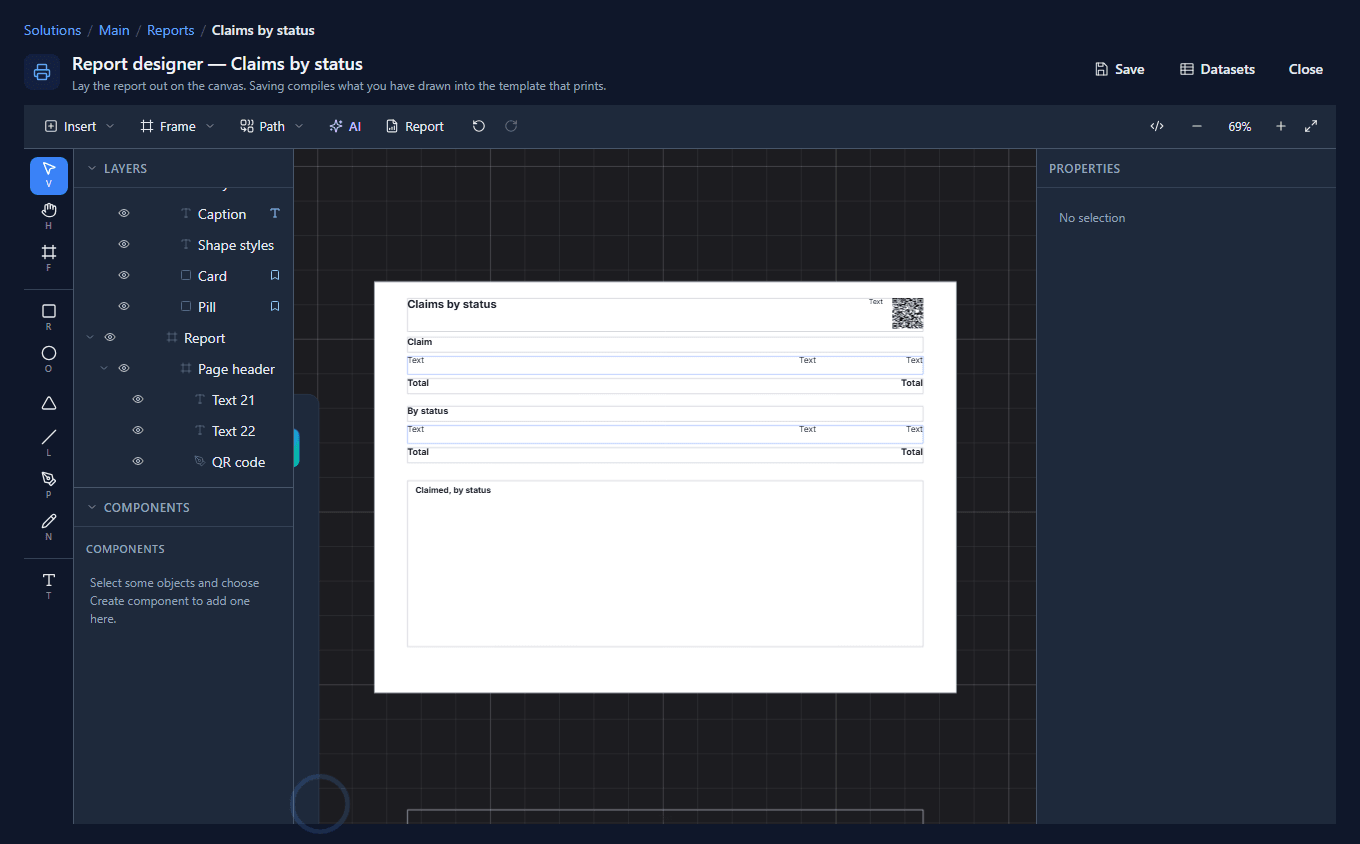
Select the Report frame. Its size on the Graphic tab is 595 by 842:
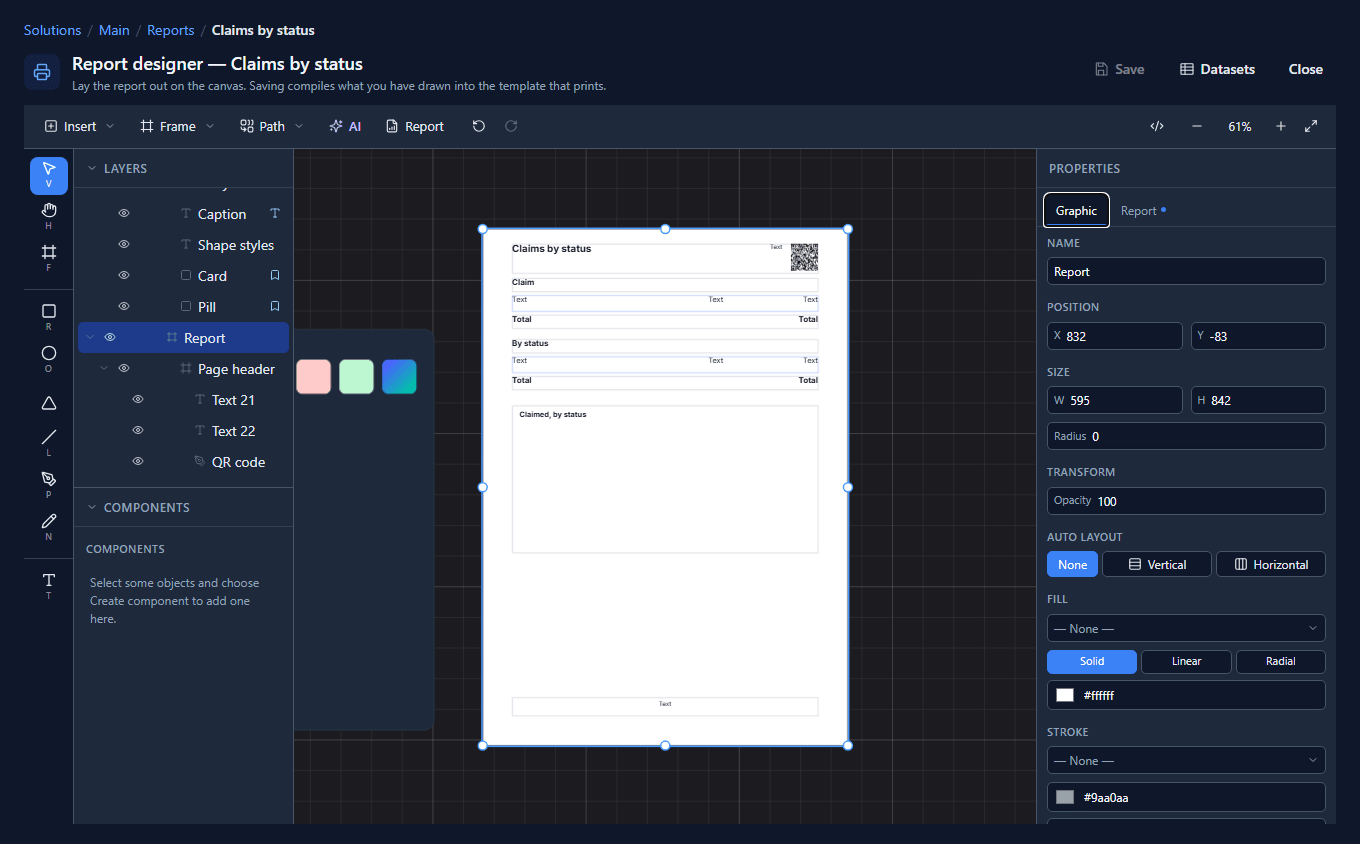
A report is measured in points, 72 to the inch, and 595 by 842 points is A4. There is no separate paper setting: the frame's size is the sheet the report prints on.
The Frame menu lists the common sizes under Paper, with their measurements: A4 595×842, A5 420×595, A6 297×420, Letter 612×792 and Tabloid 792×1224.
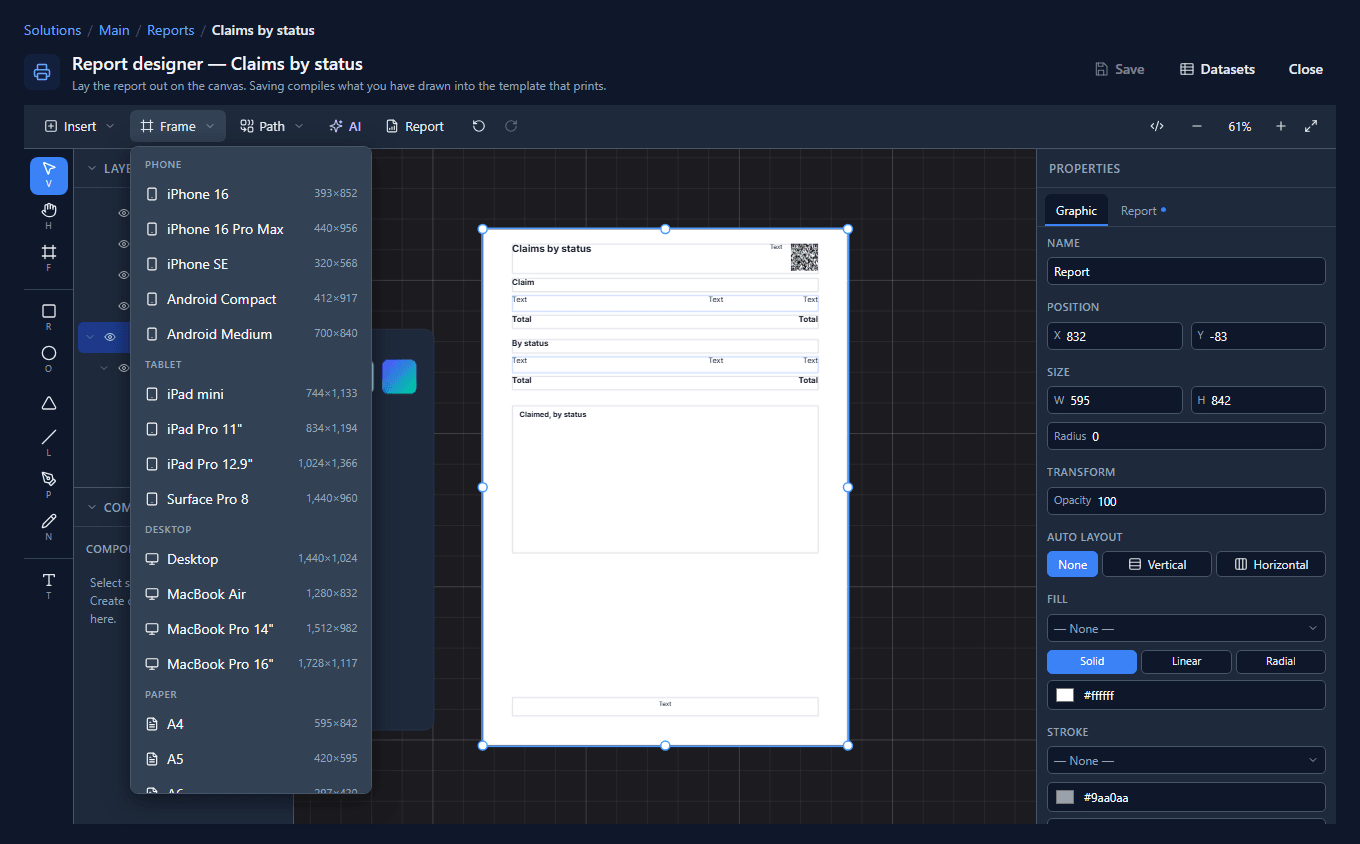
Picking one draws a new frame of that size. To change the paper of a page you already have, type the size into its W and H.
A report with several page frames, such as the cover, claims and terms in article 138, prints every section on the first frame's paper. A printer has one tray.
2. Tell the bands to follow the paper
A landscape sheet is the same numbers the other way round: 842 by 595. But making the frame wider doesn't move what's in it on its own. The bands would stay 499 wide on the left of a sheet 842 wide.
Constraints decide what happens to an object when the frame around it changes size. Select a band, and on the Graphic tab set Horizontal to Left & right: the band keeps its distance from both edges, so it stretches with the page.
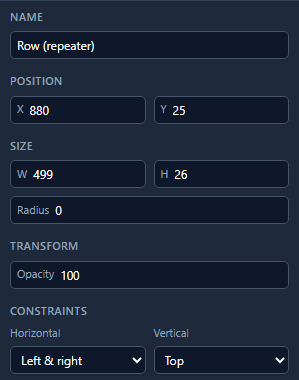
We did that for each band: the page header, the titles, the claim row, both total rows, the status row, the chart and the page footer. Then everything that sits against the right-hand side of a band (the page number, the QR code from article 142, the status, the amounts and the totals) got Horizontal: Right, so it stays against the right-hand edge as the band grows. The claim's name keeps the default, Left.
3. Landscape
Now set the page's W to 842 and H to 595. The bands stretch and the right-hand column moves with them:
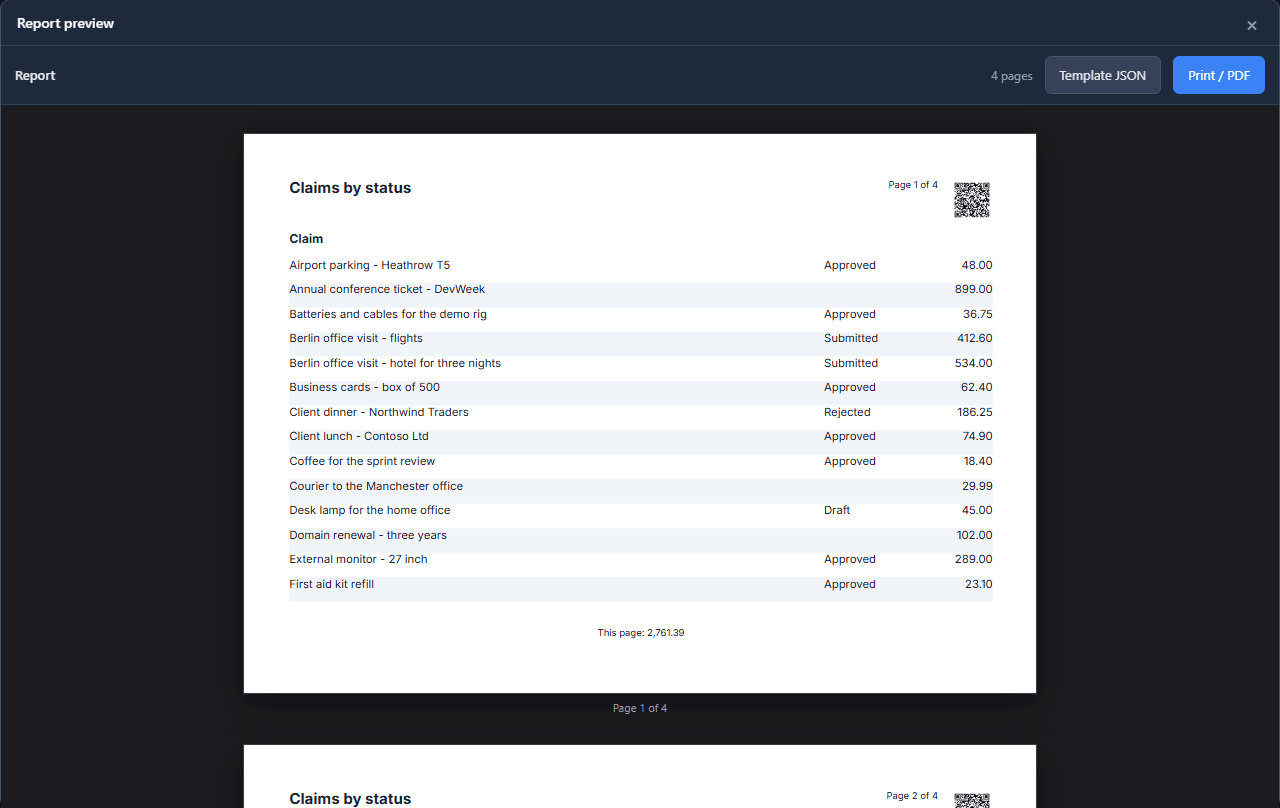
A landscape sheet is shorter, so the same claims take four sheets instead of three.
4. The margin
On the page's Report tab, Margin is the space kept clear at the top and bottom of every sheet. The page header starts that far from the top, and the page footer ends that far from the bottom. Across the sheet, everything prints where you drew it.
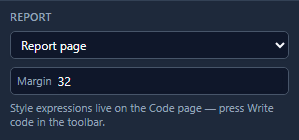
The default is 48 points, about 17 mm. At 32 the rows get more of each sheet: sixteen claims on the first page instead of fourteen.
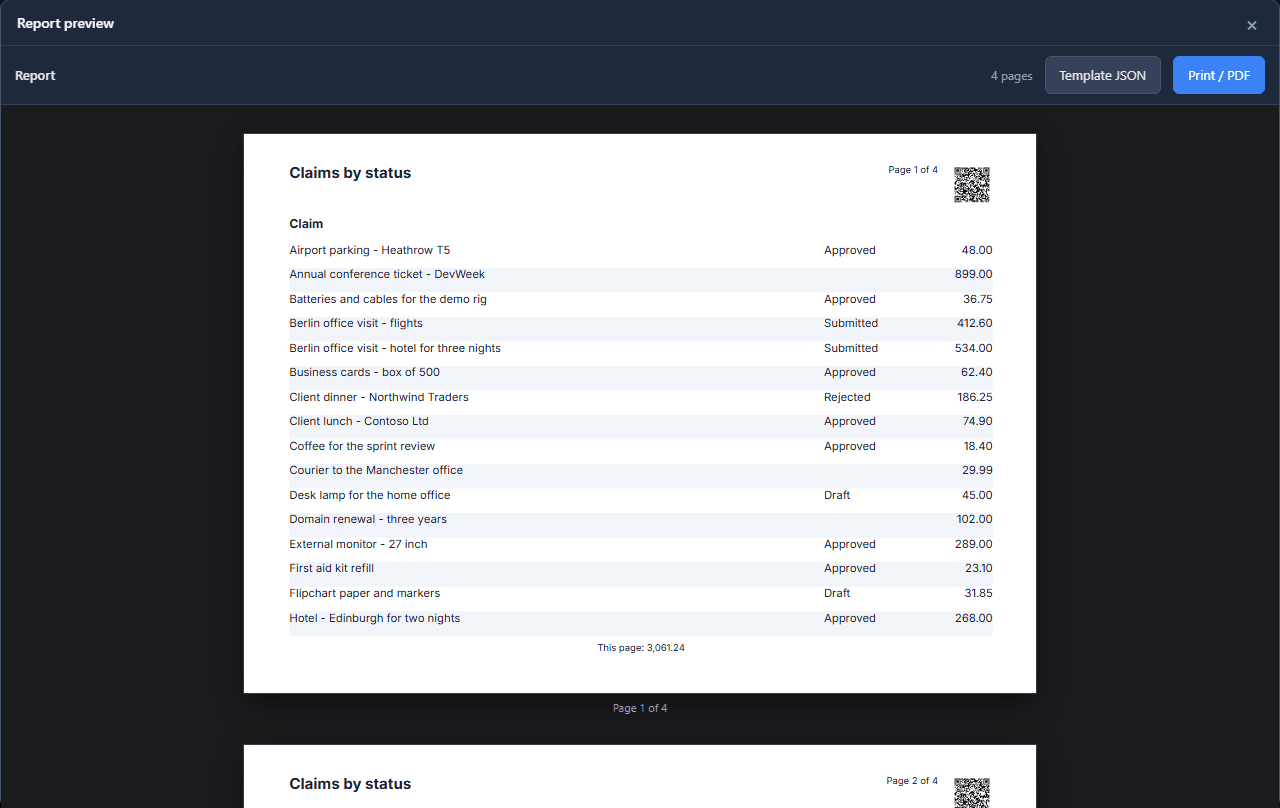
Don't go much lower than about 20 points (7 mm). Most printers can't print right up to the edge of the paper.
5. Printing
Print / PDF in the preview opens the pages ready for the browser's print dialog. Each page is printed on a sheet that is exactly the report's page, with no margin of the browser's own, so there is nowhere for the browser to put its date, its address bar or its page numbers:
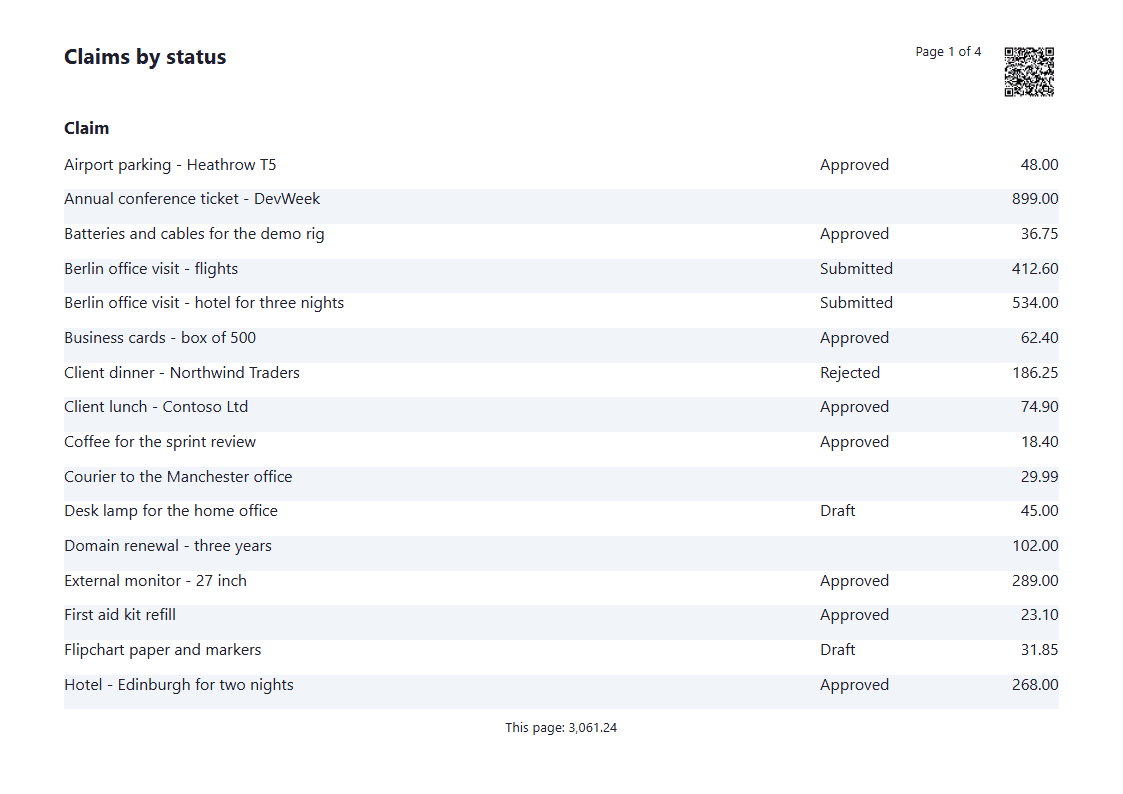
Choose Save as PDF in that dialog to get a file. Saved from this report, it is four pages of A4 landscape, 297 by 210 mm.
A report opened in the Shell prints the same way from its Print button.
If you have turned on Headers and footers in the browser's print dialog, you will still get them. That setting belongs to you, and the platform doesn't override it.
What we fixed
Building this turned up a problem, now fixed:
- Print / PDF in the designer printed at three-quarters of the size. It set the sheet to the page's size in screen pixels, not in points, so an A4 report came out on a 157 by 223 mm sheet, and a PDF saved from it was a size no printer uses. The Shell's own Print had already been corrected the same way. The designer now uses the same rule, and an A4 report prints on A4.
Try it
Take any report you have, set the bands to Left & right, and change the page to 842 by 595. Anything that ends up in the wrong place has the wrong constraint.
Next: an invoice.