Parsware Platform
Bands and sections
One report with three page designs: a cover with no header, the claims with a page header, column headings and a footer, and the terms on their own sheet. What each band is, how a section differs from a page break, and how the column headings come back on every sheet the table reaches.
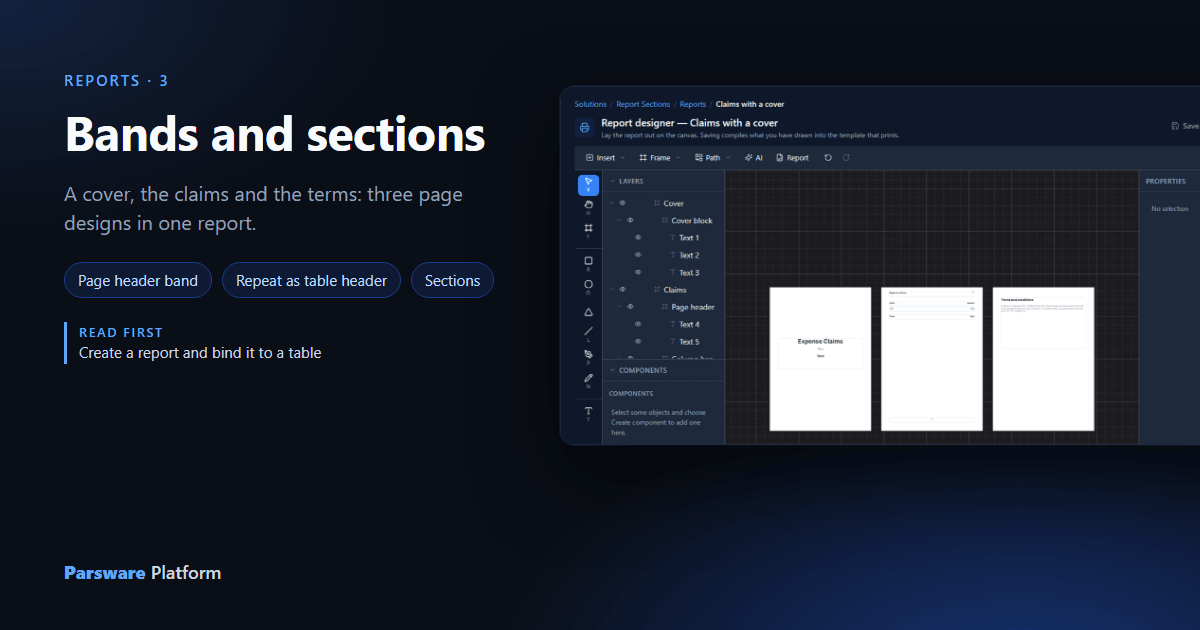
The last article drew one page design and let it flow over two sheets. This one looks at what a page design is made of, the bands, and at a report with more than one page design, the sections.
It uses the Report Sections sample (reporting-sections): one report over the expense claims,
with a cover, the claims and the terms and conditions.
1. Four sheets from one report
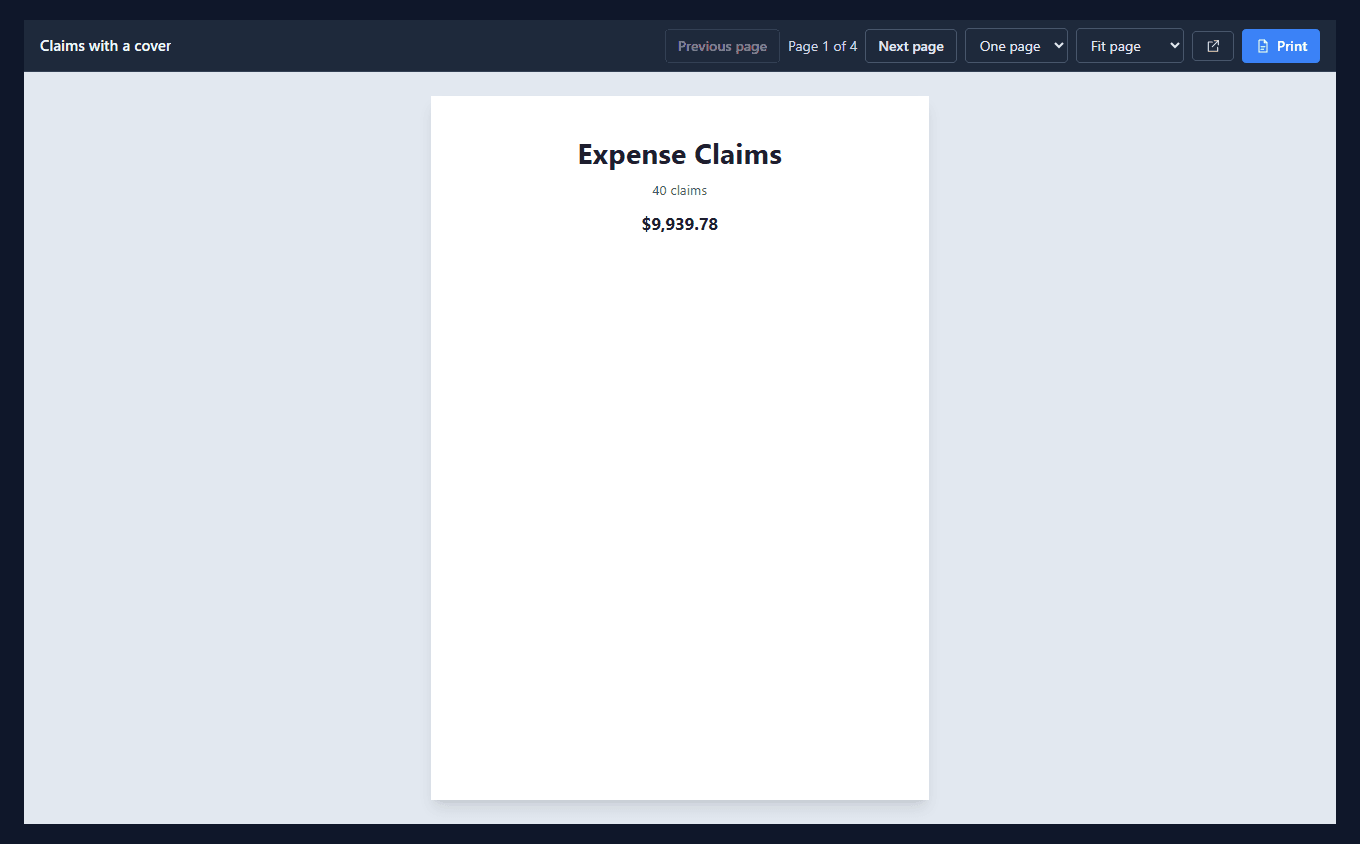
Open the sample's app and choose Claims with a cover in the navigation. The first sheet is the cover: a title, the number of claims and their total, and nothing else.
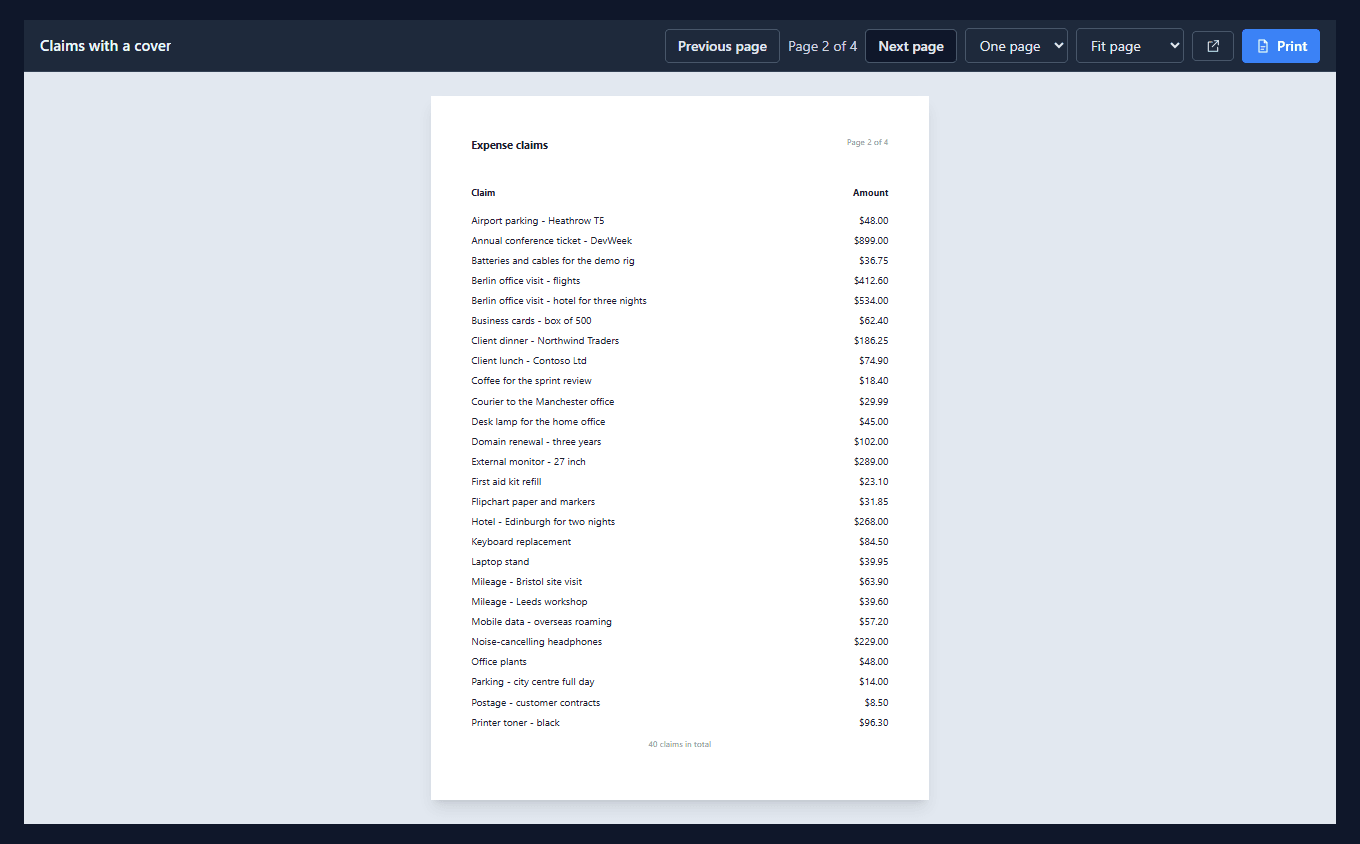
Next page shows a different design. The claims sheet has a page header, Expense claims with Page 2 of 4 on the right, then the column headings and the rows, and a footer saying how many claims there are in all:
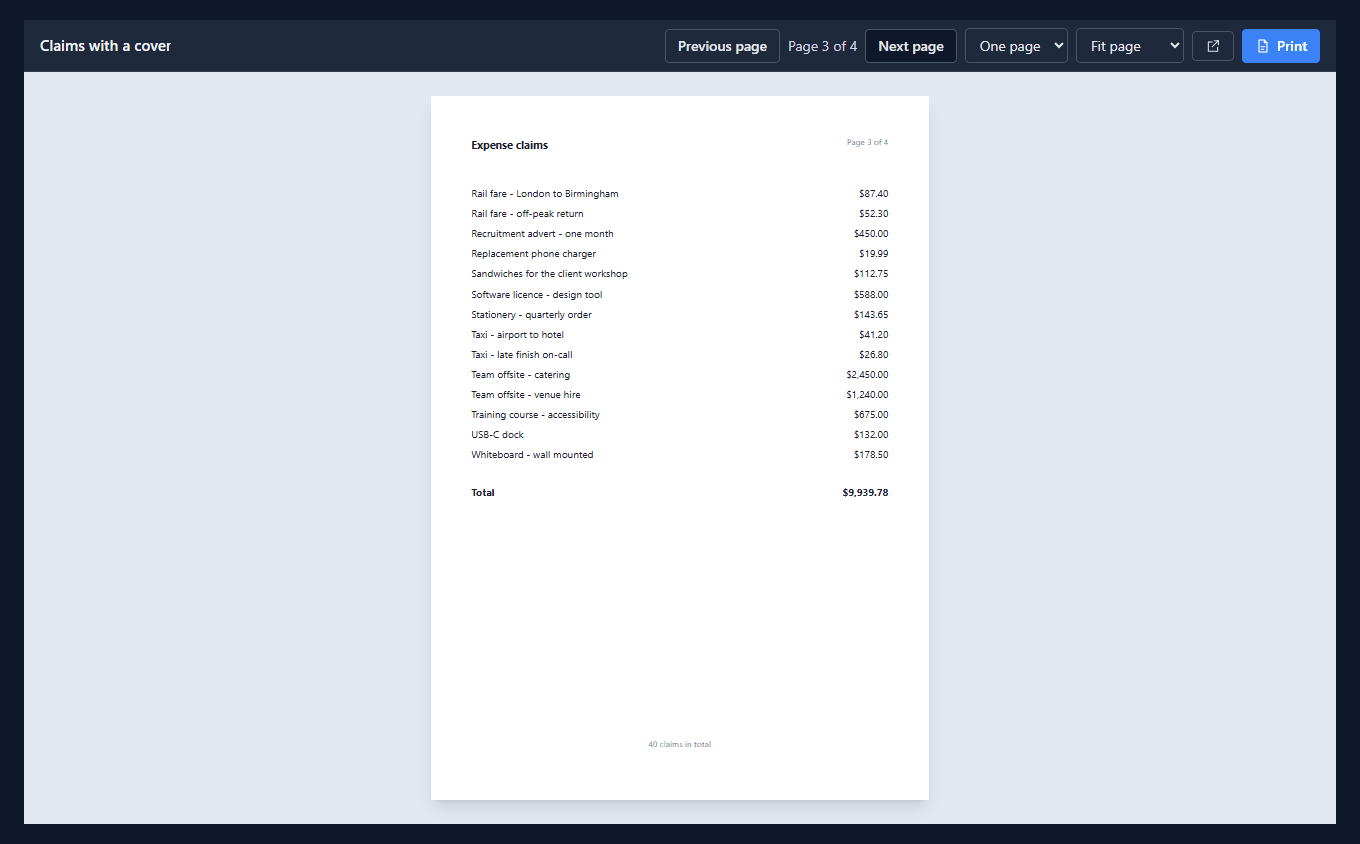
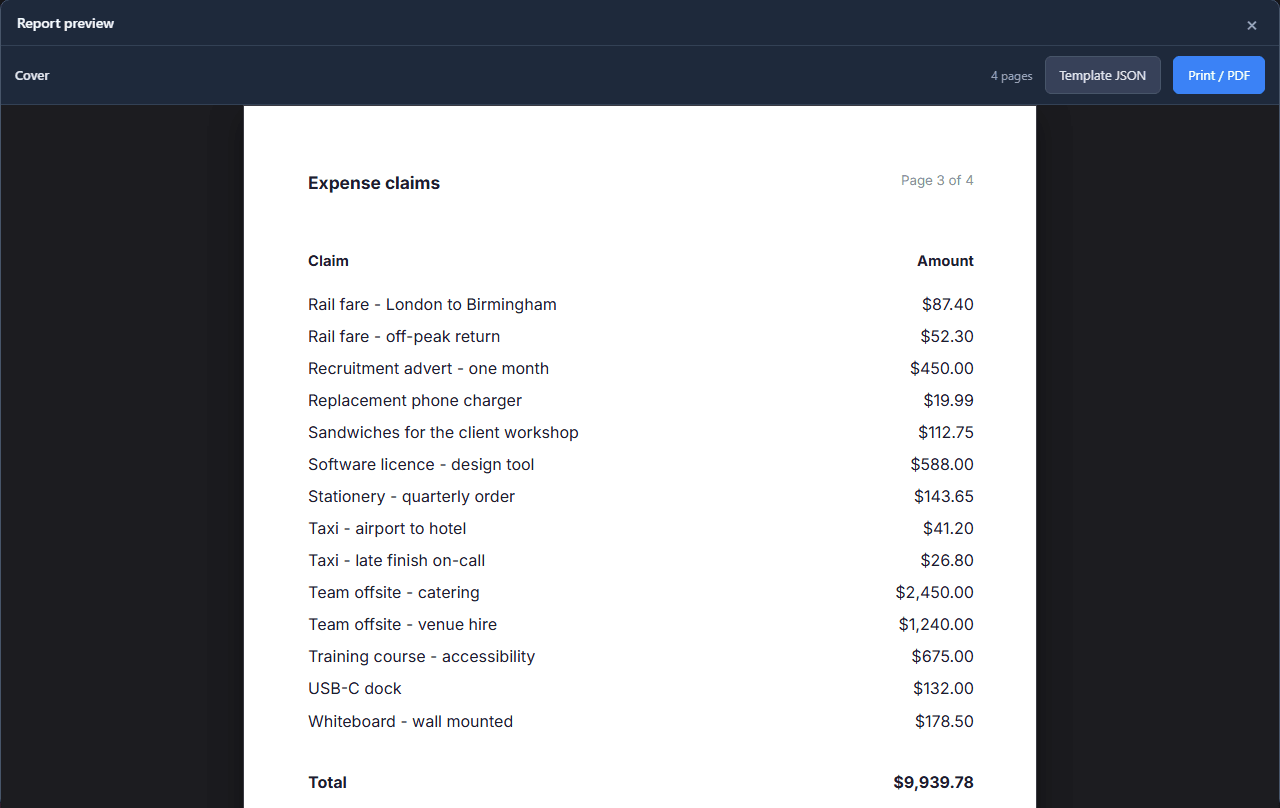
The table needs two sheets. On the second the header and the footer come back, the rows carry on, and a Total ends the table:
The last sheet is the terms, on its own, with no header and no footer:
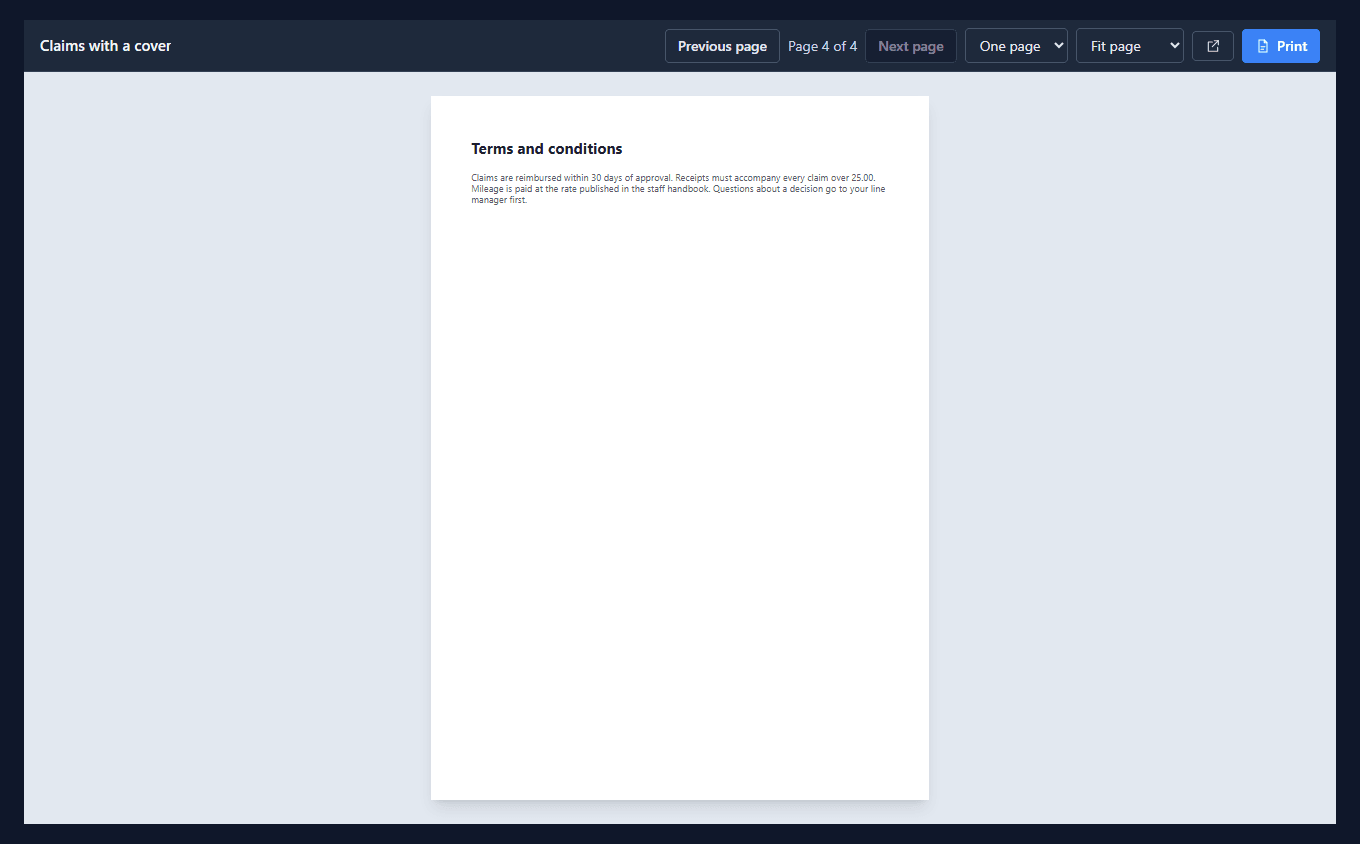
The page numbers count the whole report. The claims sheet is page 2 of 4, not page 1 of 2, because somebody holding a printed sheet wants to know where they are in the document.
2. Three page frames
Open Reports in the sample's solution, select the report and press Design. The canvas holds three frames side by side, each tagged as a Report page on the inspector's Report tab:
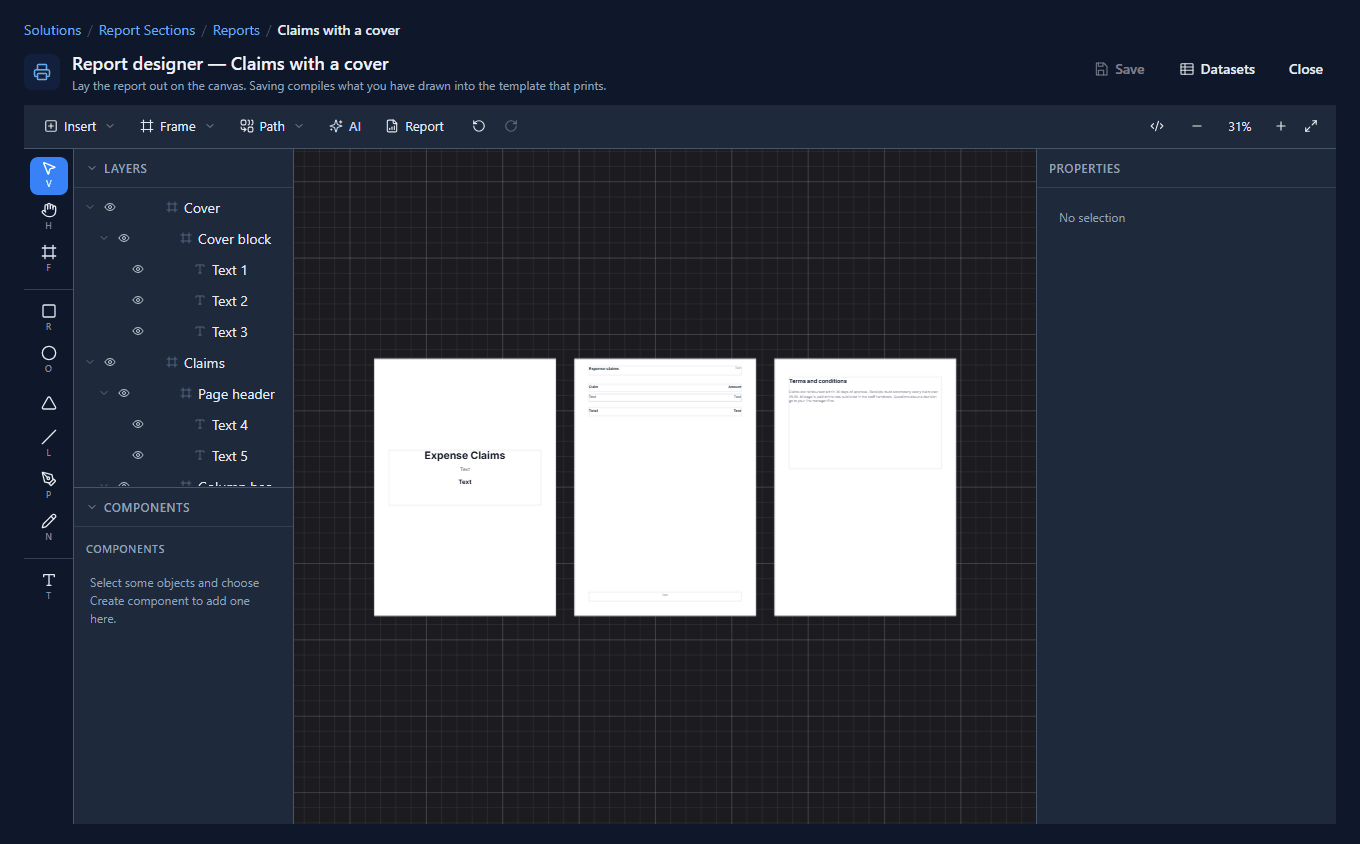
Each frame is a section, printed in the order the frames sit on the canvas, and each starts on a new sheet. A section has its own margins and its own page header, page footer, letterhead and watermark. That is what lets the cover go without a header while the claims have one. It does not have its own paper: every section prints on the first frame's size, because a printer has one tray.
3. The bands
Select the claims frame. It is made of frames stacked from top to bottom, and the layers list names them: Page header, Column headings, Row (repeater), Total and Page footer.
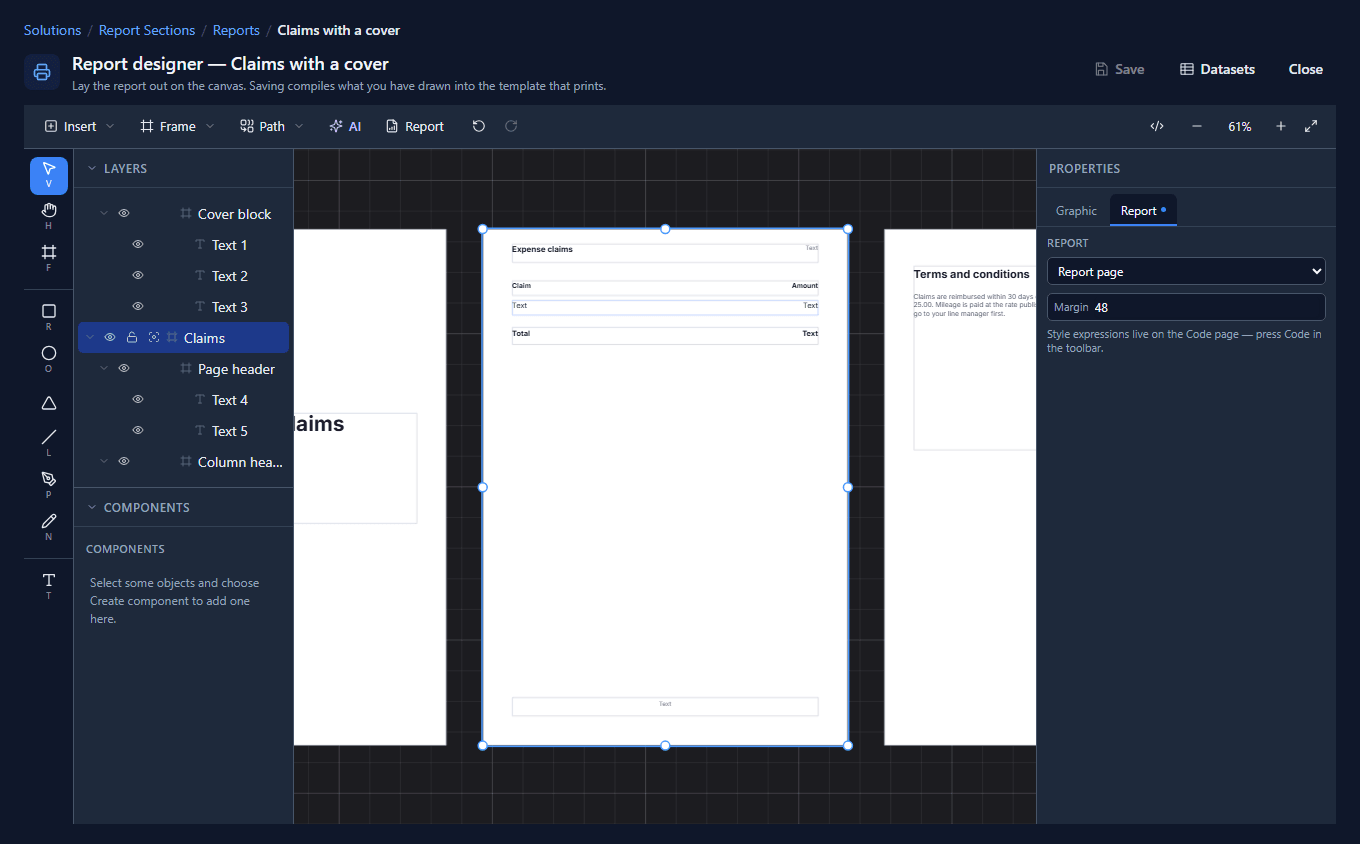
What a band does is set on the Report tab. The page header is a Page header band, drawn at the top of every sheet this section prints:

The page footer is a Page footer band, drawn at the bottom of every sheet. The row is a Repeater, drawn once per claim. The other two are plain bands, Not a report region, and they print once, where they sit: the column headings before the rows, the total after them.
The texts inside the bands are bound like any other. The header's right-hand text reads
concat('Page ', pageNumber, ' of ', pageCount), the footer's
concat(count(claims), ' claims in total'), and the cover's two lines count and sum the same
dataset.
4. Headings on every sheet
Look again at the second claims sheet. The rows carry on, but the Claim and Amount headings stayed on the first. In the designer's preview it looks like this:
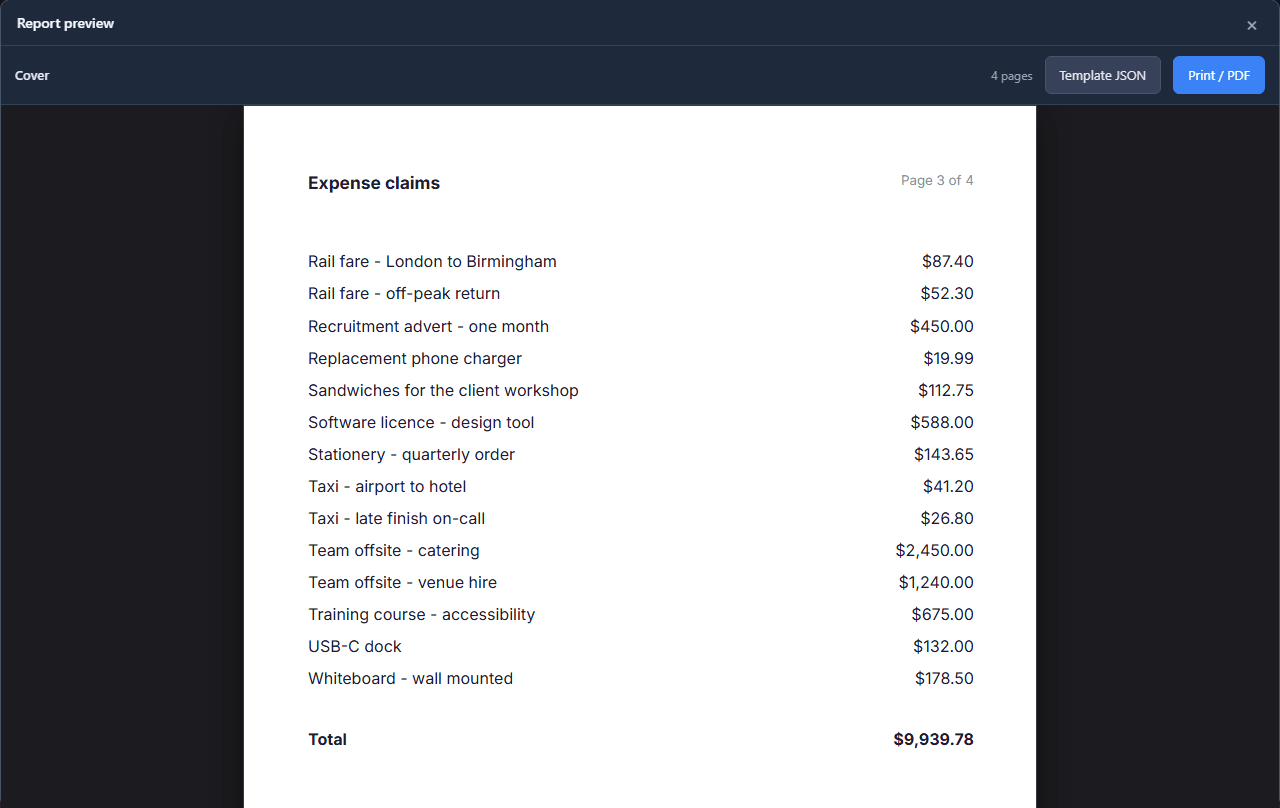
A plain band prints once. To have it come back wherever the table continues, select Column headings, open the Report tab and tick Repeat as table header:
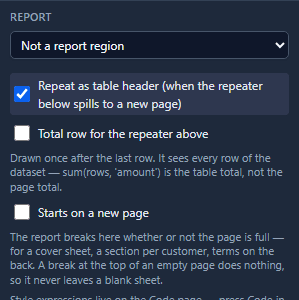
The band must sit directly above the repeater. Press Report to preview, and the third sheet starts with its headings:
The tick below it, Total row for the repeater above, is the same idea the other way round, and the next article uses it.
5. A section or a page break
Both start a new sheet, and they answer different questions:
- A section is from here, the page looks different: a cover with no header, terms with no table. Draw another Report page frame.
- Starts on a new page, on any band, repeater or chart, is from here, a fresh sheet with the same design. A break at the top of a sheet that is already empty does nothing, so it never leaves a blank page.
Don't pad a band with empty space to push the next one over. It works with today's data and breaks with tomorrow's.
What we fixed
Building this turned up a problem, now fixed:
- The designer's preview showed only the first section. Pressing Report on this report previewed the cover alone, "1 page", while the same drawing printed four sheets from the app. The preview compiled only the selected page frame, or the first one. It now compiles every page frame, the same way Save does.
Try it
Import the Report Sections sample (reporting-sections) and the forty claims from the
Expense Reporting sample's expenses.csv, open the report from the app, then open it in the
designer and tick Repeat as table header for yourself.
Next: groups and totals.