Parsware Platform
Barcodes and QR codes
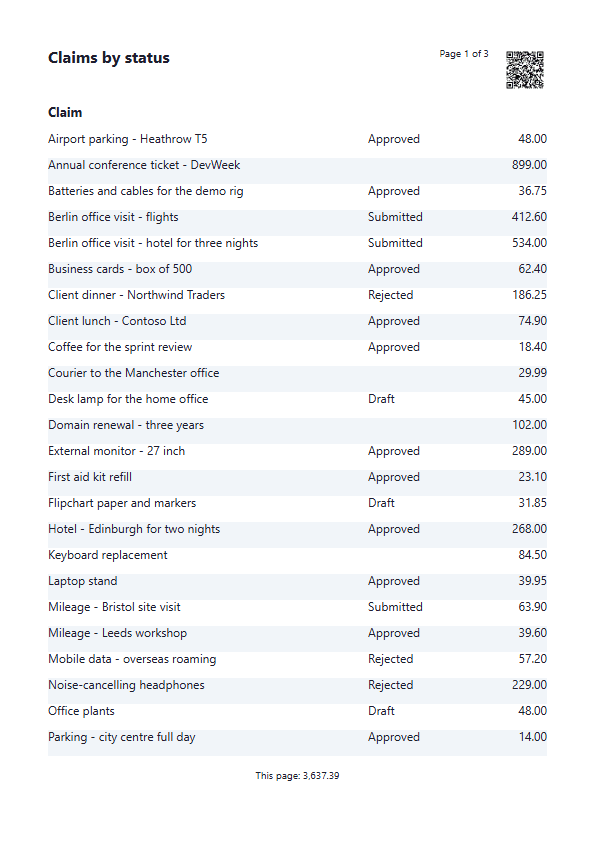
A report can print a real, scannable Code 128 barcode or QR code, either with a fixed value or one per row from the data. The Report Barcodes sample shows both, and a QR code in the page header of Claims by status takes whoever scans the printed sheet straight to the live list of claims.
A printed report often ends up on a desk next to a scanner, or in somebody's hand next to their phone. A barcode or QR code on the page lets them get from the paper back to the record without typing anything. This article looks at the two kinds of code a report can print, then adds a QR code to Claims by status, the report this series has been building since article 137.
1. The sample
The Report Barcodes sample (reporting-barcodes) has one report, Barcodes and QR codes,
on its own Expenses — Barcodes app. Its preview shows both kinds of code, then a table with a
barcode on every row:
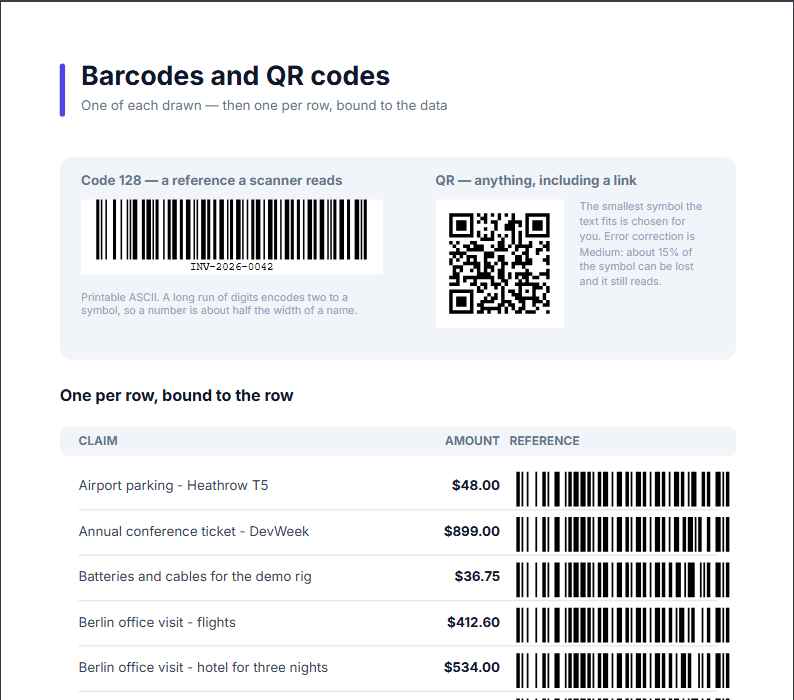
These are real symbols, not pictures of one. Point a phone at either and it reads.
- Code 128 is the ordinary one-dimensional barcode a desk scanner reads. It holds printable ASCII: an invoice number, an asset tag, a shipment reference.
- QR code holds much more, and any text, Persian and Arabic included. Its usual job is a link.
2. The settings
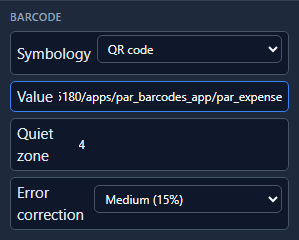
Select a code and open the Report tab. A barcode has four settings:
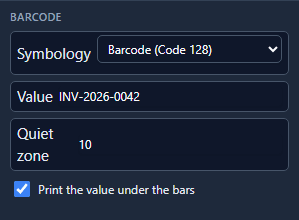
- Symbology: Code 128 or QR code. The same element can be switched between the two.
- Value: what the code carries, when it is the same on every copy.
- Quiet zone: the blank margin round the symbol, counted in modules (the width of the thinnest bar). Scanners need it to find where the code starts. The default is the minimum the standard asks for: 10 for Code 128 and 4 for QR.
- Print the value under the bars: Code 128 only. Useful when the code stands on its own and a person may need to type it in.
A QR code has Error correction in place of the printed value:
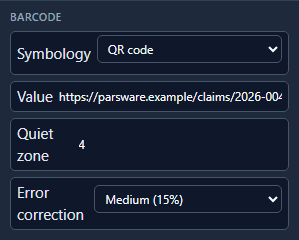
The higher the level, the more of the symbol can be smudged, torn or covered and still read, and the bigger the symbol has to be to say the same thing. Medium suits paper.
3. One per row
The barcodes in the table are different on every row, because their value comes from the data. Select the barcode inside the row and press Write code. Its Barcode value is an expression:
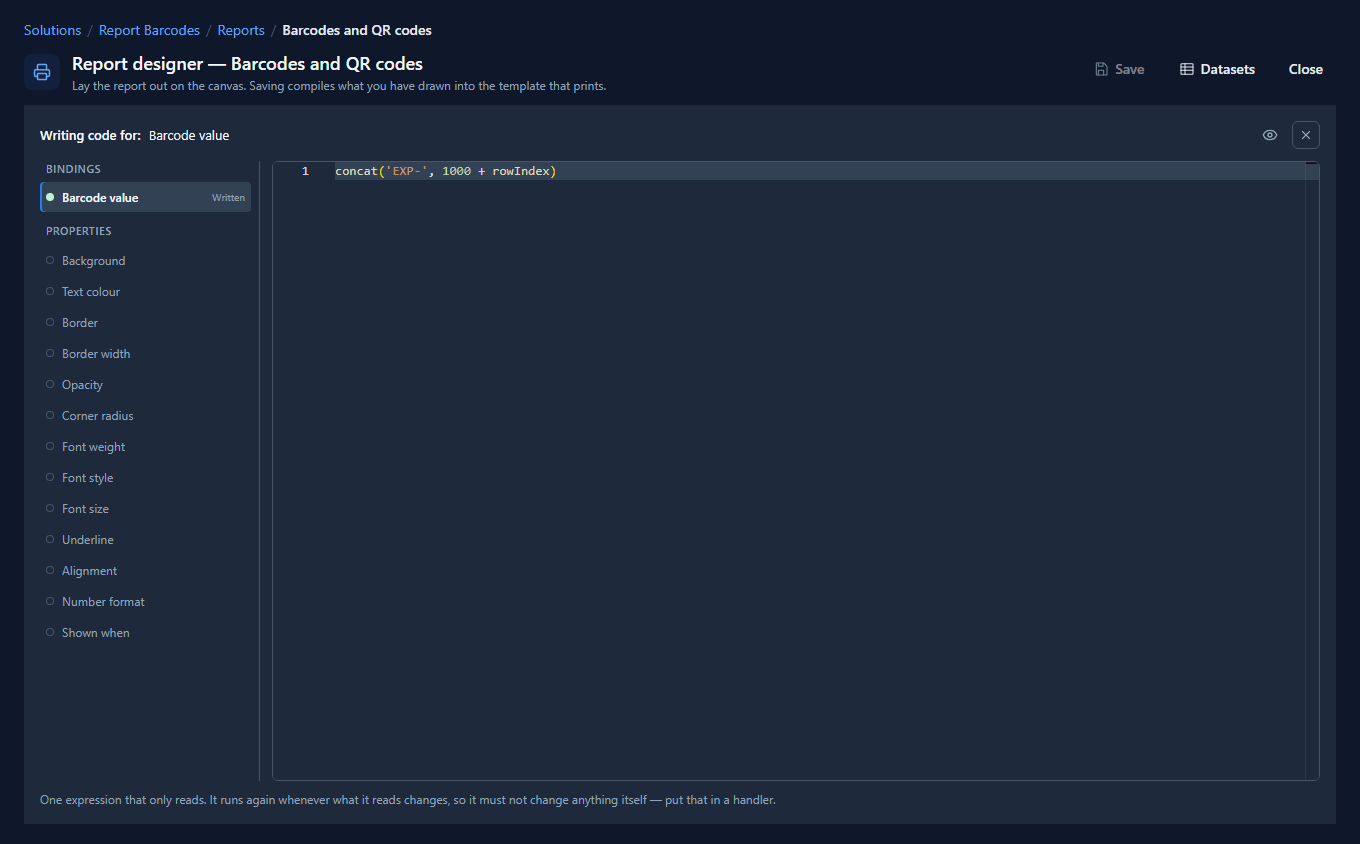
The sample makes up a reference from the row number because its claims don't have one. On your own
table you would write the field that holds the reference, such as row.par_reference. The canvas
draws the fixed Value from the Report tab, because there are no rows on a canvas; the printed
report draws each row's own code.
4. A QR code on Claims by status
A printed copy of Claims by status is out of date the moment somebody approves a claim. A QR code in its page header can take the reader to the live list instead.
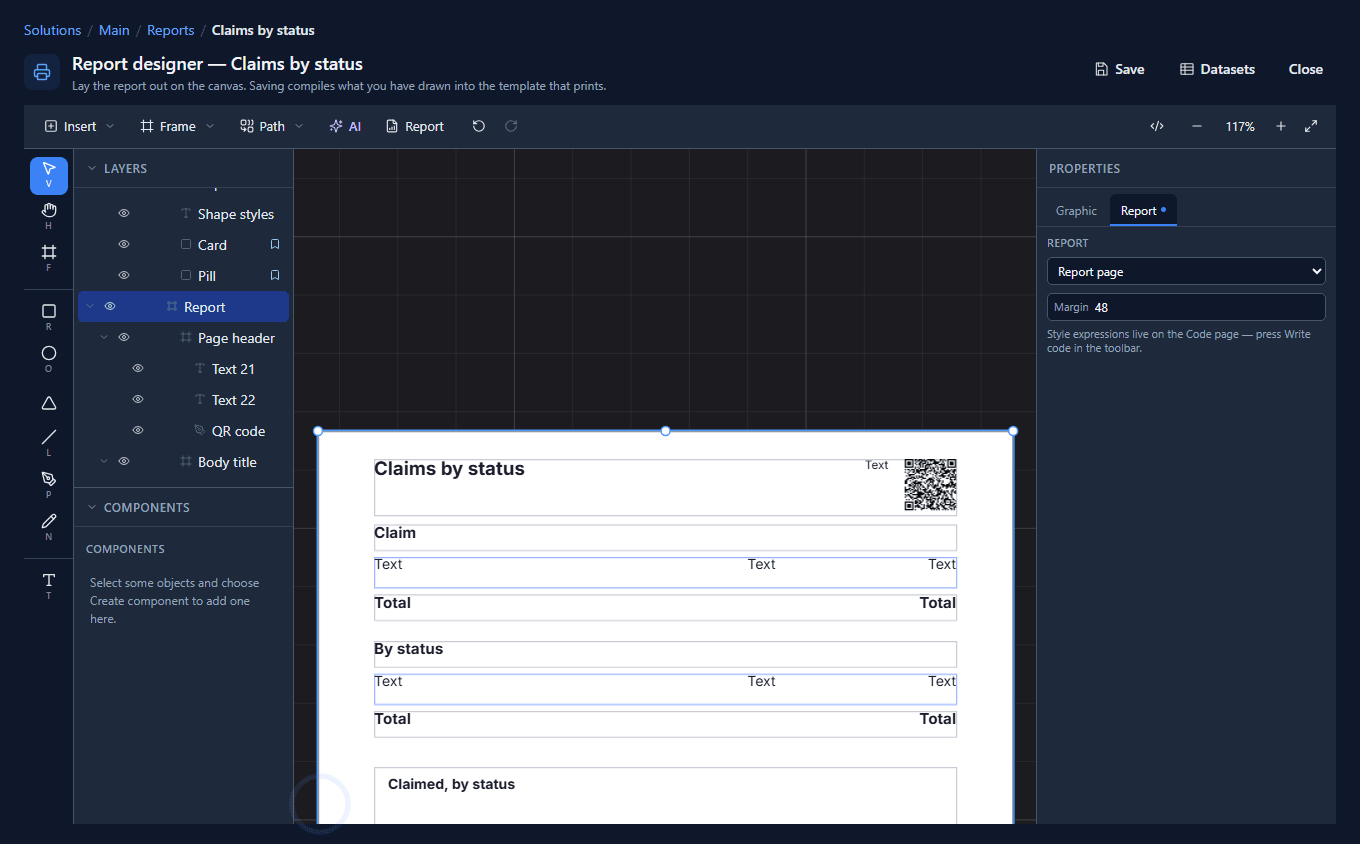
We gave the page header a little more height (48), moved the page number left to make room, and opened Insert. Under Codes there are Barcode and QR code:
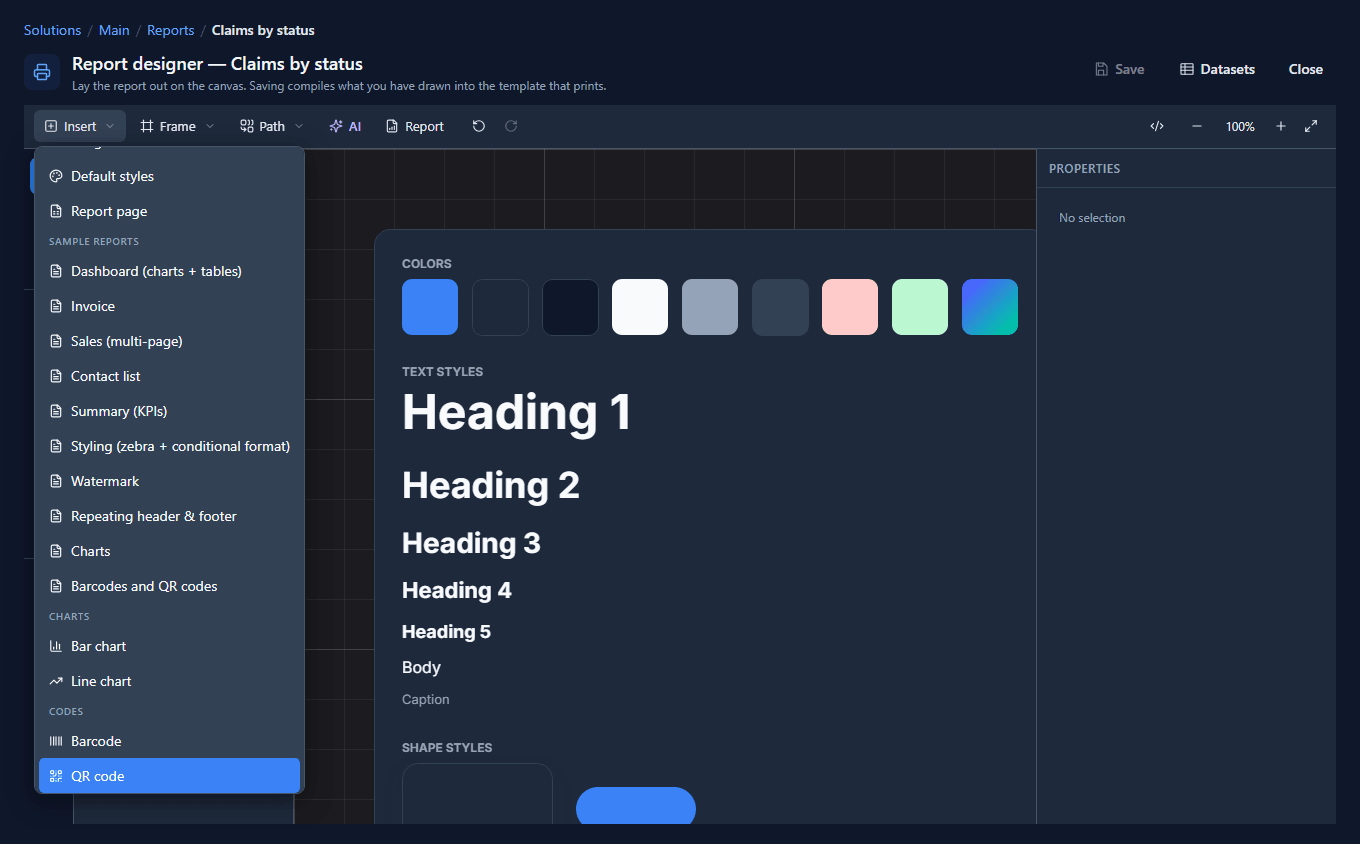
QR code puts a code under the middle of the view, inside whichever frame is there. With the page header in the middle, it lands in the page header, so it prints at the top of every sheet. We made it 44 by 44 and put it in the header's right-hand corner.
Its Value is the address of the claims list in the Shell. Every page carries the same link, so it's a fixed value rather than an expression:
5. On paper
Press Report, then Print / PDF. Every sheet has the code in its corner:
Scanning it opens the claims list in the Shell, for anyone who has access to it:
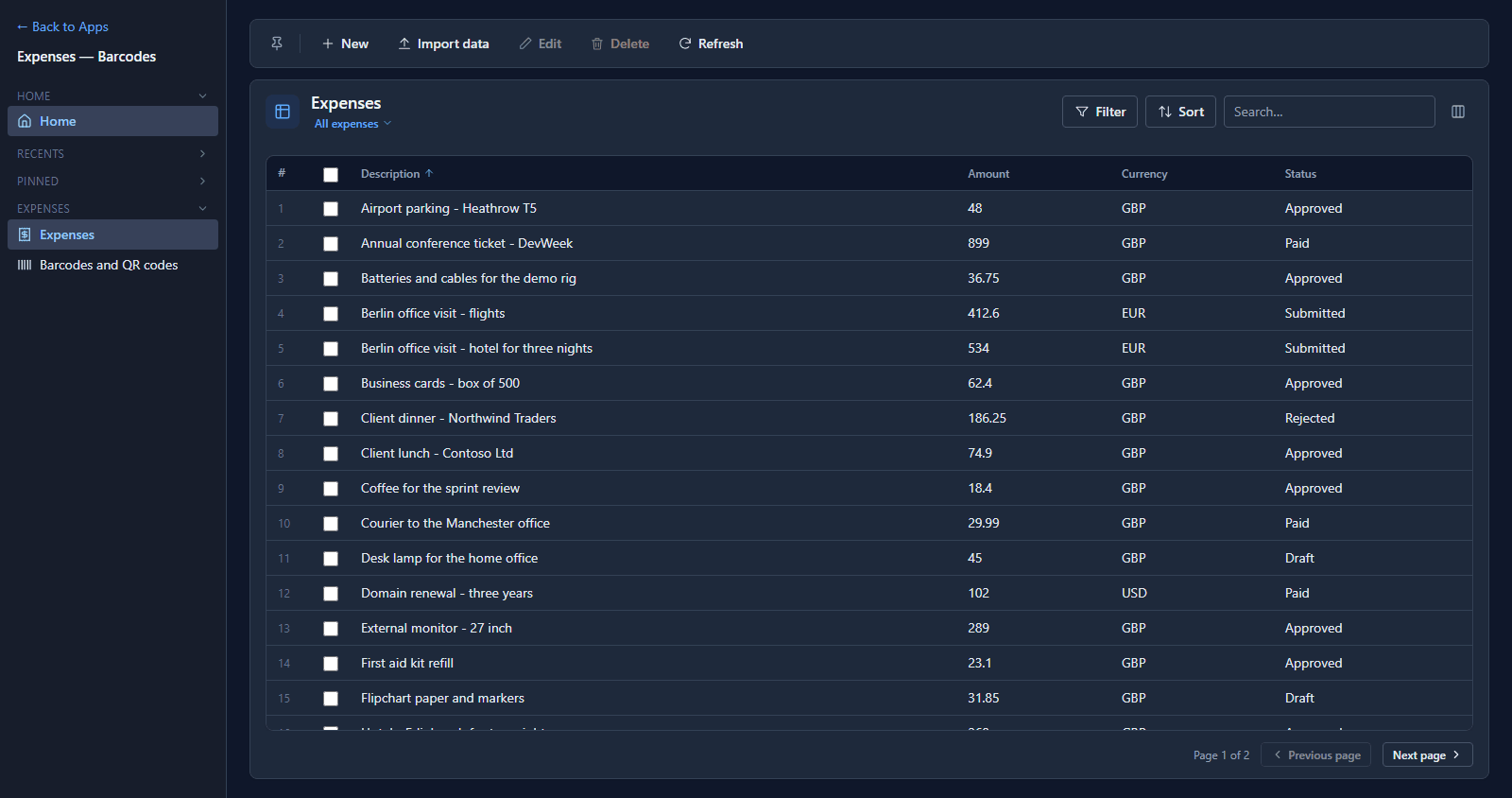
The code is only a link. Somebody who scans it still signs in and sees only the claims their role lets them see, the same as if they had typed the address.
What we fixed
Building this turned up a problem, now fixed:
- An inserted code wasn't part of the page. Insert → Barcode and Insert → QR code left the code at the top level of the canvas, over the page but not inside it. It showed on the canvas and was missing from the printed report. A code now goes into the frame under the middle of the view, as the charts from article 141 already did.
Try it
Import the Report Barcodes sample and open Barcodes and QR codes from its app. Then select the row's barcode and change its Barcode value to a field of your own.
Next: paper, margins and printing.