Parsware Platform
Your tasks on a home screen
A Today screen for the Contact list app whose content is your own task list: every step any process has asked you to do, the same rows as the inbox in the top bar. One control, one setting, and the app opens on it.
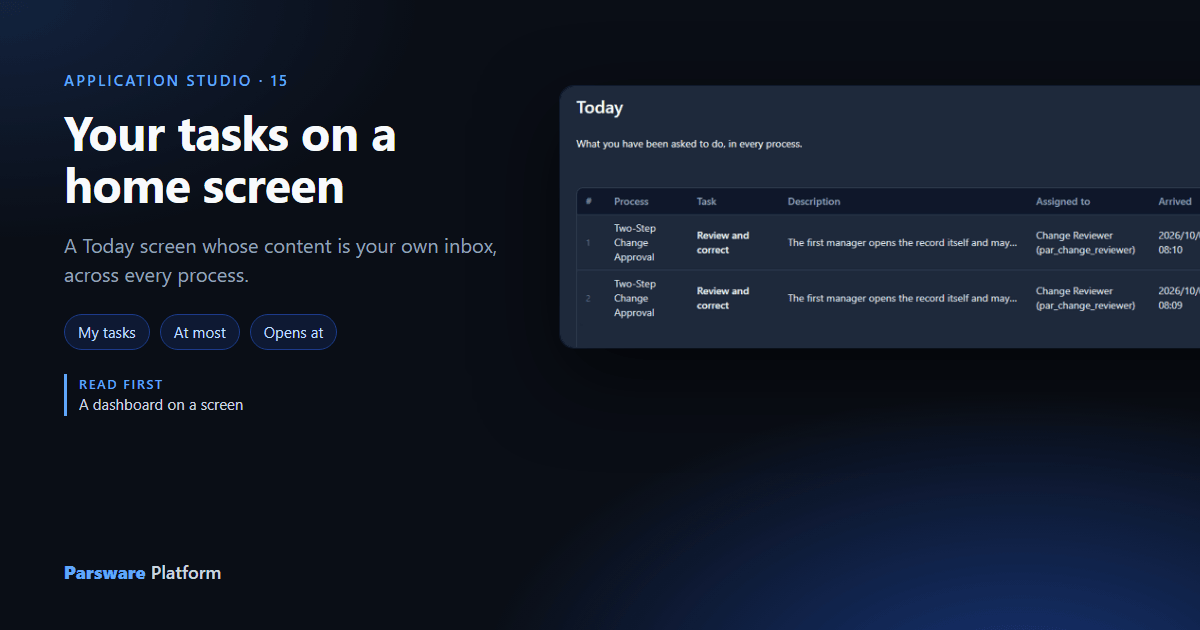
Your tasks are always one press away: the inbox button in the Platform Shell's top bar. One press away isn't the same as in front of you, though. A home screen is where somebody starts the day, and what they start it with is what they've been asked to do.
This article adds a Today screen to the Contact list app from the last article, with the reader's own tasks on it, and makes the app open there.
1. A screen for the day
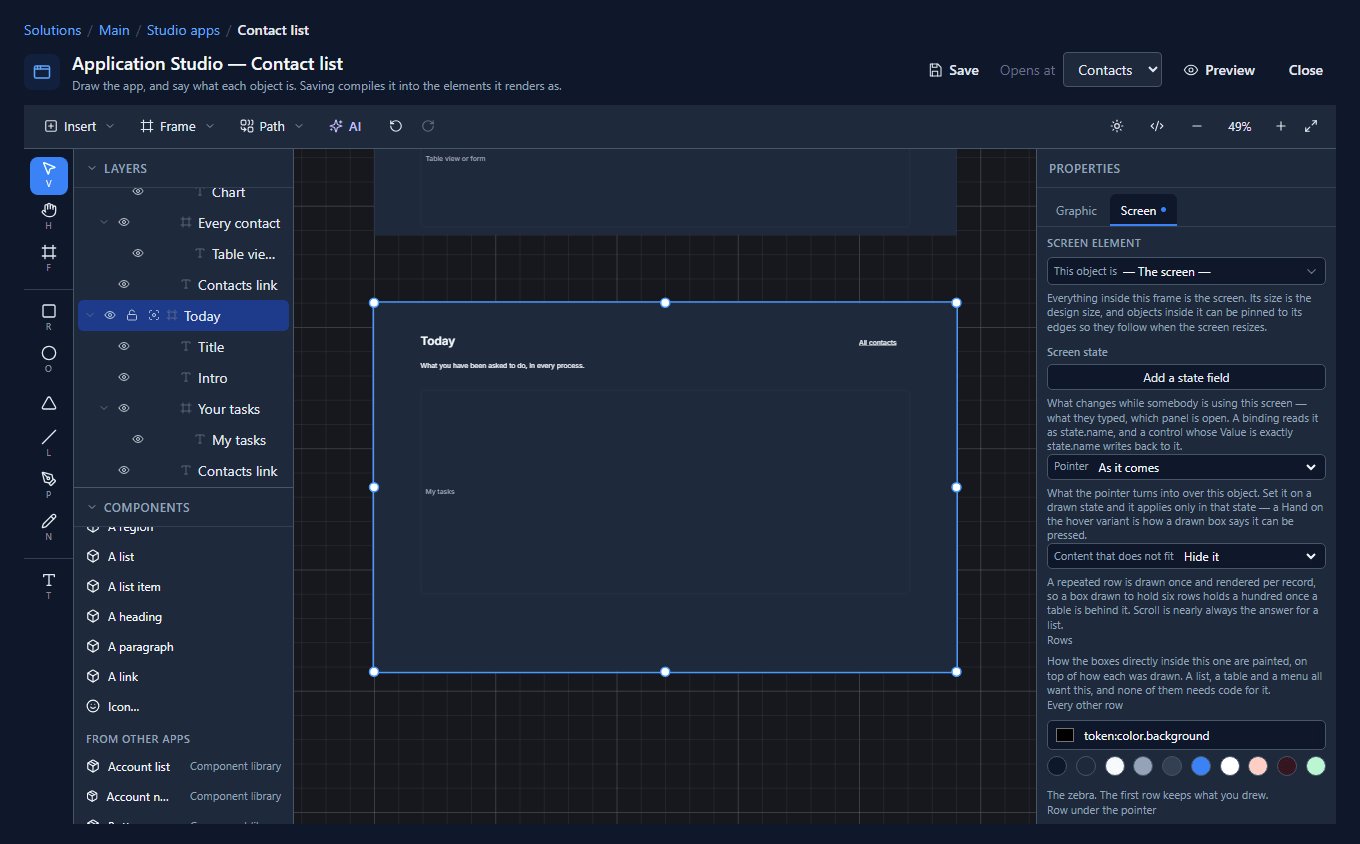
Draw a frame 1200 by 760 below the others, name it Today, and in the Screen tab set This object is to — The screen —. Put A heading on it that says Today, and A paragraph under it: What you have been asked to do, in every process.
Then, from Controls, click My tasks and make it 1008 by 420 under the paragraph:
2. One setting
Select the box and open its Screen tab. This object is says My tasks, and there's one
thing to fill in, At most: how many rows to show. We typed 5.
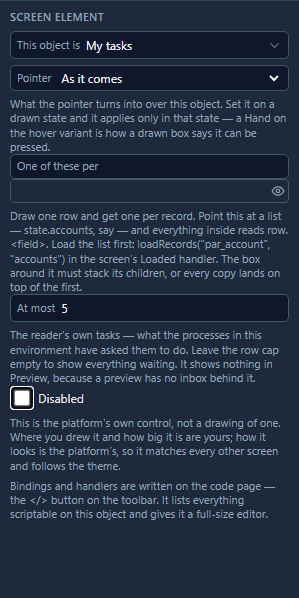
Leave it empty for everything that's waiting. Everything else about the box, its columns, their order and what pressing a row does, is the platform's, the same bargain as a chart or a date picker.
Preview shows nothing here, and says so: a preview has no environment and nobody signed in behind it, so there's no inbox to read. Open the app in the Shell to see rows.
3. Open on it
The title bar's Opens at picker says which screen the app starts on. Set it to Today:

We also put a link in the corner, All contacts, so the list is still one press away. Save.
4. Open the app
Open Contact list from the Shell, and you're looking at your work:
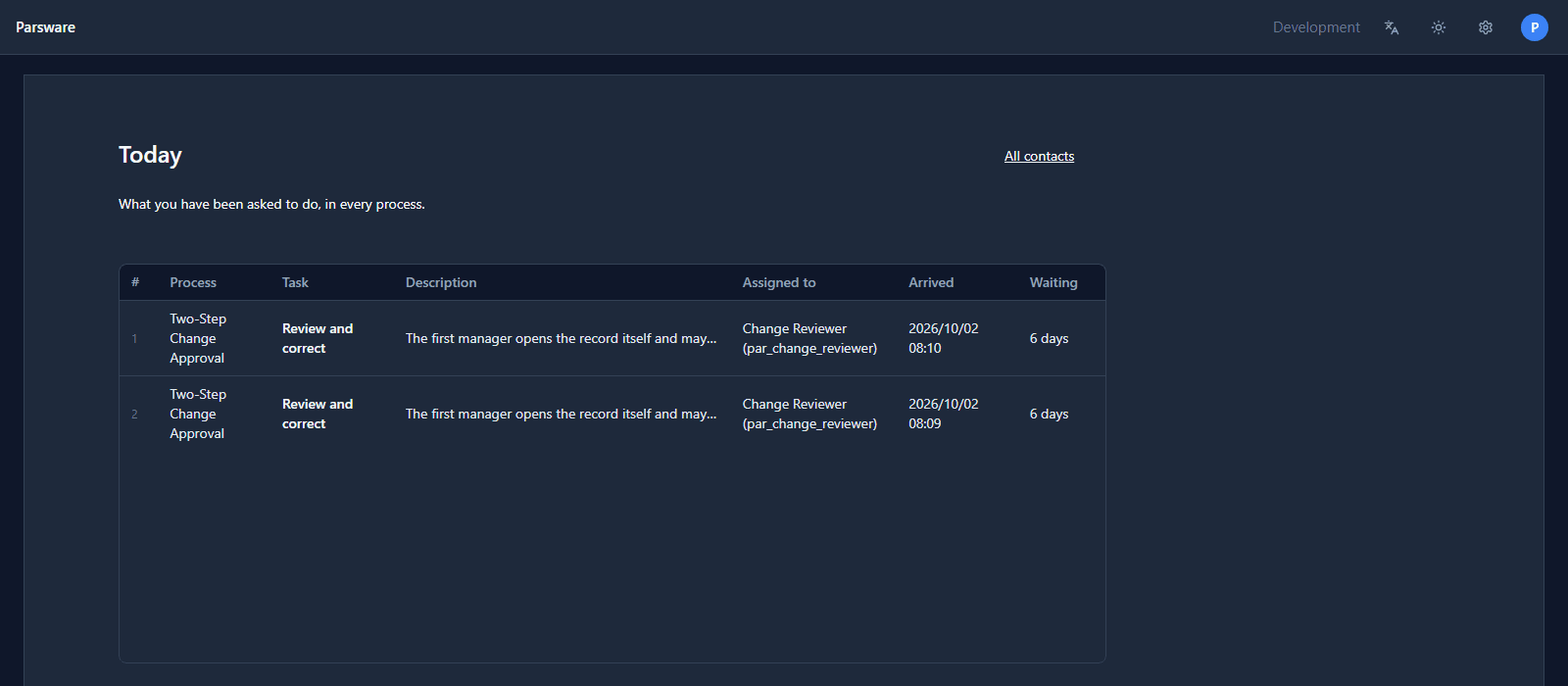
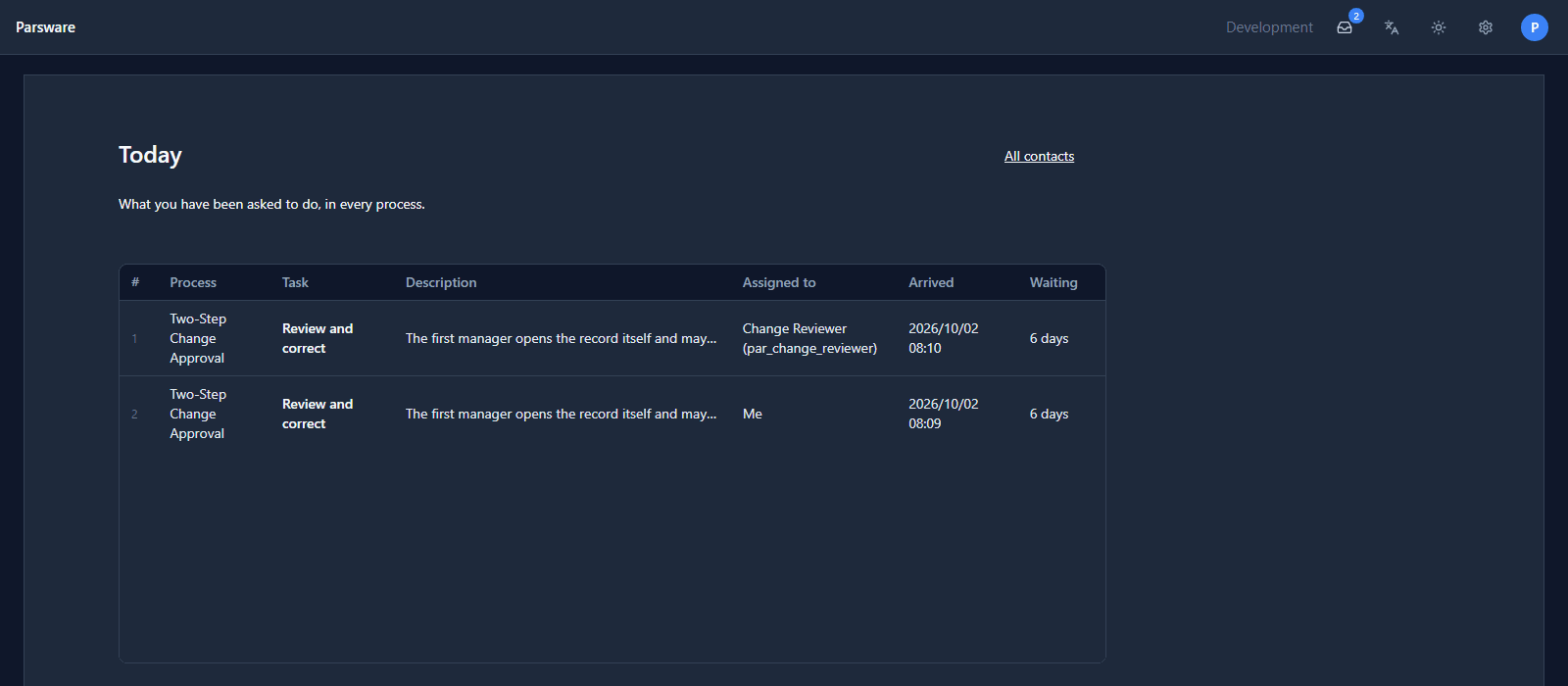
These are two change requests from the two-step approval, waiting for the Change Reviewer role, which we hold. Nothing on the screen names that process. The box is the inbox: every step any process in the environment has asked you to do, the same rows the inbox in the top bar shows, read once.
5. Press a row
Pressing a row takes the task and opens what it's about, the same as pressing it in the inbox. This one is about a change request, so it opens the request's form, in the Change Approvals app, which is the app that has change requests in it:
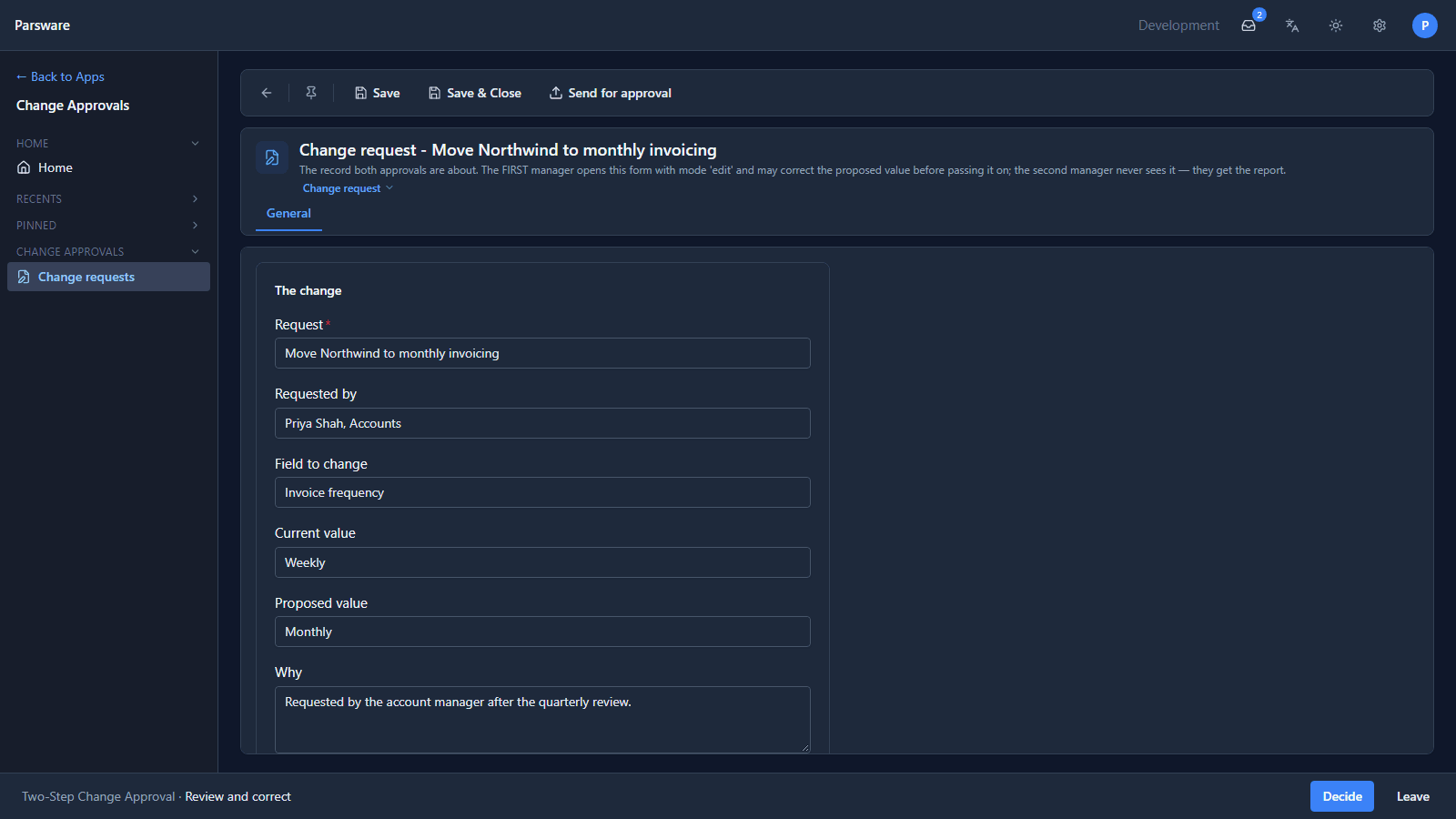
The bar along the bottom names the task, and Decide opens what it asks:
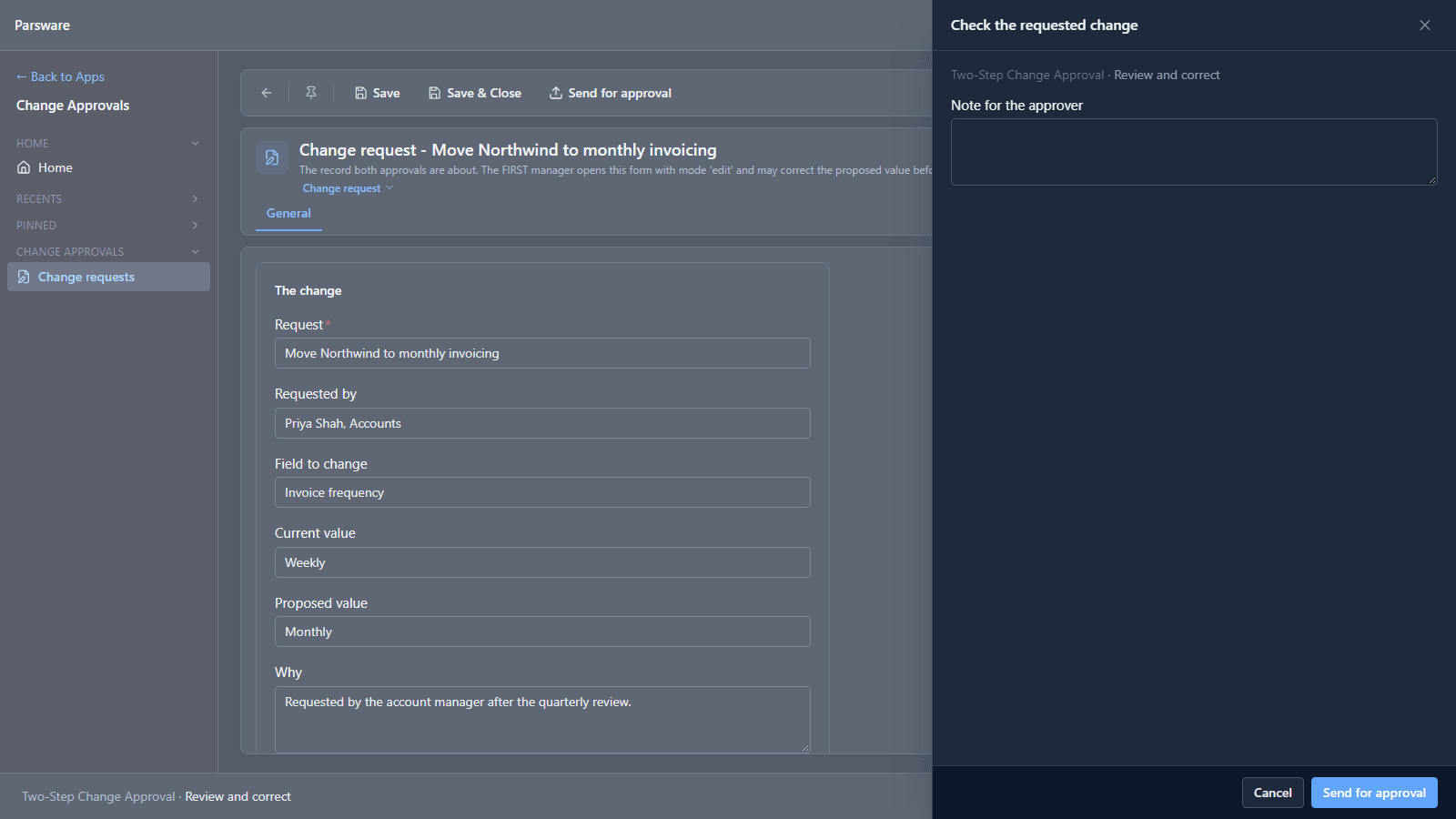
We pressed Cancel and went back with the browser's Back button. The row we pressed now says Me under Assigned to: it's ours until we decide it or put it back.
Only rows that are yours, or offered to you, open. A task somebody else has already taken stays in your list, so you can see where it went, and pressing it does nothing.
What we fixed
Building this turned up a bug, now fixed:
- A task opened from a drawn screen went to the wrong app. A process names a table, not an app, so the Shell picks an app to open the record in. From a Studio app it took the environment's first model-driven app, whatever was in it. Here that was Asset Tracker, which said "par_changerequest" isn't part of this app. It now picks an app that has the table: the one you're in if it does, otherwise one that takes part in processes. The help page for designing a process says the same.
Try it
Import the Tasks on a home screen sample (studio-tasks-on-a-home-screen). Give yourself the
Errand runner role, sign out and in again, create an errand, and it appears on the Your day
screen.
Next: a top bar drawn once and placed on every screen.