Parsware Platform
A screen that updates itself
The Contacts list reloads its page every five seconds, so a contact somebody adds in another app appears without anyone pressing anything. It's a timer on the list, a binding that says how often, and a tick box that pauses it.
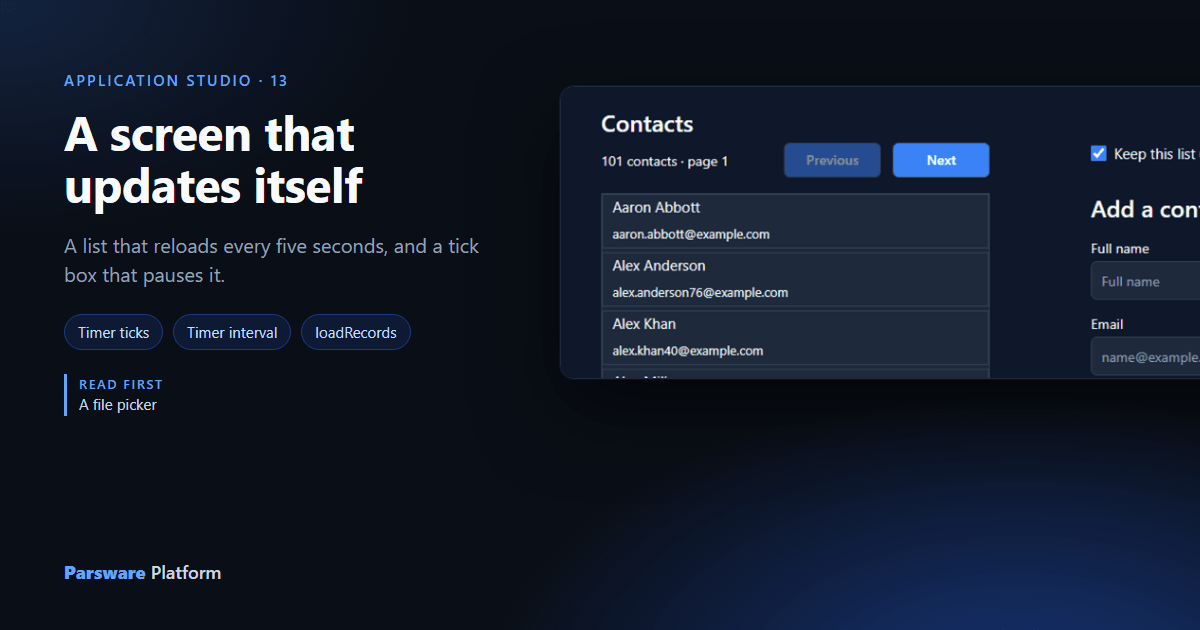
The Contacts list from A list a page at a time loads when the screen opens, and then it's a picture of that moment. If a colleague adds a contact in another app, this screen doesn't know until somebody leaves it and comes back.
A screen can check by itself. Any object on it can have a timer: a handler that runs every so many milliseconds while the object is on the page. This article gives the list one, and a tick box to pause it.
1. A state field for on or off
Select the Contacts screen frame, press Add a state field, name it live and set it to true.
Then place a Tick box beside Previous and Next, write Keep this list up to date inside it,
and bind its Value to state.live. Ticking and unticking it now turns live on and off.
2. How often
Select the Contact list frame, the box the rows repeat in, and open the code page. Under Bindings, write its Timer interval (ms):
state.live ? 5000 : 0
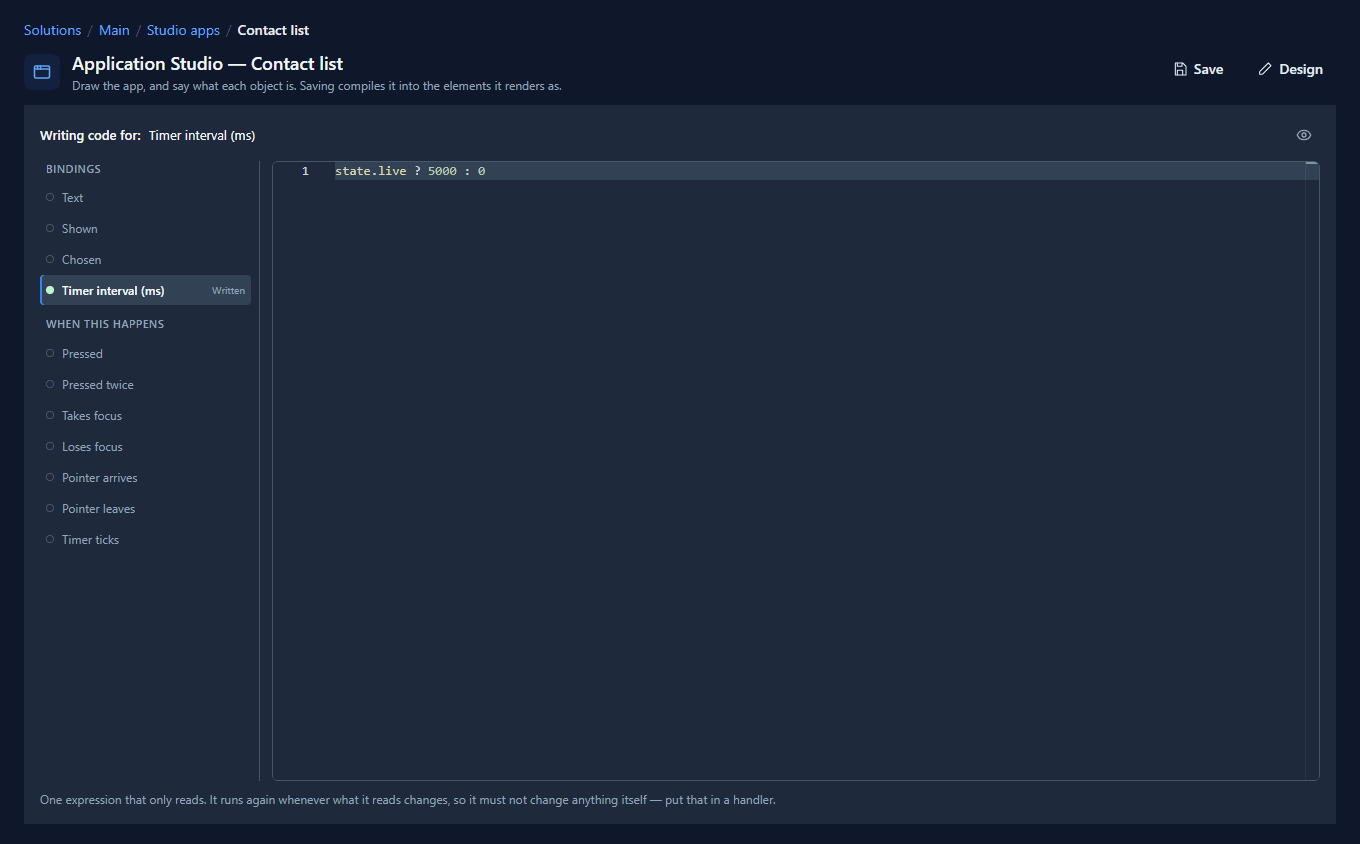
5000 milliseconds is five seconds. Zero stops the timer, so this one line is both the speed and
the pause: untick the box and the interval becomes 0. It's a binding, so it follows live the moment
it changes.
3. What to do each time
Under When this happens, write Timer ticks. It's the same query the screen runs when it opens:
loadRecords("contact", "contacts", {
  top: getState("pageSize"),
  skip: getState("page") * getState("pageSize"),
  orderBy: "fullname",
  countInto: "total"
});
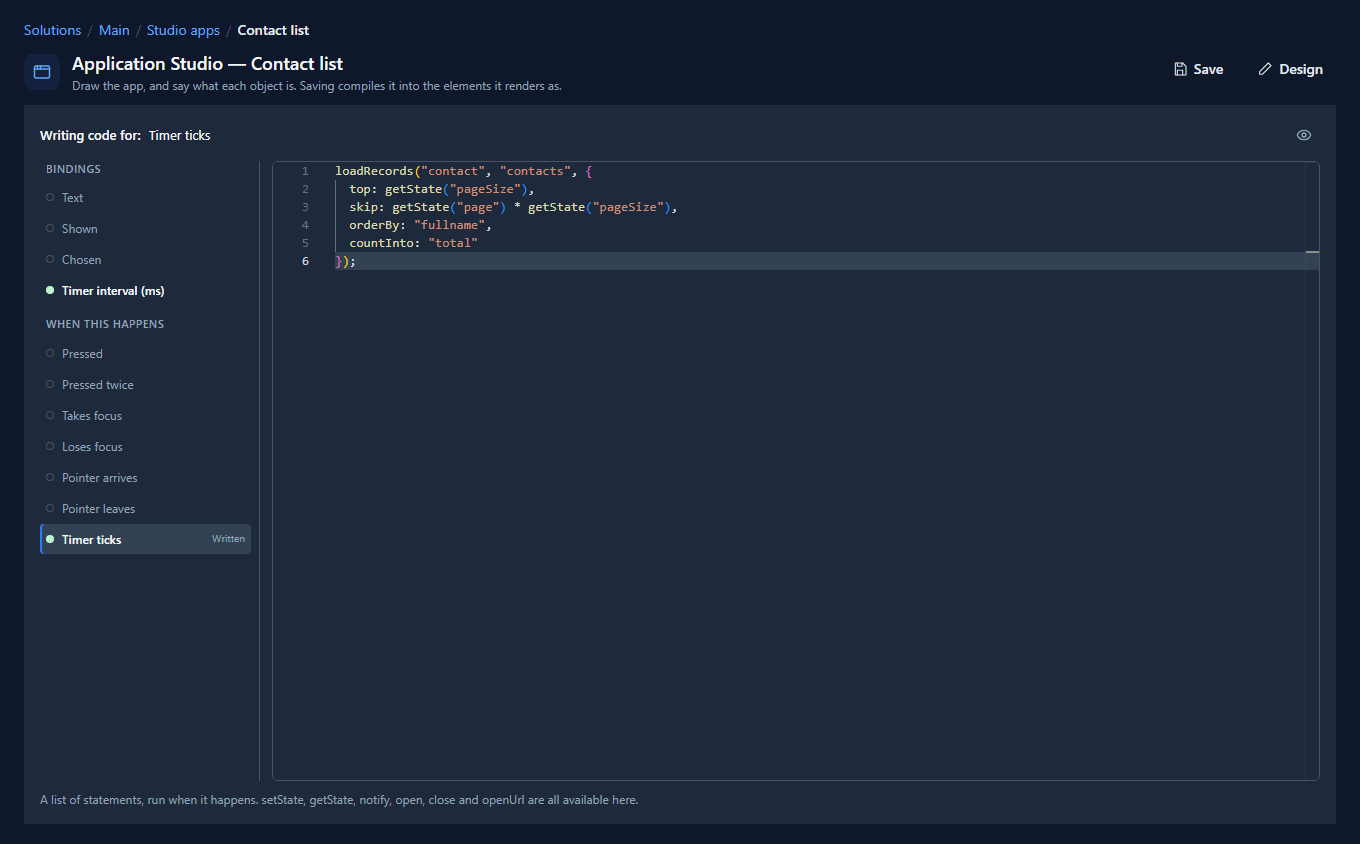
It reads page from state, so the list reloads the page you're on rather than jumping back to the
first. And it touches only contacts and total, so somebody half-way through typing in Add a
contact doesn't lose a letter.
4. Watch it
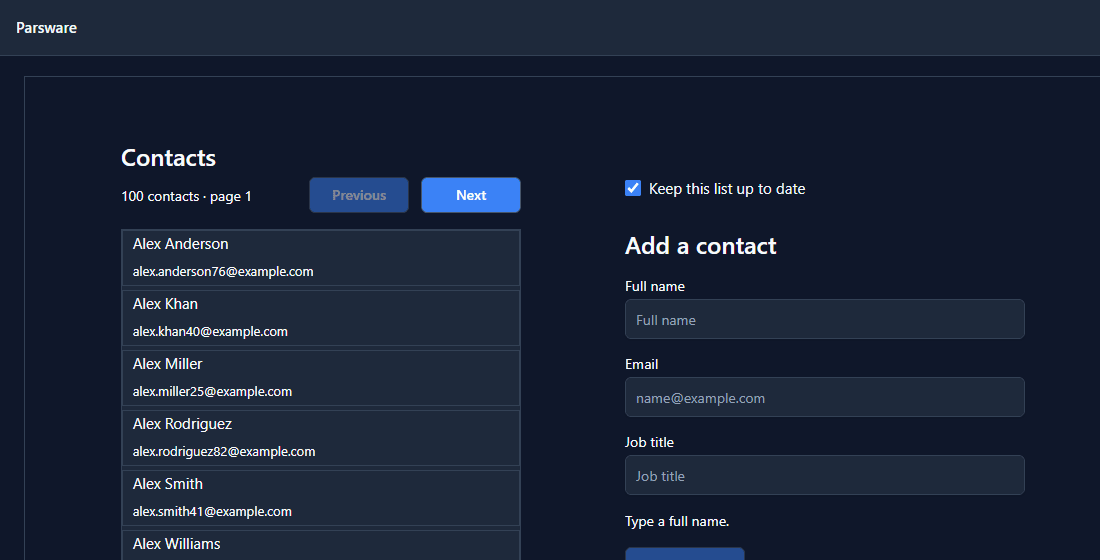
Save and open the app in the Shell. There are 100 contacts, and the list starts at Alex Anderson:
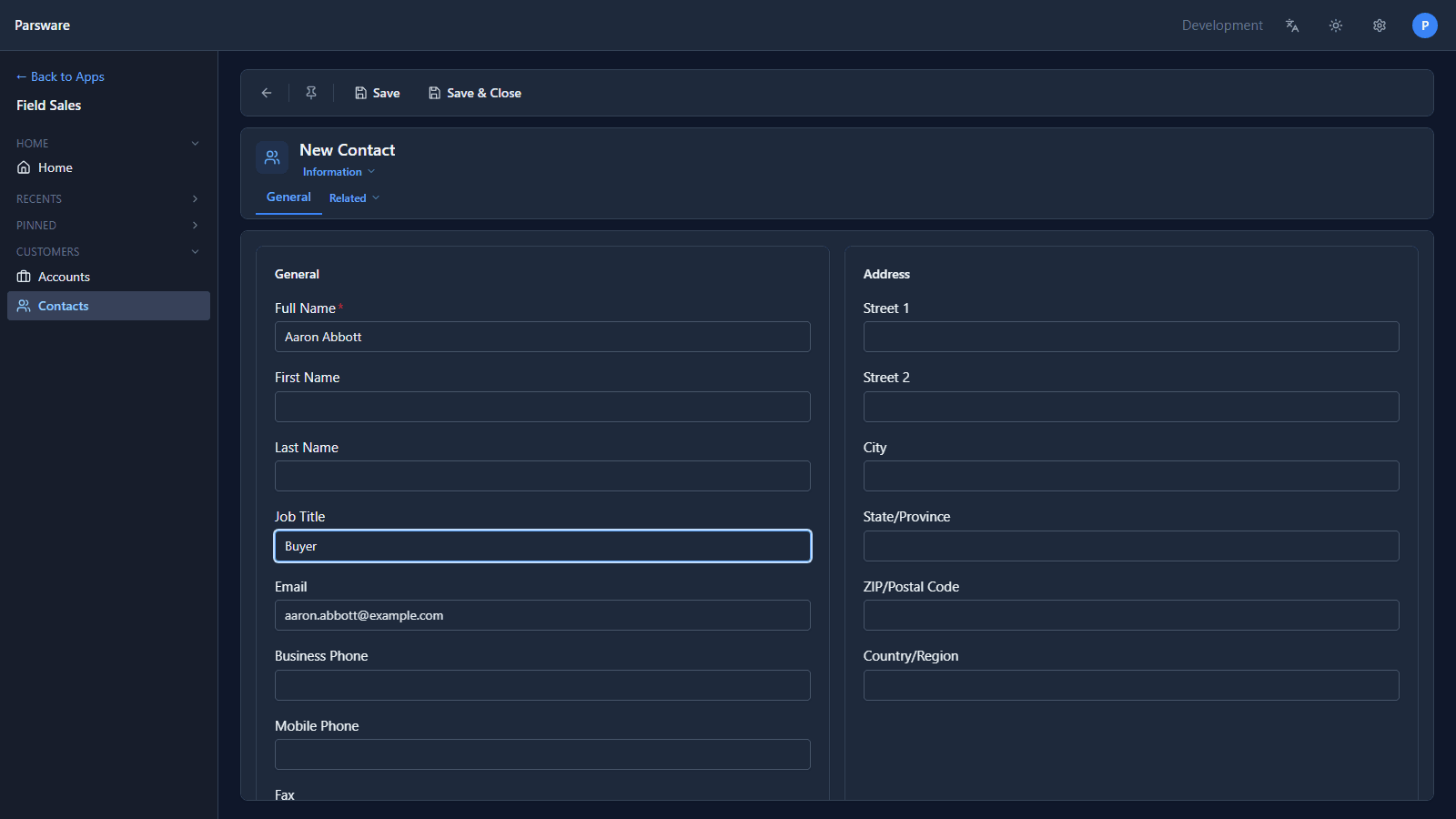
Now, in another tab, open Field Sales and add a contact, Aaron Abbott:
Press Save & Close and go back to the first tab. Within five seconds the count says 101 and Aaron Abbott is at the top, where the alphabet puts the name:
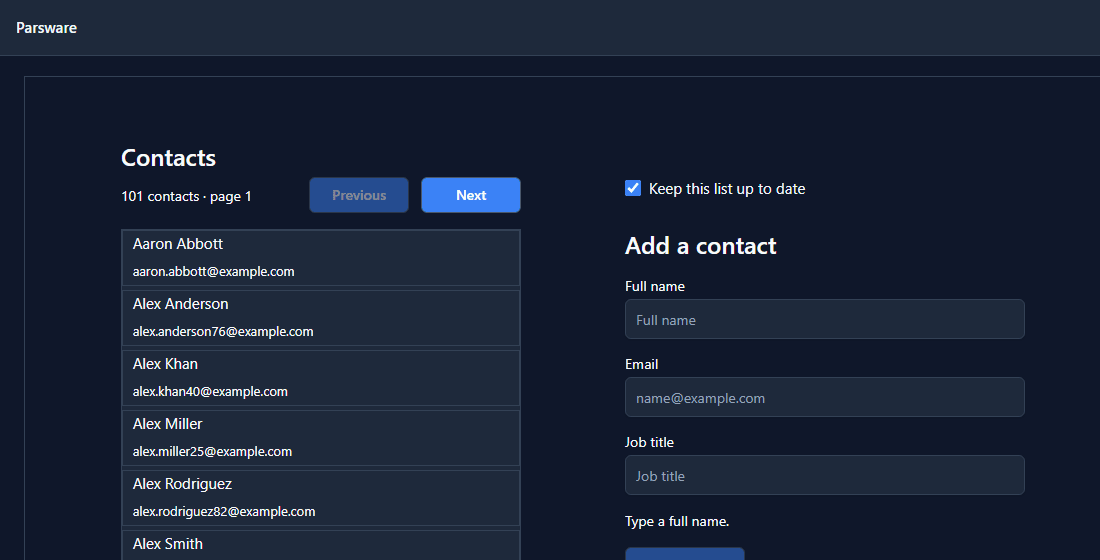
Untick Keep this list up to date and the list stays as it is, however many contacts are added. Tick it again and it catches up at the next tick.
Choosing an interval
Every tick is a query, for every person who has the screen open. Five seconds suits a list somebody watches. A wall screen that's glanced at can use 30 or 60. Less than 250 milliseconds is raised to 250, because nothing on a screen needs to be faster and a server shouldn't be asked to be.
An object that's hidden doesn't tick. Put the timer on something that's on the screen whenever the refresh matters, as the list is here, and a part of the screen that's switched off stops asking.
Try it
Import the Ticket triage sample (studio-live-screen). It shows the other half of a screen that
reacts by itself: bindings that follow what's typed, a drawn state turned on by a handler, and a modal
and a dropdown.
Next: a dashboard on a screen, with counted tiles, a chart and the table's own grid.