Parsware Platform
A file picker
An image picker on the Contact screen holds the photo somebody chose, and a Save photo button stores it in the contact's Photo field with one updateRecord. The picker is the platform's own control, so it previews, it refuses a file that's too big, and the stored photo shows up beside the contact in every list.
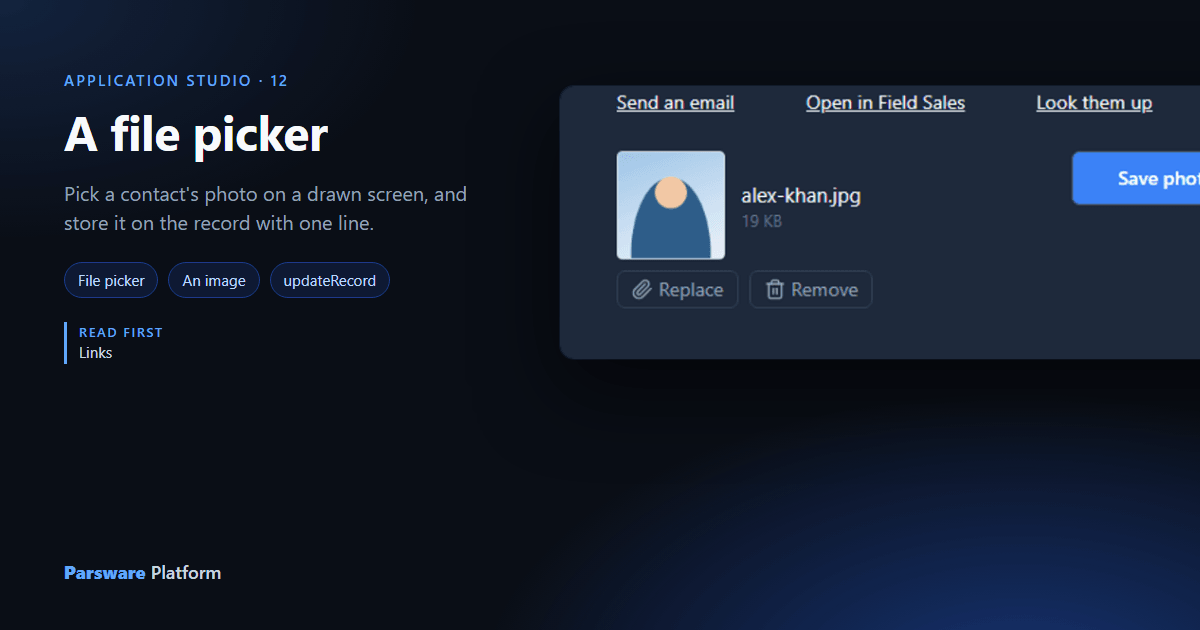
A contact's photo lives in an Image field on the record (see Files and pictures on a record). On a model-driven form, the field brings its own picker. On a drawn screen you place one: a File picker, which holds the file somebody chose until a handler stores it.
This article adds one to the Contact screen from the last article, for the contact's Photo.
1. A state field to hold the file
Select the Contact screen frame, and under Screen state press Add a state field. Name it
photo and leave it as "": nothing picked yet.
2. Place the picker
From Controls, click File picker and make it 320 by 160. In the Screen tab, set Takes to An image:
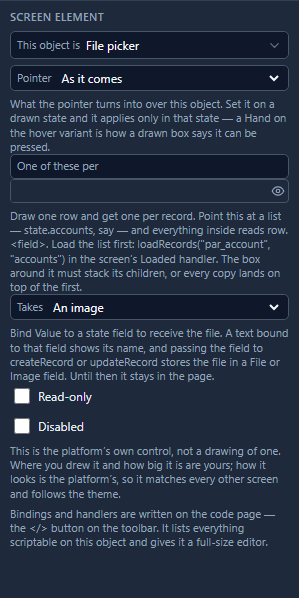
Takes decides two things at once: the file dialog offers only pictures, and what's picked is shown as a picture. Any file offers everything and shows a name and a size.
Then bind its Value on the code page:
state.photo
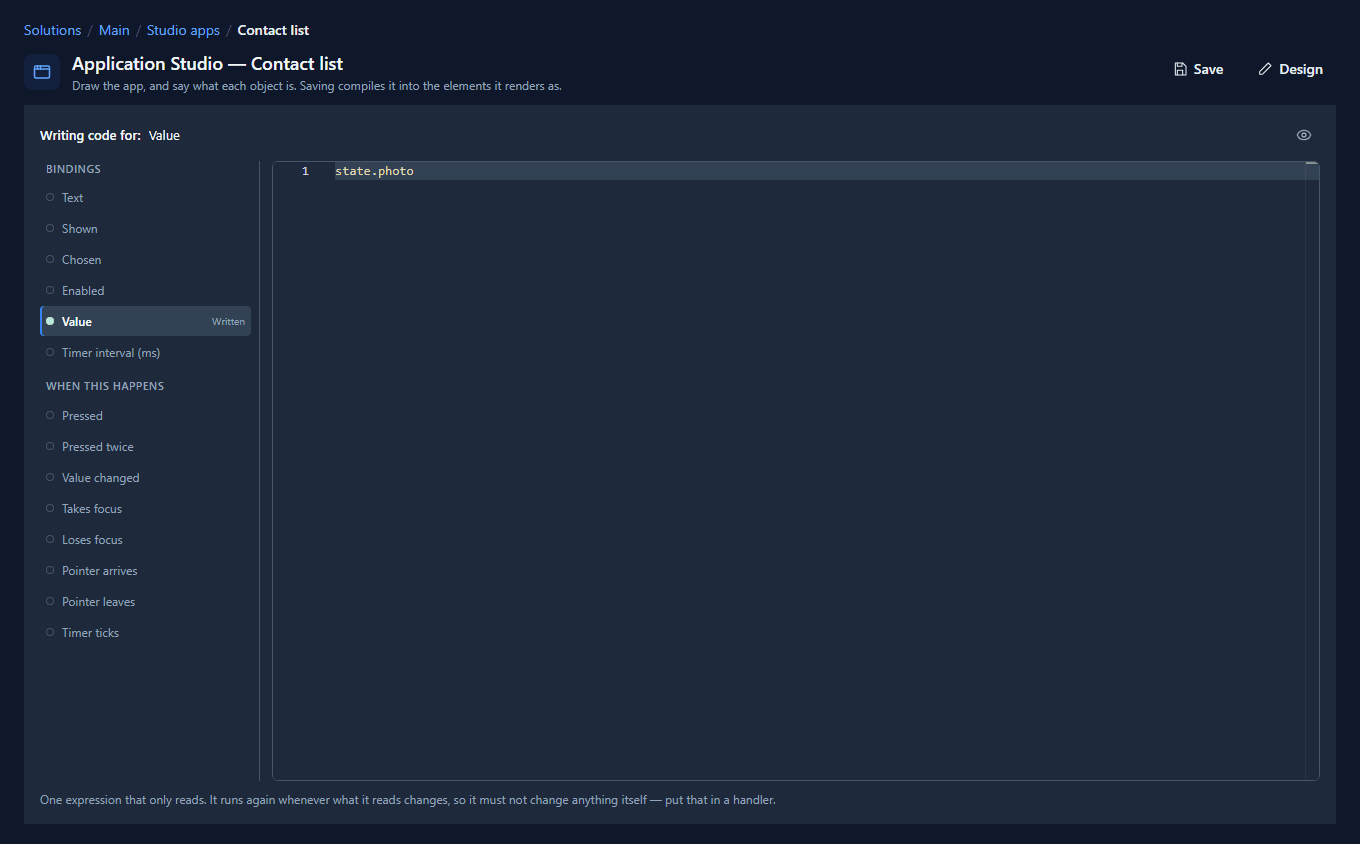
Picking a file now puts the whole file in state.photo: its name, type, size and contents. A text
bound to state.photo would show its name, and state.photo.fileName reads the name on its own.
3. Store it
Place a Button beside the picker, Save photo, and give it this Pressed handler:
updateRecord("contact", getState("record").id, { new_photo: getState("photo") });
notify("Saved " + getState("photo").fileName + ".");
setState("photo", "");
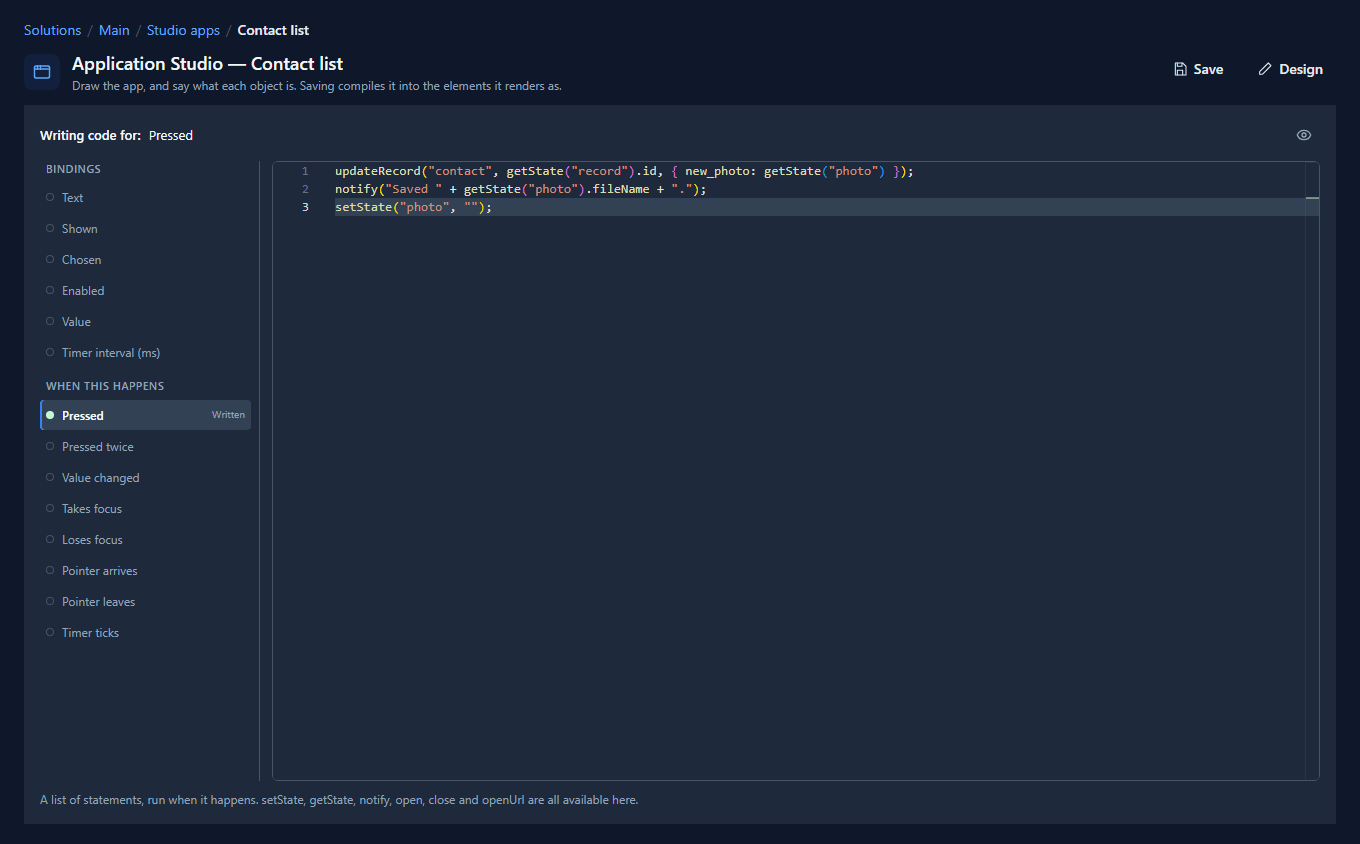
new_photo is the Photo field's logical name. Passing a picked file as the value of a File or
Image field is all it takes: the Shell writes the record, then uploads the file to that field.
The same works in createRecord, so a new record can arrive with its attachment in one line. The
last line empties the picker, ready for the next one.
4. Use it
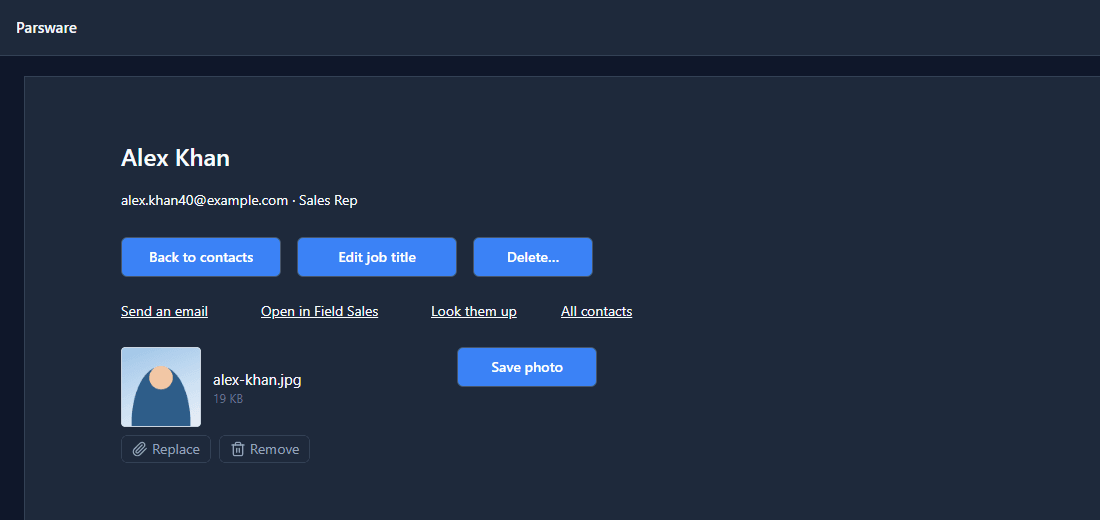
Save, open a contact in the Shell, and choose a picture. It previews, with its name and size:
Press Save photo:
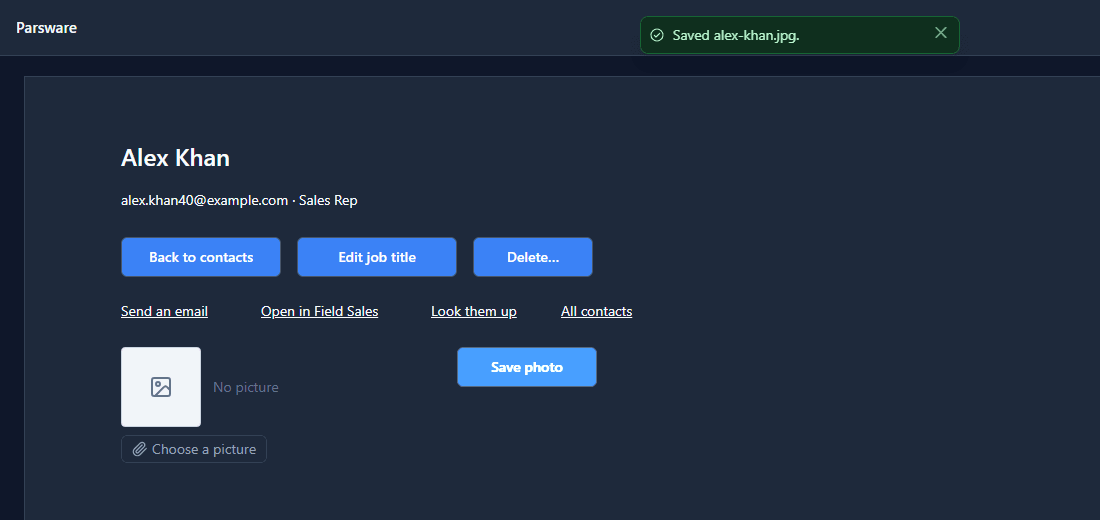
The photo is on the record now, not just on the screen. Photo is Contact's record image, so every list of contacts shows it beside the name, including Field Sales:

Too big is refused in the box
A file over 4 MB is refused as soon as it's picked, before anything is read or sent:
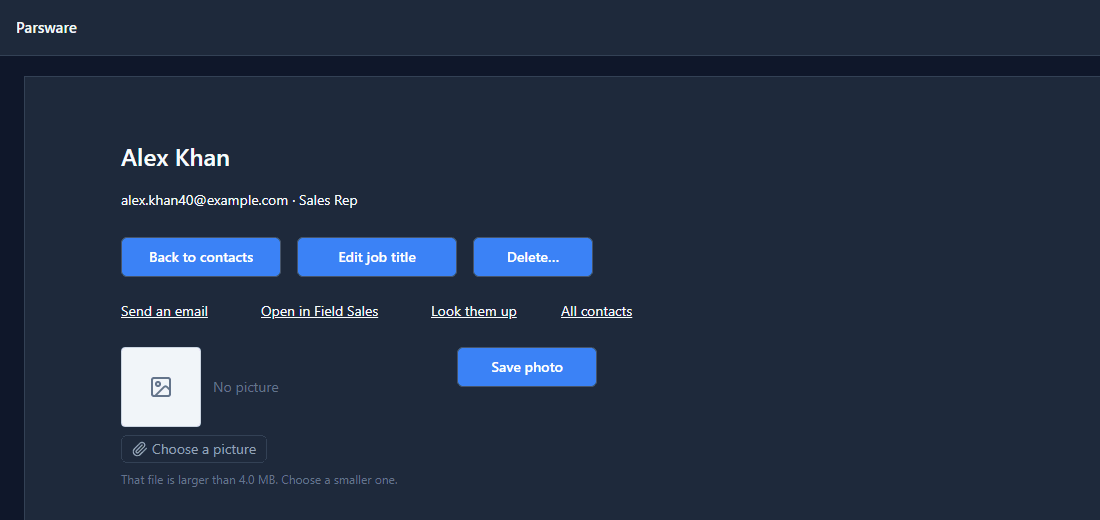
A picked file waits in the page until a handler stores it, so it's kept small enough to hold there. The same limit applies to a portal page, where the person picking may be on a phone.
What we fixed
Writing this turned up a hint that was out of date, now corrected:
- The picker said a screen had nowhere to store a file. The hint under Takes said the file
"stays in the page — a screen has nowhere to store one yet", and so did the help page and the sample.
That was true before screens could reach records. It's been possible to store a picked file with
createRecordorupdateRecordfor a while, and nothing said so. The hint, the help page in every language and the sample's README now say how.
Try it
Import the File picker sample (studio-file-picker). It has one picker for any file and one for
an image, each bound to a state field, and a button that clears both.
Next: a screen that keeps itself up to date.