Parsware Platform
Links
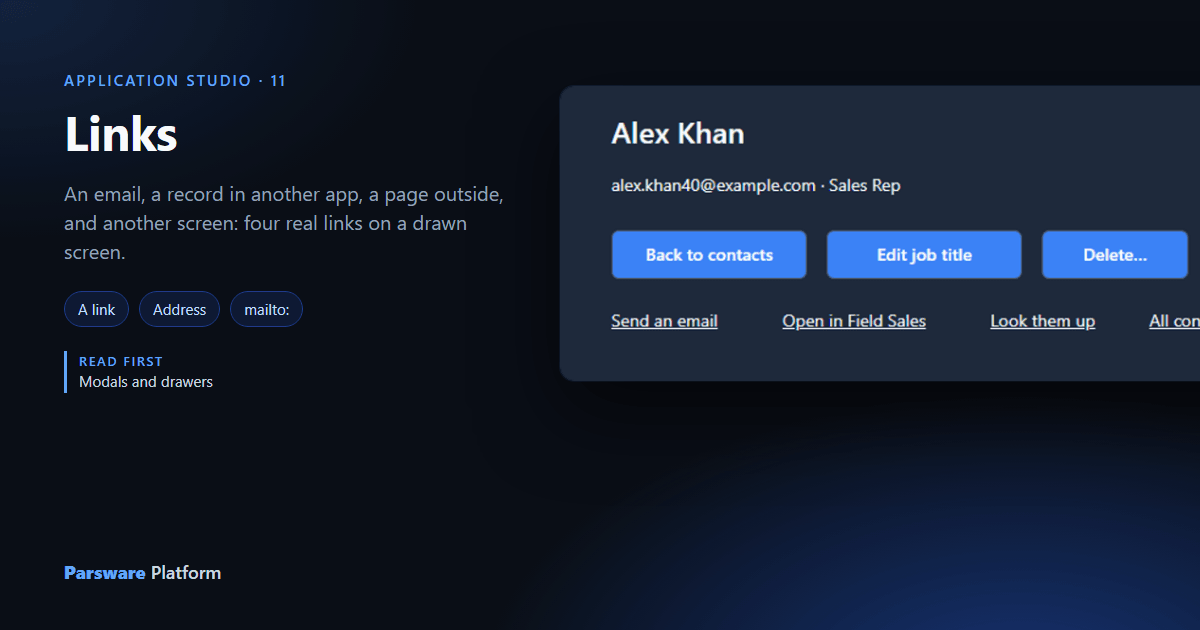
Four links on the Contact screen: an email that opens the mail app, the same contact in a model-driven app, a web search in a new tab, and another screen of this app. Each is a real link, so middle-click, right-click and a screen reader all treat it like one.
A button runs a handler. A link goes somewhere, and people expect more from it: hovering shows where, middle-clicking opens a tab, right-clicking offers Copy link address, and a screen reader lists it among the page's links. None of that comes from a handler. It comes from the element being a real link, so a Studio screen has links as a thing you place, not a thing you script.
This article adds four to the Contact screen from the last article: an email, the same contact in a model-driven app, a page outside the platform, and another screen of this app.
1. Place a link
From Components, click A link. It lands in the selected frame. Type its words, All contacts, and in the Screen tab fill in two fields:
- Address: where it goes. Here,
/apps/new_contactlist/Contacts: a path inside the platform. - Opens: In this window or In a new tab.
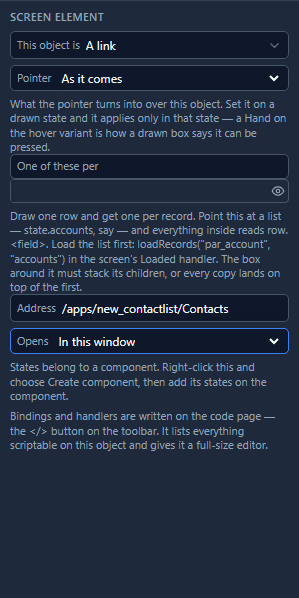
/apps/new_contactlist is this app's own address: open it in the Shell and it's in the address bar.
Every screen adds its name to it, so the Contacts screen is /apps/new_contactlist/Contacts. A link
to a screen does the same as a navigate button, and also works when somebody opens it in a new tab.
Some addresses are refused
Type javascript:alert(1) into Address and the panel says so straight away:
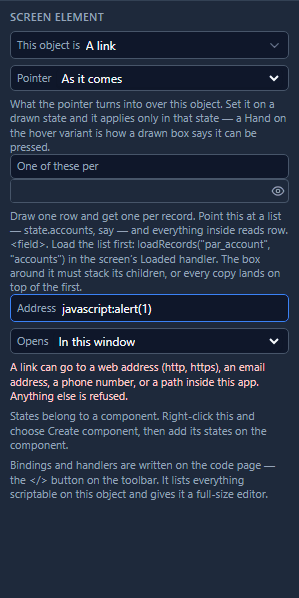
Only web addresses (http, https), email (mailto:), phone numbers (tel:) and paths inside the
platform are allowed. A javascript: link runs code, and a screen can arrive in a solution somebody
else wrote, so it's checked rather than trusted: here, again when you save, and once more when the
screen is shown. A refused address is drawn as text that goes nowhere.
2. An address worked out from the record
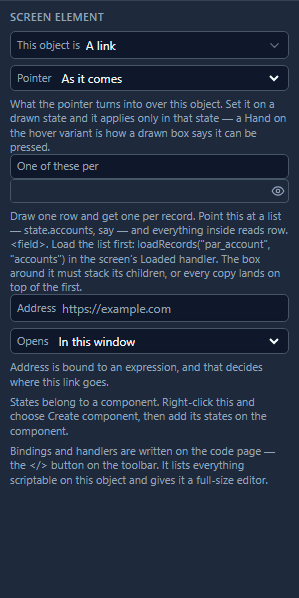
The other three links depend on which contact is open, so their address is bound instead of typed. Place a second link, Send an email, open the code page, and write its Address:
"mailto:" + state.record.emailaddress1
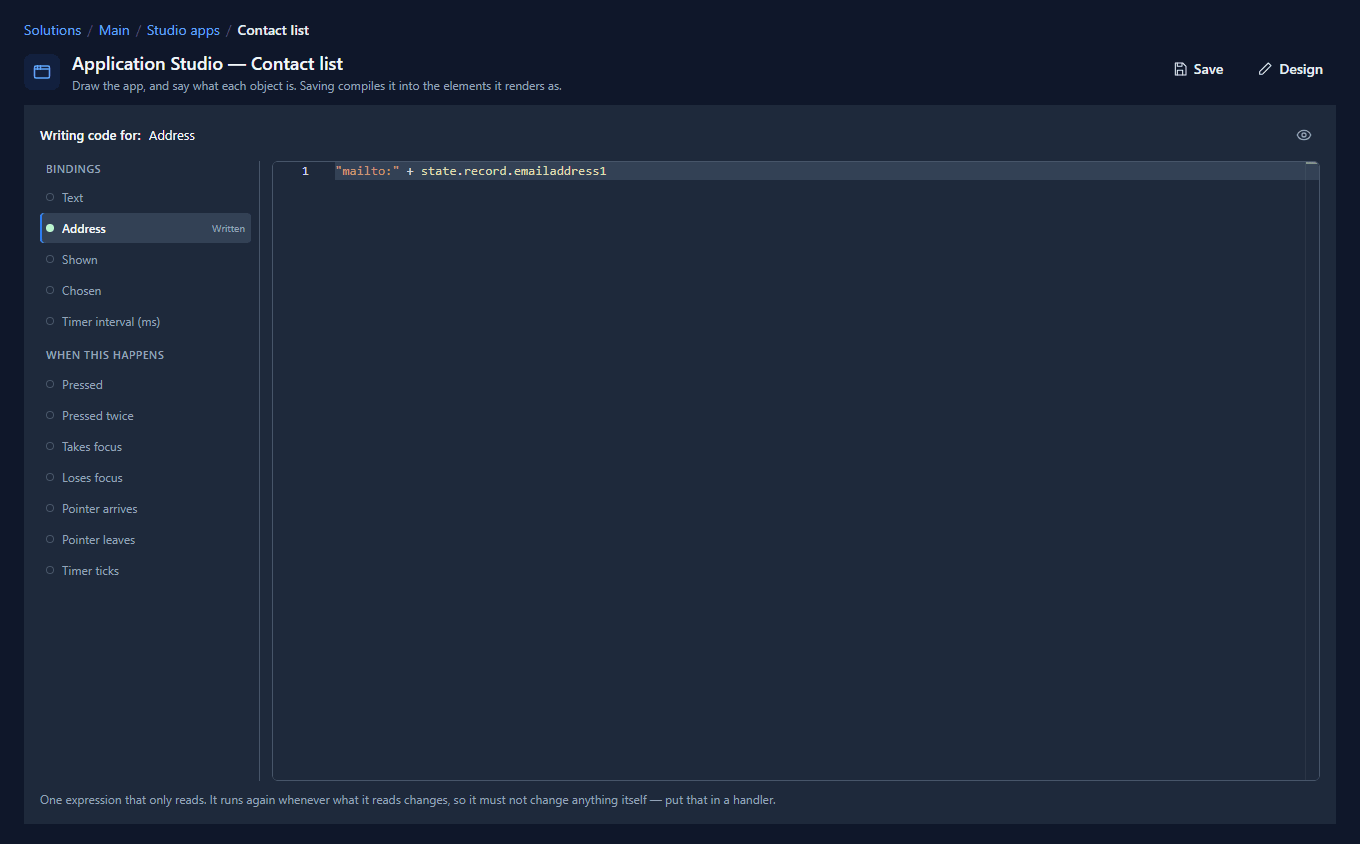
Back in the Screen tab, the Address box is greyed out and says why: the binding decides.
Two more, the same way:
| Link | Address | Opens |
|---|---|---|
| Open in Field Sales | "/apps/par_field_sales_app/contact/" + state.record.id |
In this window |
| Look them up | "https://duckduckgo.com/?q=" + state.record.fullname |
In a new tab |
3. Use them
Save, open a contact in the Shell, and there are four links under the buttons:
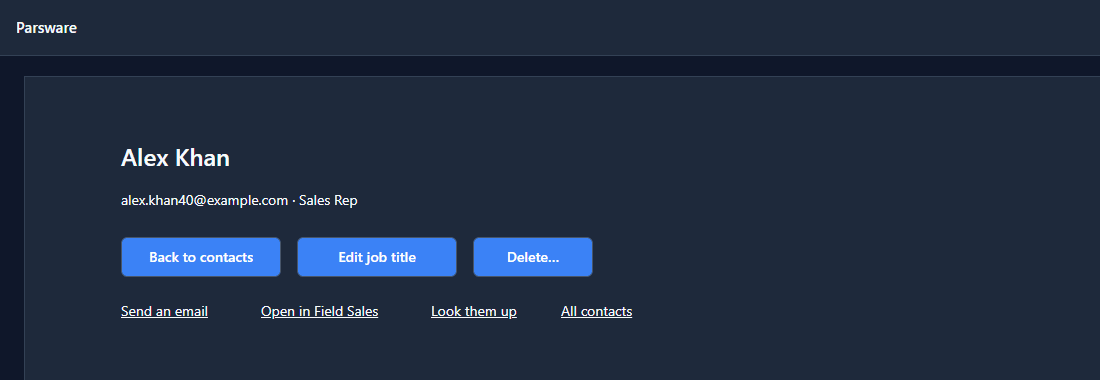
Send an email opens your mail app with the address filled in. Look them up opens a search in a
new tab; the platform adds rel="noopener noreferrer" to every new-tab link, so the page it opens
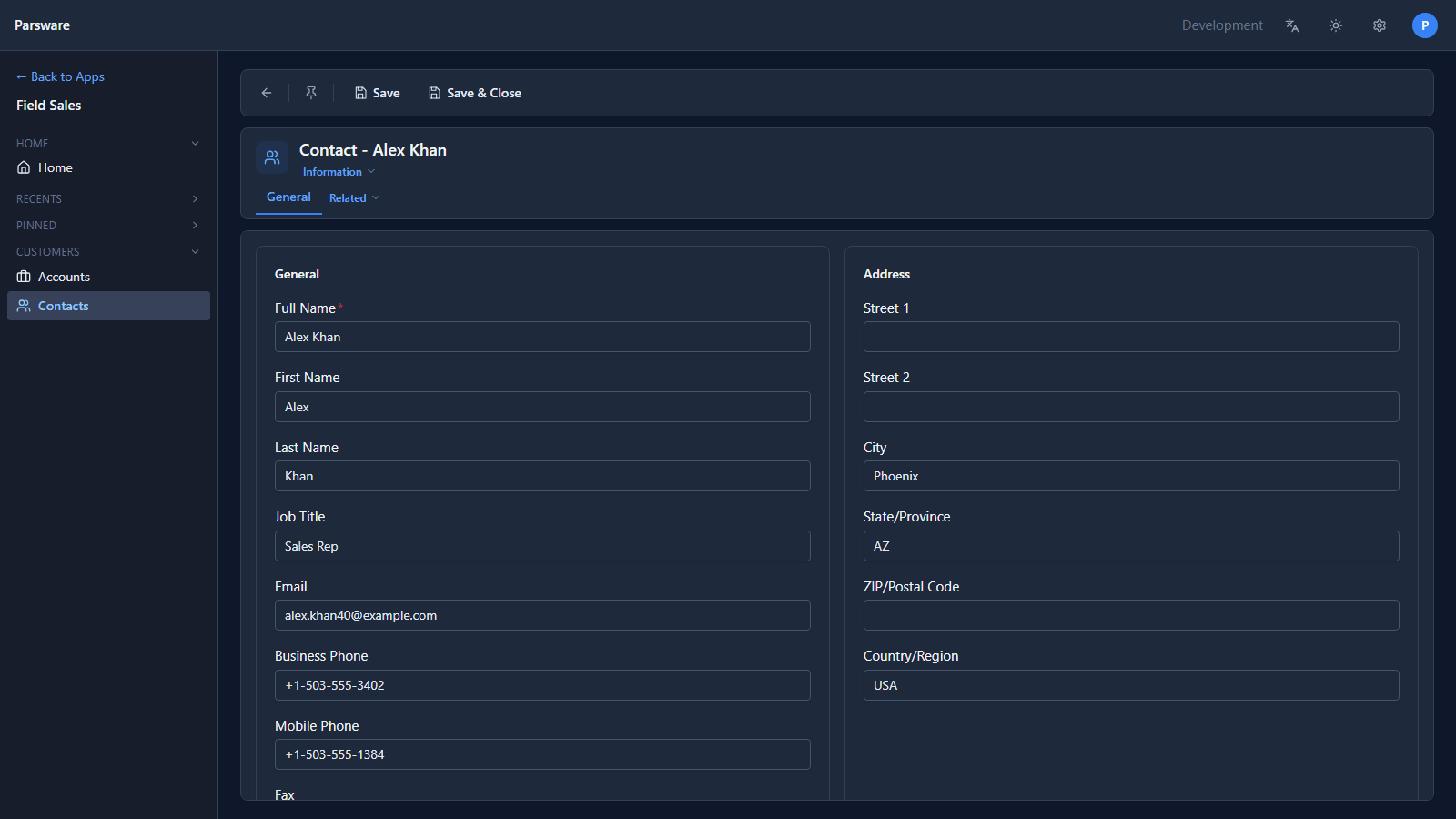
can't reach back into this one. All contacts goes to the list. Open in Field Sales opens the same
contact in a model-driven app:
A link or openUrl?
When the address is known, or can be worked out from what's on the screen, draw a link. When the
screen has to decide first, after a save or depending on what somebody picked, use openUrl in a
handler:
openUrl("https://duckduckgo.com/?q=" + getState("record").fullname, "newTab");
The same addresses are allowed. Leave the second argument off to stay in this window.
What we fixed
Building these turned up a bug, now fixed:
- A link to a model-driven app couldn't travel. The Shell found a Studio app by its logical name
but a model-driven app only by its id, and that id is created when the solution is imported, so it
differs in every environment. A link to
/apps/<id>/contact/…written in Development would open That app isn't available in Test. The Shell now also finds a model-driven app by its logical name, which is the same everywhere, so/apps/par_field_sales_app/contact/…works in both.
Try it
Import the Links sample (studio-links). It has a link with a typed address, one that opens a
new tab, one whose address follows a dropdown, and a button that does the same with openUrl.
Next: letting somebody pick a file on a screen, and storing it on a record.