Parsware Platform
Modals and drawers
Two overlays on the Contact screen: a modal that asks before a contact is deleted and can't be walked away from, and a drawer that slides in from the end of the line to change the job title. Each is a drawn card, ticked as an overlay card and opened by one line in a handler.
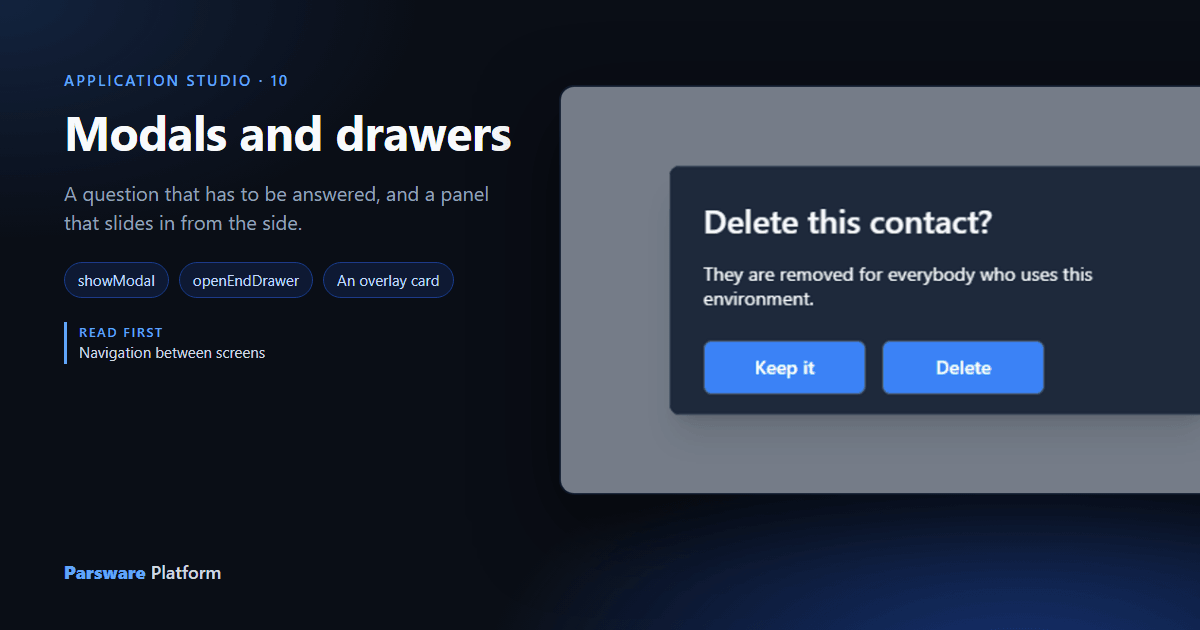
Some things shouldn't need a screen of their own. Are you sure? is one. A quick change to one field is another. For those, a Studio screen has overlays: a modal in the middle of the screen, a drawer that slides in from one side, and a dropdown that hangs off a button.
This article adds two to the Contact screen from the last article: a modal that asks before deleting, and a drawer for editing the job title.
What an overlay is
An overlay isn't a screen. It's a card: a frame you draw anywhere on the canvas, make into a component, and tick as An overlay card. It isn't shown until a handler opens it, and the handler decides where:
| Handler | Opens the card | Closes it |
|---|---|---|
showModal("Name") |
in the middle, over a shaded screen | closeModal() |
openStartDrawer("Name") |
as a panel at the start of the line | closeStartDrawer() |
openEndDrawer("Name") |
as a panel at the end of the line | closeEndDrawer() |
openDropdown("Name") |
hanging off whatever ran the handler | closeDropdown() |
Where you draw the card on the canvas doesn't matter. Its width does: the drawn width is the modal's or the drawer's width.
1. Draw the question
Away from both screens, draw a frame 400 by 184 and name it Delete contact. Put in it a heading, Delete this contact?, a paragraph saying what will happen, and two Buttons, Keep it and Delete.
Keep it closes the card: closeModal();. Delete does the work:
deleteRecord("contact", getState("record").id);
notify("Deleted " + getState("record").fullname + ".");
closeModal();
navigate("Contacts");
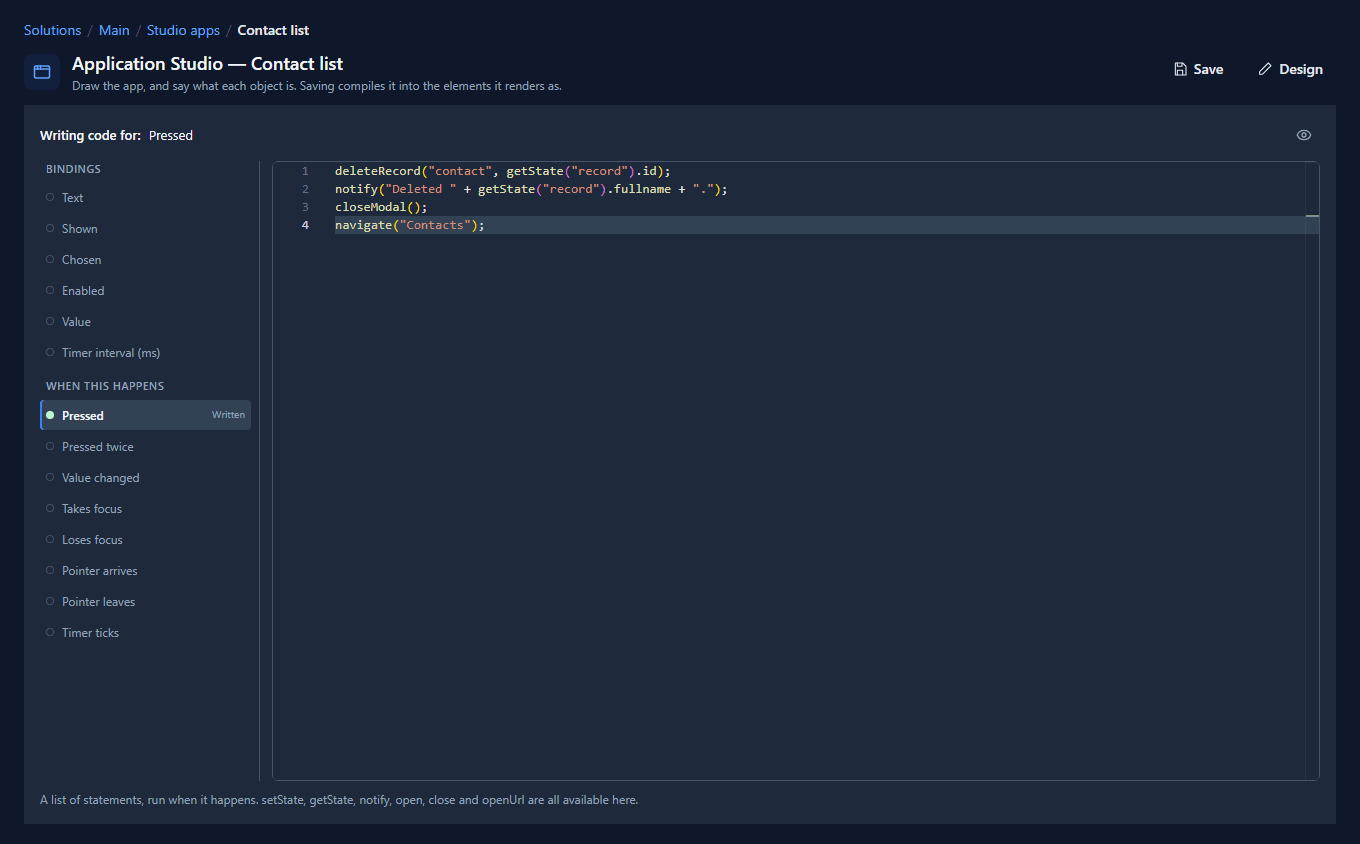
The card's buttons read the screen's state, so getState("record") is the contact that's open. The
lines run in order and each waits for the one before, so the list that navigate opens has already
lost the contact.
2. Make it an overlay card
Right-click the card's frame on the canvas and choose Make component. In Properties, tick An overlay card. Then tick It has to be answered as well.
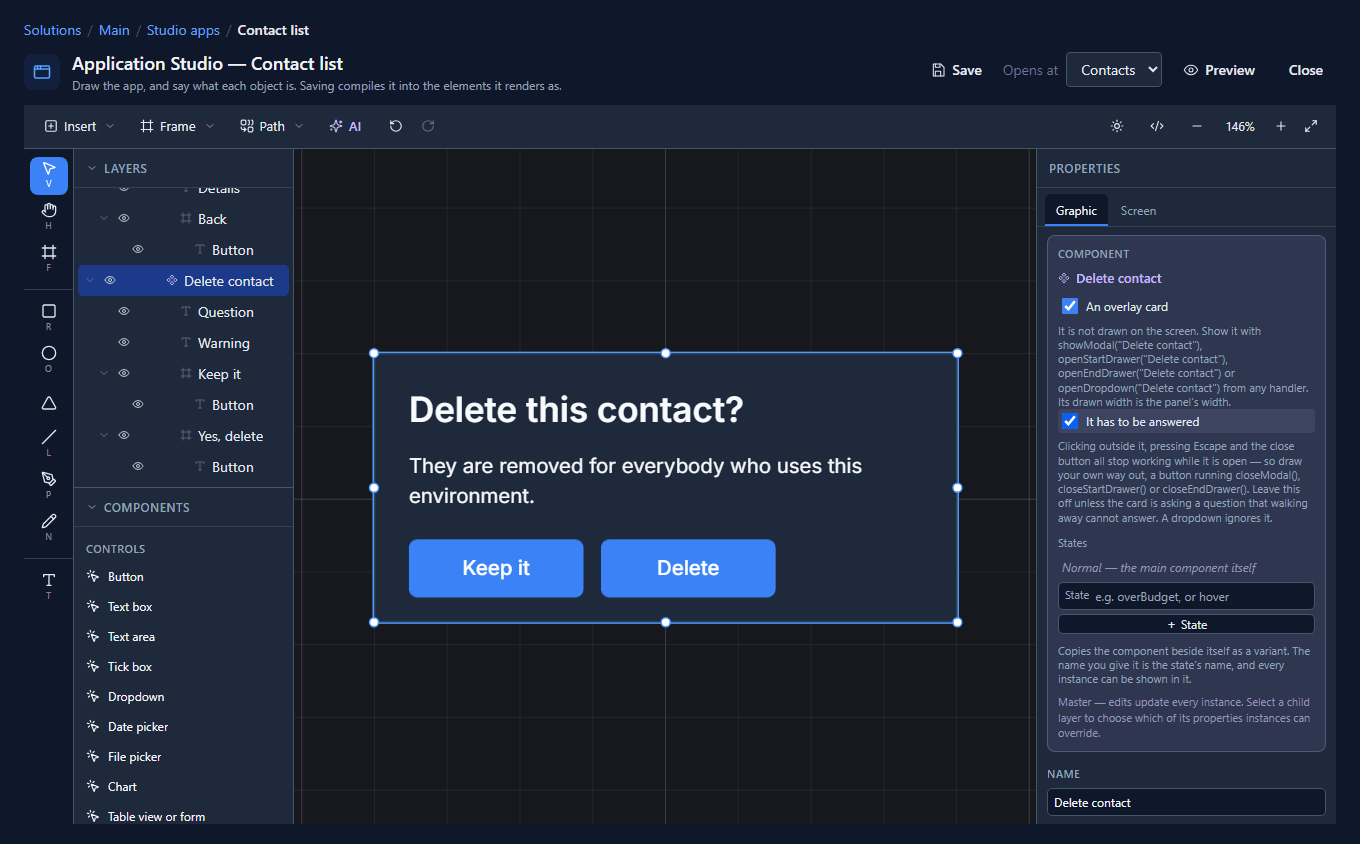
A card that has to be answered can't be closed by pressing Escape or clicking beside it, which is why it needs its own Keep it. Use it only for questions that walking away can't answer. Delete this contact? is one: clicking beside it isn't a yes or a no.
Fill the card before you make it a component. Afterwards it's a component's main frame, and what you place over it lands beside it on the canvas rather than in it.
3. Draw the drawer
Draw a second frame, 360 by 220, named Edit job title. Put a heading in it, a Text box whose
Value is bound to state.record.jobtitle, and a Save button:
updateRecord("contact", getState("record").id, { jobtitle: getState("record").jobtitle });
notify("Saved.");
closeEndDrawer();
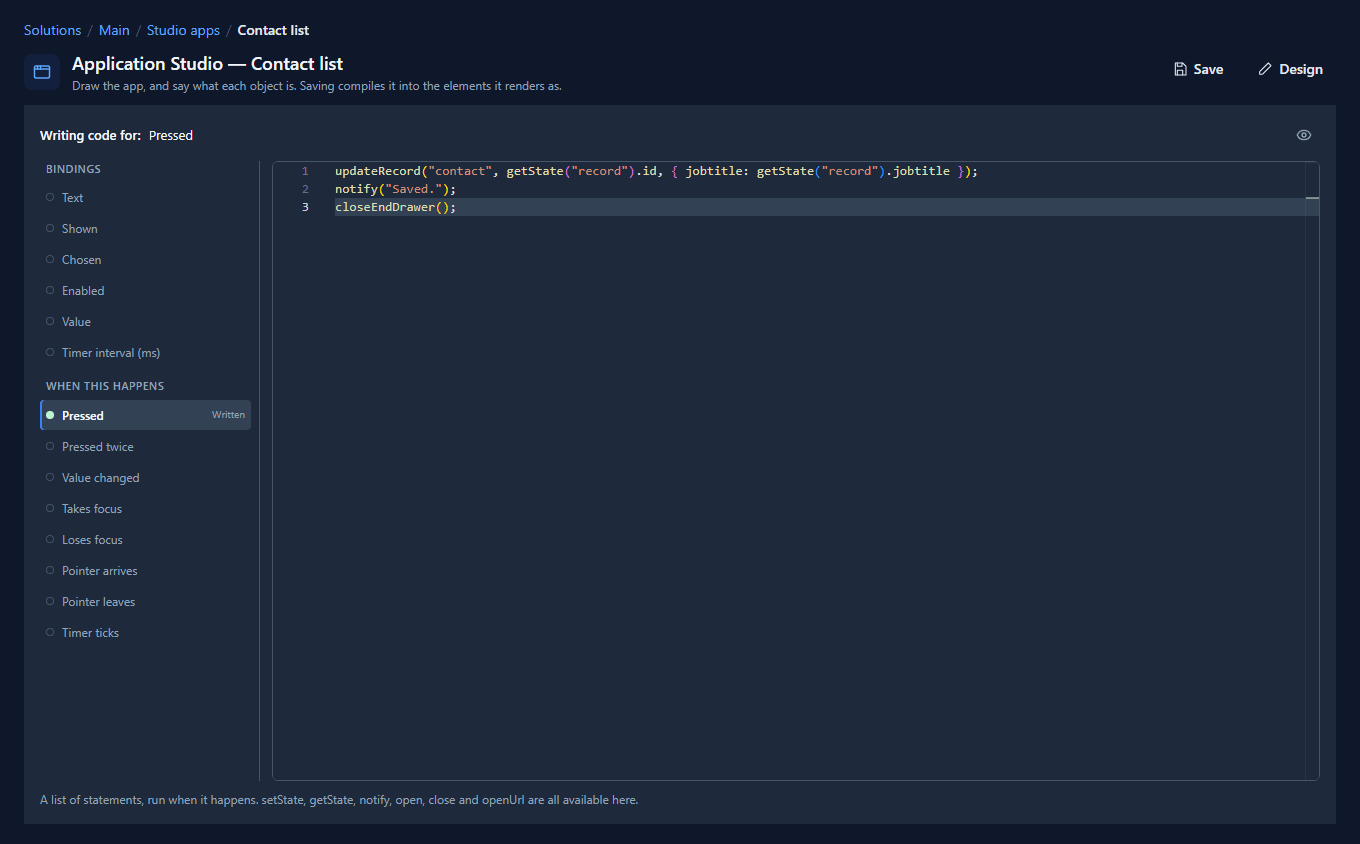
The text box writes what's typed straight into state.record.jobtitle, so the heading and the line
under it on the screen change as you type. Make this frame a component and tick An overlay card
too, but leave It has to be answered off: a drawer opened by mistake should close the way it
opened.
4. Open them
On the Contact screen, place two more buttons beside Back to contacts:
- Edit job title:
openEndDrawer("Edit job title"); - Delete…:
showModal("Delete contact");
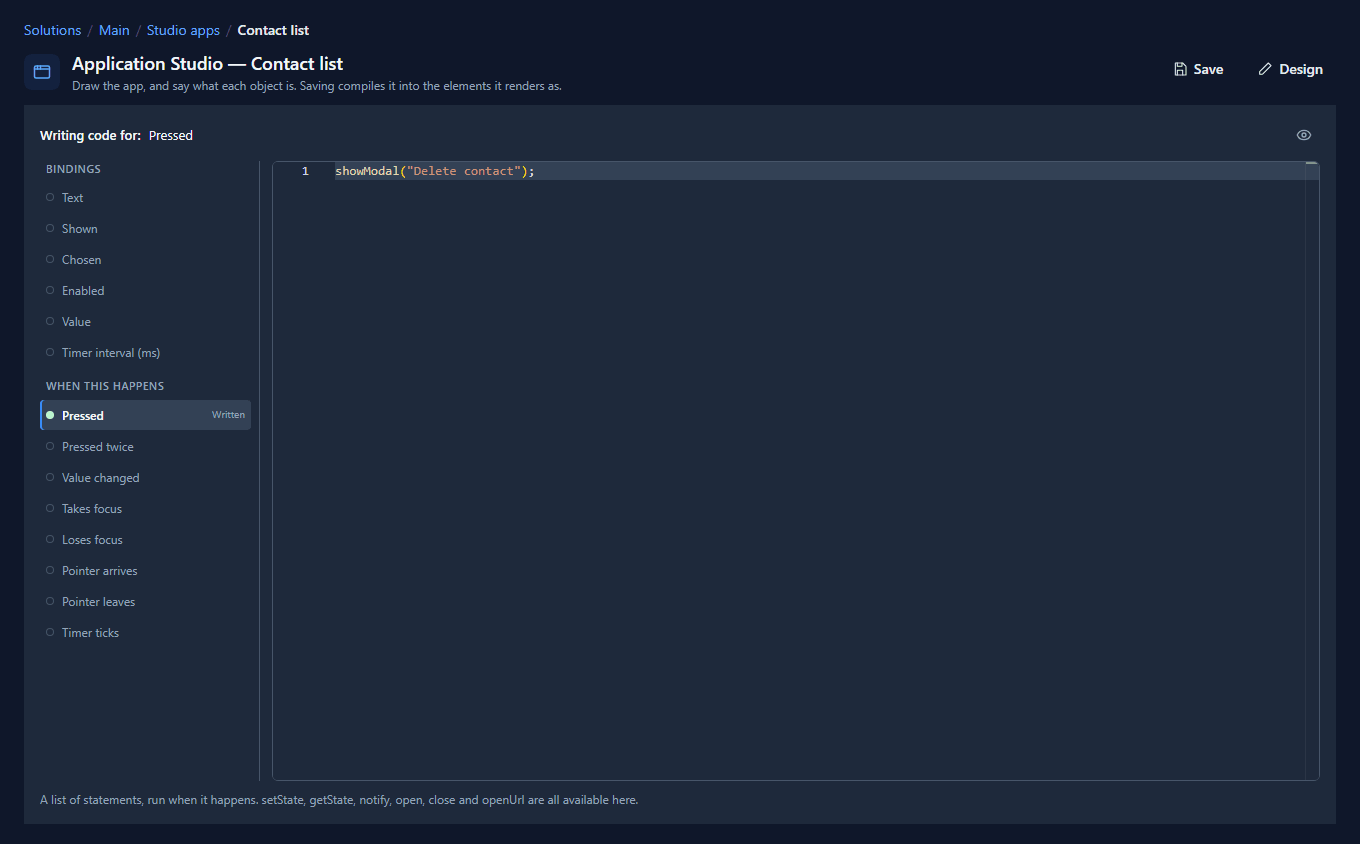
The name in quotes is the component's name. The three dots in Delete… tell people a question comes before anything happens.
5. Use them
Save, open a contact in the Shell, and press Edit job title. The drawer slides in from the right, and the line under the name follows what you type:
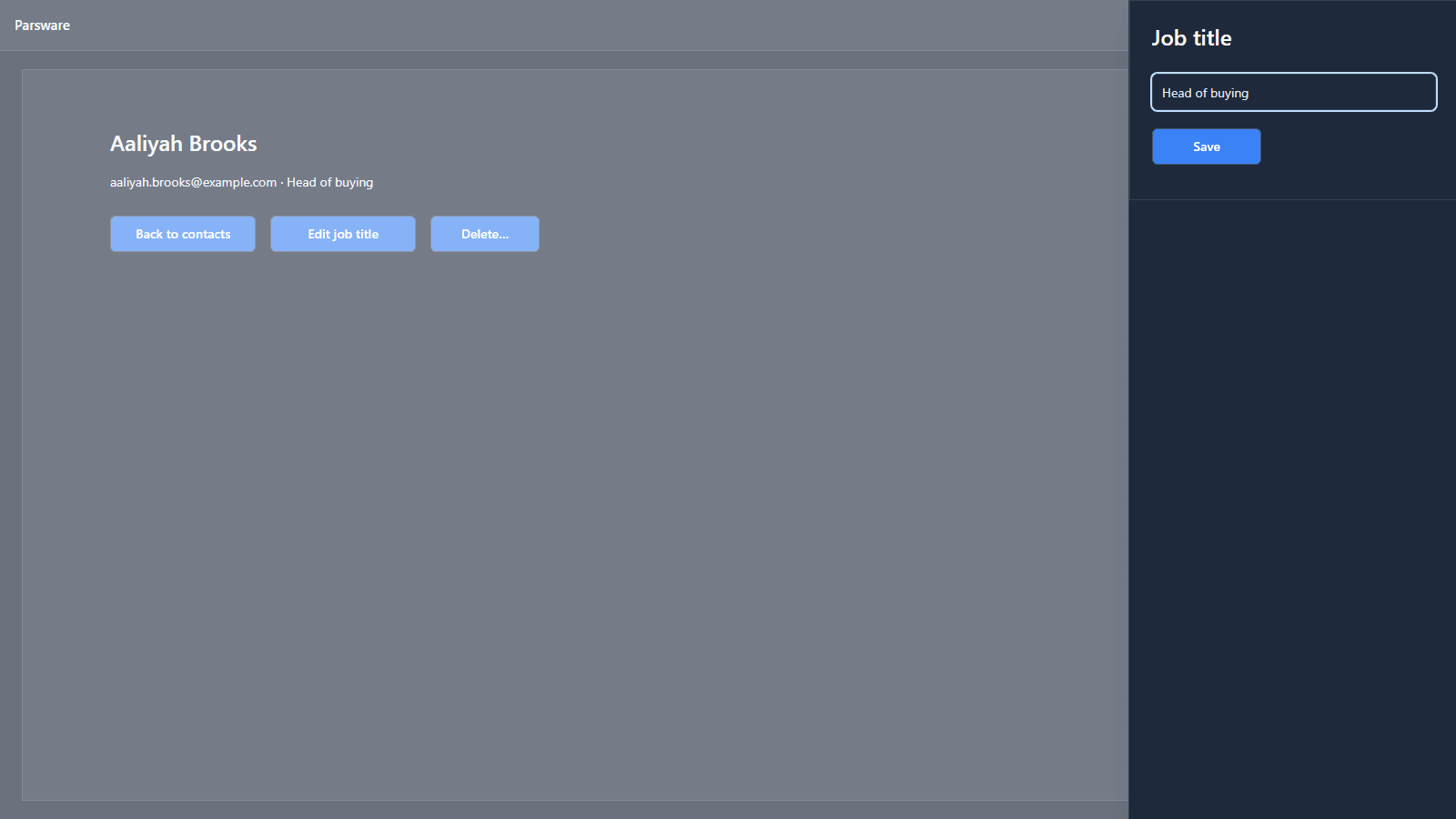
Press Save, and the change is stored. Now press Delete…:
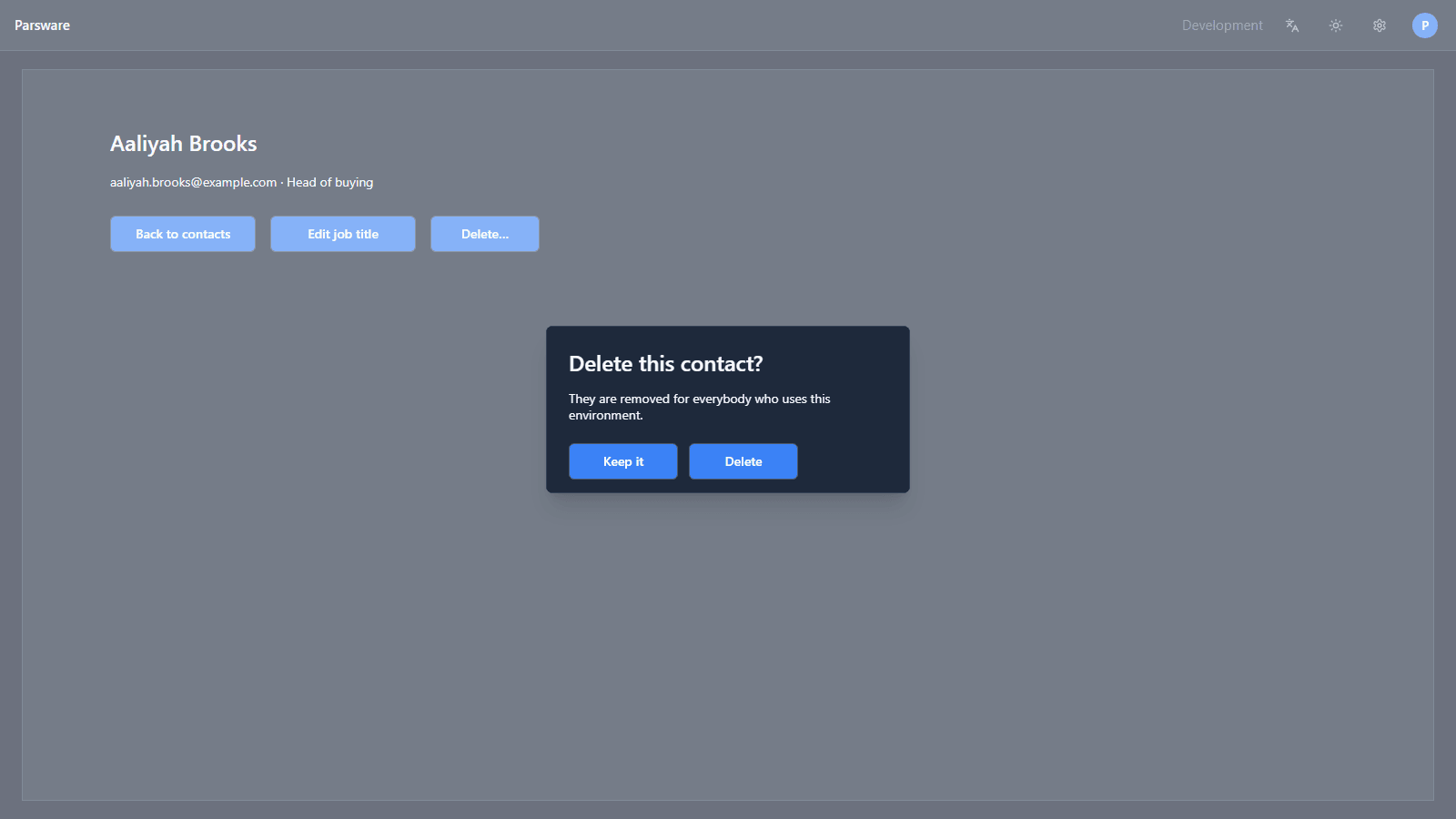
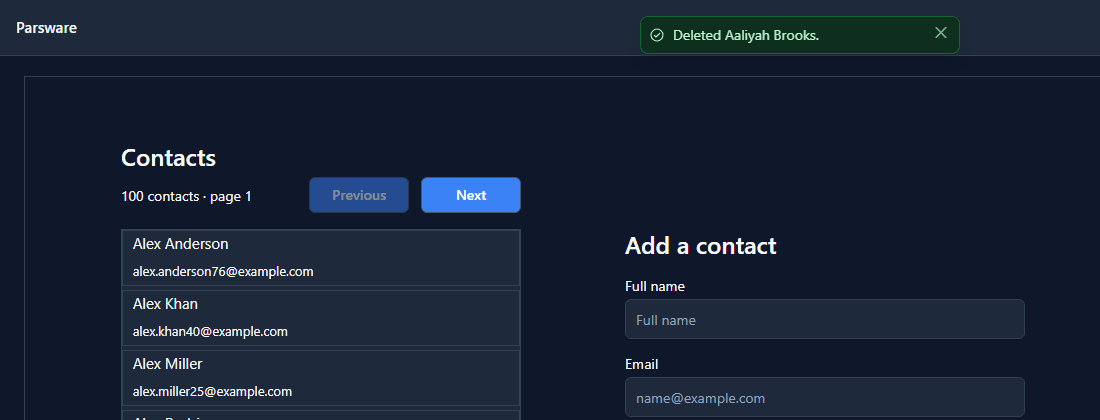
Escape does nothing, and neither does clicking the shaded screen. Keep it closes it. Delete deletes, and you're back on the list with a message:
Start and end, not left and right
Switch the Shell to Persian or Arabic and press Edit job title again. The drawer arrives from the left:
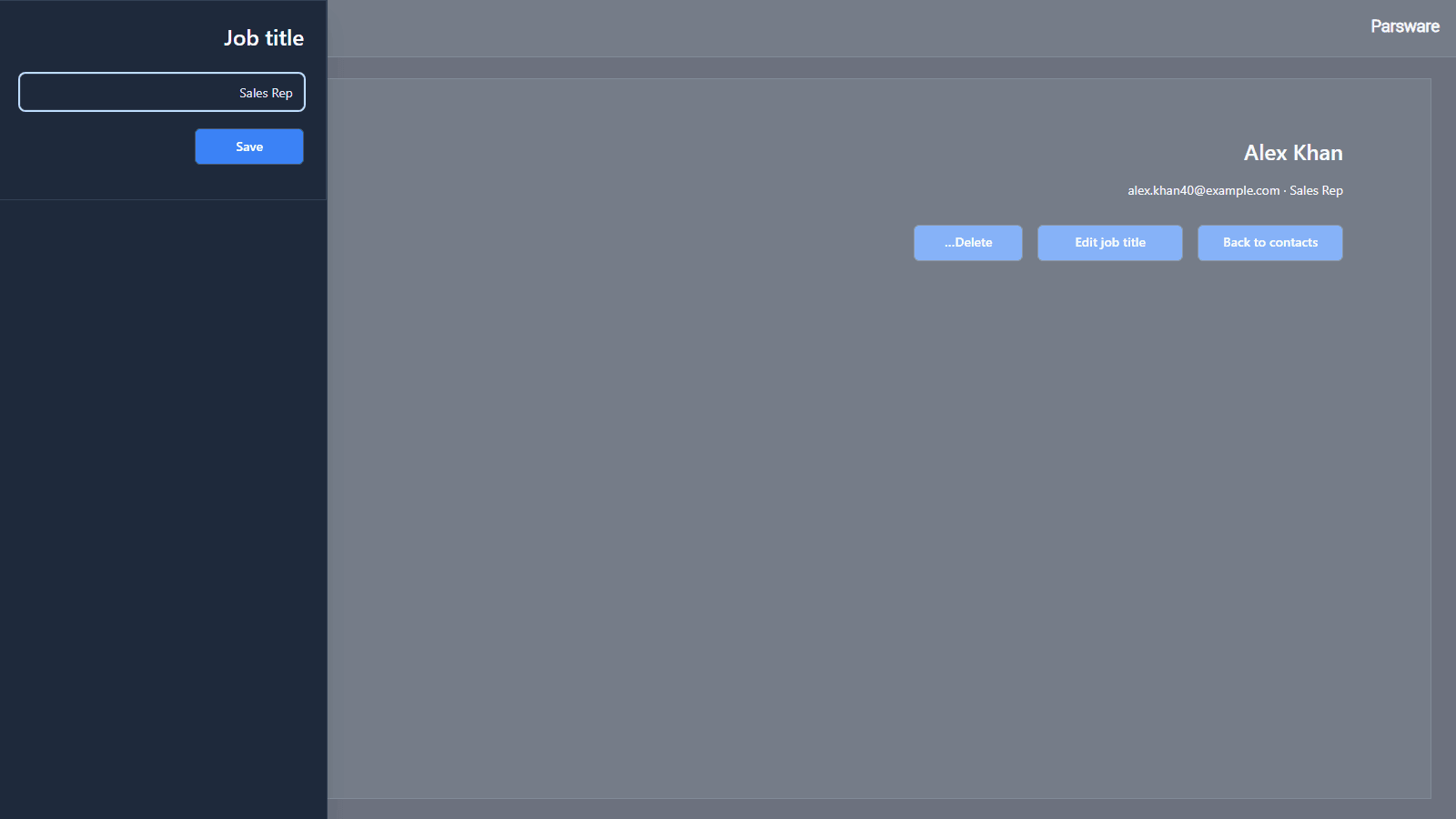
That's what end means: the end of the line you're reading. In English that's the right, in Persian it's the left. Nothing in the screen says left or right, so one drawing is correct in both.
What we fixed
Building these turned up a bug, now fixed:
- A closed drawer reported errors on another screen. Every card in an app is part of every one of
its screens, and the screen worked out what the card would show even while it was closed. Our
drawer reads
state.record, which only the Contact screen has, so back on the list the Shell showed A binding … could not run: Object member 'record' not found, nine times, about a drawer nobody had opened. A card is now worked out only while it's open.
Try it
Import the Overlays sample (studio-overlays). It has all four: a dropdown menu under an avatar,
a modal that asks before deleting, and a drawer from each side. Open it in Persian and watch the two
drawers swap sides.
Next: links to screens, records and outside pages.