Parsware Platform
Navigation between screens
A second screen in the same Studio app: press a contact in the list and its details open on a screen of their own, handed the record's id with navigate; a Back button and the browser's own Back both return to the list.
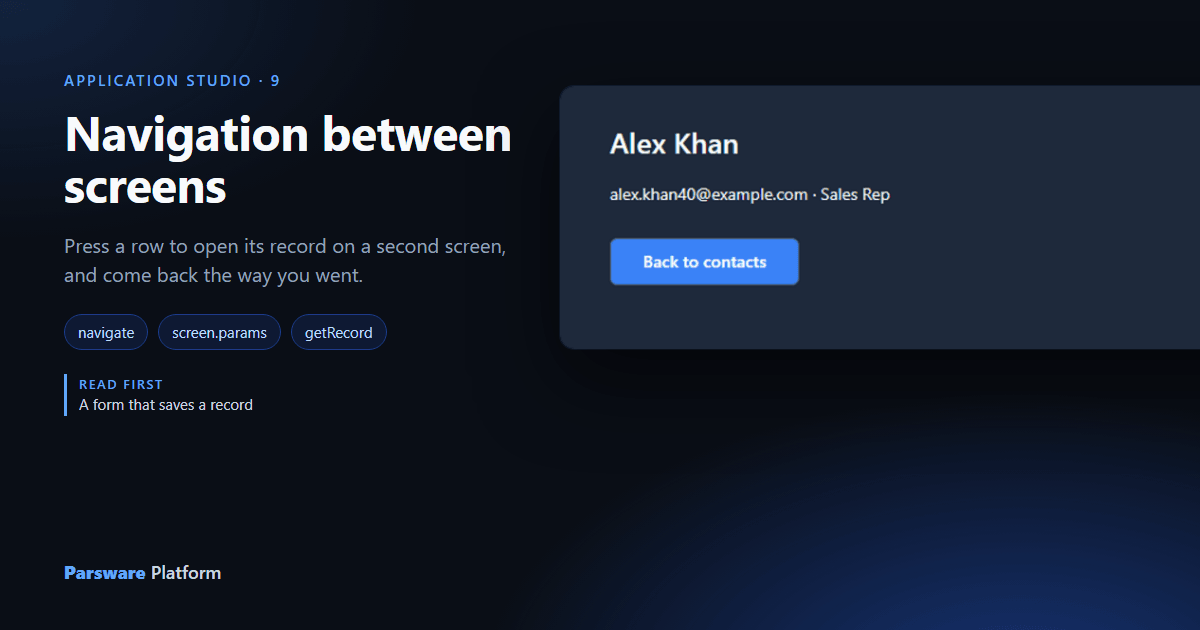
So far Contact list is one screen. Real apps have several: a list, a record, a settings page. This article adds a second screen, Contact, that shows one contact. Pressing a row in the list opens it with that row's record, and there are two ways back.
It takes one call, navigate, and one value that travels with it, screen.params.
1. Draw a second screen
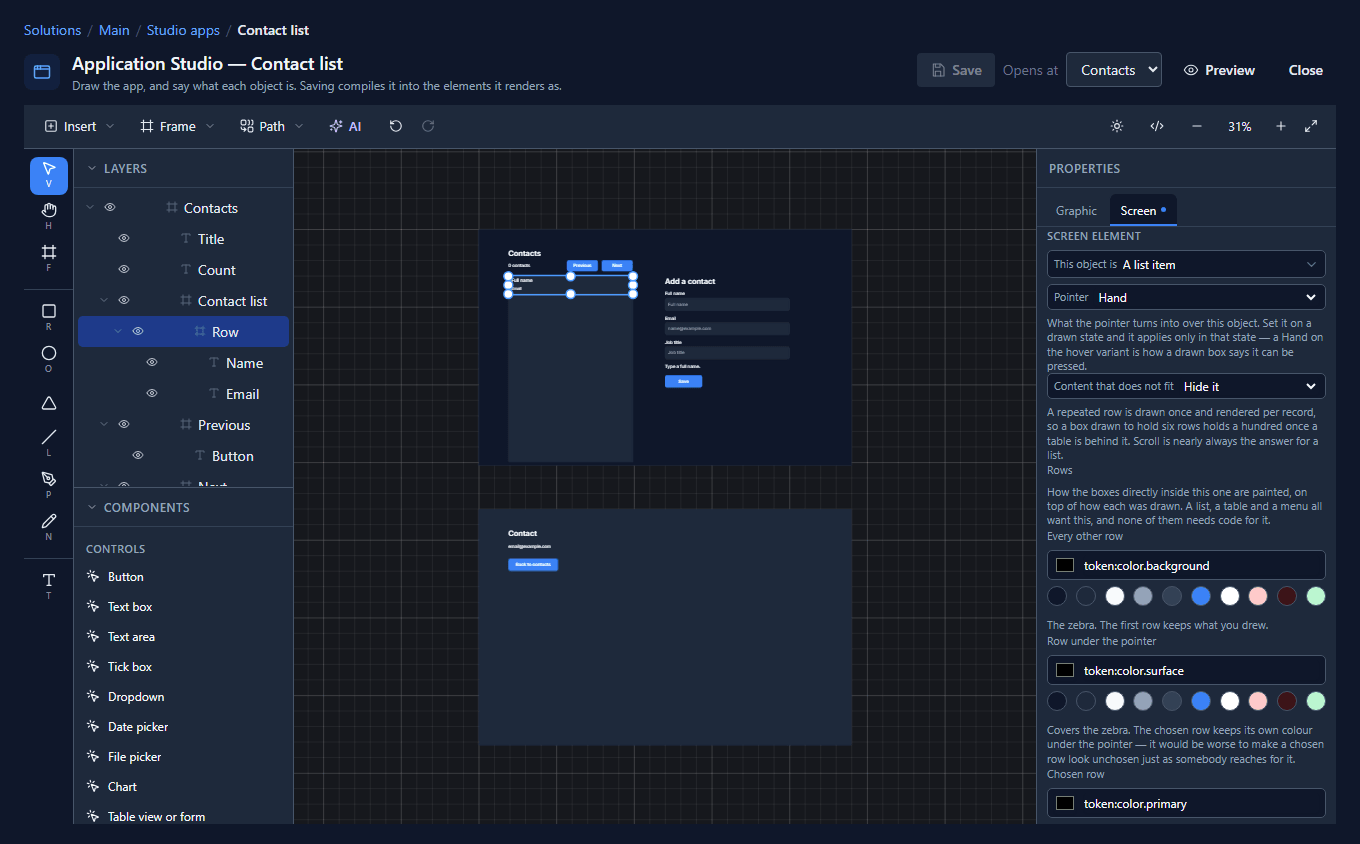
On the same canvas, below the first screen, draw a frame with the Frame tool on bare canvas. We set it to X 0, Y 900, 1200 by 760, and named it Contact. On its Screen tab, set This object is to — The screen —. A Studio app is every screen frame on its canvas.
Give it one state field, record, starting as:
{ id: "", fullname: "", emailaddress1: "", jobtitle: "" }
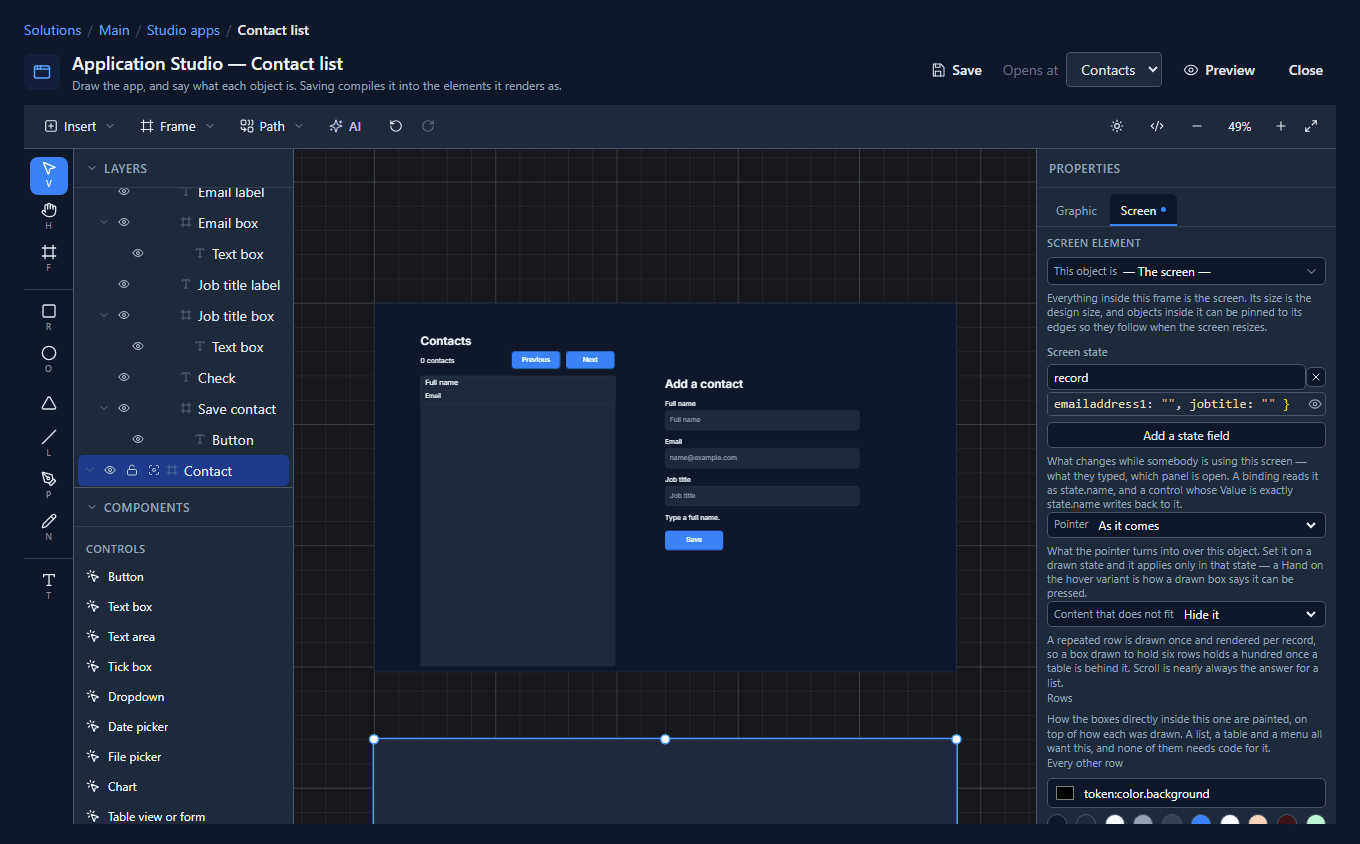
Start it with the shape of a contact, not {}. The screen's bindings run once before the record
arrives. If record were {}, a binding reading state.record.fullname would complain that there's
no such member, for the moment before the record lands.
2. Load the record it was given
Write the Contact screen's Screen opens handler:
if (screen.params.id != "") {
  getRecord("contact", screen.params.id, "record");
}
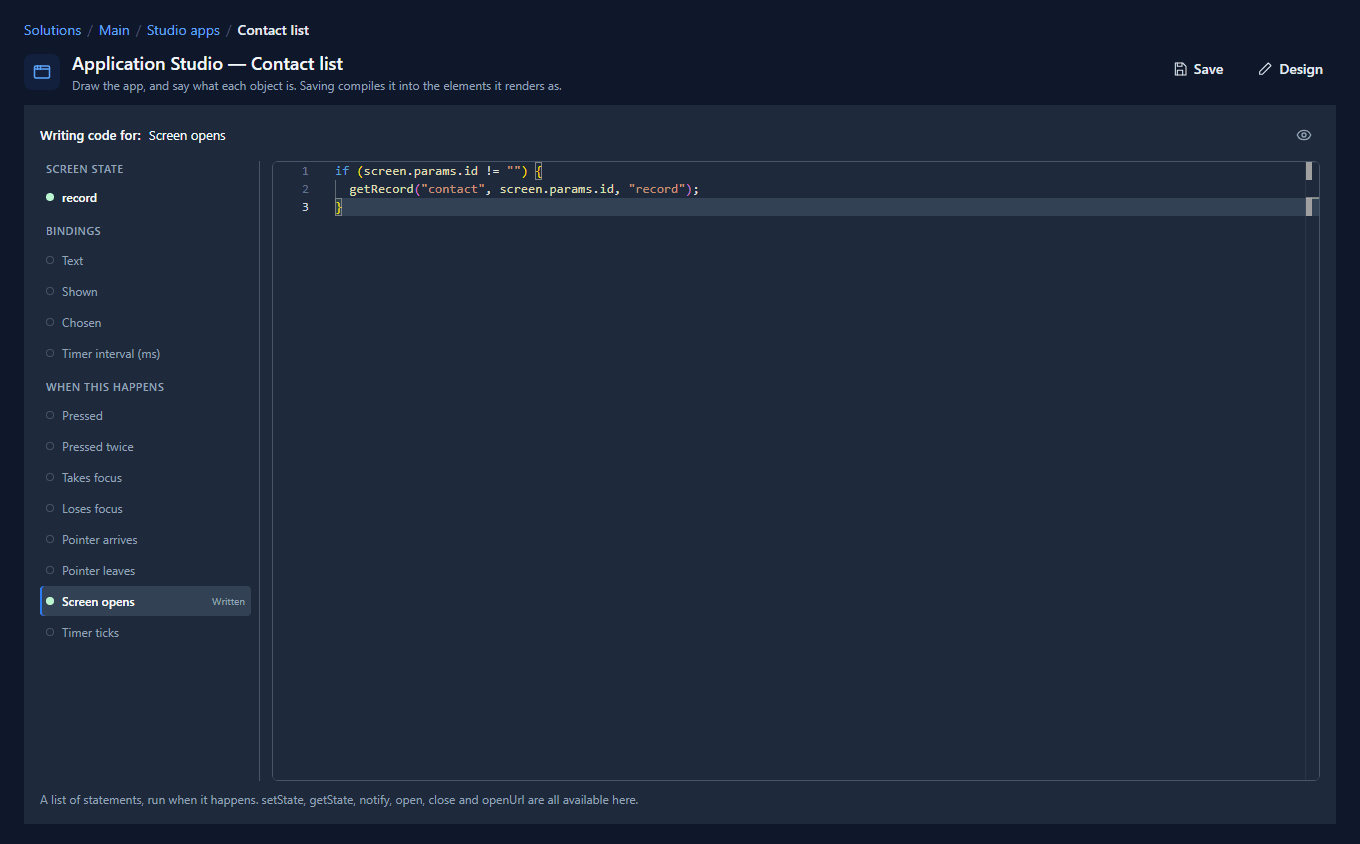
screen.params holds whatever the previous screen handed over. getRecord reads one record by its
id into a state field. The if matters, as you'll see in step 6.
Then draw what the screen shows. We placed a heading bound to state.record.fullname, a paragraph
bound to state.record.emailaddress1 + " · " + state.record.jobtitle, and a Button,
Back to contacts.
3. Open it from a row
Go back to the list's Row (the one drawn row that repeats per contact). Give it a Pressed handler:
navigate("Contact", { id: row.id });
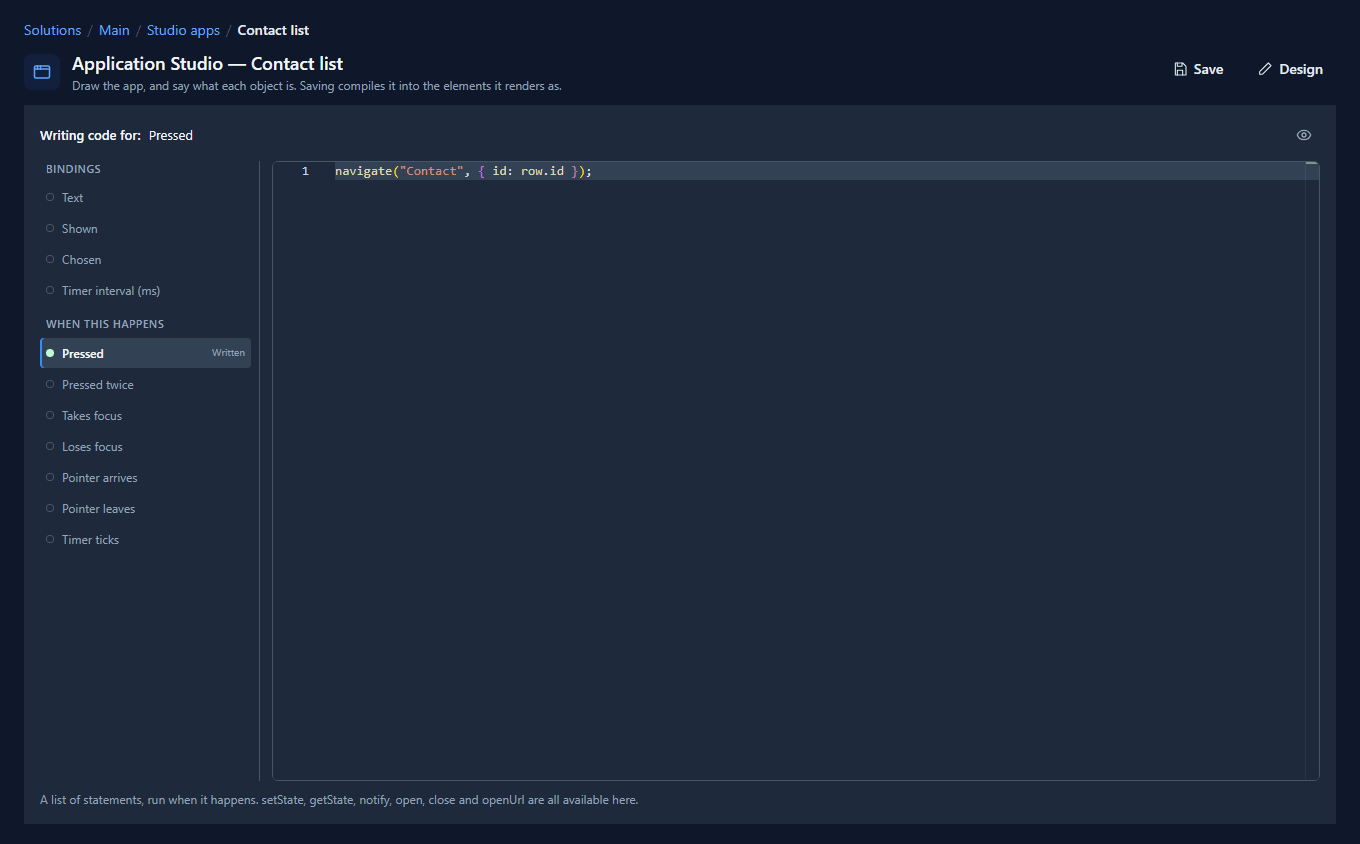
The first argument is the screen's name. The object after it is what the next screen finds in
screen.params. Inside a row, row is that copy's record, so each row hands over its own id.
On the row's Screen tab, set Pointer to Hand, so the row looks pressable when the pointer is over it.
4. A way back
The Back to contacts button's Pressed handler is one line:
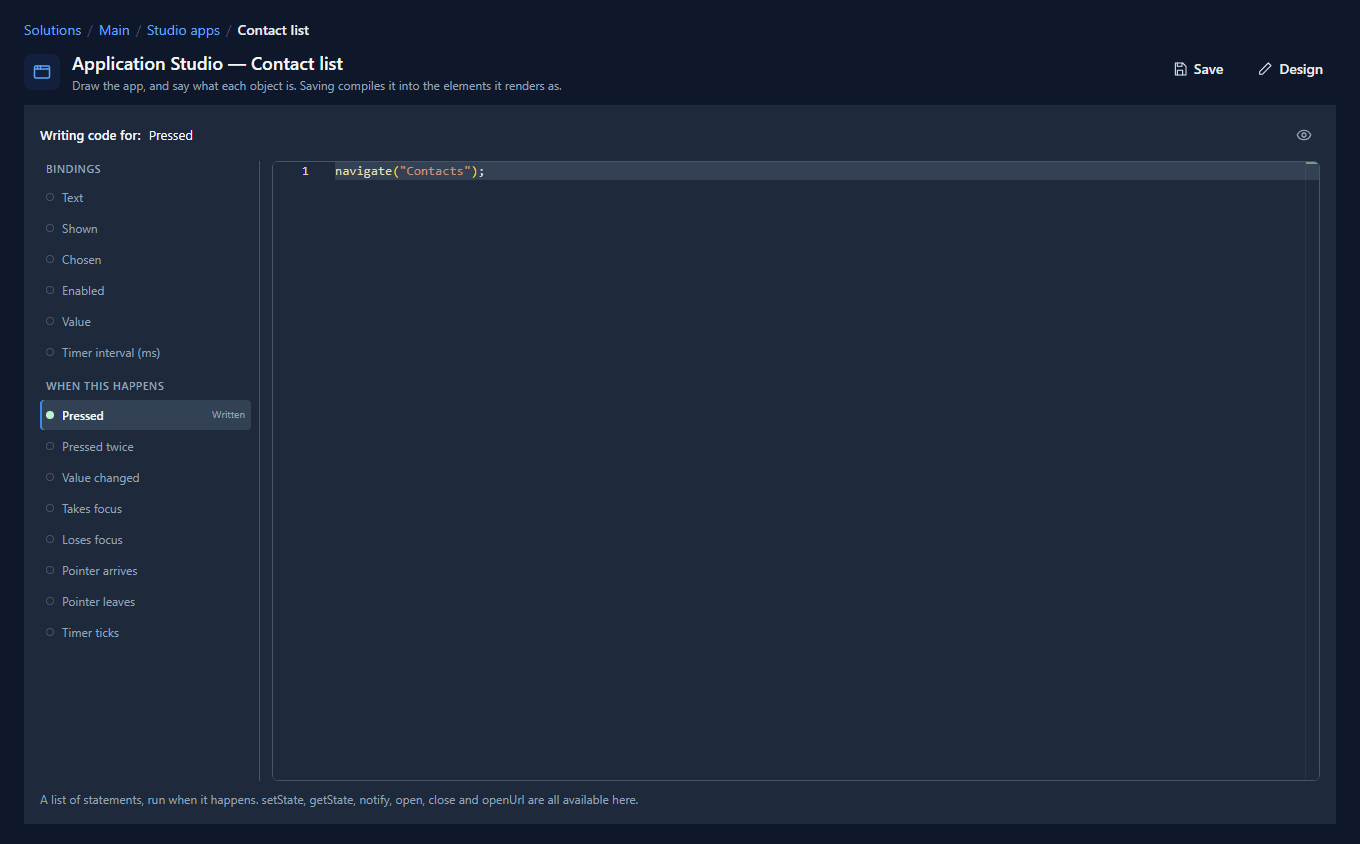
navigate("Contacts");
With two screens, the title bar gains an Opens at picker. It says which screen the app starts on. Ours is Contacts.
5. Use it
Save, open Contact list from the Shell and press Alex Khan:
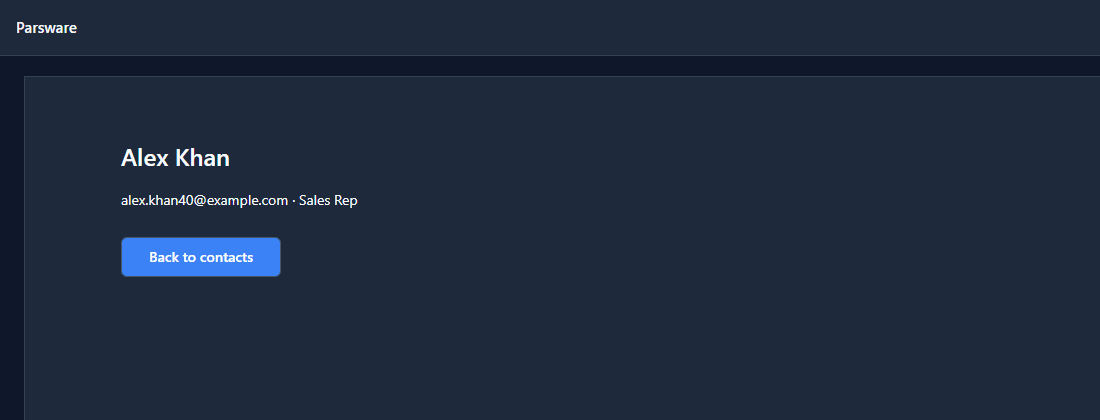
The address now ends in /Contact, the screen's name. So there are two ways back:
- Back to contacts runs
navigate("Contacts"). - The browser's Back button works too, and so does Forward. Each screen you open is a step in the browser's history, inside the app.
The list comes back on page 1, because opening a screen starts it fresh, with its state as it was drawn.
6. What a reload keeps
Reload the page while Contact is open. The screen comes back, empty:
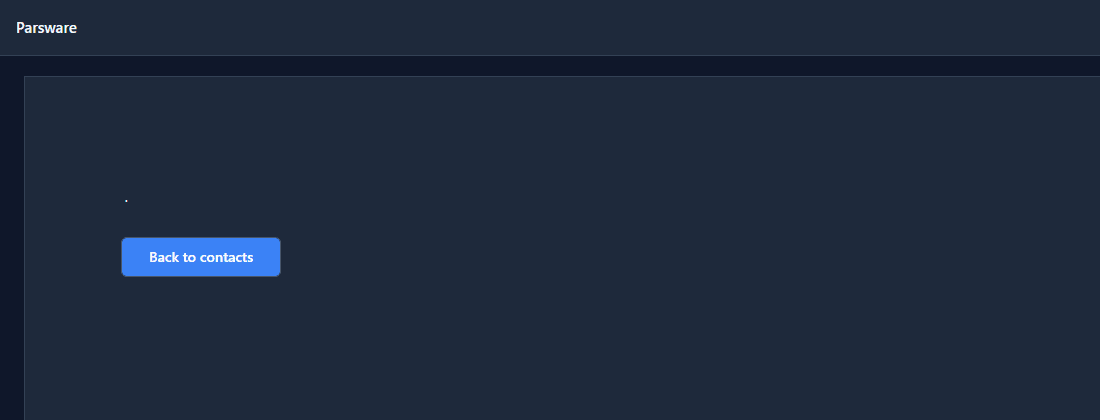
The address says which screen. It doesn't carry the id that was handed over, so after a reload
screen.params.id is "". That's what the if in step 2 is for: without it, the screen would ask
the environment for a contact with an empty id, which can only fail.
If a screen has to work from a link someone pasted, keep it reachable another way, like a list that's always one press away. A screen whose address names the record is a portal page, and that's a later series.
Try it
Import the Studio app navigation sample (studio-app-navigation). Its Requests app has two
screens and hands a request number to the second; it also ships a model-driven app around the same
screens, so you can see them with the app's rail beside them.
Then add a third screen to Contact list, About, and a link to it from the list's heading. A
screen that takes no parameters is opened with just its name: navigate("About").
Next: modals and drawers, for a question and a quick edit without leaving the screen.