Parsware Platform
A form that saves a record
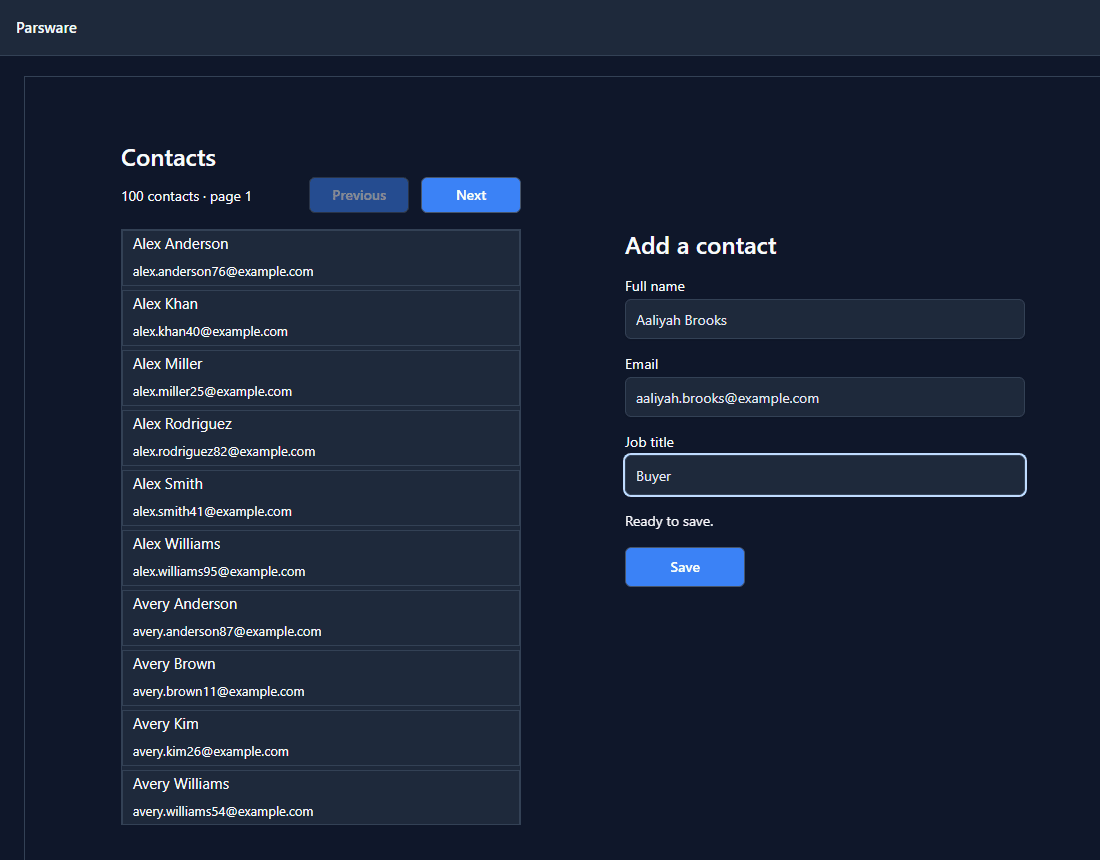
An Add a contact form on a Studio screen: three text boxes bound to state, a line that says what is still missing, a Save button that stays off until the form can be saved, and a handler that creates the record and reloads the list beside it.
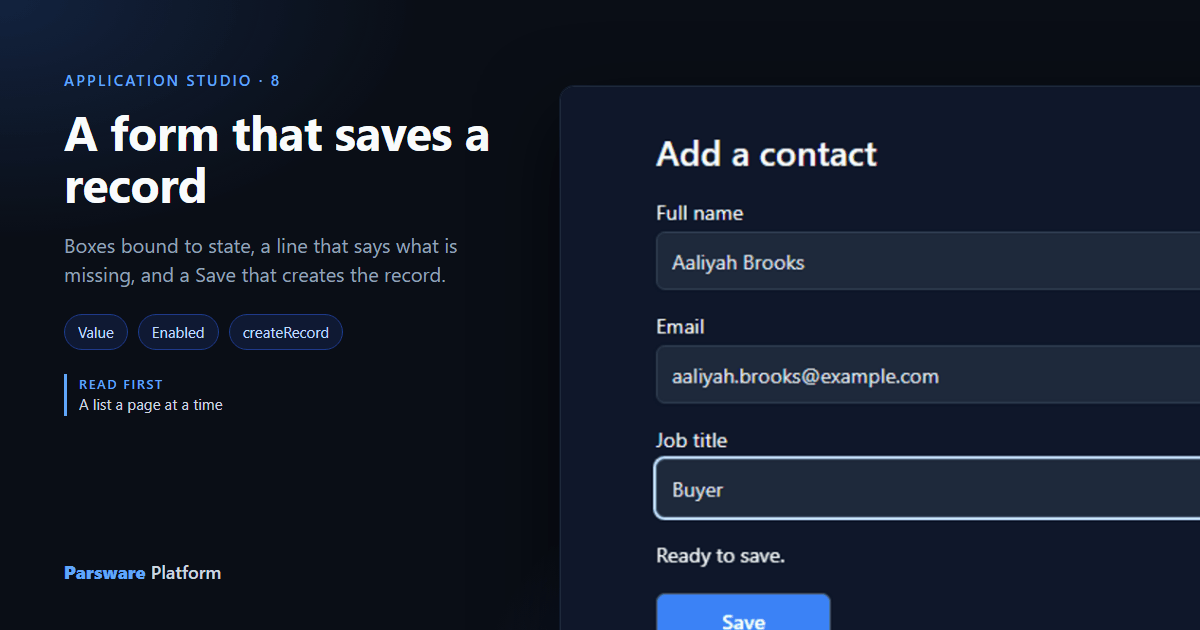
The Contact list app from the last article can read contacts, a page at a time. This one adds the other half: a form that creates one. It's three text boxes, a line that says what's missing, and a Save button, drawn in the empty space beside the list.
Three ideas carry the whole form:
- A text box whose Value is bound to a state field writes what's typed back into that field.
- The button's Enabled binding decides when it can be pressed.
- Its Pressed handler calls
createRecord, then tidies up.
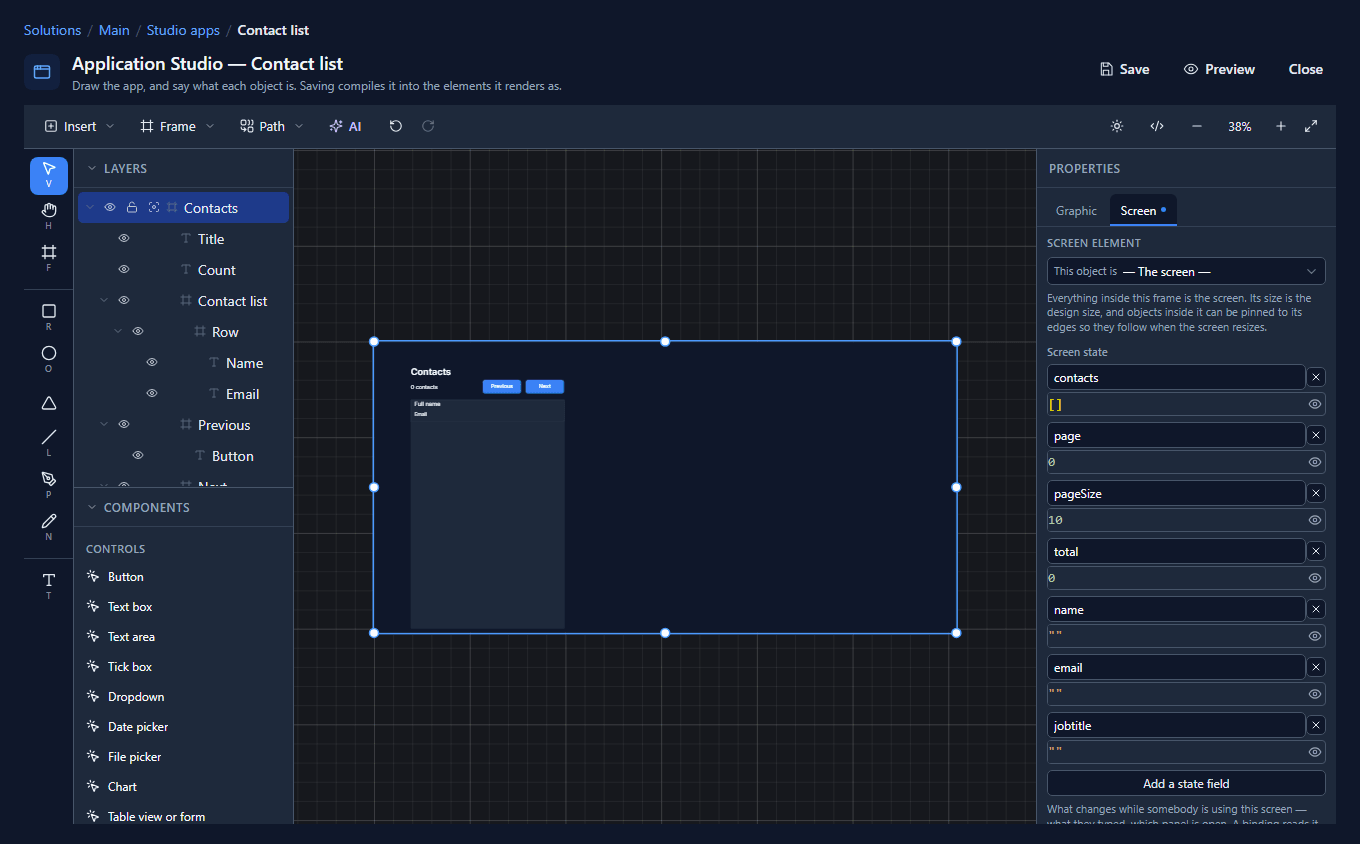
1. A state field per box
Add three state fields to the Contacts screen, each starting as "": name, email and
jobtitle.
2. Draw the form
Place a heading, Add a contact, at X 600, Y 152. Then for each field place A paragraph for its label and a Text box under it, 400 wide and 40 tall:
| Label | Label Y | Box Y | Words in the box |
|---|---|---|---|
| Full name | 200 | 222 | Full name |
| 278 | 300 | name@example.com | |
| Job title | 356 | 378 | Job title |
The words you type inside a text box are its hint: they show while it's empty and go as soon as somebody types.
3. Bind each box
Select the Full name box, press Write code and choose Value:
state.name
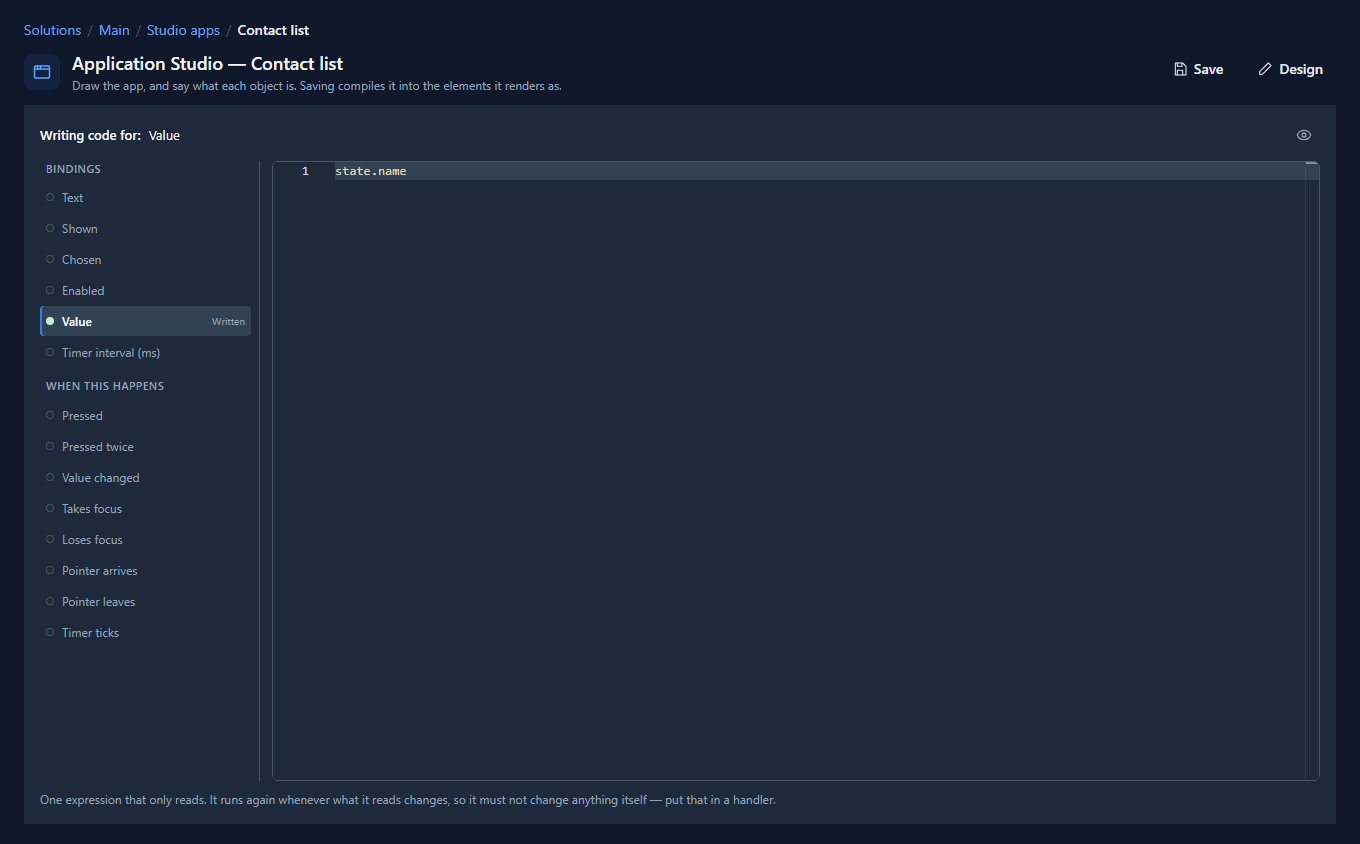
Do the same for the other two, with state.email and state.jobtitle. A Value bound to a plain
state field works both ways: the box shows the field, and typing changes the field. Nothing else
needs wiring.
On the Email box's Screen tab, set Takes to An email address. Phones then show the keyboard with an @ on it, and the browser knows what the box is for.
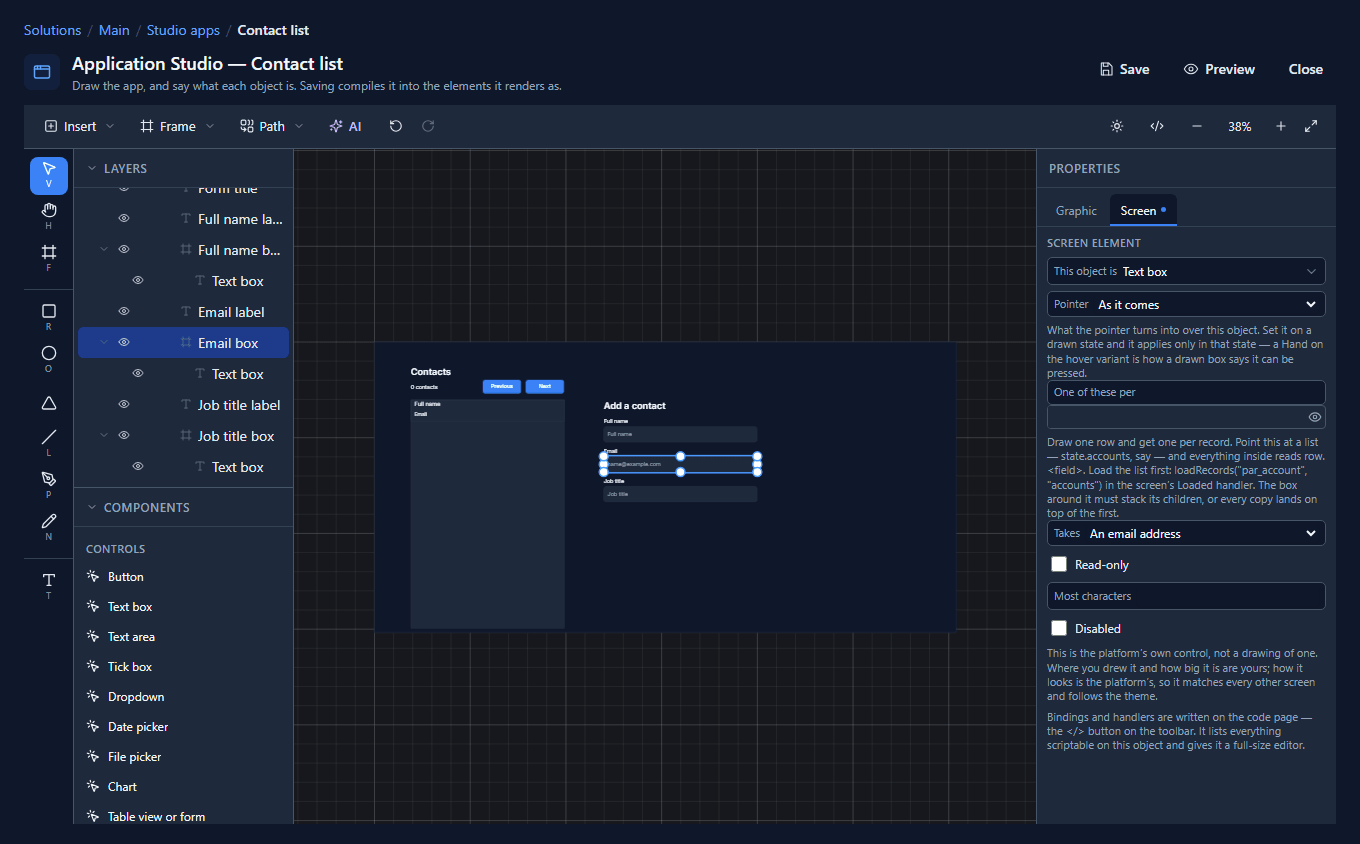
Most characters on the same tab caps how much can be typed, if a column has a limit.
4. Say what's missing
Place a paragraph under the form (Y 434) and name it Check. Bind its Text:
state.name.trim() == ""
  ? "Type a full name."
  : (state.email.includes("@")
      ? "Ready to save."
      : "Type an email address with an @ in it.")
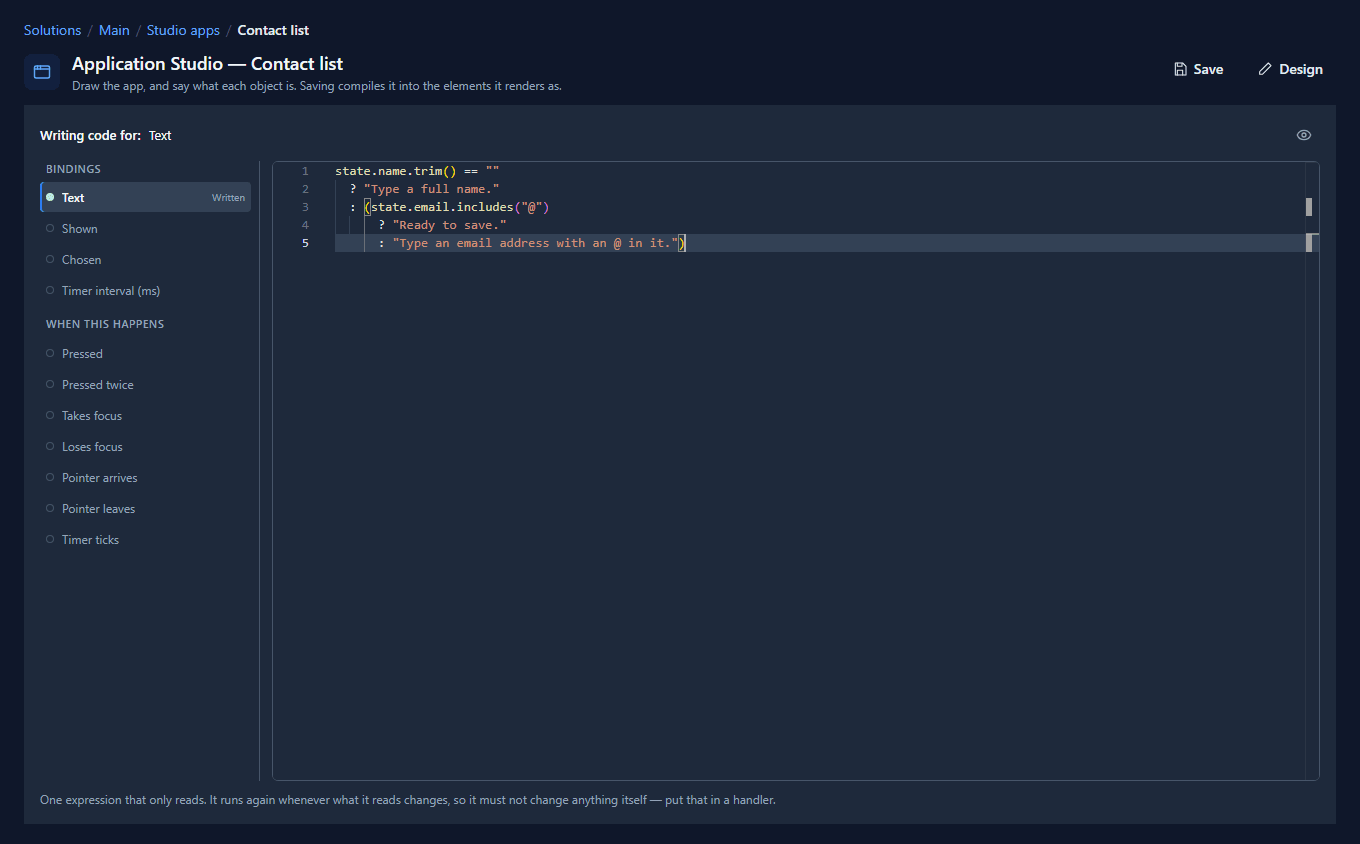
a ? b : c means if a then b, otherwise c. trim() takes the spaces off both ends, so a name
that's only spaces still counts as empty. includes("@") asks whether the text contains an @.
This line is the difference between a form that helps and one that doesn't. A Save button that's off says not yet. The line says why.
5. A Save that knows when it can save
Place a Button at X 600, Y 470, 120 by 40, and call it Save contact. Its Enabled binding is the same test, as one true-or-false answer:
state.name.trim() != "" && state.email.includes("@")
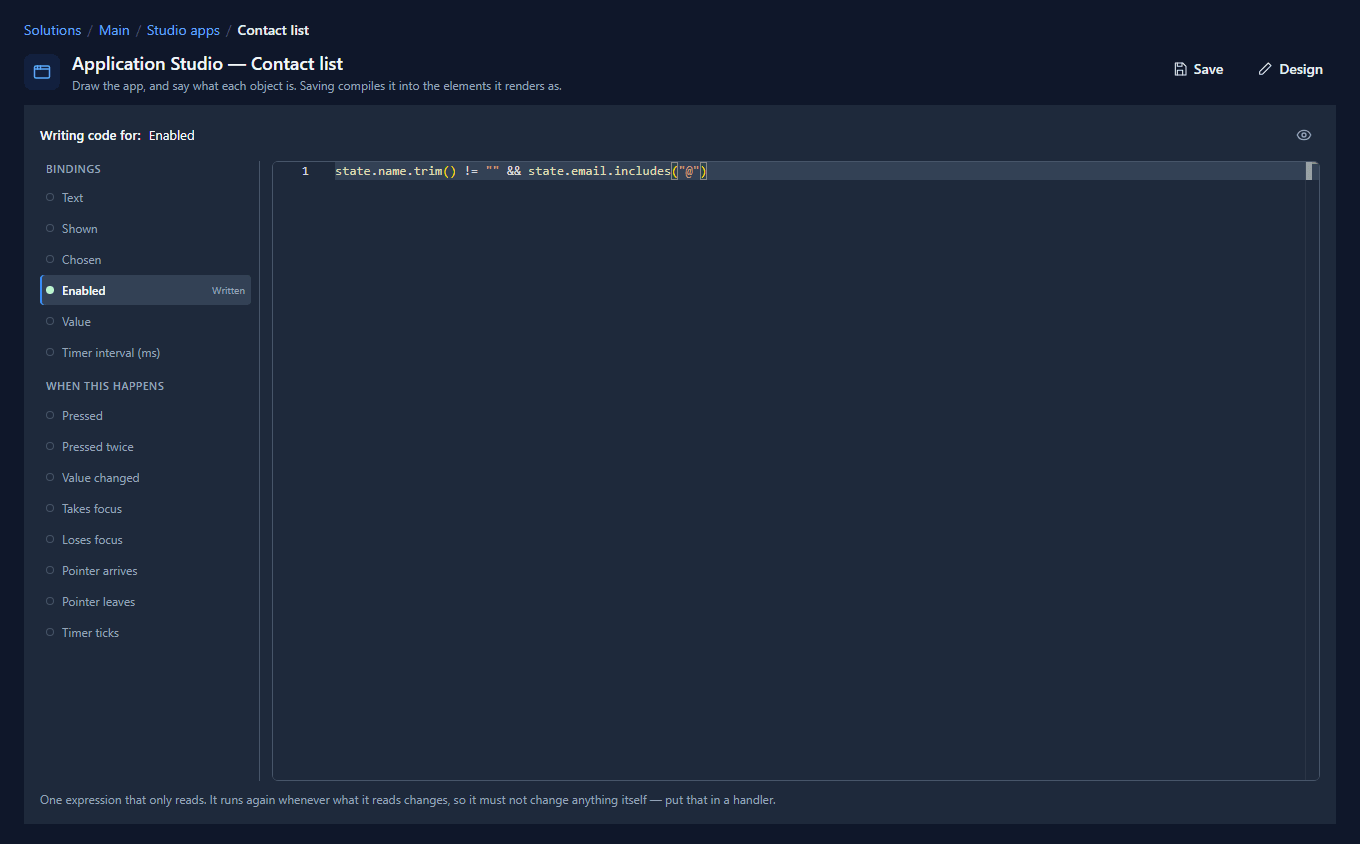
&& means and: both must be true.
Its Pressed handler saves, says so, empties the form and loads the first page again:
createRecord("contact", {
  fullname: getState("name"),
  emailaddress1: getState("email"),
  jobtitle: getState("jobtitle")
});
notify("Added " + getState("name") + ".");
setState("name", "");
setState("email", "");
setState("jobtitle", "");
setState("page", 0);
loadRecords("contact", "contacts", {
  top: getState("pageSize"),
  skip: getState("page") * getState("pageSize"),
  orderBy: "fullname",
  countInto: "total"
});
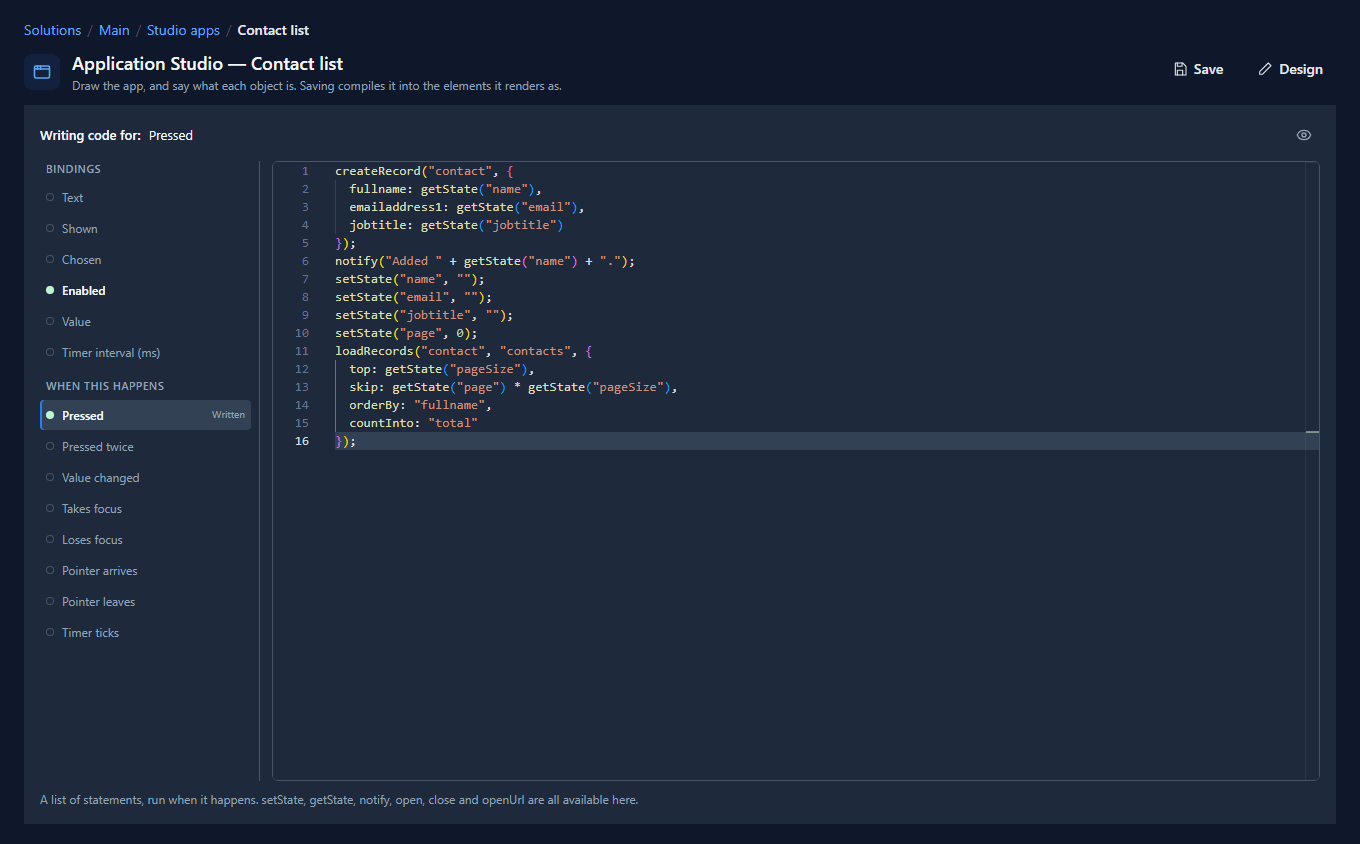
The first argument is the table's logical name. The object after it maps column names to values.
The lines run in the order they're written, and each record call waits for the one before. So
notify speaks after the record is stored, and loadRecords sees the new contact. If the
environment refuses the record (a column it requires, a permission you don't have), the rest of the
handler doesn't run: no Added message, the form keeps what was typed, and the person sees why.
6. Use it
Save, and open Contact list from the Shell. Type a name and half an email address. The line says what's wrong, and Save stays off:
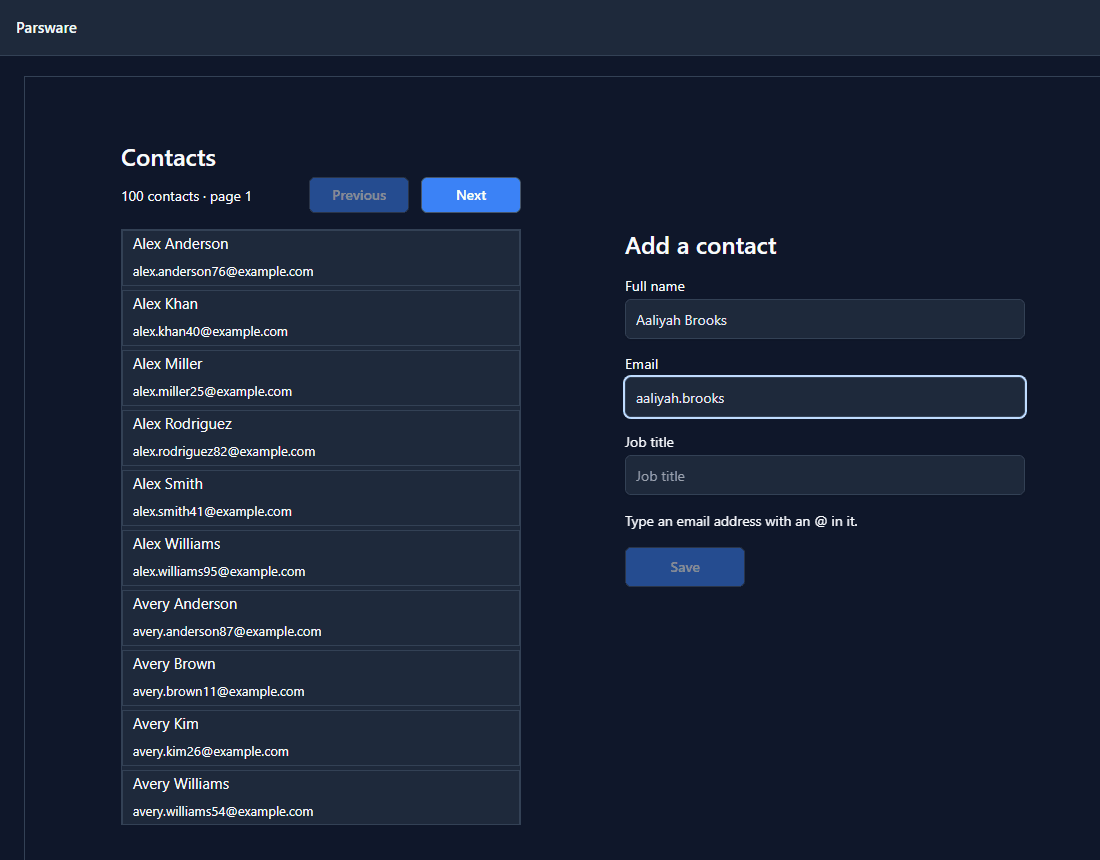
Finish the address and add a job title, and the button comes on:
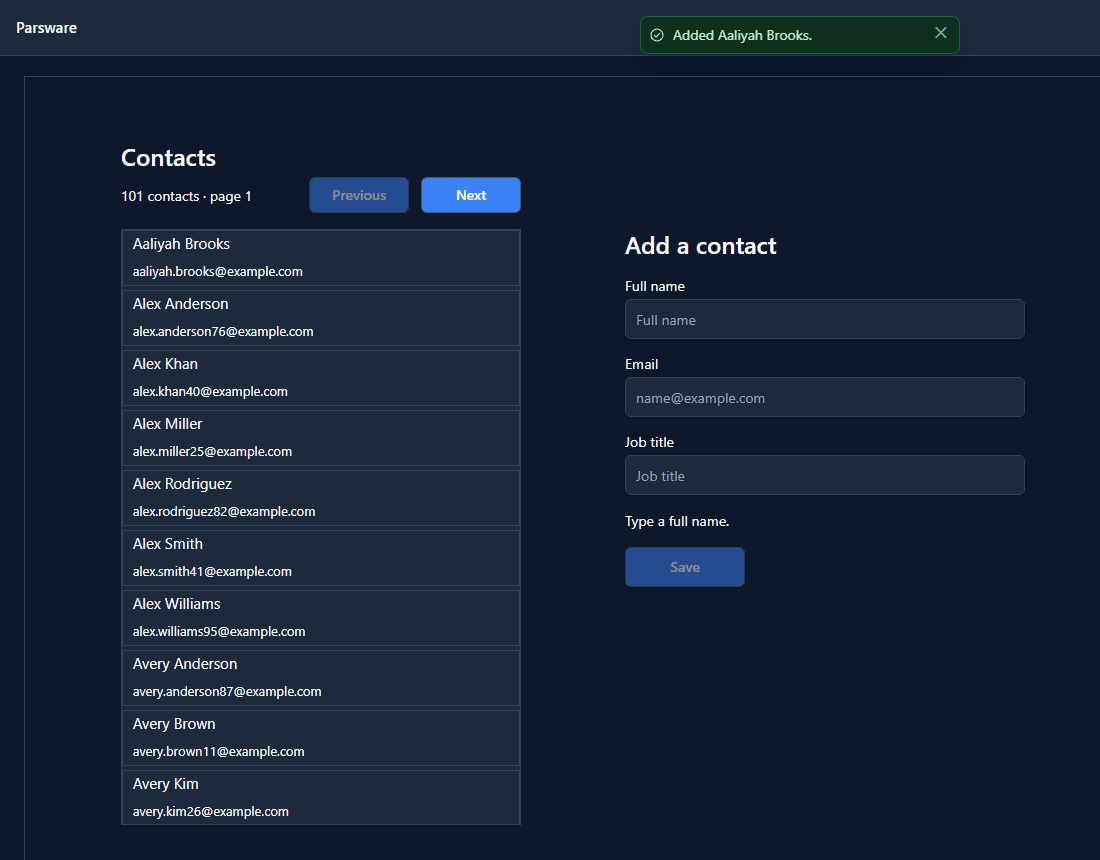
Press Save. The message comes up, the form empties, and the list is back on page 1 with one more contact: Aaliyah Brooks, first by name.
The screen helps, the environment decides
The Enabled binding and the Check line are for the person filling in the form. They aren't security. Anything that must always be true of a contact, wherever it was created, belongs on the table: a required column, or a server validation rule. The screen should agree with those rules and explain them early. The environment enforces them.
The same idea, bigger
The Capital planning sample (studio-capital-planning) has a phone screen for raising a capital
request, built the same way. Its panel above Submit is a stack of bindings that answer while you
type: the budget line's money, what's left after this request, who has to approve it, and the one
thing still missing.
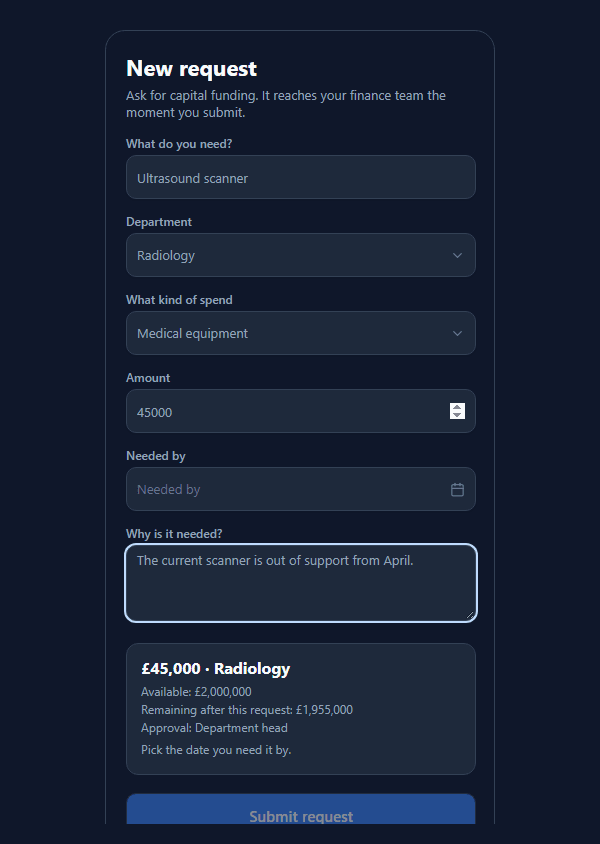
Its Submit handler also turns words into numbers: a dropdown offers Radiology, the choice column
stores a number, and the handler maps one to the other once, before createRecord.
What we fixed
Building this form turned up two problems, both fixed:
- A placed paragraph could vanish inside a text box. Placing something from the palette drops it into the frame under the middle of the view, and when that was a text box, the paragraph became part of the text box. A text box draws only its hint, so our Check line and Save button were missing from the running screen with nothing to say why. Nothing joins a control any more: it goes into the frame around it.
- Typed text looked like the hint. The words in a text box are drawn grey, because a hint should be quieter than an answer. That grey was applied to the whole box, so a filled-in form looked exactly like an empty one. The drawn colour now goes to the hint only, and what's typed uses the theme's text colour.
Try it
Add a Text area for a note, bound to a fourth state field, and save it into the contact's
description column. Then make the Check line refuse a name longer than 100 characters with
state.name.length() > 100.
Next: open a contact on a screen of its own, and come back.