Parsware Platform
Show records on a screen
Two ways to put a table's records on a Studio screen: load them into the screen's state as it opens and draw one row that repeats per record, or place the table's own view as a Table view control. One screen, both side by side, over the Contact table every environment has.
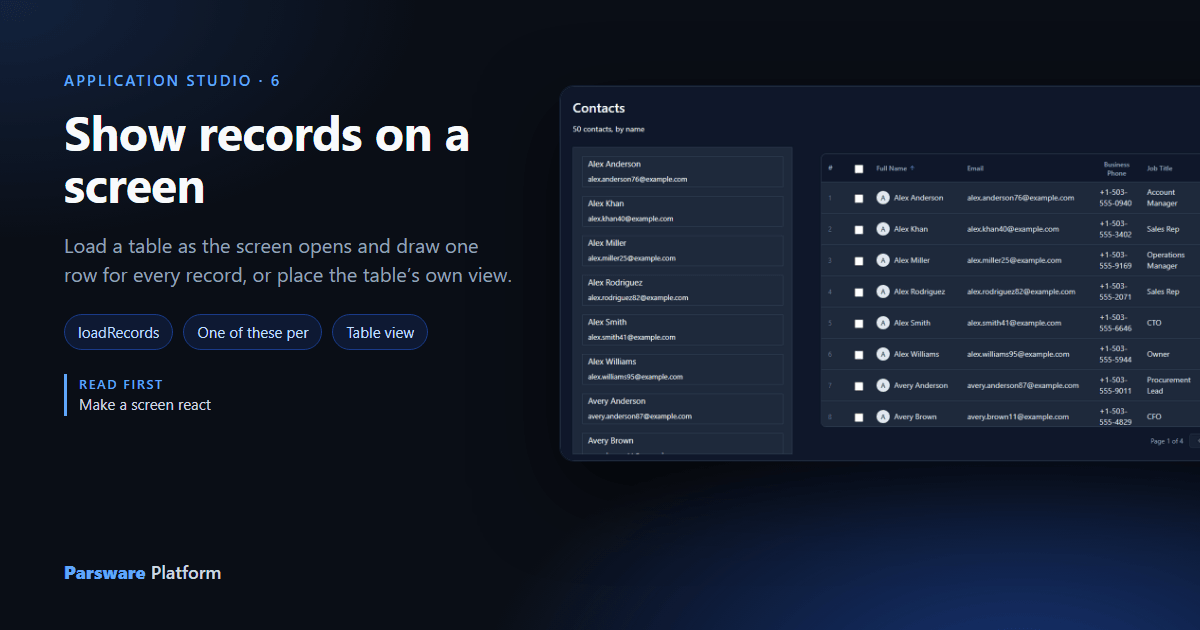
Every screen so far has shown what was typed into it. This one shows what's stored: the contacts in the environment. There are two ways to do it, and this article draws both on one screen so you can compare them.
- Draw the list yourself. The screen loads the records into its state as it opens, and you draw one row that repeats for every record. Every pixel is yours.
- Place the table's own view. A Table view or form control shows a saved view, with its columns, sorting, paging and per-record permissions, exactly as a model-driven app does.
We used the Contact table, which every environment is created with, in a new app called Contact list.
1. A state field for the rows
Draw the screen as before (we named it Contacts), then add one state field on its Screen tab:
contacts, starting as [], an empty list.
![The Contacts screen selected, with one state field: contacts, starting as []](/blog/121-show-records-on-a-screen/01-state.png)
Start it as a list, not as "", because everything that reads it will treat it as one.
2. Load the records when the screen opens
With the screen selected, press Write code. A screen frame has one event nothing else has, Screen opens, which runs once as the screen appears. Write:
loadRecords("contact", "contacts", { top: 50, orderBy: "fullname" });
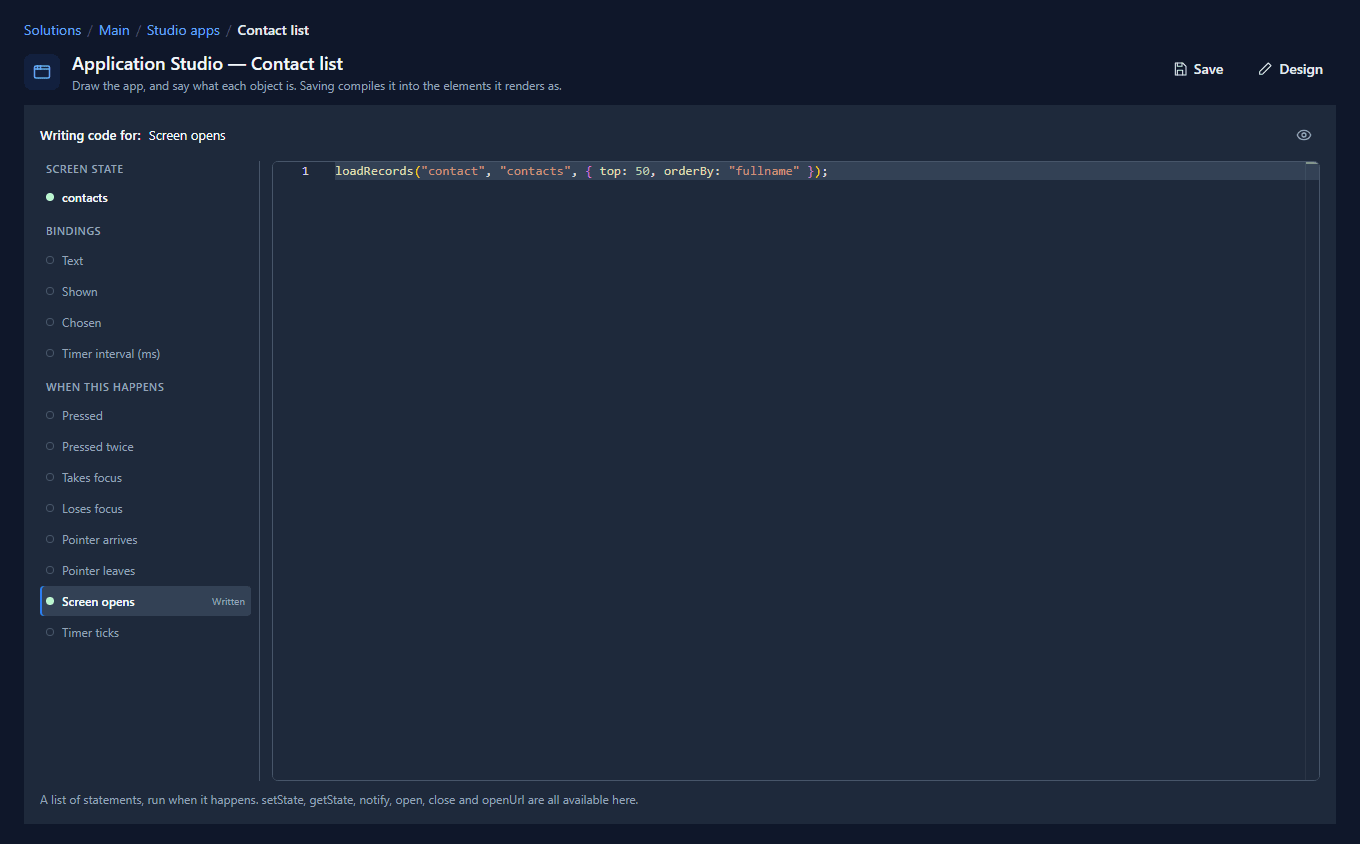
That's the table's logical name, the state field to put the rows in, and the question:
| Part | Means |
|---|---|
top |
how many at most |
orderBy |
which column to sort by (descending: true reverses it) |
where |
column/value pairs that must match exactly, like { address1_city: "London" } |
contains |
column/text pairs for a search box |
The column names are logical names too: fullname, emailaddress1, the same ones the Table
designer shows.
3. Draw one row
Place A list from Elements (we put it at X 96, Y 152, 400 by 560) and turn on Vertical auto layout in its Graphic tab, so whatever is inside it stacks. On its Screen tab set Content that does not fit to Scroll to it, so 50 rows scroll inside the box instead of running off the bottom.
Then draw one frame inside the list, 368 by 56, name it Row and make it A list item. Scroll
down its Screen tab to One of these per and type state.contacts:
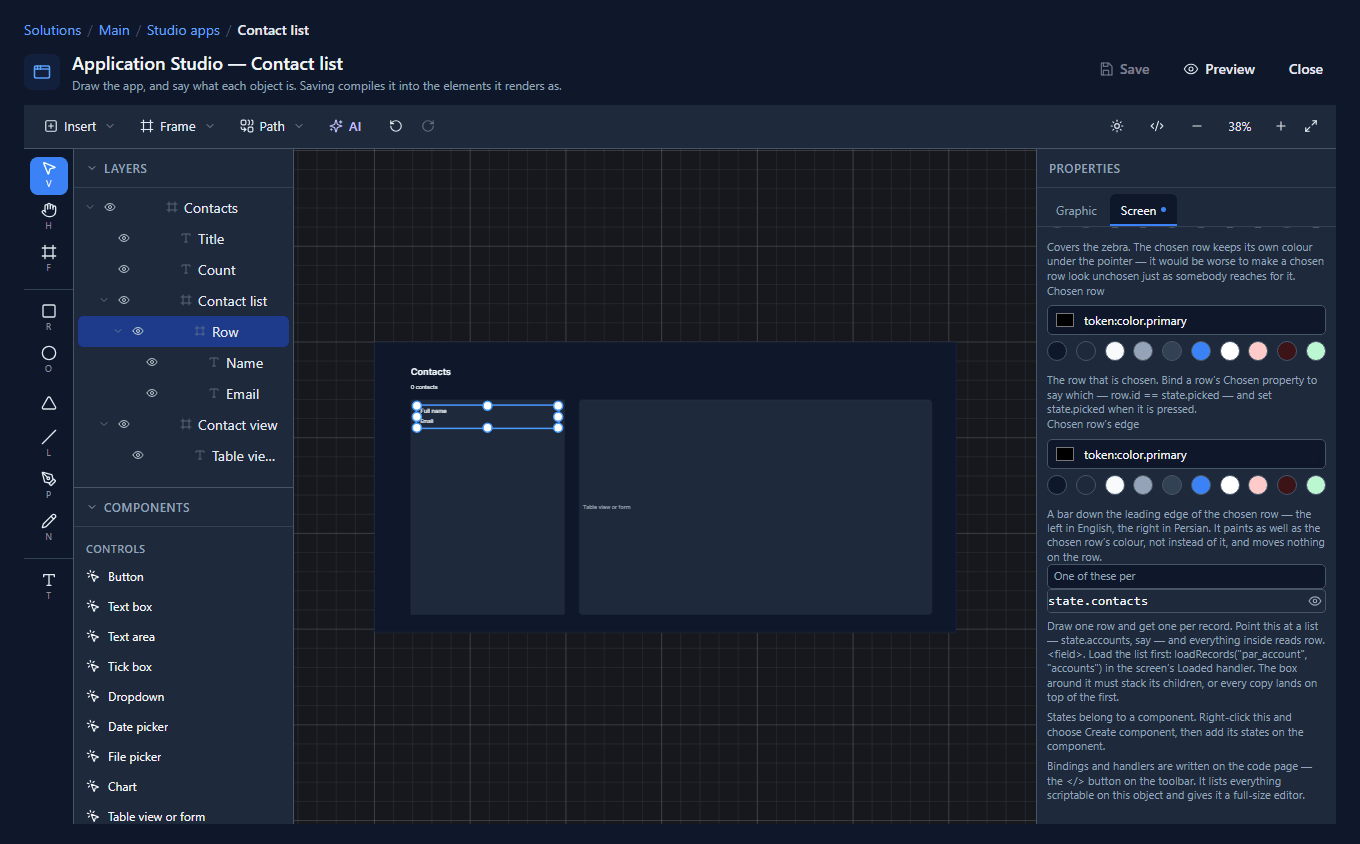
That's what turns one drawn row into a row per record. Inside the row, row means this copy's
record.
Put two texts in the row, make each A paragraph, and bind their Text:
- Name:
row.fullname - Email:
row.emailaddress1
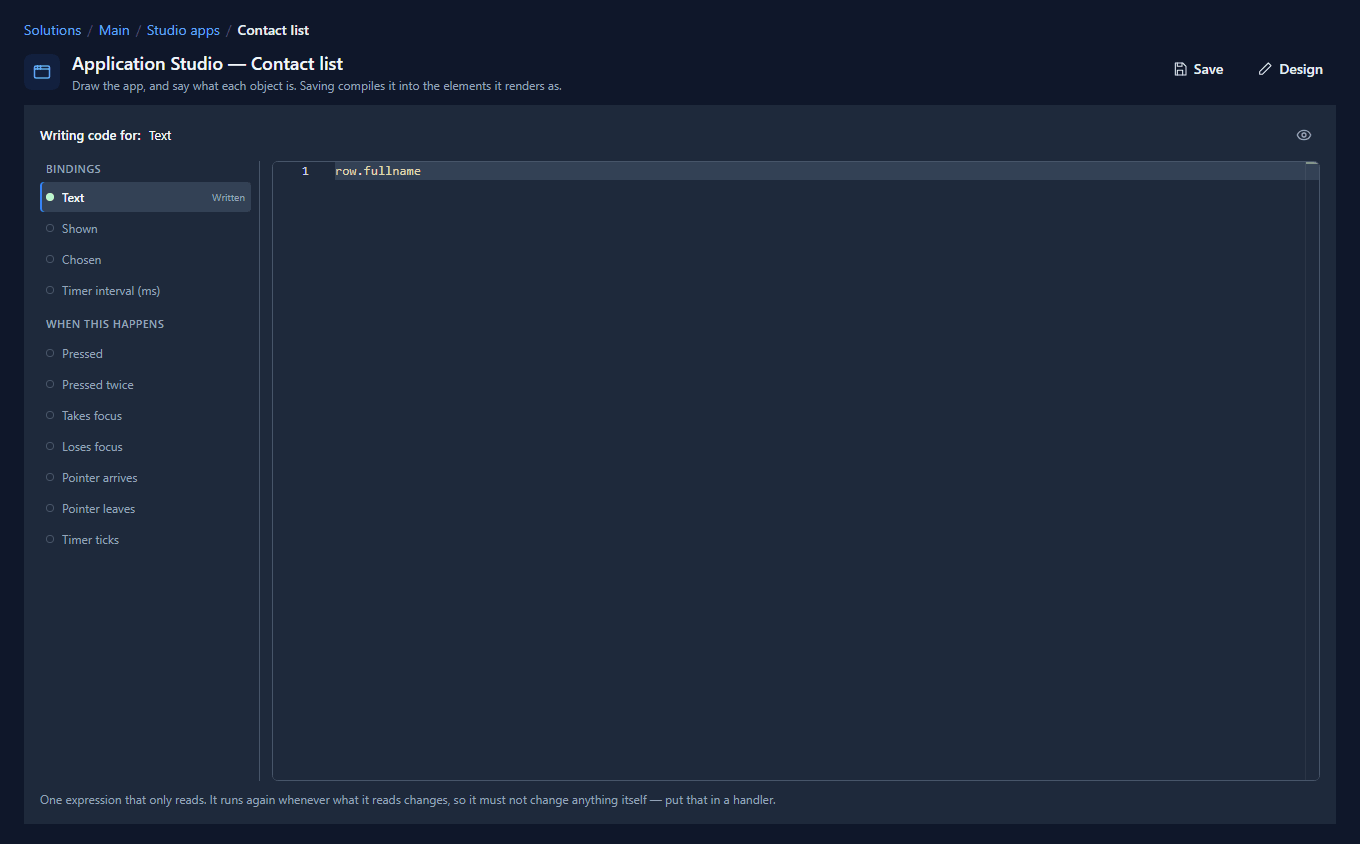
Above the list, a paragraph can count what arrived:
text(state.contacts.length()) + " contacts, by name"
length() is how many items a list holds. text(…) turns the number into words so it can sit in
a sentence.
4. Place the table's own view
Now the other way. Place Table view or form from the Controls (we put it at X 536, Y 152, 920 by 560). On its Screen tab:
- Shows: A view's rows.
- Table:
contact. - View: leave it empty for the table's default view, or type a view's logical name.
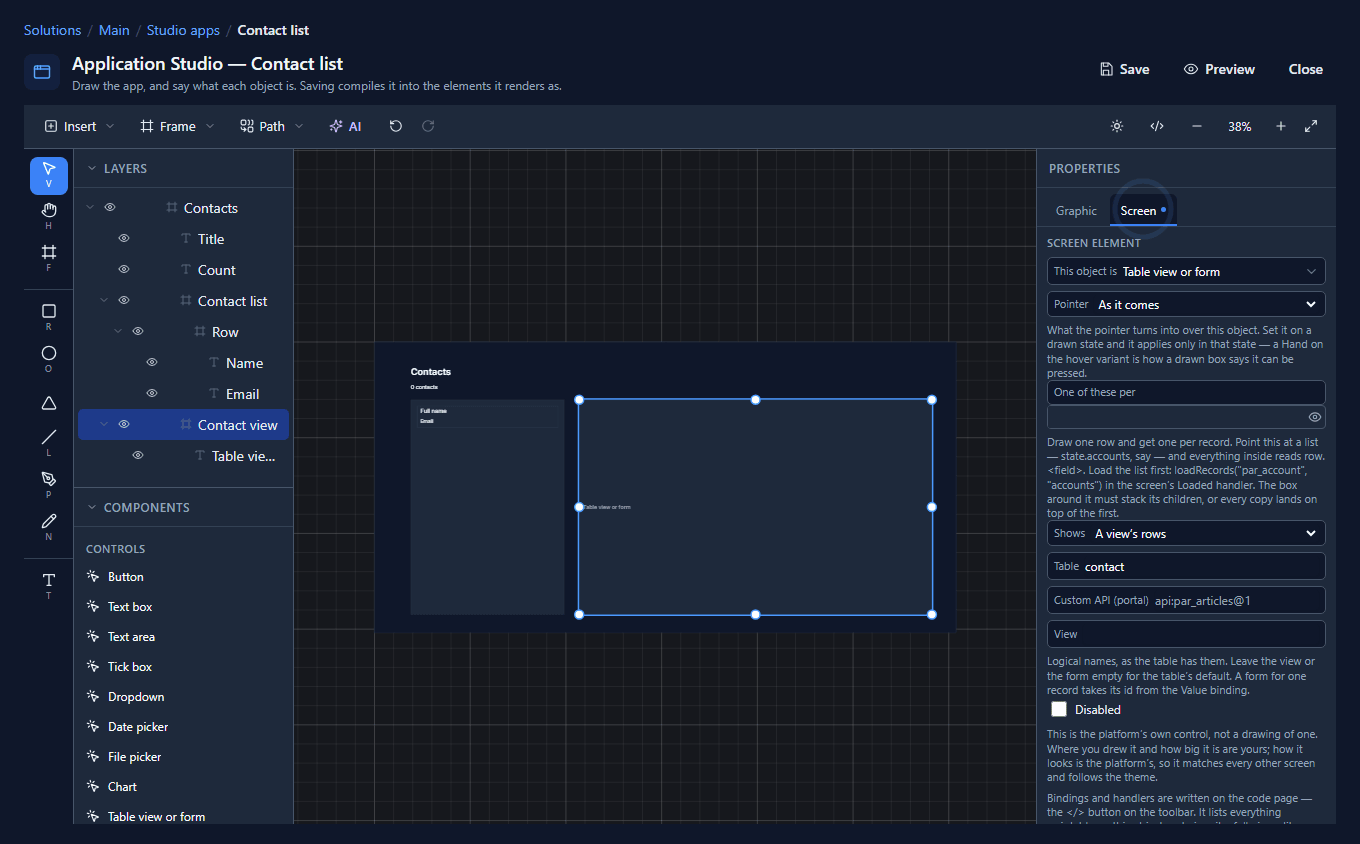
Give it room. A view brings all its columns, and the default contact view has eight. In a narrow box they wrap onto several lines and every row gets tall.
5. Open it in the Shell
Save, and open Contact list from the Shell:
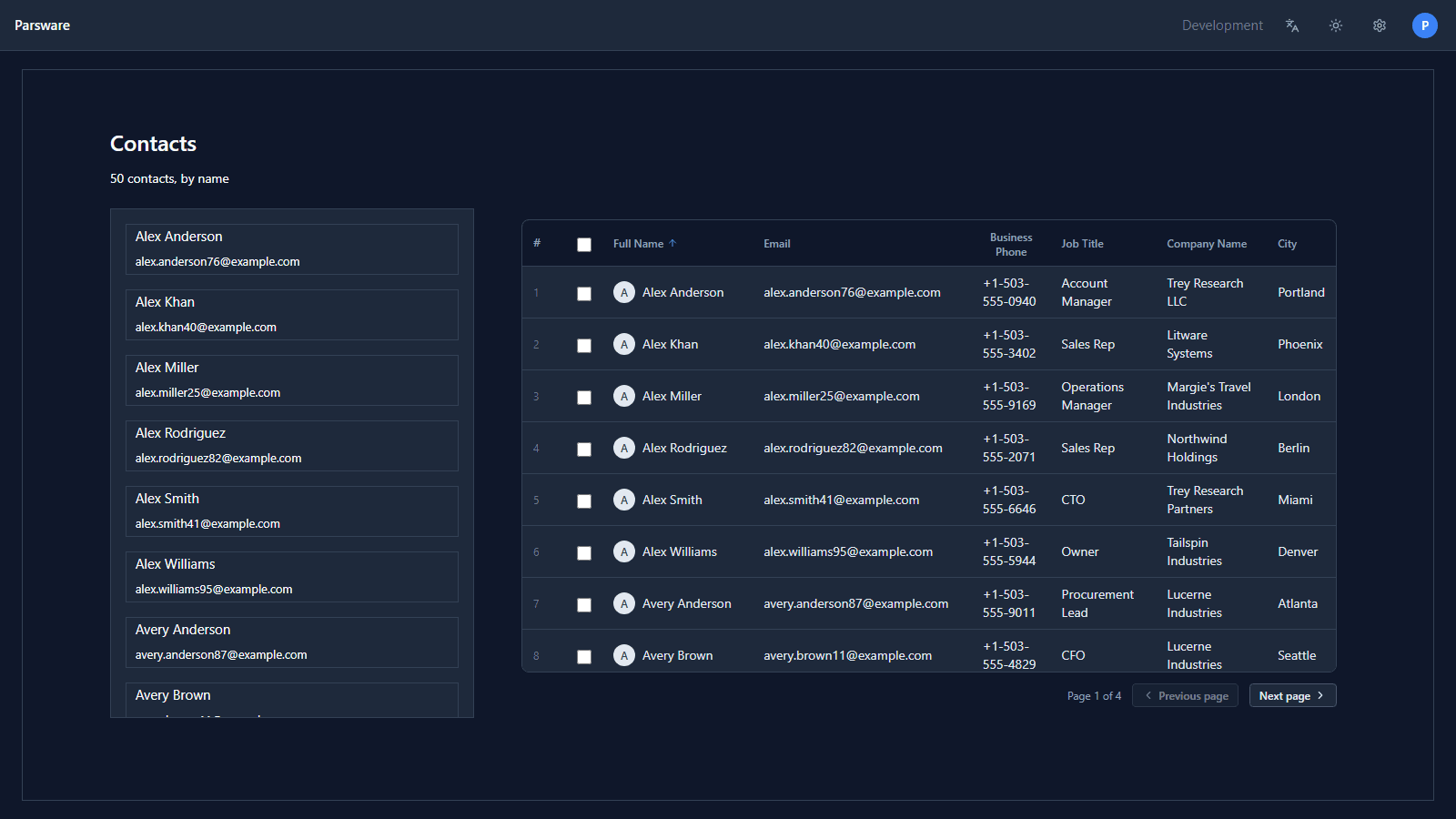
Same records, two ways:
| Drawn list | Table view | |
|---|---|---|
| How it looks | exactly as drawn | the platform's grid |
| Columns | the ones you bind | the view's |
| Paging, sorting | yours to add | built in (here, Page 1 of 4) |
| Which records | what your loadRecords asks for |
what the view's filter says |
| Who sees what | the server's permissions, every call | the same |
Use the drawn list when the look matters: cards, a phone screen, a list with a photo and two lines. Use the Table view when people need what a grid gives them, like sorting by any column, or when a view already says exactly which records you want.
Preview has no environment behind it, so neither shows any records there. Open the app from the Shell to see real ones.
What we fixed
Building this screen turned up three problems, all fixed, and a mistake in the help:
- A control placed from the palette could land in the wrong frame. A palette item placed with a click lands in the middle of the view, but the frame it joined was picked by its top-left corner. Our Table view's corner fell inside the list's row, so the grid joined the row and was repeated once per contact: fifty grids, all loading at once, until the server answered Too many requests. A placed item now joins the frame under its centre.
- The grid spilled out of its box. A Table view placed from the palette doesn't clip what's inside it, so the grid grew to every row it loaded and ran down the screen, with its pager somewhere below. It now stays inside the box you drew and scrolls there.
- The help said
count(state.tickets). There is nocounton a Studio screen (it belongs to reports), and the designer underlines it as Function count not found. The help now saysstate.tickets.length(), in all seven languages.
Try it
Draw a list of accounts instead: loadRecords("account", "accounts", { top: 20, orderBy: "name" }),
a row repeating over state.accounts, and row.name and row.address1_city inside it. Then
import the Studio records sample (studio-records) and open Contacts: the same list, with a
search box, an Add contact form and a details screen behind each row.
Next: a list a page at a time, with Previous, Next and a count.