Parsware Platform
Make a screen react
Three things make a drawn screen do something: state it remembers, bindings that read the state, and handlers that run when something happens. The visitor sign-in screen gets all three: a line that follows what is typed, a button that stays off until the form is filled in, and a Pressed handler.
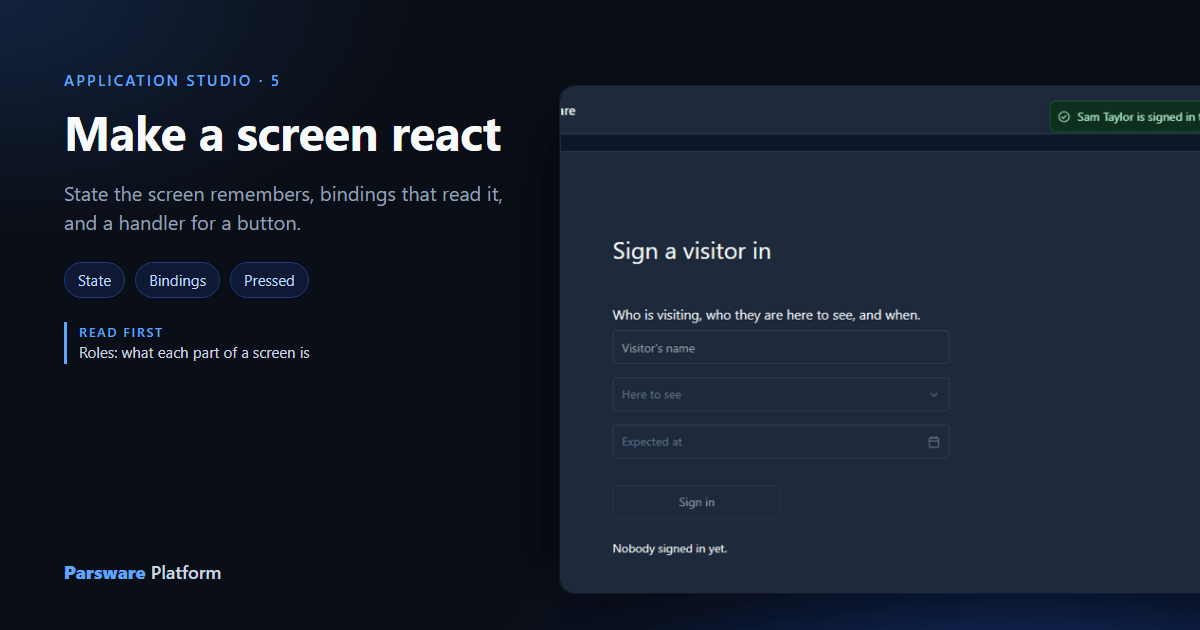
The last article drew a Visitor sign-in screen with real controls on it. You can type in its text box and pick from its dropdown, but nothing else on the screen knows you did, and its button does nothing.
Three things change that:
- State: the few things the screen remembers while somebody uses it. Here: the visitor's name, who they're here to see, and when.
- Bindings: one-line expressions that read the state and decide what something says, whether it's shown, or whether it can be used.
- Handlers: short scripts that run when something happens, like a button being pressed. A handler can change the state; a binding never does.
1. Give the screen some state
Select the screen frame, open the Screen tab, and press Add a state field once for each:
| Name | Starts as |
|---|---|
visitor |
"" |
host |
"" |
expected |
"" |
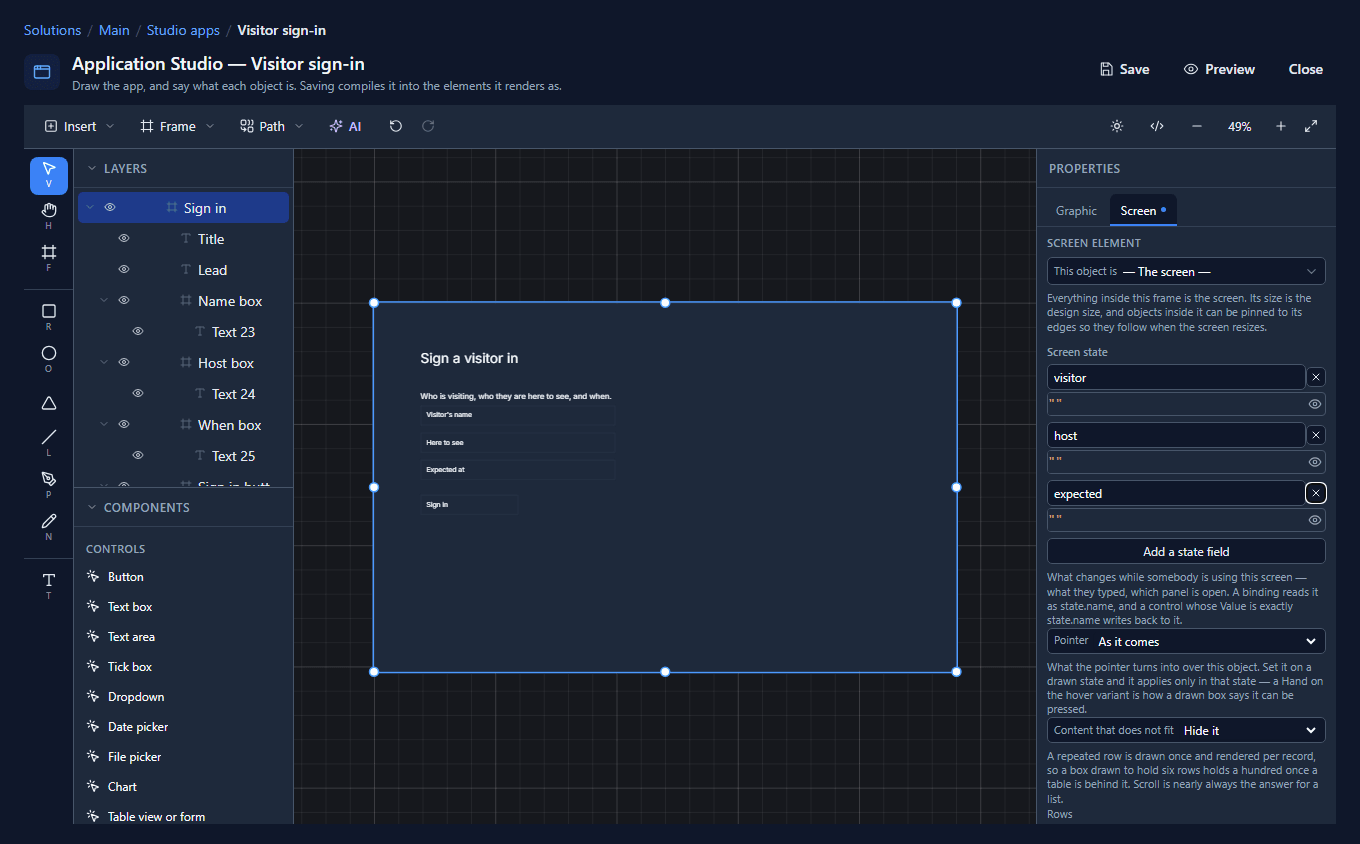
A starting value is an expression, so an empty text is two quote marks, "". A tick box would
start as false and a counter as 0.
State belongs to the screen rather than to one control because several things read it. The line we're about to add reads two of these fields, and so does the button.
2. Connect the controls to the state
Select the Name box, press Write code (the </> button), choose Value under
Bindings, and type state.visitor:
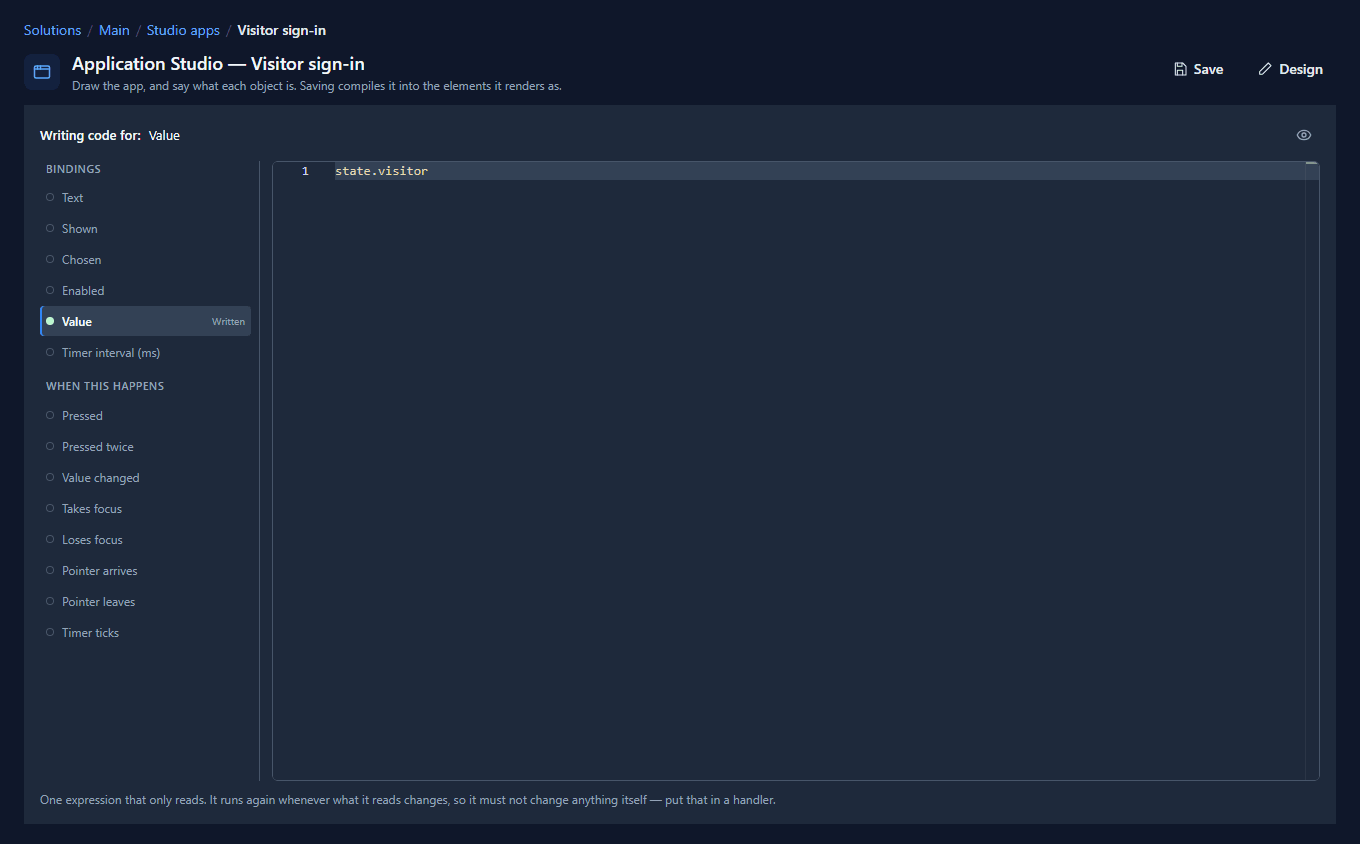
A control's Value works both ways when it's a plain state path like this. The box shows
state.visitor, and typing in the box sets state.visitor. Do the same for the other two:
- Host box:
state.host - When box:
state.expected
If you bind a Value to something computed, state.first + " " + state.last say, the box shows it
but becomes read-only: there's no way to work back from what somebody types to the two fields it
came from.
3. A line that follows what's typed
Place A paragraph under the button (we put it at X 96, Y 460, W 700), name it Summary, and bind its Text:
state.visitor == "" ? "Nobody signed in yet." : state.visitor + " is here to see " + (state.host == "" ? "somebody" : state.host) + "."
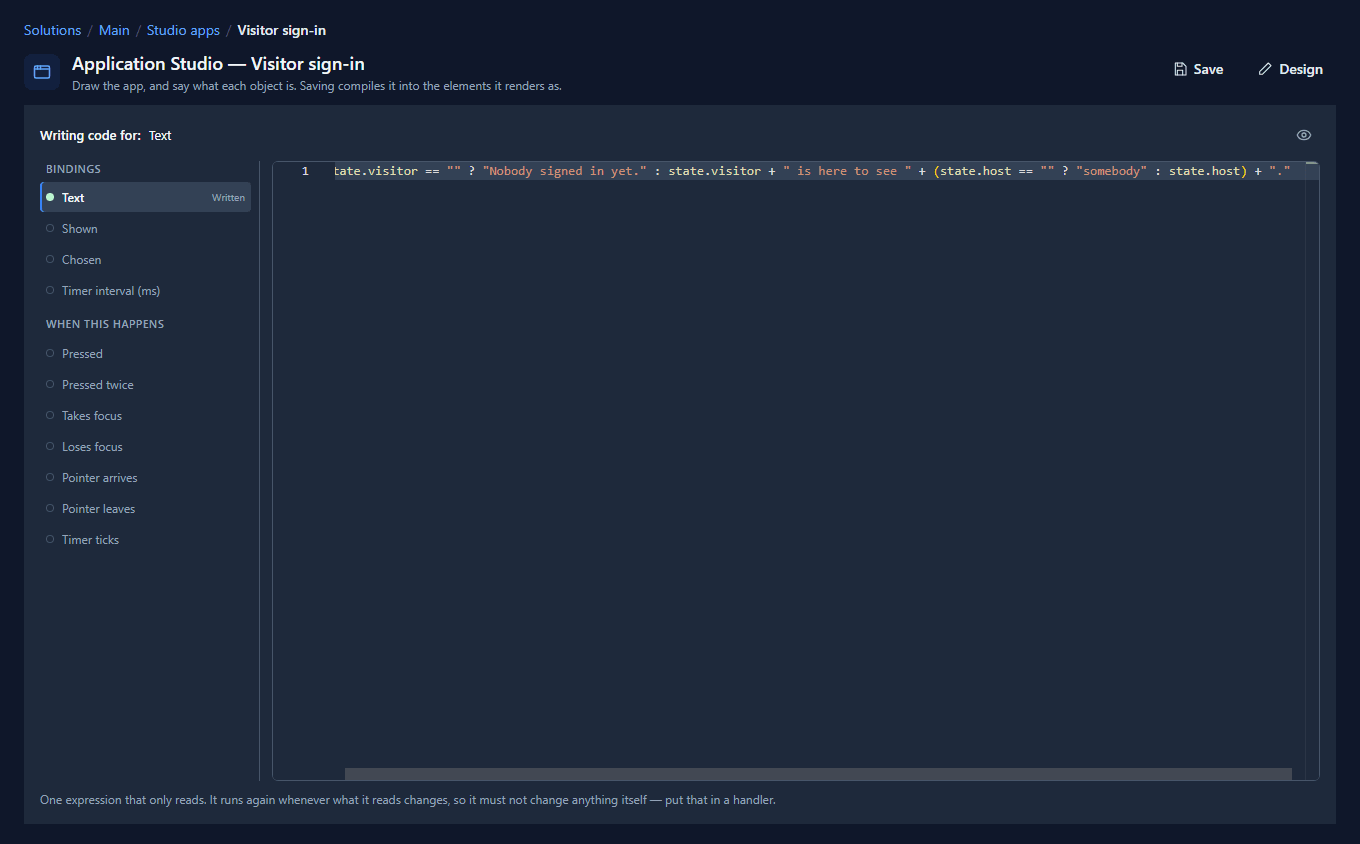
condition ? this : that chooses between two values. So the line says Nobody signed in yet.
until a name is typed, and then says who's here to see whom.
4. A button that's off until it can be used
Select the Sign in button and bind its Enabled:
state.visitor != "" && state.host != ""
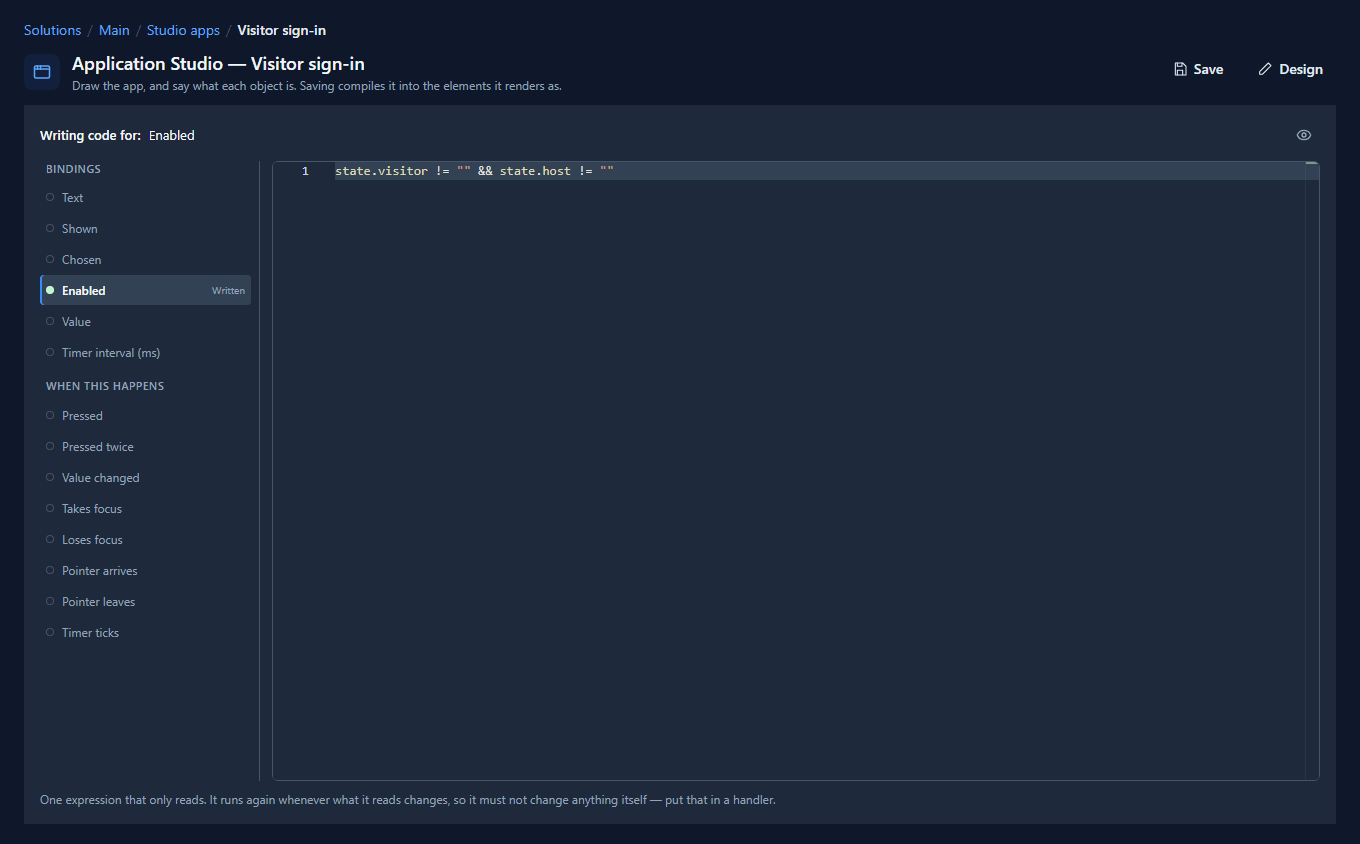
The button can be pressed only once there's a name and somebody to see. That's better than a button that can be pressed and then complains: a button that's off says what's missing before anybody tries.
5. What happens when it's pressed
Still on the button, choose Pressed under When this happens and write:
notify(getState("visitor") + " is signed in to see " + getState("host") + ".");
setState("visitor", "");
setState("host", "");
setState("expected", "");
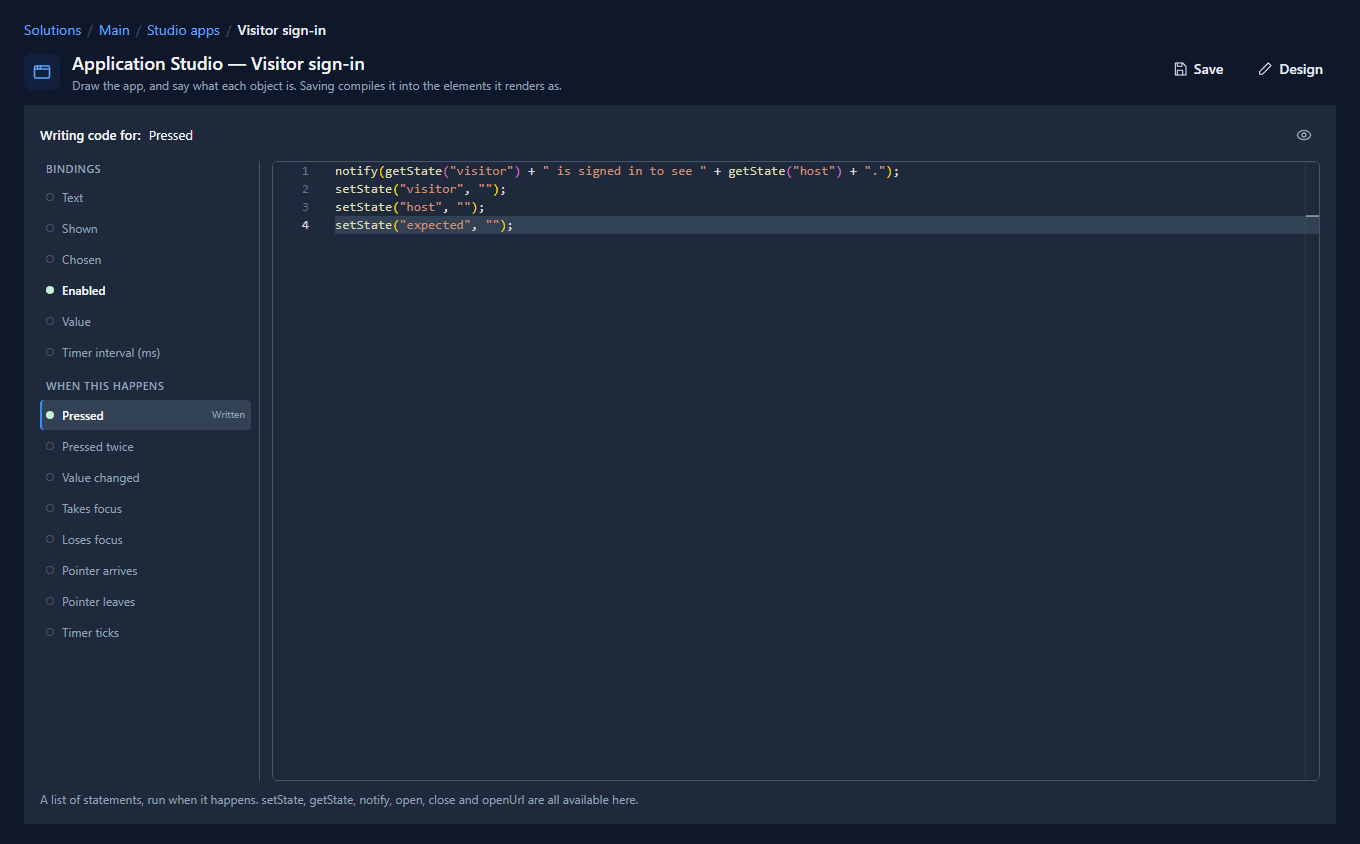
The lines run in order. notify shows a message at the top of the window; getState reads a
field; setState changes one. Setting the three fields back to "" empties the form, because the
three controls are bound to them.
Notice the difference from a binding. A binding is one expression that only reads. It runs again whenever what it reads changes, so it mustn't change anything itself. A handler is a little program that runs when something happens, so changing things is its job.
6. Use it
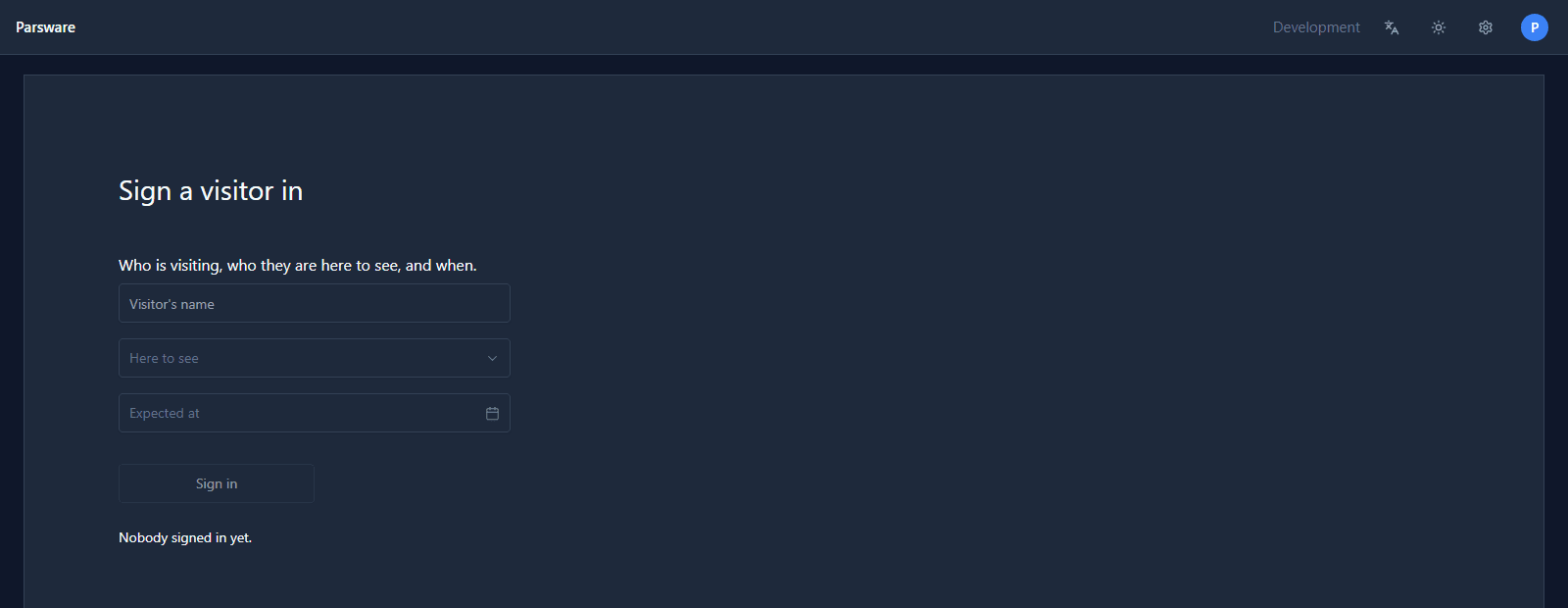
Save, and open the app in the Shell. To start with, the form is empty, the line says Nobody signed in yet., and Sign in is greyed out:
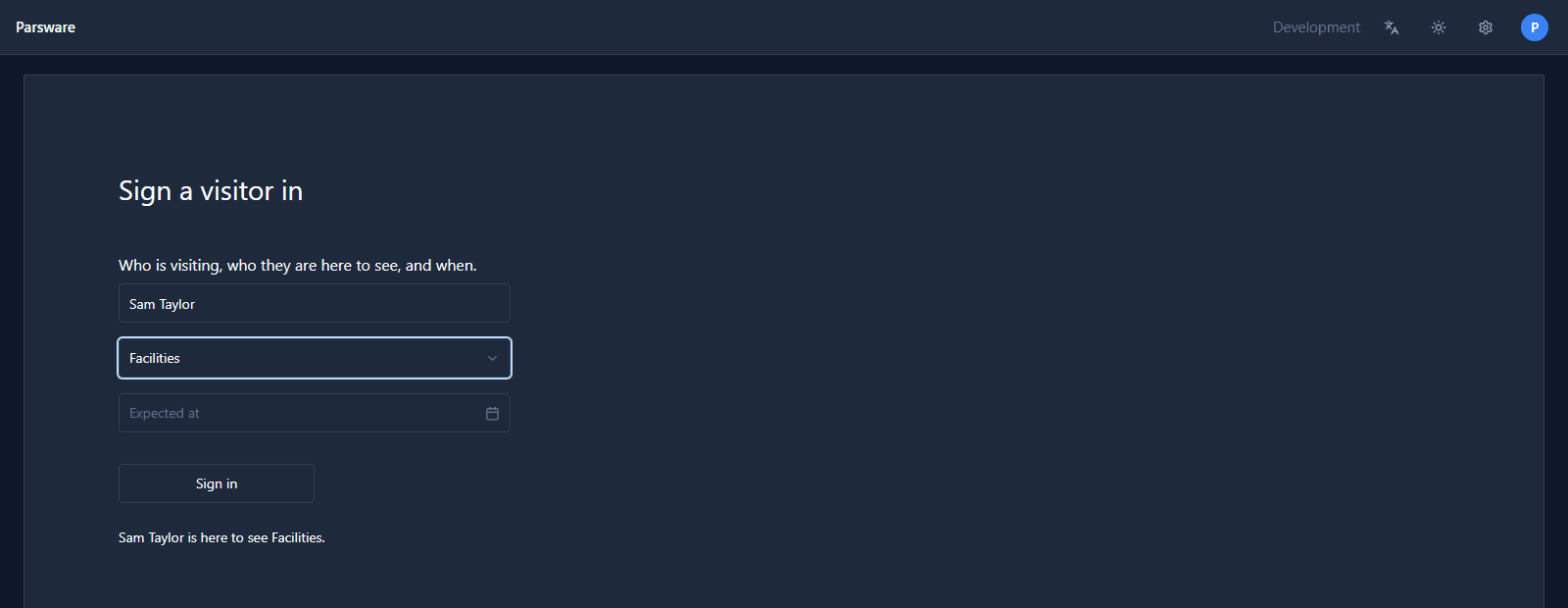
Type a name and the line follows it. The button stays off until somebody to see is chosen too:
Press Sign in. The message appears and the form is empty again, ready for the next visitor:
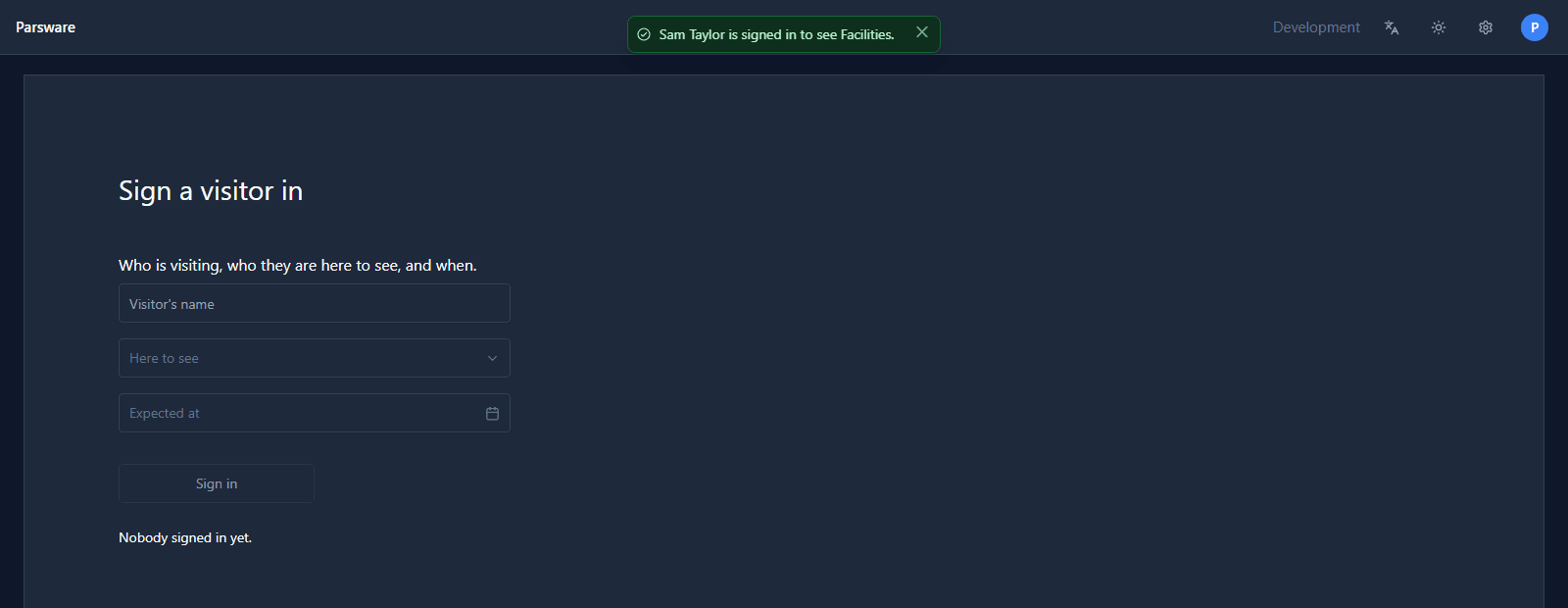
No line of that wrote to the screen directly. Typing changed the state, and everything that reads the state followed.
What a handler can call
notify and setState are two of many. The ones you'll reach for most:
| Call | Does |
|---|---|
setState("name", value) / getState("name") |
change or read the screen's state |
notify("…") / notifyError("…") |
tell the person using the screen |
navigate("Screen") |
go to another screen of this app |
showModal("Card") / closeModal() |
show a card over the screen |
loadRecords("table", "field") |
load rows from a table into a state field |
createRecord("table", { … }) |
store a new record |
Records are the next two articles. Navigation, modals and drawers each get one of their own.
Nothing here is security
Hiding a button, or turning it off, changes a screen. It doesn't change what anybody may do. When a handler reads or writes a record, the platform checks the permissions of whoever is using the app, on every call, whatever the screen shows.
Try it
Add a tick box to the screen, Needs a parking space, with a parking state field starting as
false, and bind its Value to state.parking. Then give a paragraph a Shown binding,
state.parking, that says Reserve a space at reception, and watch it appear and disappear as you
tick the box.
Next: records on a screen, loaded from a table as the screen opens.