For Power Apps
Start here: every Parsware for Power Apps article, in order
The reading list for Parsware for Power Apps, the managed solution that adds pixel-perfect reports and drawn screens to Power Apps. Every planned article in order, linked as each one is published.
Cet article n’est disponible qu’en anglais.
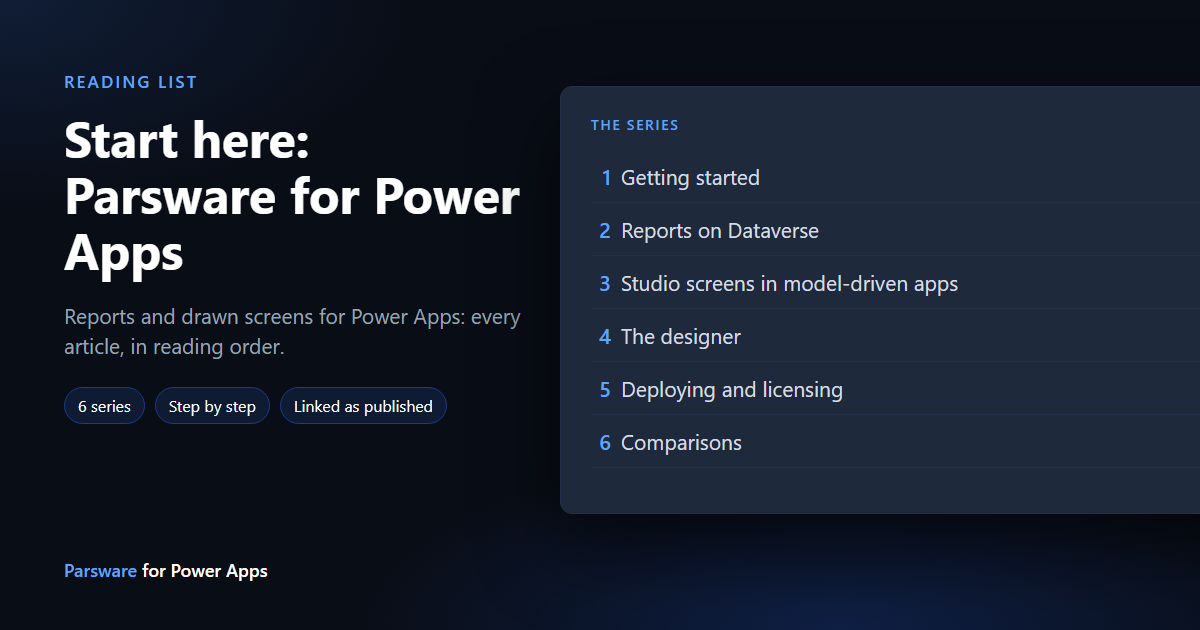
Parsware for Power Apps is a managed Dataverse solution. It adds two things to the Power Apps you already have: reports laid out to the pixel, bound to your Dataverse tables, and Studio screens, pages you draw and place inside a model-driven app. Your data stays in your tenant.
How to use it. Read Getting started first: it covers installing the solutions, activating a licence and the two apps. After that, each series stands on its own. Every article lists what to read first at the top.
This series is being written now. A title without a link is planned and not published yet; this page updates as each one goes out.
1. Getting started
5 of 5 published.
- PA1.1 Parsware for Power Apps: an overview — What it adds to Power Apps, and what never leaves your tenant
- PA1.2 Install it — The runtime, designer and samples solutions, and which environments get which
- PA1.3 Activate your licence — Getting a key, a trial key included, and entering it
- PA1.4 The two apps — Parsware Studio for makers, Parsware for users
- PA1.5 The samples, and sample data — Importing the samples solution and filling it with demo rows
2. Reports on Dataverse
10 of 10 published.
- PA2.1 Your first report on Dataverse — A report bound to a table, designed and previewed
- PA2.2 Reports from a view — A report that reads a Dataverse view
- PA2.3 Totals with FetchXML — A pasted FetchXML aggregate as a report's data
- PA2.4 Lookups and choices in a report — Related records and choice labels, not ids
- PA2.5 A report on a form — The report control on a model-driven form, for the current record
- PA2.6 Choose a report from a column — One control showing whichever report a column names
- PA2.7 Print it exactly — Printing one to one, one sheet per page
- PA2.8 Publish: drafts versus what users see — Save, publish, and a draft never reaching users
- PA2.9 Saved queries that travel — A report whose query moves with its solution
- PA2.10 Start from a shipped design — Copying a sample design and changing it
3. Studio screens in model-driven apps
8 of 9 published.
- PA3.1 A drawn screen on a form — A Studio screen as a form section, next to Dataverse fields
- PA3.2 A drawn field — A screen that draws one field and writes the column it is bound to
- PA3.3 One control, several columns — A screen that reads and writes more than one column
- PA3.4 Screens that read Dataverse rows — Lists and charts on a screen, bound to real records
- PA3.5 Modals and drawers from a form — A form-hosted screen opening overlays
- PA3.6 Open another design —
openDesign: a screen opening a report or another screen - PA3.7 Scripts on a screen — BS in the designer, with completion for Dataverse fields
- PA3.8 When a control can't load — The messages that say what is wrong, in place of "Error loading control"
- PA3.9 Generate a screen with AI — A screen from a sentence (coming once the feature is on a screen)
4. The designer
4 of 6 published.
- PA4.1 The designer inside Power Apps — Opening it from the Parsware Studio app; a tour
- PA4.2 Tables, columns and views in the pickers — Every picker reads your Dataverse metadata
- PA4.3 Components in Power Apps designs — Reusing a part across the screens of a design
- PA4.4 Right-to-left designs — A Persian or Arabic design in Power Apps
- PA4.5 Generate a report with AI — A report from a sentence (coming once the feature is on a screen)
- PA4.6 A component library in the solution — Shared components shipped with a solution (coming once the feature is on a screen)
5. Deploying and licensing
4 of 5 published.
- PA5.1 Move designs from Dev to Prod — Designs in your own solutions, through normal Power Platform ALM
- PA5.2 Upgrading to a new version — Importing a new release over the old one
- PA5.3 What stays on your tenant — Data never leaves Dataverse; only the licence check does
- PA5.4 When a licence lapses — What keeps working, and what stops
- PA5.5 Renewal without a connector — The plug-in renewing the licence, with nothing to switch on (coming once the feature is on a screen)
6. Comparisons
3 of 3 published.
- PA6.1 Parsware reports and Power BI paginated reports — Where each fits, honestly
- PA6.2 Studio screens and canvas apps — Drawing a screen for a form versus building a canvas app
- PA6.3 Parsware Platform and Power Apps — An honest comparison, for teams choosing a platform
Where next
If you are choosing a platform rather than extending Power Apps, the Parsware Platform reading list covers the standalone product.