How to add a lookup that points at several tables
One Customer field that holds either an account or a contact: choose the tables, pick one of each on two records, and find them from the Related tab. How-to video H021, step by step.
How-to H021 · 2 min 18 s. A complete tutorial: every click and value the video uses, the two relationships the field creates, and how its value looks to a script. Every picture is a frame of the video.
Sometimes a customer is a company and sometimes a person. A multi-table lookup is one field that holds either. In this tutorial you add a Customer field to Opportunity that points at an account or a contact, fill it in both ways, and find the opportunity again from the account.
Before you start
- The Opportunity table with the Account lookup, and Accounts in the Sales Tracker app, from How to add a lookup to another table.
- Two opportunities, Contoso fleet renewal and Northwind renewal.
- An account, Contoso Group, and a contact, Avery Kim. Use any account and contact you have.
Lookup or lookup (several tables)?
| Lookup | Lookup (several tables) | |
|---|---|---|
| Points at | One table | Two or more |
| Stores | The record's id | The record's id, and which table it is in |
| Foreign key | Yes | No: one column can't reference several tables |
| Relationships | One | One per table |
| Use it for | An opportunity's account | A customer that is an account or a contact |
Use the plain lookup whenever one table will do. Use this one when the answer genuinely can be either.
Part 1: Add the field
-
Open Solutions, then Sales Tracker, select Tables and open Opportunity. The field goes here, because each opportunity has one customer.
-
Select New. Type the display name
Customer. The logical name fills in astsp_customer. -
Set Data type to Lookup (several tables).
-
Open Related tables:
- Type
accand pick Account. - Type
contand pick Contact.
Pick the commonest table first. The record picker opens on it.
- Type
-
Read the note: saving creates one relationship for each table, and the tables are fixed after that.
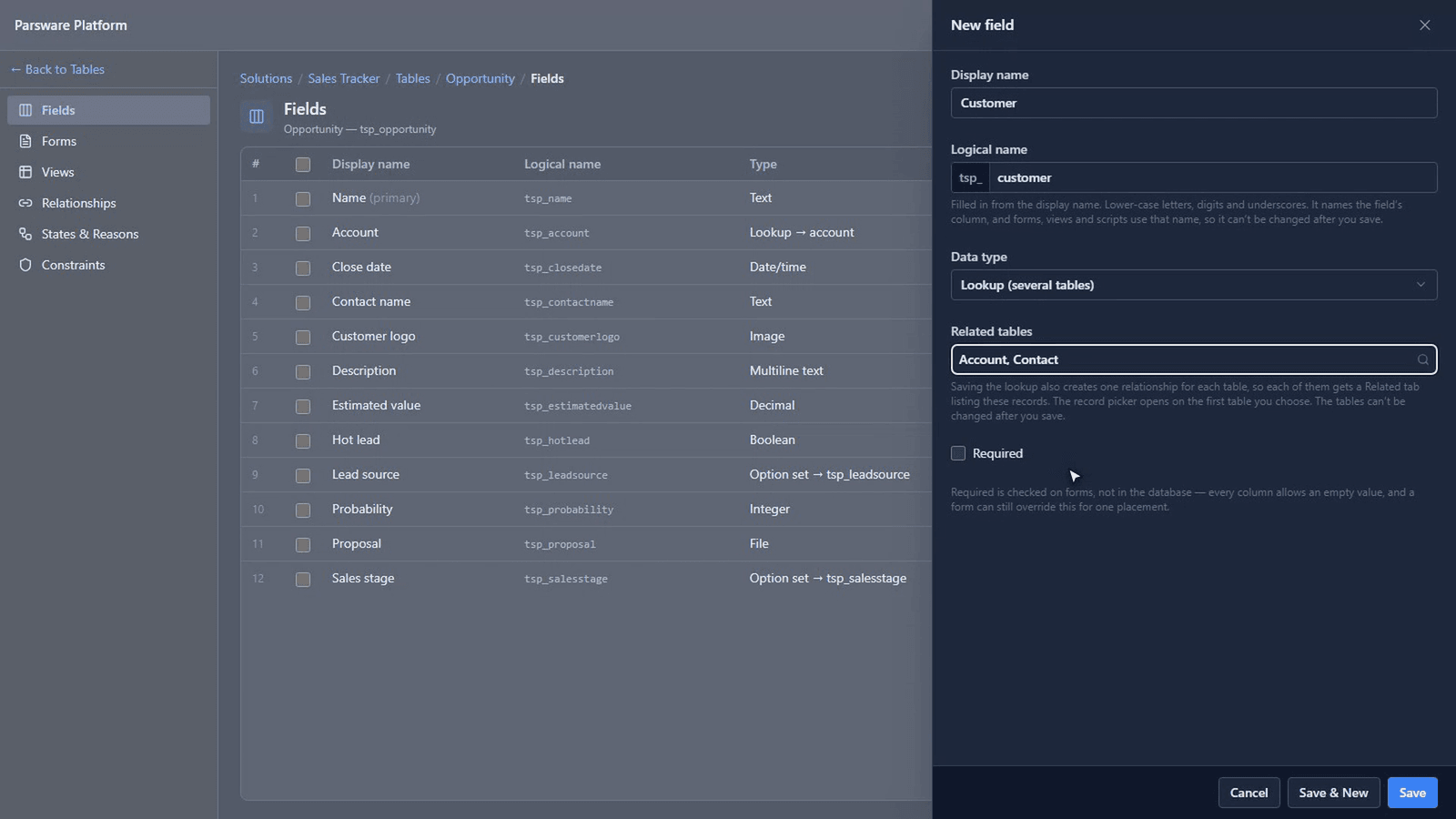
- Select Save. The type reads Lookup (several tables) → account, contact.
- Select Relationships. There are two new ones, one for each table, named from the table and the
field (the second ends in
_2).
Part 2: Put it on the form
- Select Forms and open Information.
- Drag Customer in, under Account, and select Save.
Part 3: A company as the customer
- Open Sales Test's address, open Sales Tracker and open Contoso fleet renewal.
- Select the Customer box. The tables come first, and Account is selected.
- Type
Contosoand pick Contoso Group. - Select Save & Close. It goes back to the list of opportunities.
Part 4: A person as the customer
- Open Northwind renewal. This customer is a person.
- Select the Customer box, then Contact.
- Type
Averyand pick Avery Kim. The icon beside the name says it is a contact. - Select Save & Close.
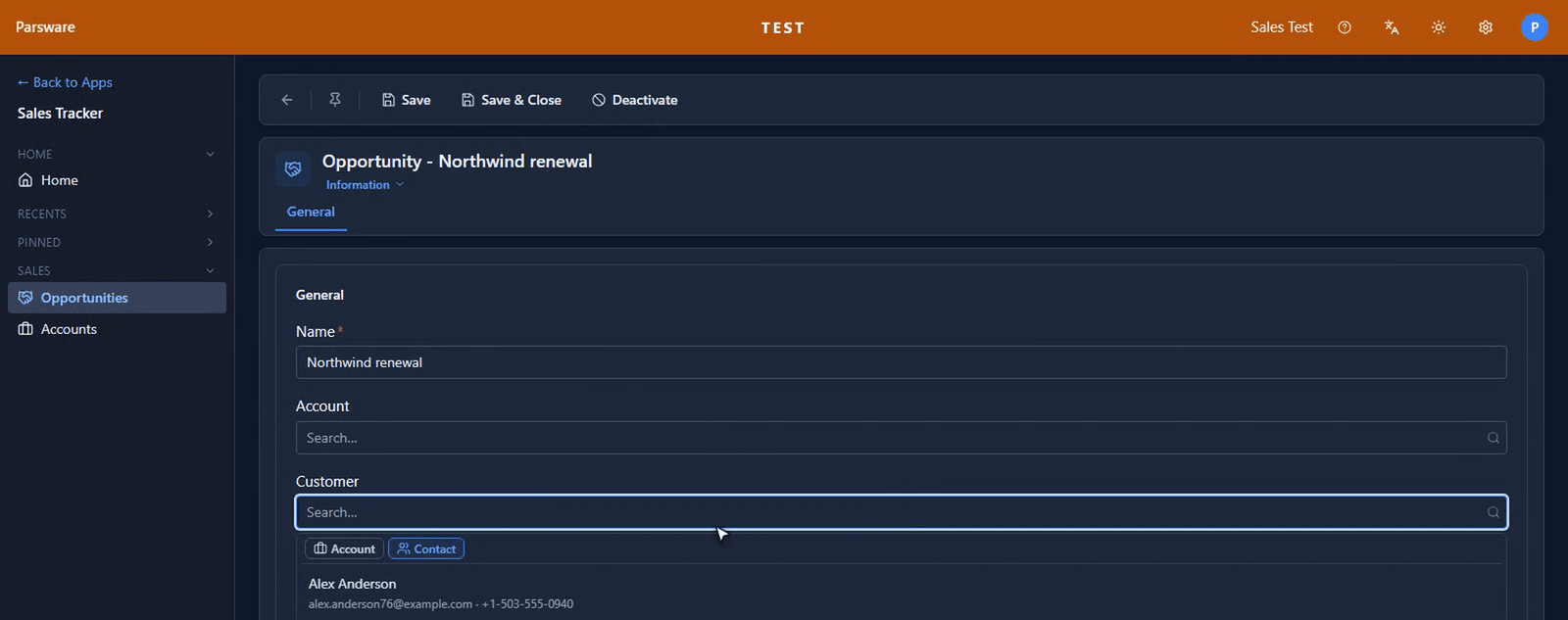
Both opportunities now have a customer: a company, and a person.
Part 5: See it from the account
Each table has its own relationship, so an account lists the opportunities whose customer it is.
- Select Accounts and open Contoso Group.
- Select Related. Opportunity now has two lookups to Account, so each list is named by its field: Opportunities (Account) and Opportunities (Customer).
- Select Opportunities (Customer). Contoso fleet renewal is listed.
Avery Kim's contact record has the same kind of list for Northwind renewal, in any app that shows contacts.
The field as text
The field lists its tables, in the order the picker offers them:
{
  "logicalName": "tsp_customer",
  "displayName": "Customer",
  "dataType": "PolymorphicLookup",
  "targetEntities": ["account", "contact"]
}
In the database it is two columns: tsp_customer holds the record's id, and tsp_customer_type
holds which table it is in, by logical name. Everywhere else, a script, an API, an import, it travels
as one value, the table and the id joined by a colon:
account:3f2b6c1e-…
contact:9a41d07c-…
So a script can tell which kind of customer it has:
var opp = getRecord("tsp_opportunity", getRecordRef("record"));
if (opp.tsp_customer.includes("contact:")) {
  // a person
} else {
  // a company
}
If something goes wrong
- Only one table can be picked. The data type is Lookup, not Lookup (several tables).
- You need a third table later. The tables are fixed after saving, because rows already hold references checked against them. Delete the field and add a new one under a different logical name. Deleting a field keeps its stored columns, so a field added back under the same name would come back filled in.
- A linked record was deleted. There is no foreign key, so the reference stays and reads as unresolved. Pick another customer.
What you built
One Customer field that holds an account or a contact, with a related list on both tables. Each table has its own relationship, so everything that works for a plain lookup works for this one.
Read more
- The help page: Add a Multi-Table Lookup, the page this screen's Help link opens.
- The feature, explained: One lookup, several tables: a customer that's an account or a contact.
- Every how-to: the How-tos category.
Is there a task you would like to see done step by step? Tell us. parsware.com/contact