Parsware Platform
One lookup, several tables: a customer that's an account or a contact
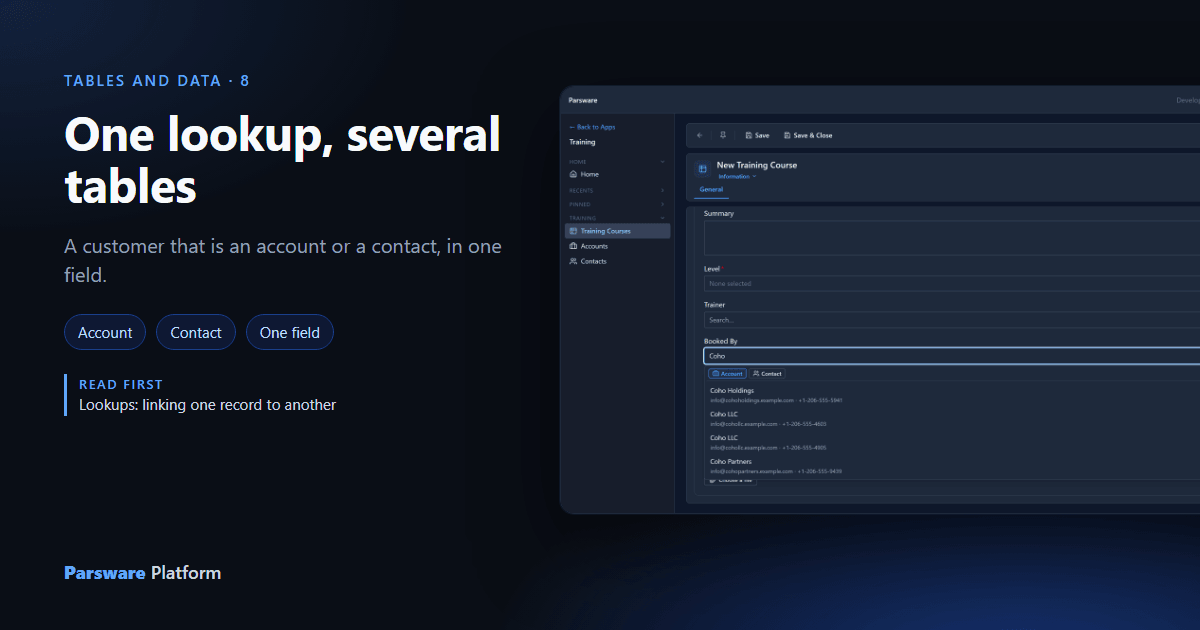
Sometimes a link can point at more than one kind of record. A course is booked by a company or by a person. In Parsware that's one field, a lookup to several tables, with a tab for each table on the form and a Related tab on both.
A lookup points at a record in one other table. But some links can point at more than one kind of record. An invoice goes to a customer that might be a company or a person. A support case comes from a customer or a partner. A training course is booked by a company or by an individual.
You could add one lookup per table, Booked By Account and Booked By Contact, and remember that only one of them may be filled in. Every form, view, filter and report would then have to know which of the two to read. Parsware has a better answer: one field, Lookup (several tables).
We carry on with the Training Course table, and its Booked By field. Every picture is the real product.
Add the field
On the table's Fields page, choose New, set Data type to Lookup (several tables), and tick the tables it may point at. You need at least two.
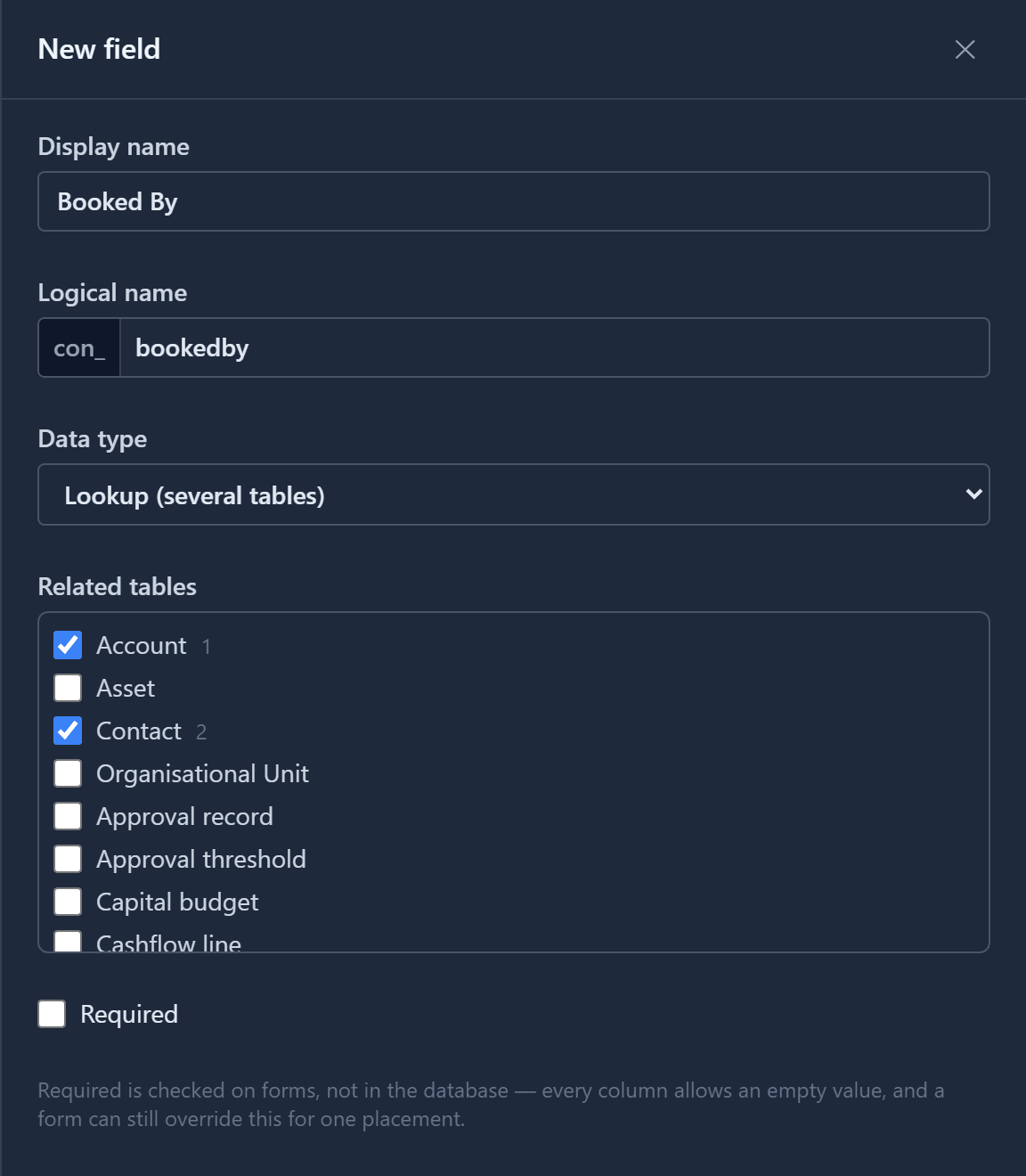
The small number beside each ticked table is the order you ticked them in. It's the order people see on the form, and the first one is where the search starts. So tick the most common one first.
For a single table, use a plain Lookup instead. The next section explains why.
What it stores, and what it gives up
The field stores two things in two columns: the record's id, and which table it's in. The second
column has the field's name with _type on the end, and holds the table's logical name, such as
account or contact. A record's owner (a user or a team) is stored the same way.
A plain lookup gets a foreign key, so the database itself refuses to lose the record it points at. A lookup to several tables can't have one, because one column can't reference several tables. So:
- Every save still checks that the record you picked exists.
- If that record is deleted afterwards, nothing stops it. The field then shows the raw reference instead of a name, so the gap is visible, not silent.
- A whole table can't be deleted while a lookup to several tables lists it.
The list of tables is fixed once the field exists, because saved records were checked against it. To change it, delete the field and add it again.
On the form: a tab for each table
Select the field and the search opens with the tables you ticked across its top, in your order. The first one is selected:
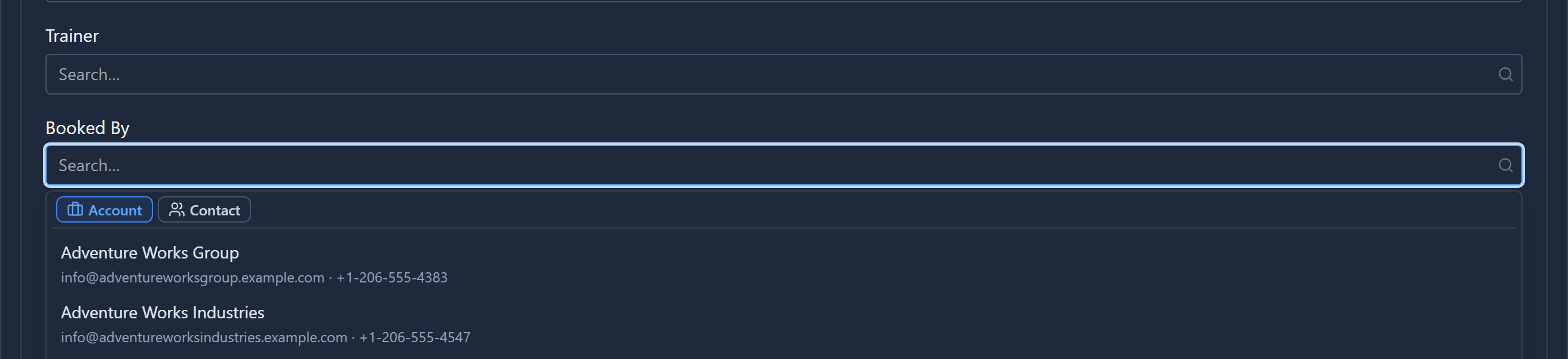
Type, and the list narrows within that table:
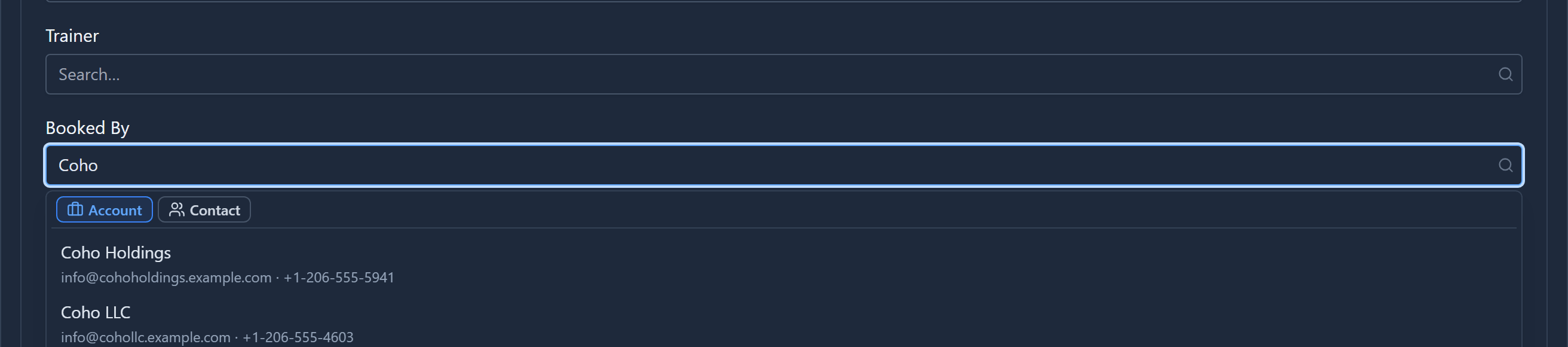
Choose Contact and the same box searches contacts instead:
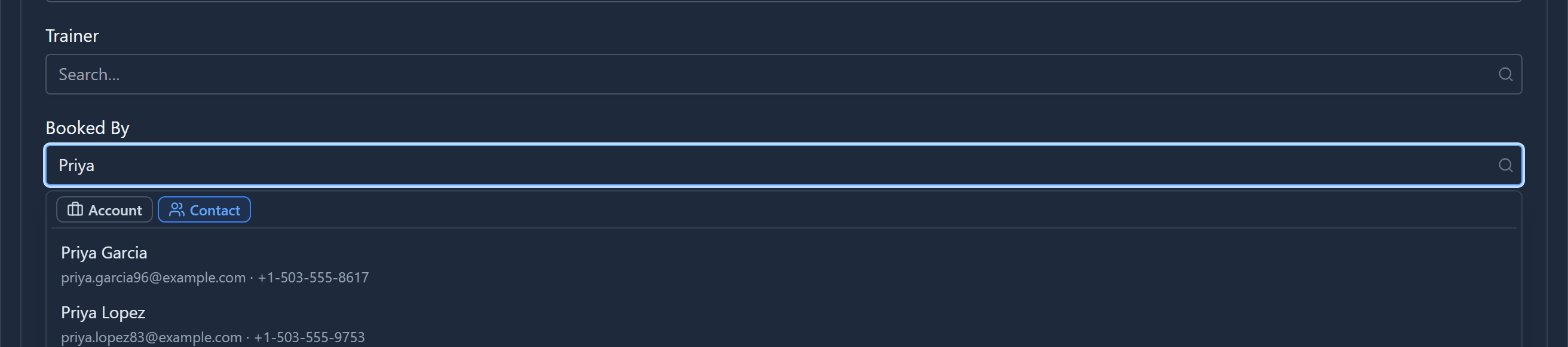
The table comes first for a reason. Find an account called Coho and find a contact called Coho are different searches over different columns, so one mixed list would compare things that don't line up. Picking the table first means everything below it works just like a normal lookup: the search, the second line and the pictures. Switching tables clears what you picked, since a contact can't stand in for an account.
Once you've chosen, the field shows the record with its table's icon, because the tabs are out of sight when nobody is picking:

That's the icon you gave the table. So if tables share a lookup to several tables, give them different icons.
A Related tab on both sides
Each ticked table gets its own relationship, so both ends work the way a plain lookup's do. Open the account, and its Related menu lists Training Courses:
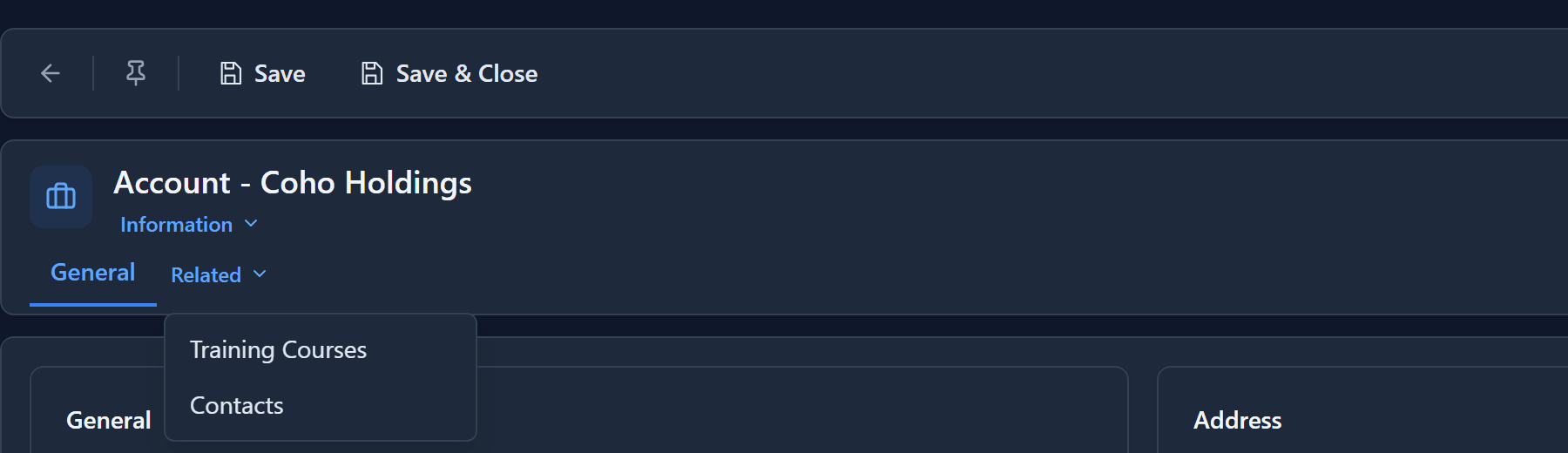
The tab lists the courses Coho Holdings booked:

A contact's record gets the same tab for the courses that person booked. There's nothing to set up on either side.
When to use which
| You need | Use |
|---|---|
| A link to one table | Lookup. You get a foreign key. |
| A link to one of several tables | Lookup (several tables). One field, and one place to read it. |
| Several links at once, such as many attendees | A separate table with a lookup, one row for each link |
Next: relationships between tables, and what happens to the linked records when one is deleted.