Change one part, every screen follows
Three screens that share one header, drawn once as a component and placed on each. Change the component and every screen follows.
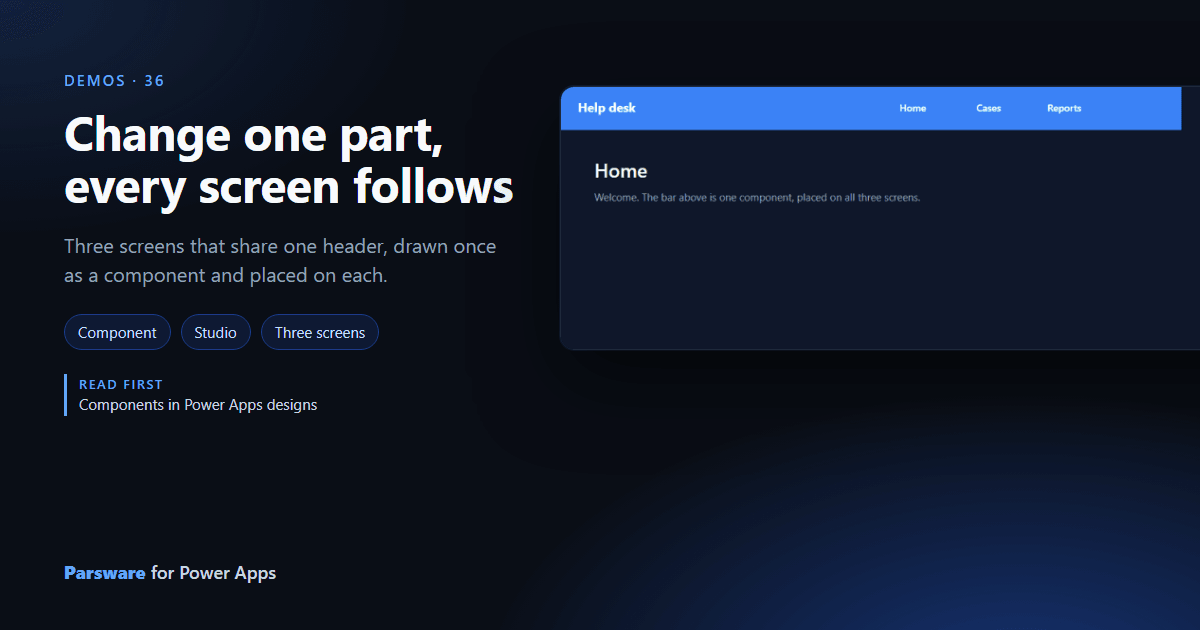
An app with three screens and a header on each has three headers to keep in step. This demo has one: a component drawn once and placed on all three. Demos → Help desk app.

A master and its instances
The header is a component called Help desk header, drawn once beside the screens. Each screen holds an instance of it, a placed copy that the designer keeps in step with the master (Components in Power Apps designs). Its three links are part of the master:
navigate("Reports");

Change the master in Parsware Studio (the colour, the name, a fourth link) and publish, and all three screens change. Nothing is edited three times, and nothing drifts.
Try it
- Install the three Parsware for Power Apps solutions, samples included (Install it).
- Open Sample data and press Replace, so the newest columns are filled (The samples, and sample data).
- Open Demos → Help desk app, then open the design in Parsware Studio and edit the header.
The pictures show the shipped design running on demo data in Parsware’s own runtime. In Power Apps it is a page of the model-driven app, with the app’s own dialog and side pane.