Print this record
A button on the expense form that opens this expense’s one-page receipt, a Parsware report, in the app’s own dialog, ready to print.
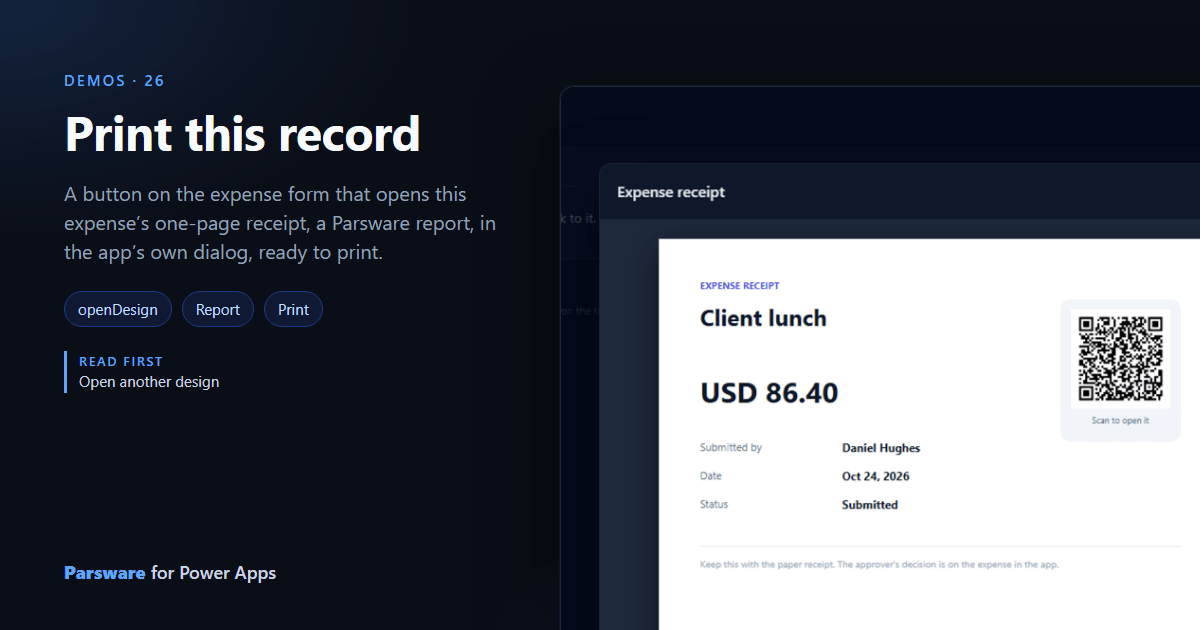
Printing one record from a model-driven app is harder than it should be. This demo is one button on the expense form that opens the expense’s receipt, ready to print.
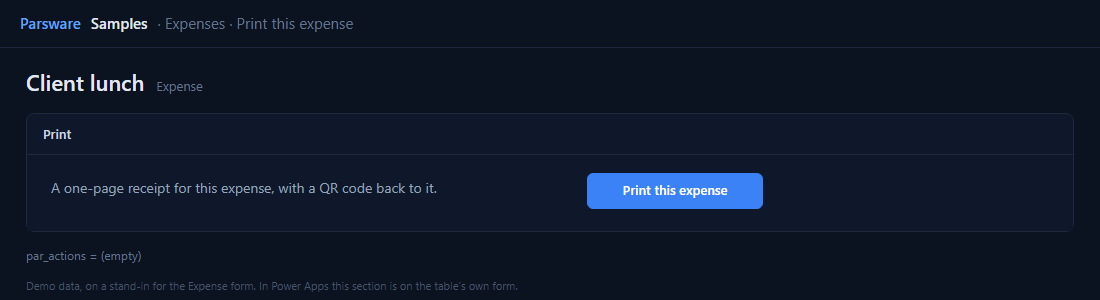
The record goes with it
The button opens the Expense receipt report in the app’s dialog:
openDesign("Expense receipt");
From a form, openDesign hands the opened design the form’s record, so the report’s dataset,
narrowed by recordScopeField: "par_expenseid", holds just this expense:
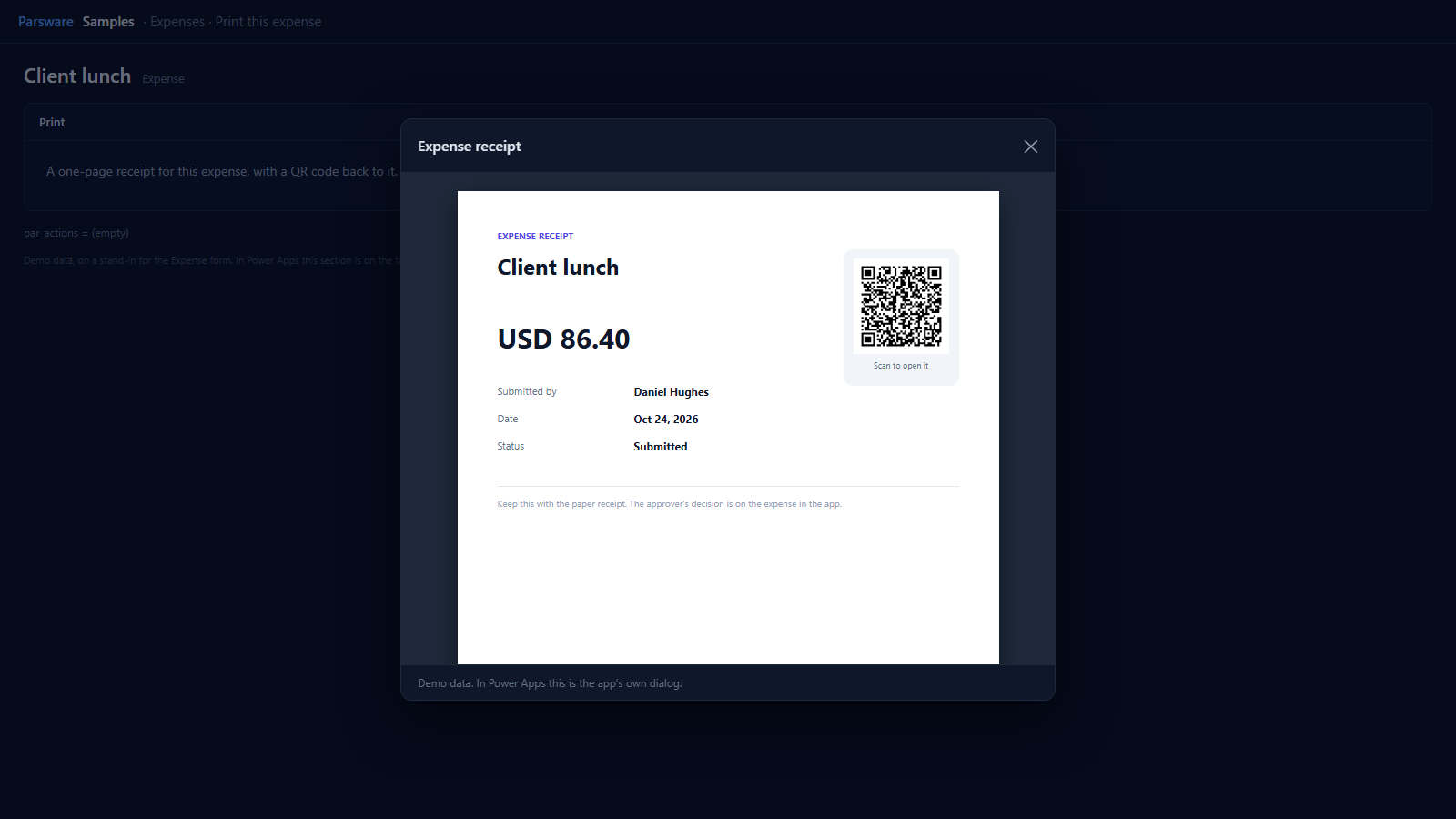
The receipt is a Parsware report, laid out exactly as drawn, with a Print button of its own in the dialog. Its QR code opens the expense in the app (see An expense receipt with a QR code).
Try it
- Install the three Parsware for Power Apps solutions, samples included (Install it).
- Open Sample data and press Replace, so the newest columns are filled (The samples, and sample data).
- Open an expense and press Print this expense in the Print section.
The pictures show the shipped design running on demo data in Parsware’s own runtime. In Power Apps the form, the side pane and the dialog are the app’s own.