Approve or reject from the form
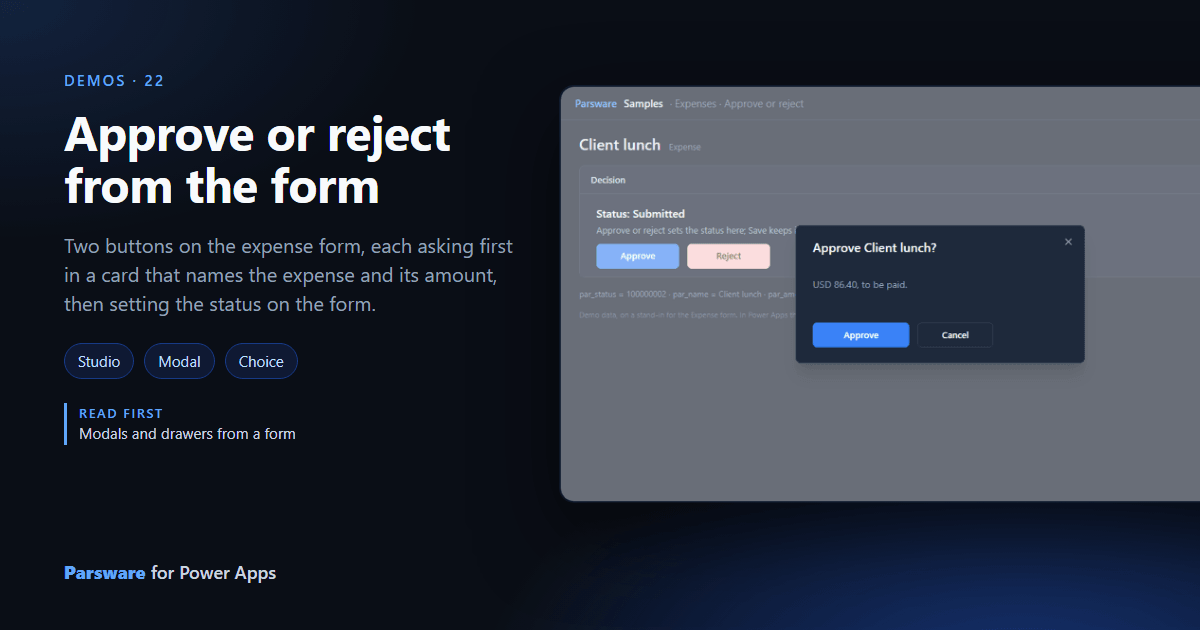
Two buttons on the expense form, each asking first in a card that names the expense and its amount, then setting the status on the form.
Approving an expense means opening the status dropdown and picking a word. This demo puts Approve and Reject on the form, and asks before either.
The panel sits on the expense’s Status, a choice column, and reads Name, Amount and Currency as its other columns.
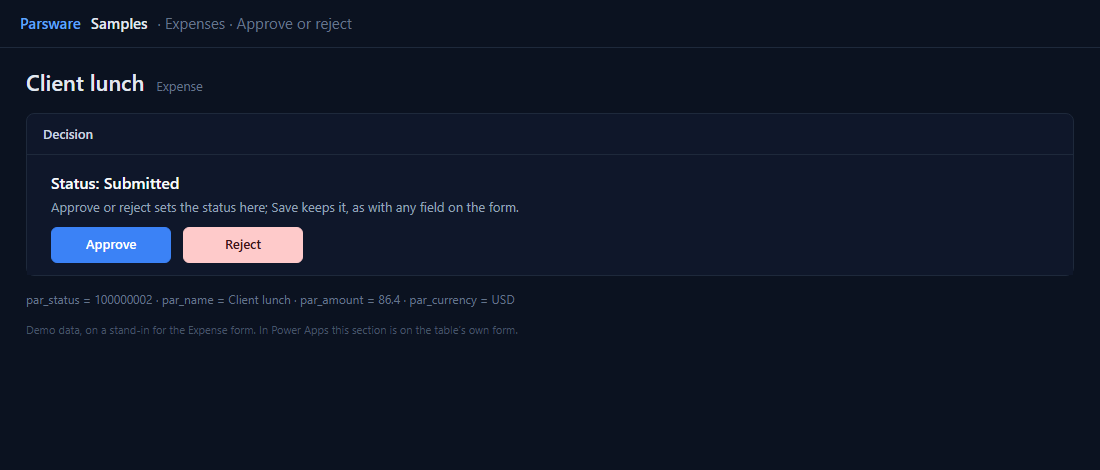
A card that names what you are approving
Each button sets which way it is going and opens a card drawn on the same screen (Modals and drawers from a form):
setState("verdict", "approve");
showModal("Confirm verdict");
The card’s question is built from the form’s own columns:
(state.verdict == "approve" ? "Approve " : "Reject ") + text(fields.par_name) + "?"
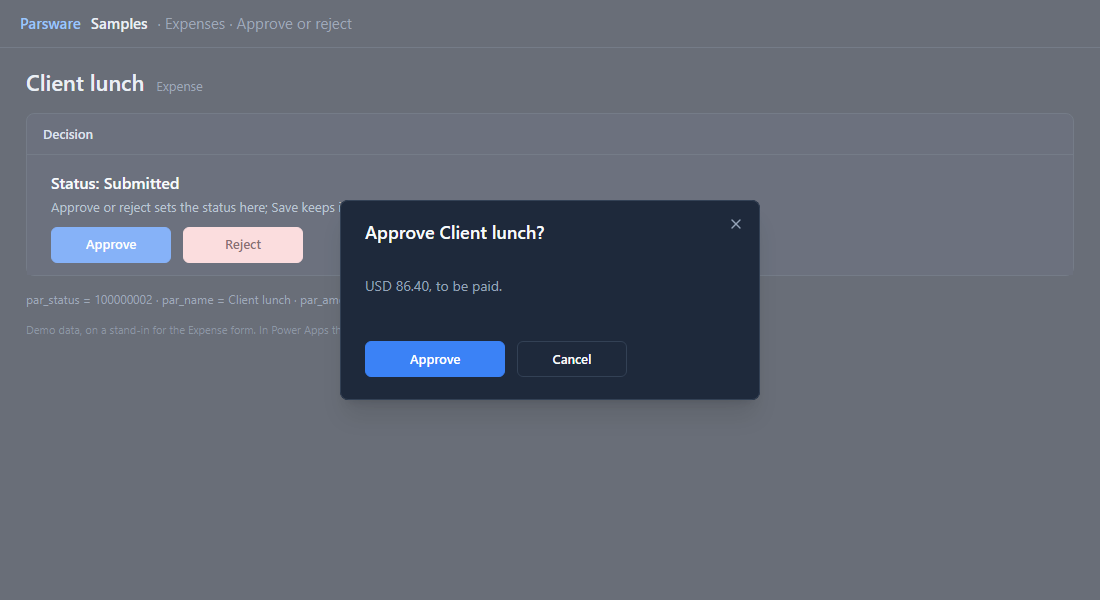
Its button sets the status to the option’s number, Approved (100000003) or back to Draft (100000001), and closes the card:
setFieldValue("100000003");
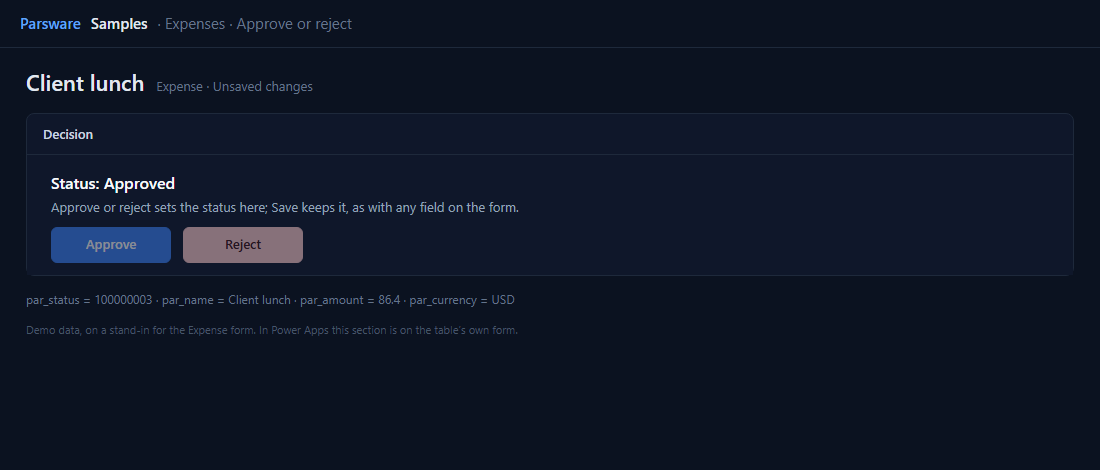
The status changes on the form, so it saves with the form, like a value picked from the dropdown. Reject is only offered while the expense is Submitted.
Try it
- Install the three Parsware for Power Apps solutions, samples included (Install it).
- Open Sample data and press Replace, so the newest columns are filled (The samples, and sample data).
- Open a submitted expense. Approve or reject is a section on the form.
The pictures show the shipped design running on demo data in Parsware’s own runtime. In Power Apps the form, the side pane and the dialog are the app’s own.