A different panel for each case type
One control on the case form shows whichever design the case’s type names: a hardware checklist for a hardware case, an access one for access.
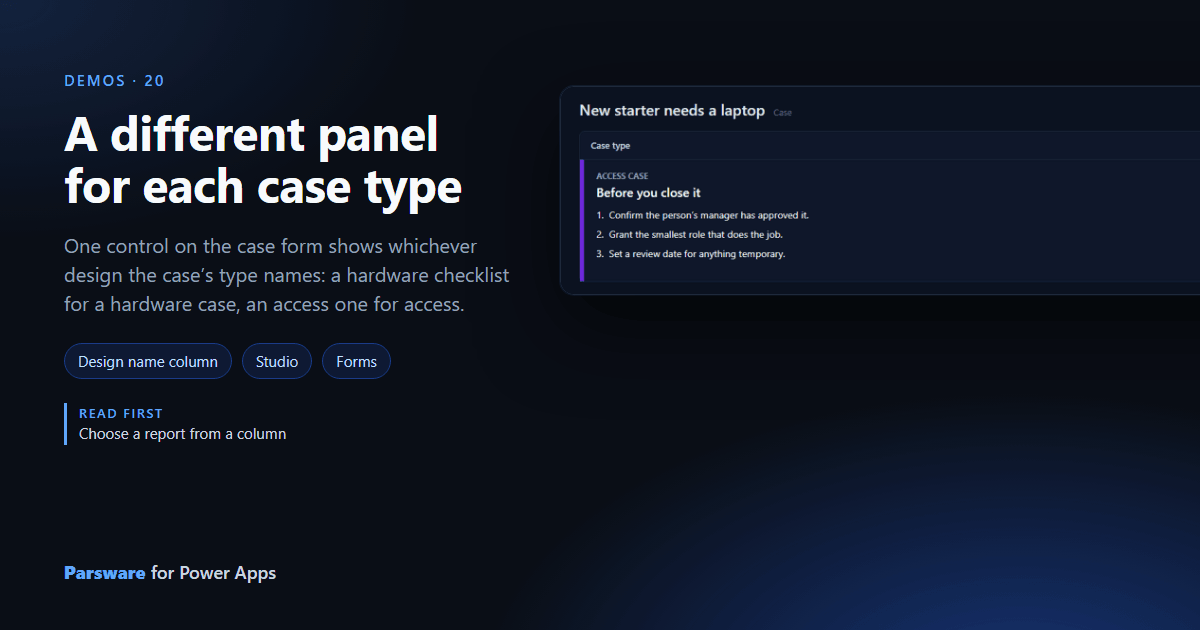
A hardware fault and a request for access need different checklists. This demo shows the right one on each case, from one control.
The Parsware control has a Design name column setting: a text column that holds the name of the design to show. On the case form it is Case type, so a case whose type is Access case shows the design called Access case (Choose a report from a column explains the setting).
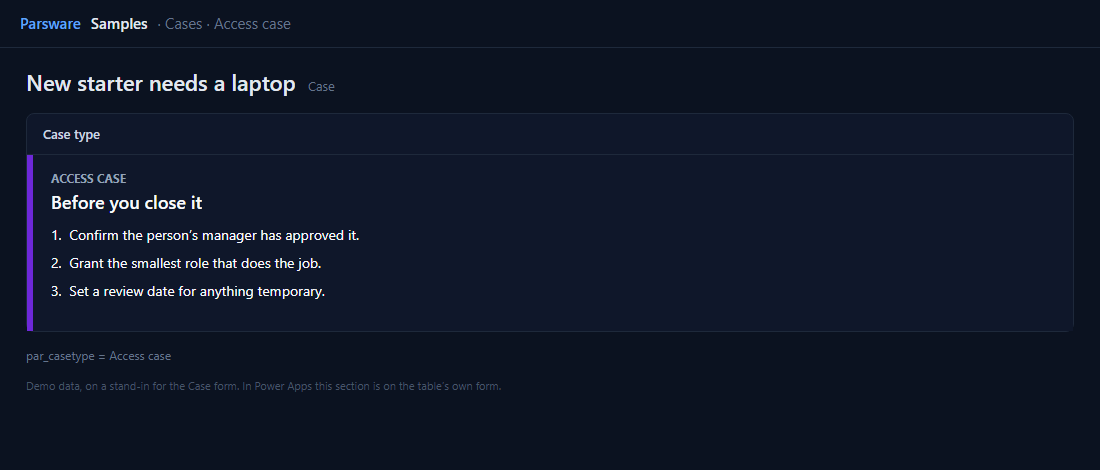
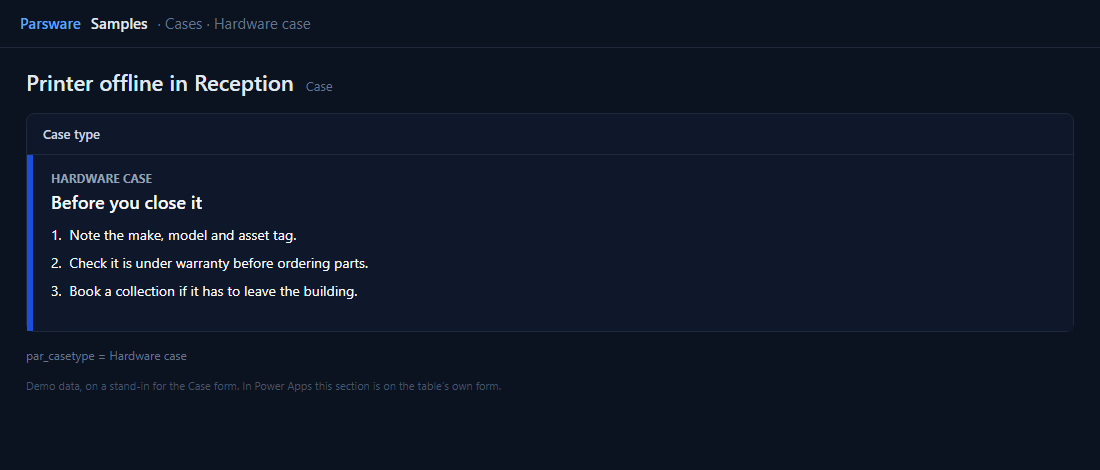
When the type is empty
A case with no type falls back to the control’s Design setting, here Choose a case type: three buttons that set the column.
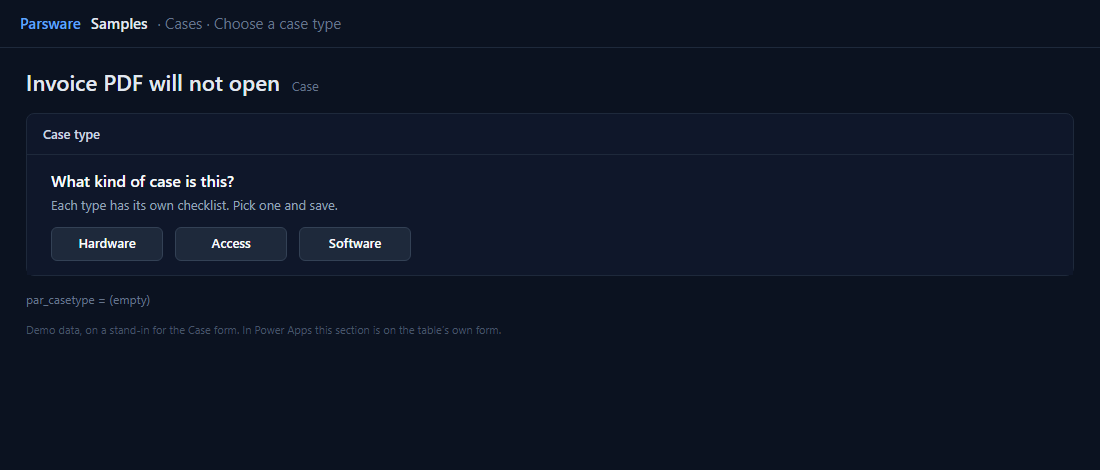
setFieldValue("Access case");
Save the case and the control shows the Access panel. Adding a type is drawing a design and giving it the type’s name.
Try it
- Install the three Parsware for Power Apps solutions, samples included (Install it).
- Open Sample data and press Replace, so the newest columns are filled (The samples, and sample data).
- Open a case. A panel for each case type is on the Drawn controls tab.
The pictures show the shipped design running on demo data in Parsware’s own runtime. In Power Apps the form, the side pane and the dialog are the app’s own.