A colour picker
Eight swatches for a text column that holds a colour. The chosen one is ringed, and its code is written underneath.
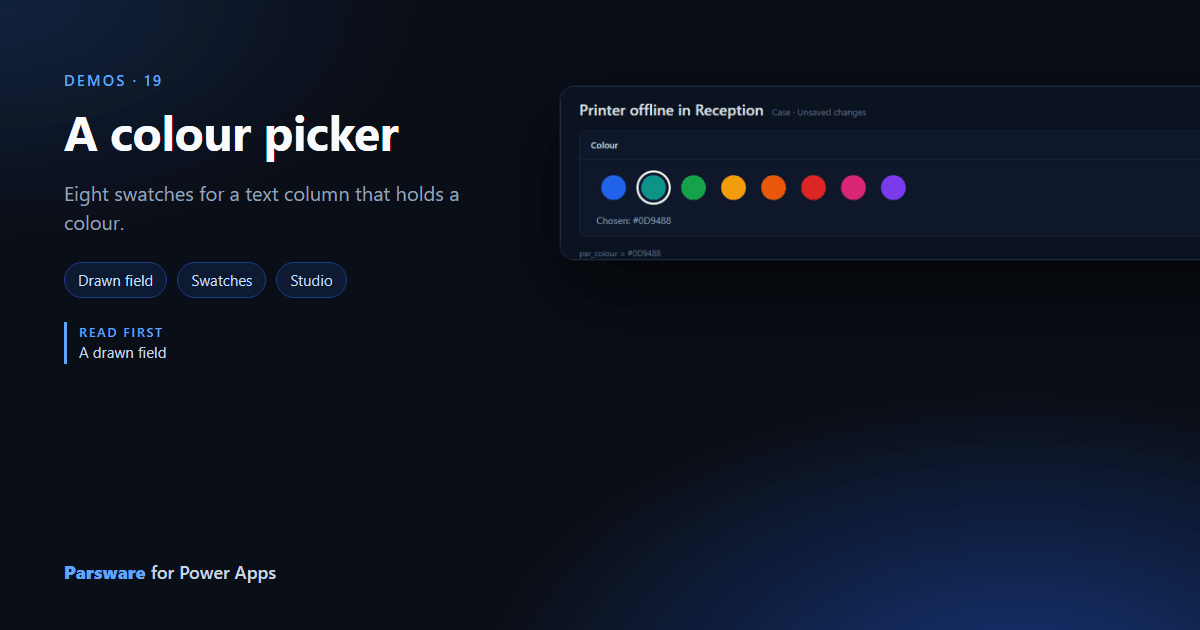
A colour kept in a text column, a code like #2563EB, means nothing to someone reading a form.
This demo shows Colour on a case as eight swatches.
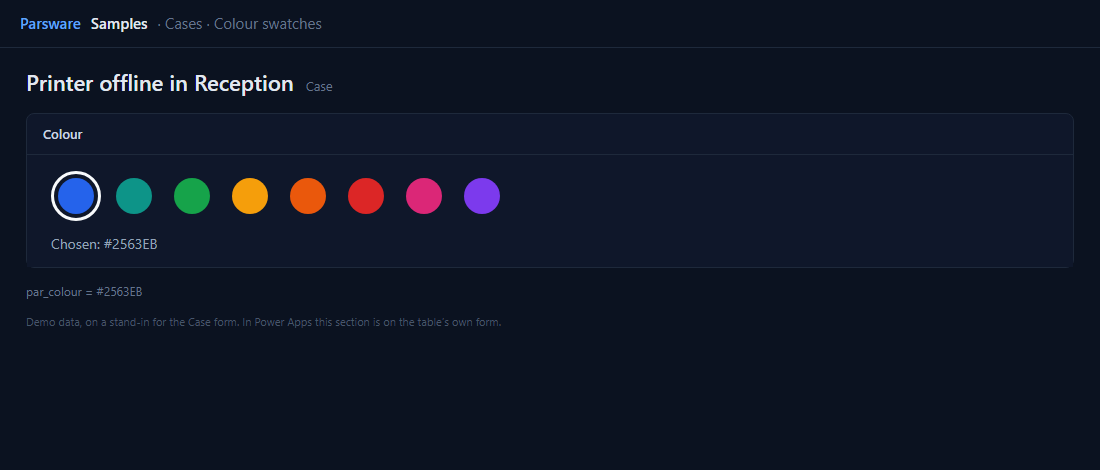
A swatch is its code
Each swatch is a clickable box with a coloured dot in it. Its click writes its own code:
setFieldValue("#0D9488");
and a ring around it is shown when field.value == "#0D9488".
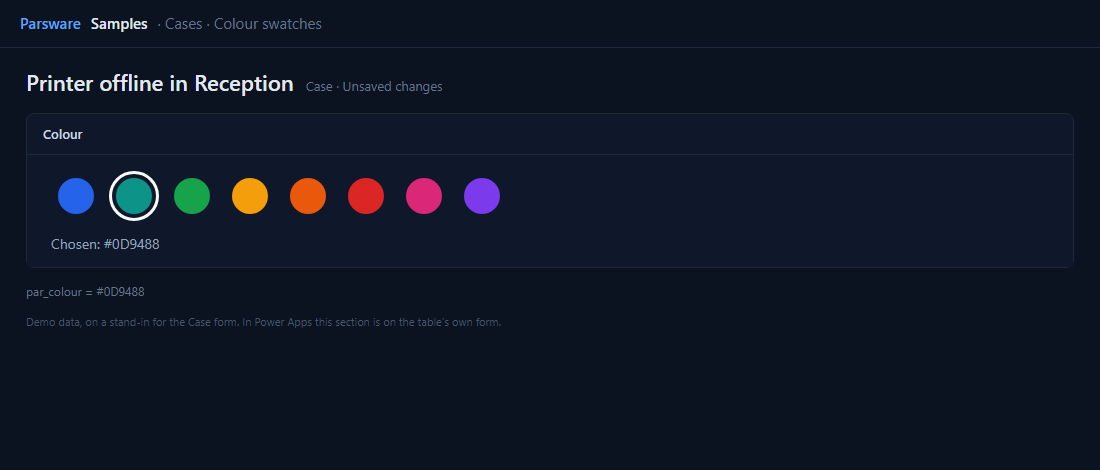
Eight fixed colours are a choice, not a palette, which is usually what a form wants: a colour for each team, each site, each kind of job, picked from a short list so the same thing is always the same colour. The text column keeps the code, so a report or a view can use it as it is.
Try it
- Install the three Parsware for Power Apps solutions, samples included (Install it).
- Open Sample data and press Replace, so the newest columns are filled (The samples, and sample data).
- Open a case. Colour is on the Drawn controls tab.
The pictures show the shipped design running on demo data in Parsware’s own runtime. In Power Apps the form, the side pane and the dialog are the app’s own.