A QR code for the record
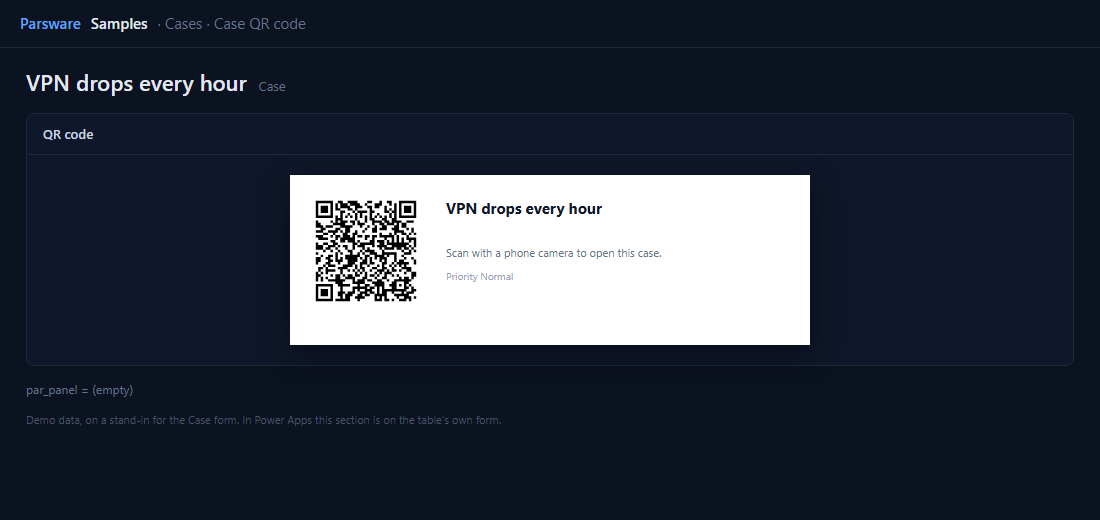
A QR code on the case form that opens this case on a phone. It is a small report, reading the app’s own address, which reports now know.
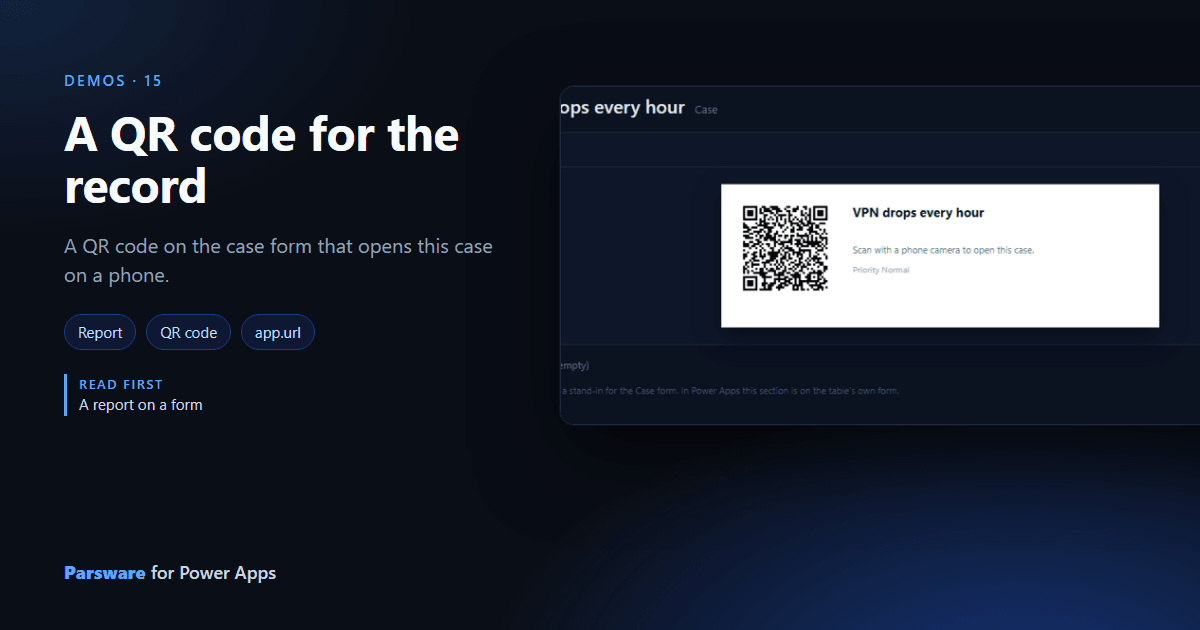
Walking to a printer, a desk or a machine with a case open on your phone is easier with a code to scan. This demo puts one on the case form: point a phone camera at it and the case opens.
It is a report rather than a drawn screen, because a report has barcodes and QR codes. It sits on the Case form through the Parsware control, narrowed to the case it is on (A report on a form).
The app’s address
A QR code that opens a record needs the record’s full address, and only the app knows its own. A
report shown in Power Apps can now read it as app.url. The code is bound to:
concat(app.url, '/main.aspx?pagetype=entityrecord&etn=par_case&id=', row.par_caseid)
row.par_caseid is the case’s id, from a dataset with recordScopeField: "par_caseid", so
on a form it holds exactly this case. Scanned, the phone opens the case in the Power Apps app,
and signs in first if it has to.
Try it
- Install the three Parsware for Power Apps solutions, samples included (Install it).
- Open Sample data and press Replace, so the newest columns are filled (The samples, and sample data).
- Open a case. The QR code section is on the Drawn controls tab.
The pictures show the shipped design running on demo data in Parsware’s own runtime. In Power Apps the form, the side pane and the dialog are the app’s own.