An address card
Street, city, postcode and country in one control: all four of the Parsware control’s column slots, shown as a card and edited together.
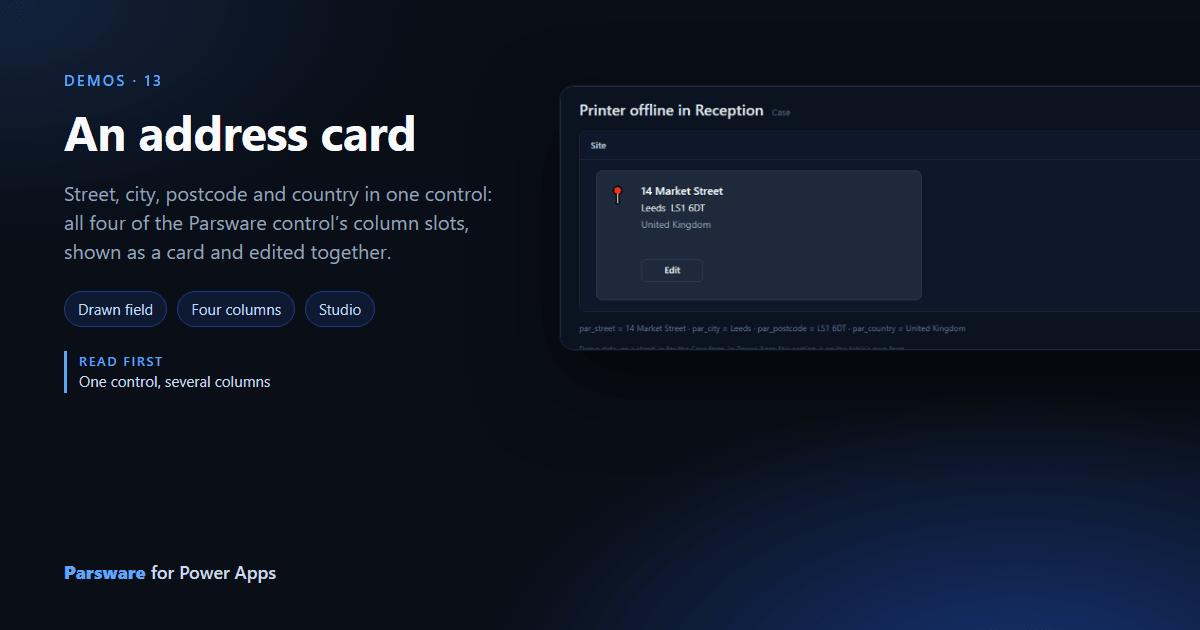
An address is four columns, and a form shows them as four boxes. This demo shows them as one card on the Case form, and edits them together.
The control sits on Site street and uses the Parsware control’s other three column slots for Site city, Site postcode and Site country. Four is the most one control takes.
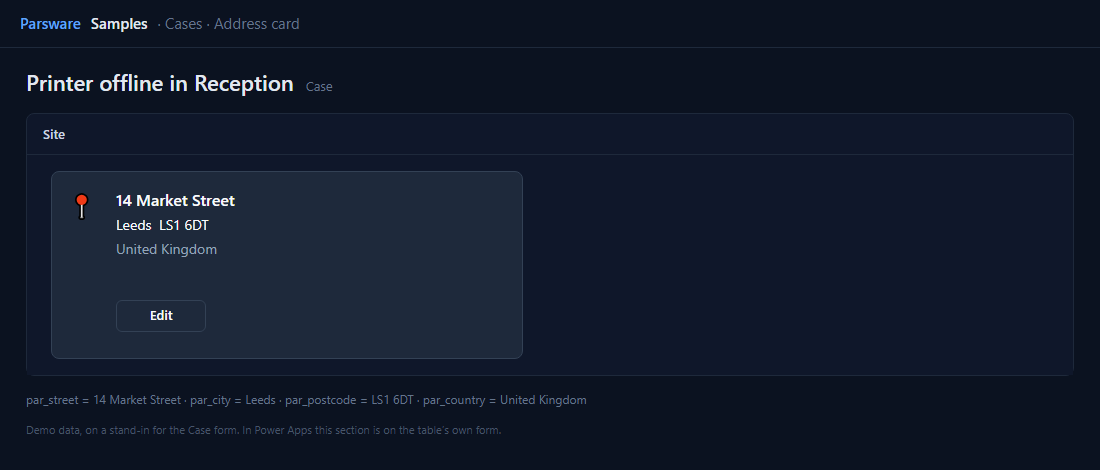
Edit, then Save writes all four
Edit copies the four values into the screen’s state and shows four boxes. Save writes each one back to its column:
setFieldValue(state.street);
setFieldValue("par_city", state.city);
setFieldValue("par_postcode", state.postcode);
setFieldValue("par_country", state.country);
setState("editing", false);
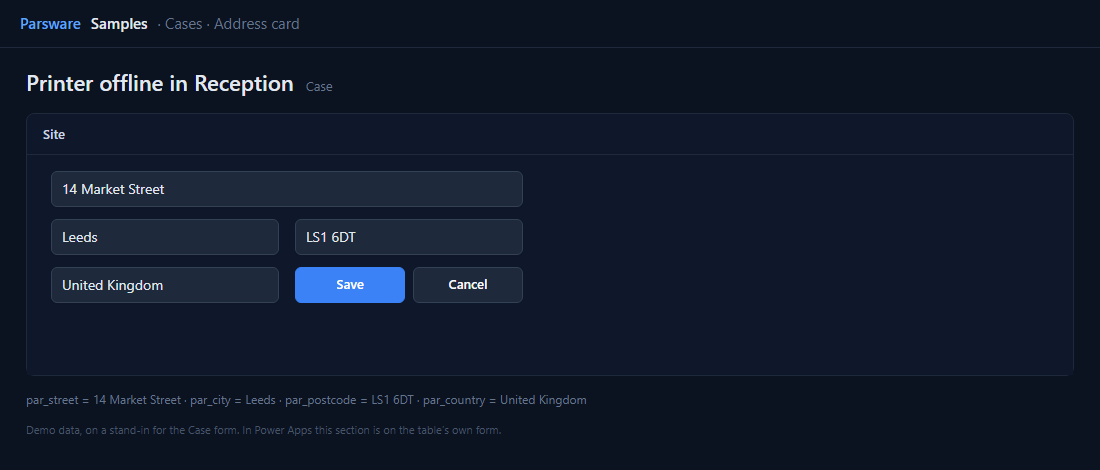
With one argument setFieldValue writes the column the control sits on; with two it writes the
named one. Cancel just puts the card back; nothing reached the form.
Try it
- Install the three Parsware for Power Apps solutions, samples included (Install it).
- Open Sample data and press Replace, so the newest columns are filled (The samples, and sample data).
- Open a case. Site is on the Drawn controls tab.
The pictures show the shipped design running on demo data in Parsware’s own runtime. In Power Apps the form, the side pane and the dialog are the app’s own.