A spend-limit bar
An expense’s amount against its limit as one bar that turns red once it’s over: one drawn control reading two columns.
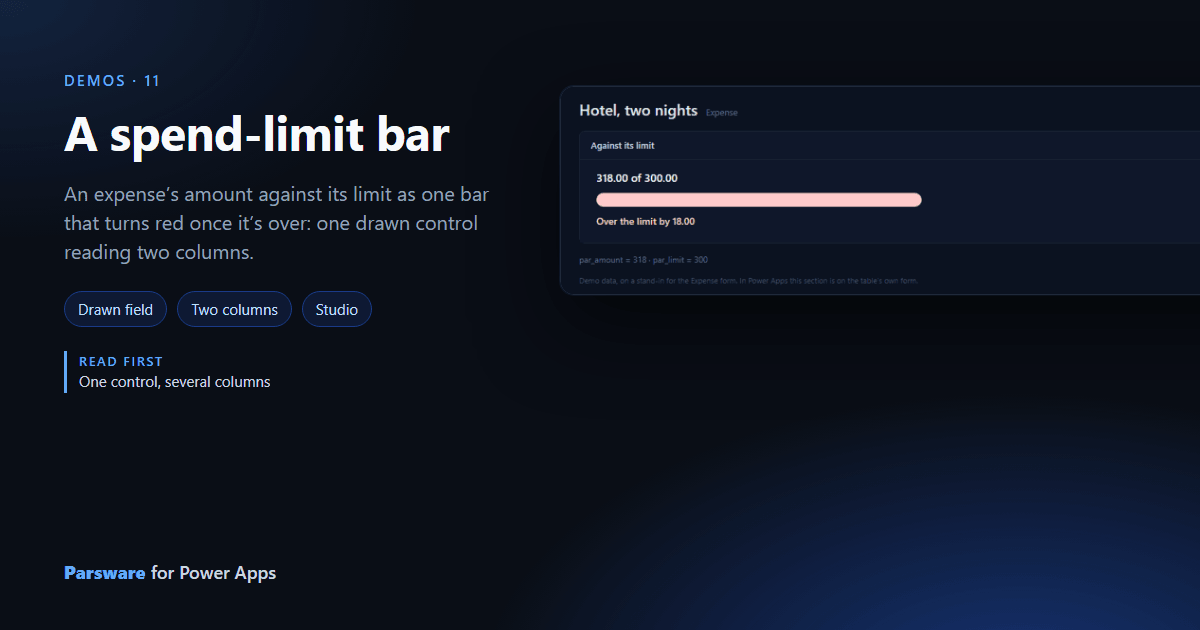
An amount means more next to its limit. This demo puts both in one control on the expense form: a bar that fills as the amount nears the limit and turns red once it’s over.
The control sits on Amount and is also bound to Limit, the Parsware control’s second
column. It reads them as field.value and fields.par_limit
(One control, several columns).
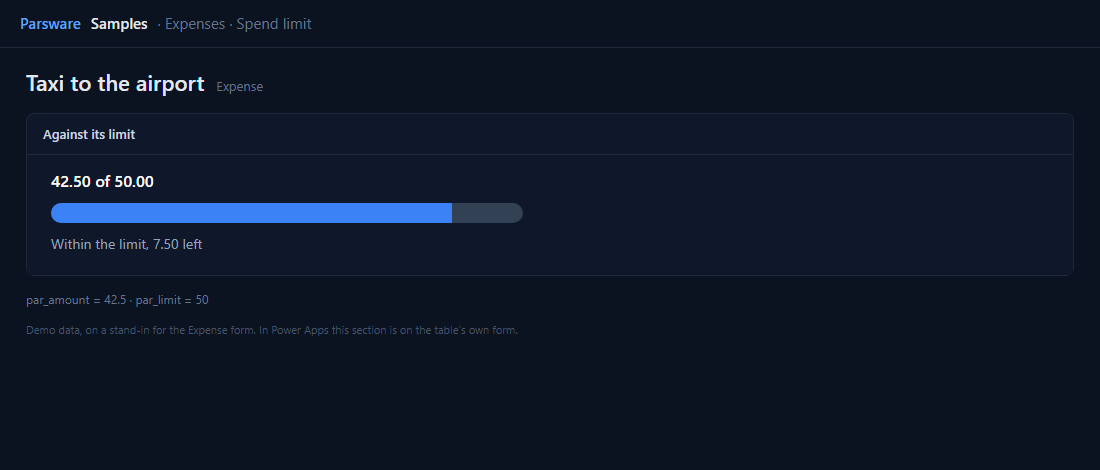
Twenty segments and a red bar
The bar is twenty blue segments in a grey track, each shown once the percentage reaches it, so it fills from the left with no width to bind:
num(fields.par_limit) == 0 ? 0 : num(field.value) * 100 / num(fields.par_limit)
Over a hundred, the segments hide and one red bar shows instead, with a sentence in the error colour:
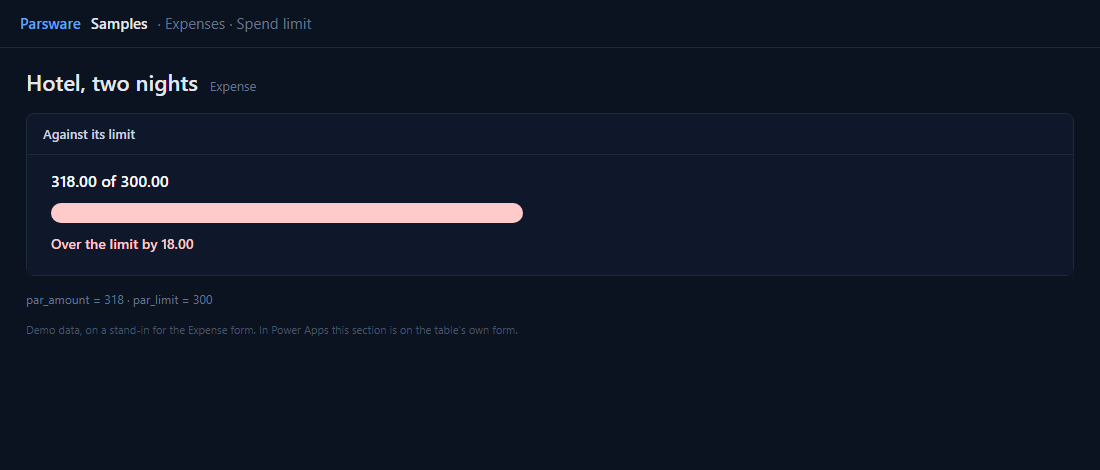
"Over the limit by " + format(num(field.value) - num(fields.par_limit), "number")
format writes the number the way the reader’s language does.
Try it
- Install the three Parsware for Power Apps solutions, samples included (Install it).
- Open Sample data and press Replace, so the newest columns are filled (The samples, and sample data).
- Open an expense. The bar is in the Spend limit section.
The pictures show the shipped design running on demo data in Parsware’s own runtime. In Power Apps the form, the side pane and the dialog are the app’s own.