A priority traffic light
A choice column drawn as three lamps, Low, Normal and High. Click a lamp to set the priority. A drawn control can now be bound to a choice.
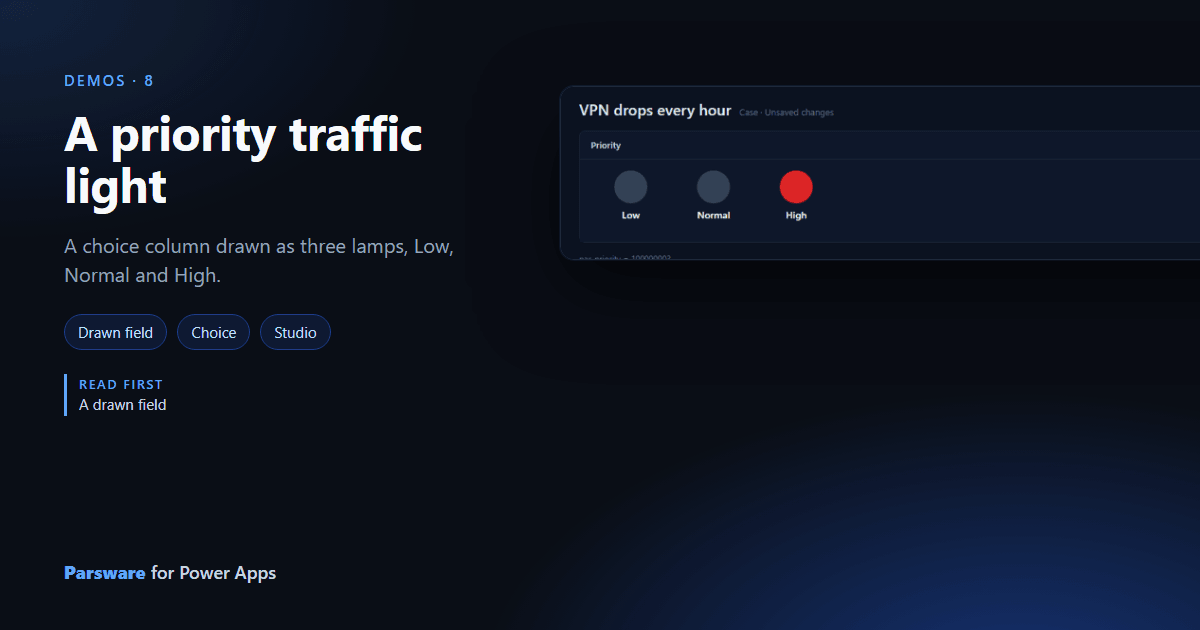
Priority is a choice column, and Power Apps shows a choice as a dropdown. Three lamps say the same thing at a glance. This demo is on the Case form’s Drawn controls tab.
It is a drawn field: a Parsware Studio design placed on the column through the Parsware
control, in place of the column’s own control. It reads the column as field.value and writes it
with setFieldValue(...), so the value goes to the form: saved when you save and gone if you
discard, like anything typed into the form. Until this release a drawn field could not sit on a choice column. Now it can.
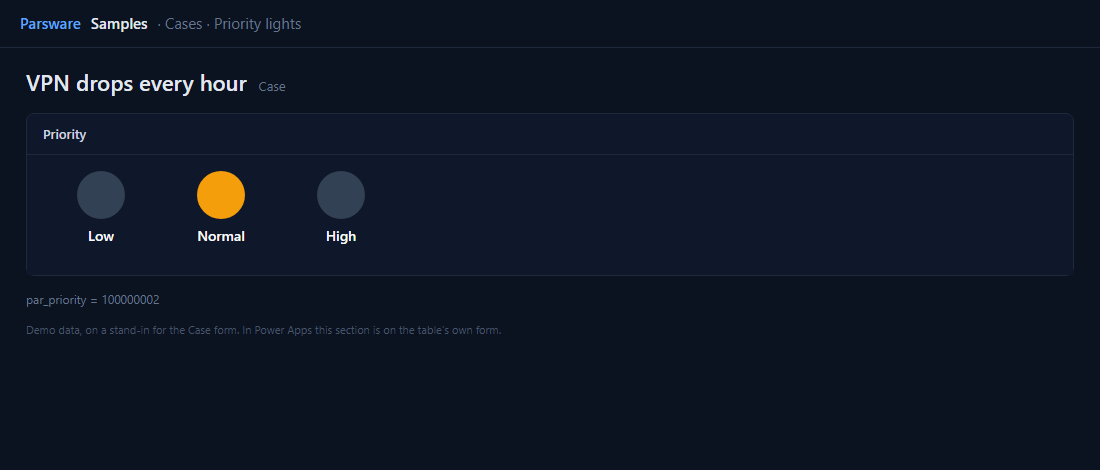
A choice, as its option’s number
A drawn control reads a choice column as its option’s number, not its label, because the label
is the reader’s language and a drawing has to work in all of them. Priority’s options are 100000001,
100000002 and 100000003, so the High lamp is lit when field.value == "100000003", and clicking it
is:
setFieldValue("100000003");
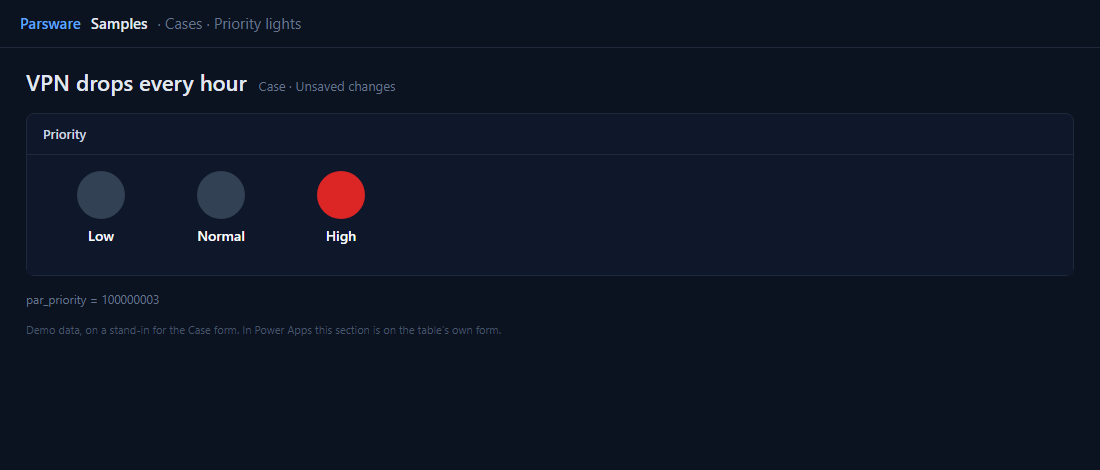
Each lamp is two dots drawn on top of each other, a grey one and a coloured one, and the coloured one is shown only when the value is its number. Dataverse checks the number against the column’s options when the form saves, as it does for its own dropdown. Lookups and multi-select choices still can’t be bound.
Try it
- Install the three Parsware for Power Apps solutions, samples included (Install it).
- Open Sample data and press Replace, so the newest columns are filled (The samples, and sample data).
- Open a case. Priority is on the Drawn controls tab.
The pictures show the shipped design running on demo data in Parsware’s own runtime. In Power Apps the form, the side pane and the dialog are the app’s own.