A star rating
Five clickable stars on a number column of a model-driven form, drawn in Parsware Studio instead of coded as a PCF control.

A rating is a number from one to five, and Power Apps shows it as a box you type a number into. This demo draws five stars on the Case form’s Rating column instead.
It is a drawn field: a Parsware Studio design placed on the column through the Parsware
control, in place of the column’s own control. It reads the column as field.value and writes it
with setFieldValue(...), so the value goes to the form: saved when you save and gone if you
discard, like anything typed into the form. It is on the Drawn controls tab of every case in the samples.
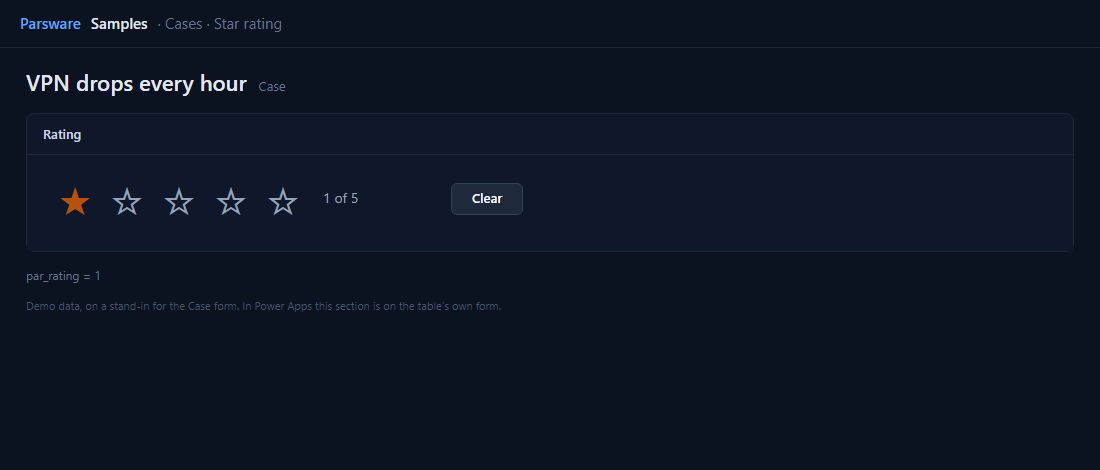
Each star is a click and two pictures
Each star is a clickable box with two stars drawn in it, a filled one and an outline, and only one
of them visible. The filled star’s Shown is num(field.value) >= 3 (for the third star). The
click is the star’s own number:
setFieldValue("3");
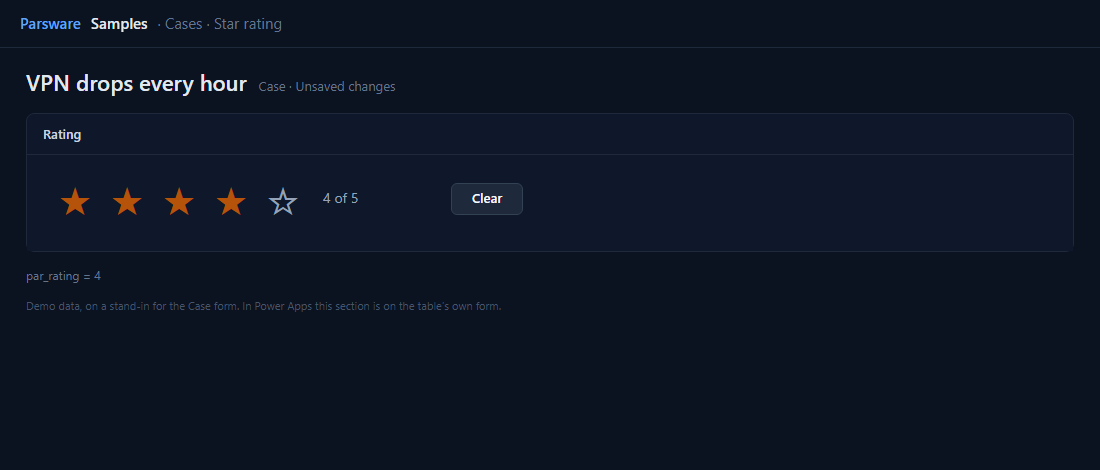
Clear is setFieldValue(""), which empties the column. The words beside the stars read the
same value: field.value == "" ? "Not rated" : field.value + " of 5".
A button keeps one caption and drops anything else drawn inside it, so a star with two states is drawn as a clickable box. It can still be reached with Tab and pressed with Enter or Space, and a screen reader calls it a button.
Try it
- Install the three Parsware for Power Apps solutions, samples included (Install it).
- Open Sample data and press Replace, so the newest columns are filled (The samples, and sample data).
- Open a case in Parsware Samples. Rating is on the Drawn controls tab, and the plain column is on General.
The pictures show the shipped design running on demo data in Parsware’s own runtime. In Power Apps the form, the side pane and the dialog are the app’s own.