Ask before a bulk change
One button changes every draft expense at once, so it asks first, in the app’s own dialog, and says exactly how many rows it is about to change.
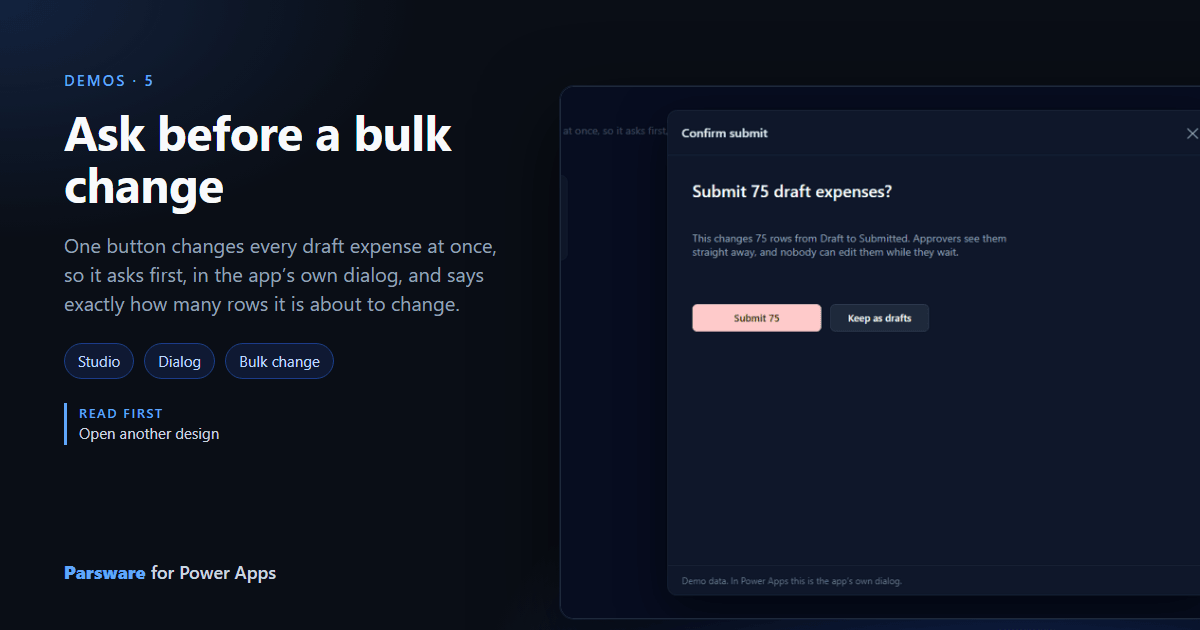
A button that changes one row can just do it. A button that changes seventy-five should say so first, in words, with the number in them. This demo is that confirmation. In the samples: Demos → Submit drafts.
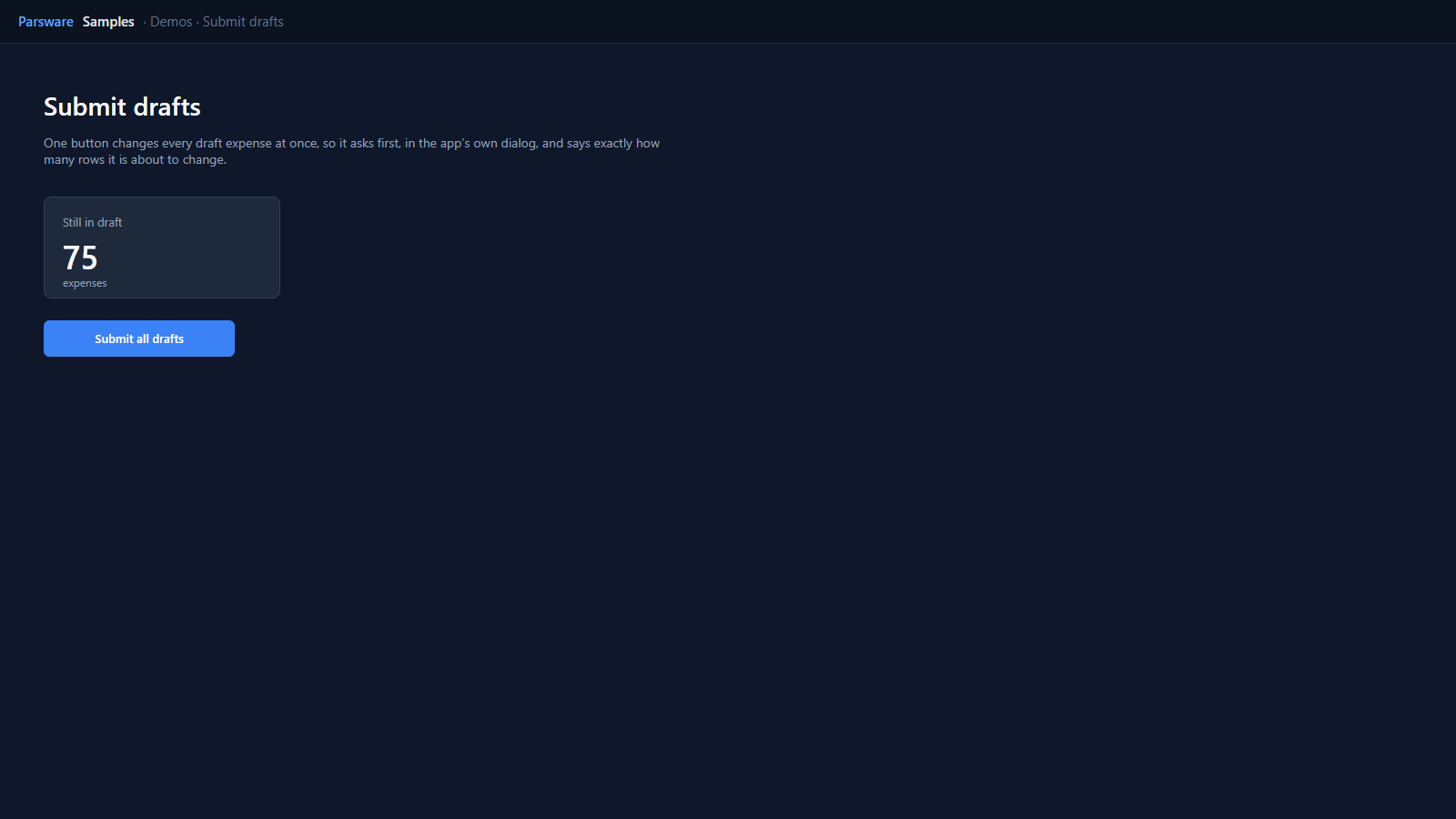
The page asks; the dialog counts
Submit all drafts doesn’t change anything. It opens Confirm submit in the app’s dialog. The dialog doesn’t trust a number handed to it. It counts the drafts itself when it opens:
loadRecords("par_expense", "drafts", {
  where: { par_status: 100000001 },
  top: 500,
  countInto: "count"
});
and says what will happen, with that number in the question, the sentence and the button:
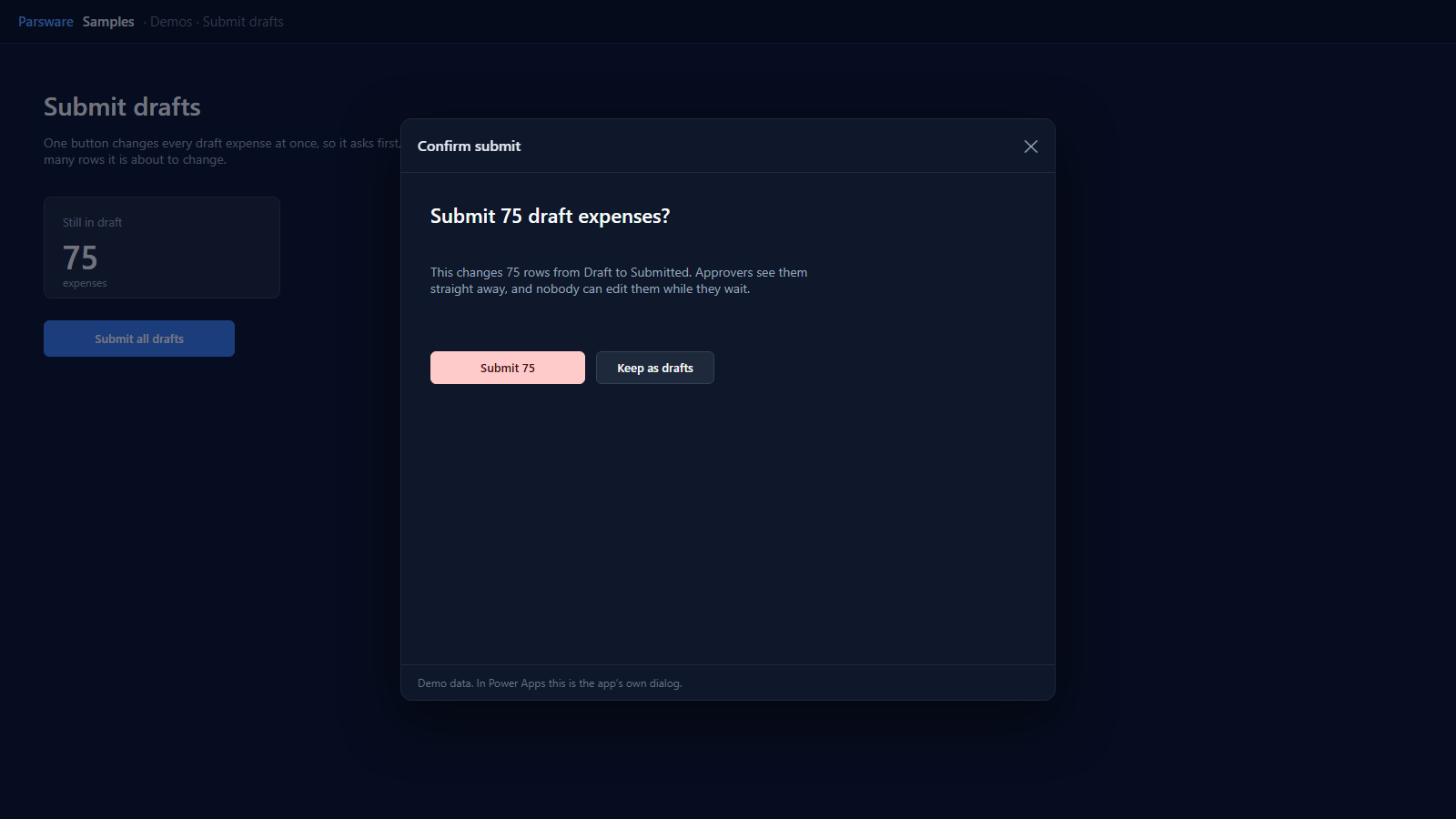
Submit 75 writes each row, says how many, and closes the dialog. Keep as drafts only closes it. Either way, the page’s A design it opened closed handler counts again, so the tile shows what is left.
var i = 0;
for (i = 0; i < state.drafts.length(); i = i + 1) {
  updateRecord("par_expense", state.drafts[i].id, { par_status: 100000002 });
}
notify(text(state.drafts.length()) + " expenses submitted.");
closeDesign();
The button is drawn in the danger colour on purpose: it is the one on the page that cannot be undone with another click.
Try it
- Install the three Parsware for Power Apps solutions, samples included (Install it).
- Open Sample data and press Replace, so the newest columns are filled (The samples, and sample data).
- Open Demos → Submit drafts. Replace the sample data afterwards to get the drafts back.
The pictures show the shipped design running on demo data in Parsware’s own runtime. In Power Apps the form, the side pane and the dialog are the app’s own.