Quick create in the dialog
A three-field drawn form for a new case, opened in the app’s own dialog. Create writes the row and closes the dialog, and the list behind it reads its rows again.
A new case needs a summary, a priority and whether it is urgent. The table’s full form asks for much more, and quick create is a per-table switch with a form of its own. This demo draws the three fields, opens them in the app’s dialog, and puts the list behind it back in step when it closes. In the samples: Demos → Open cases.

The button and the form
New case opens a second design in the dialog: openDesign("New case"). A dialog is what
openDesign does when you don’t name a place.
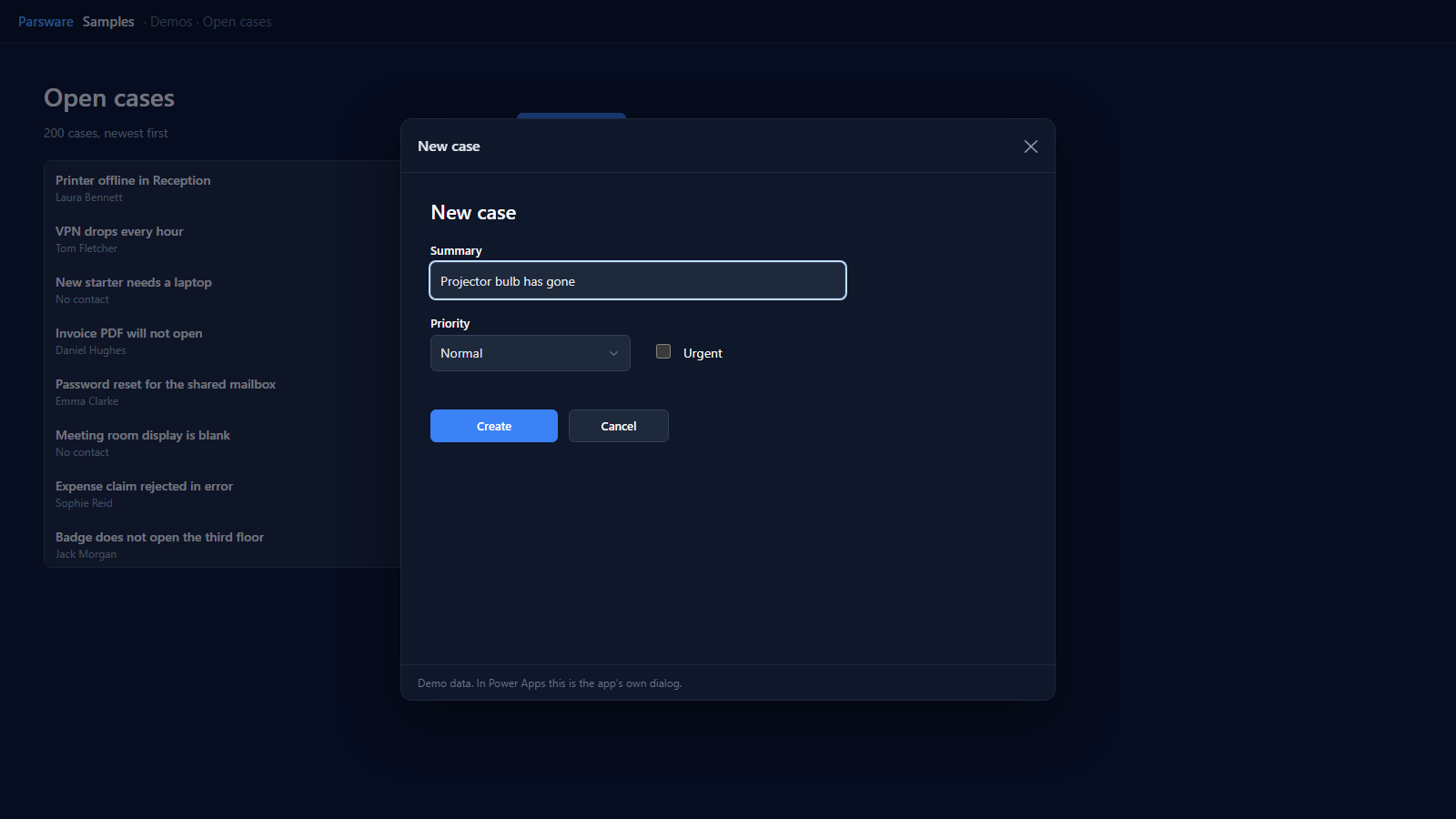
Create checks the summary, turns the priority’s words into the choice’s number, writes the row and closes the dialog it is in:
if (state.form.par_name == "") {
  notifyError("A case needs a summary.");
} else {
  var value = 100000002;
  if (state.priority == "Low") { value = 100000001; }
  if (state.priority == "High") { value = 100000003; }
  createRecord("par_case", { par_name: state.form.par_name, par_priority: value, par_urgent: state.form.par_urgent });
  notify("Case created.");
  closeDesign();
}
The list reads again
The page has an A design it opened closed handler, which runs when the dialog goes, however it went: Create, Cancel or the dialog’s own cross. It counts and reads the list again, so the new case is at the top:
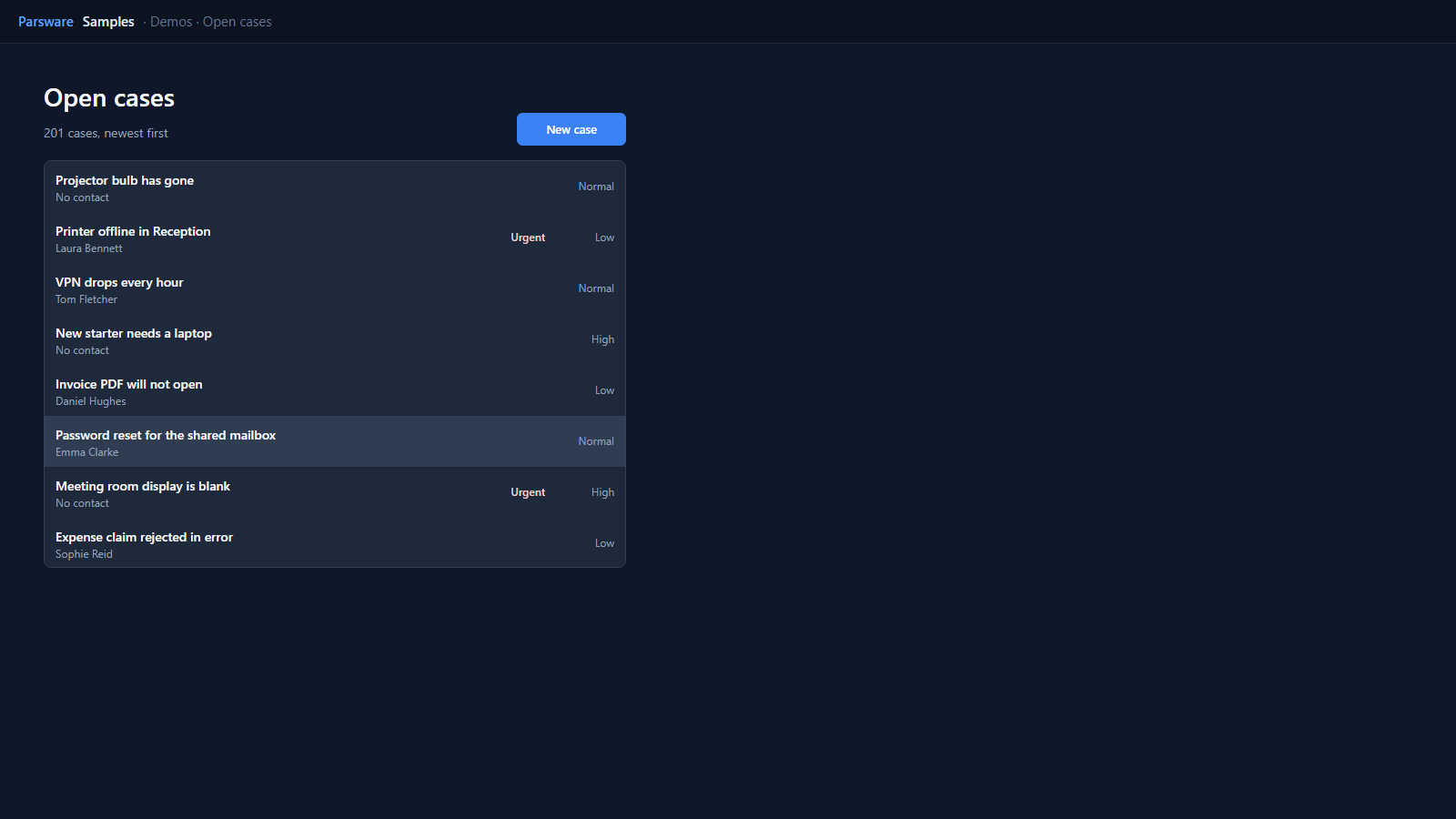
This is what openDesign could not do before. It never waits for the dialog, because a handler
runs under a one-second budget. The host calls the page back when the dialog closes instead.
Try it
- Install the three Parsware for Power Apps solutions, samples included (Install it).
- Open Sample data and press Replace, so the newest columns are filled (The samples, and sample data).
- Open Demos → Open cases and press New case.
The pictures show the shipped design running on demo data in Parsware’s own runtime. In Power Apps the form, the side pane and the dialog are the app’s own.