Peek at a record in the side pane
Click a row in a drawn list and the record opens beside it, in the app’s own side pane, with the list still there. The new third argument of openDesign hands the row over.
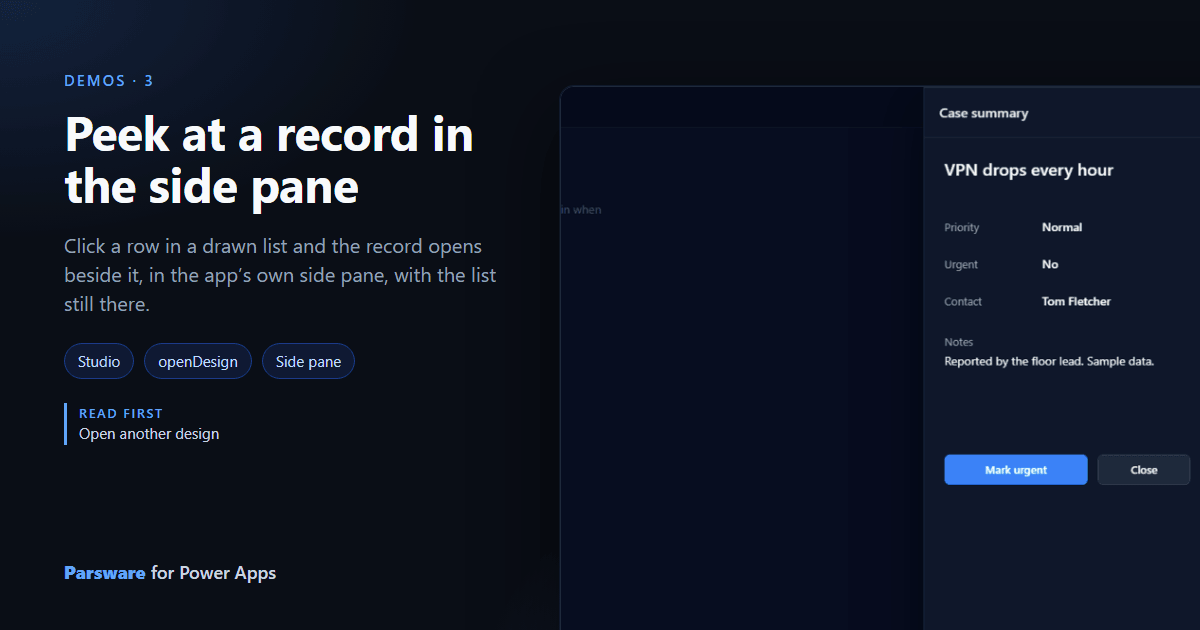
Opening a record from a list in a model-driven app takes you away from the list. You read the record, press Back, and find your place again. Often you only wanted to look.
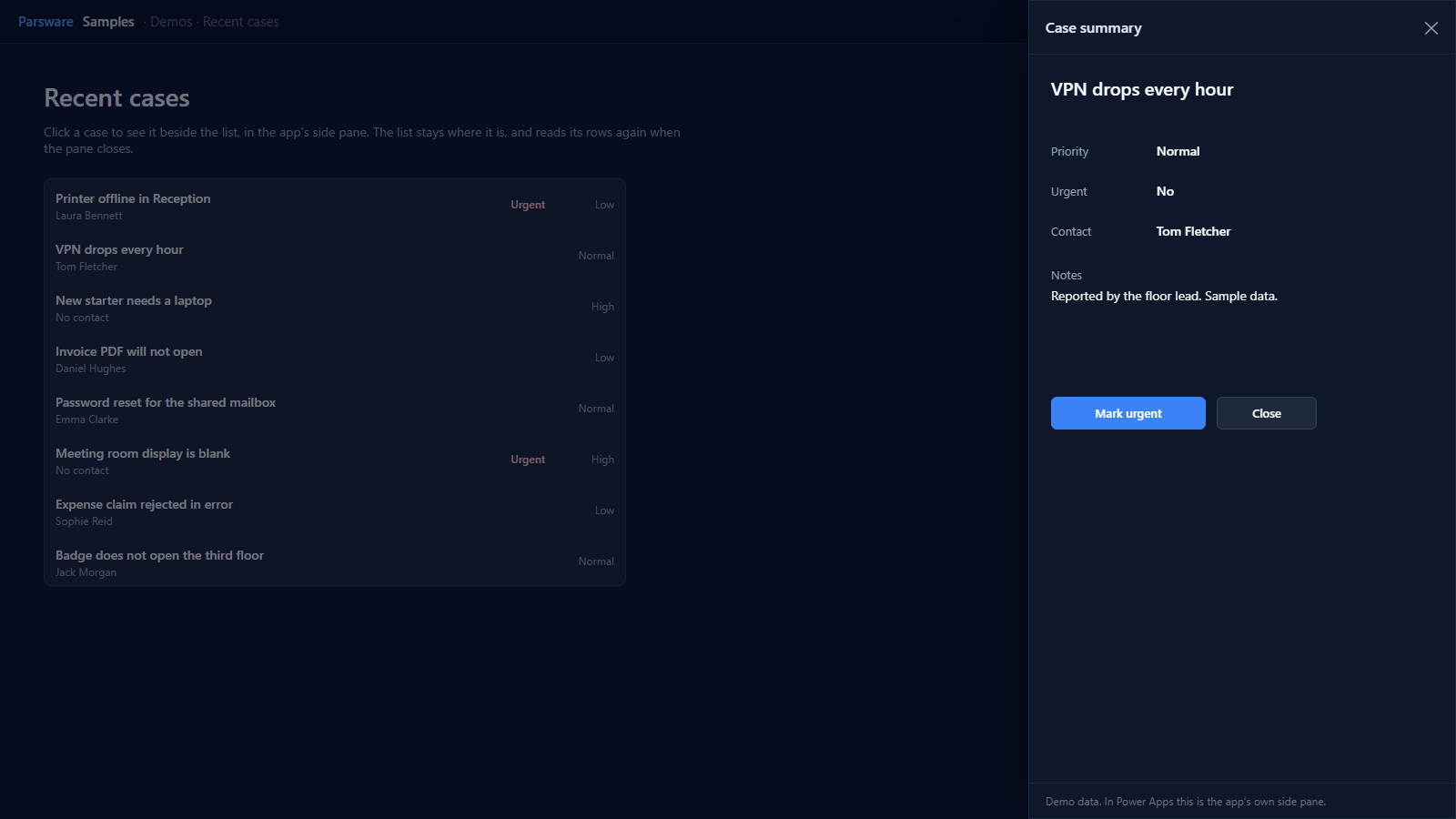
This demo keeps the list where it is. Recent cases is a drawn page listing the eight newest cases. Click one and its summary opens in the app’s side pane, beside the list. It ships in the samples: Parsware Samples → Demos → Recent cases.
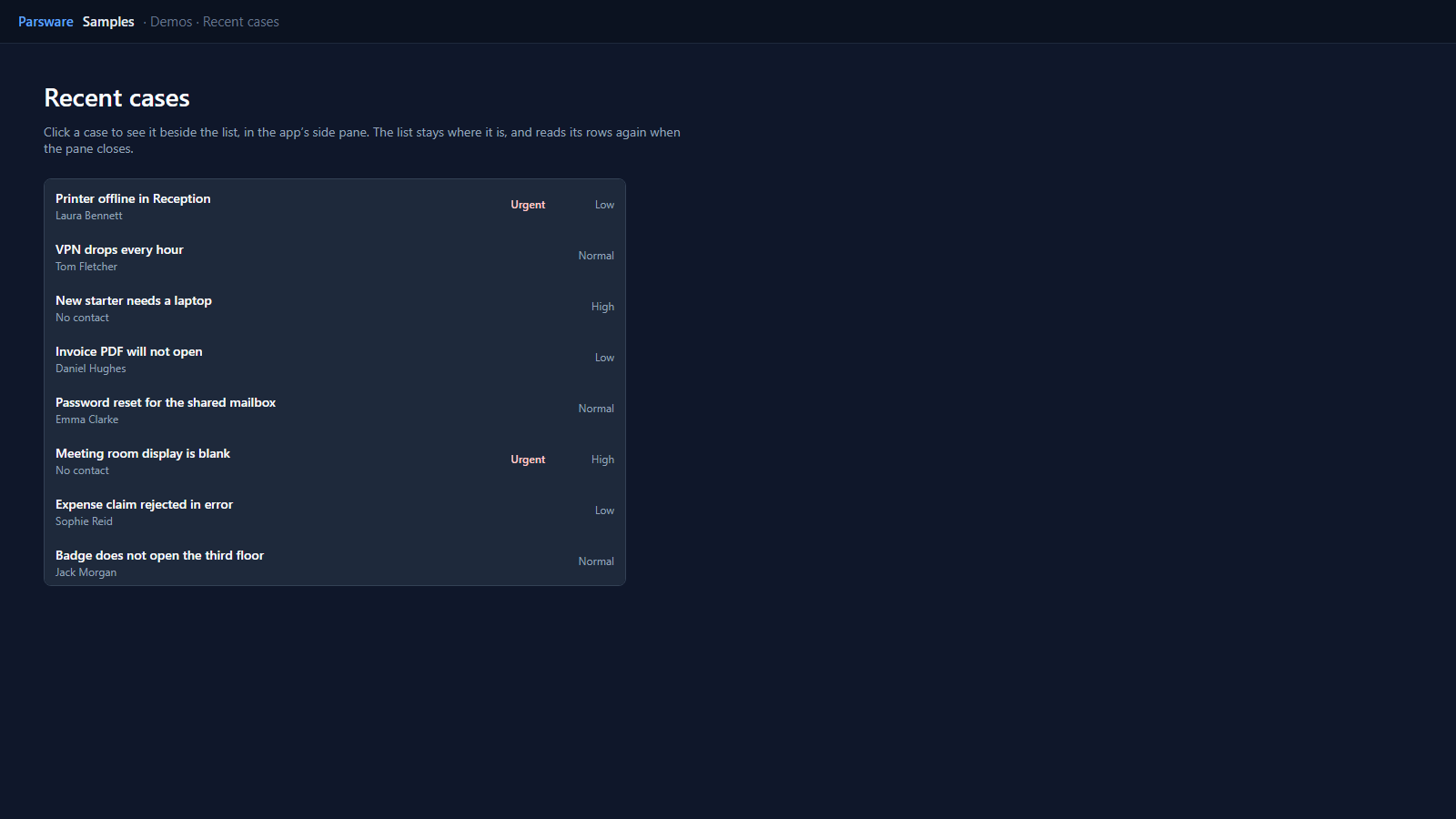
Handing the row over
The row’s click handler is one line. openDesign has always taken the design to open and where
to put it; now it takes a third argument, the values the opened design starts with:
openDesign("Case summary", "side", { id: row.id });
Case summary reads them as screen.params, the same place navigate puts what one screen
hands the next. Its Screen opened handler loads that one case:
if (text(screen.params.id) != "") {
  getRecord("par_case", screen.params.id, "case");
  setState("loaded", true);
}
Only plain values travel (a text, a number, true or false), because they go in the address of the page that opens. Hand over an id, not the row.
The list notices when the pane closes
Mark urgent in the pane writes the case straight away. The list behind it should show that, so the page has a handler for a new event, A design it opened closed. It runs once the pane is gone, and here it reads the list again:
loadRecords("par_case", "cases", {
  orderBy: "createdon",
  descending: true,
  top: 8
});
Try it
- Install the three Parsware for Power Apps solutions, samples included (Install it).
- Open Sample data and press Replace, so the newest columns are filled (The samples, and sample data).
- Open Parsware Samples → Demos → Recent cases, and click a case.
The pictures show the shipped design running on demo data in Parsware’s own runtime. In Power Apps the form, the side pane and the dialog are the app’s own.