Parsware Platform
Themes, accent colours and fonts
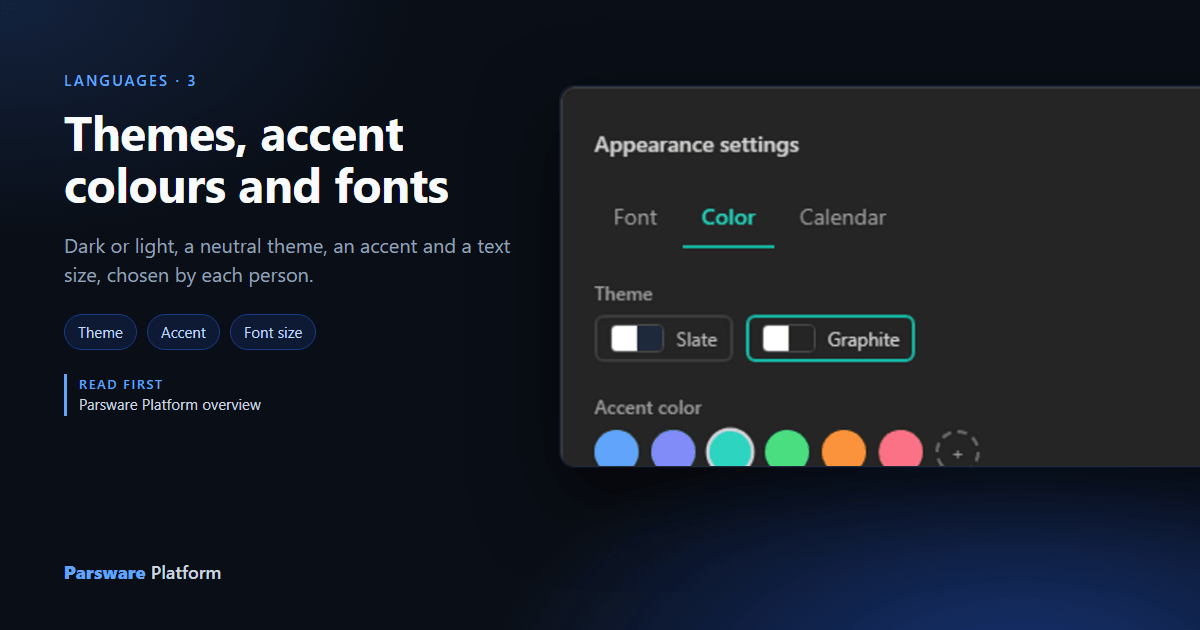
Dark or light, a neutral theme, an accent colour, a font and a text size: five choices each person makes for themselves, in one dialog, and every screen of every app follows. We changed all five on the capital planning app and looked at what moved.
How the platform looks is each person's choice, not the tenant's. Somebody who works late wants it
dark, somebody with a projector wants it light, somebody else needs larger text. None of that should
need an administrator. This article changes all five settings on the Capital requests view of the
capital planning sample, samples/solutions/studio-capital-planning.
Where it is
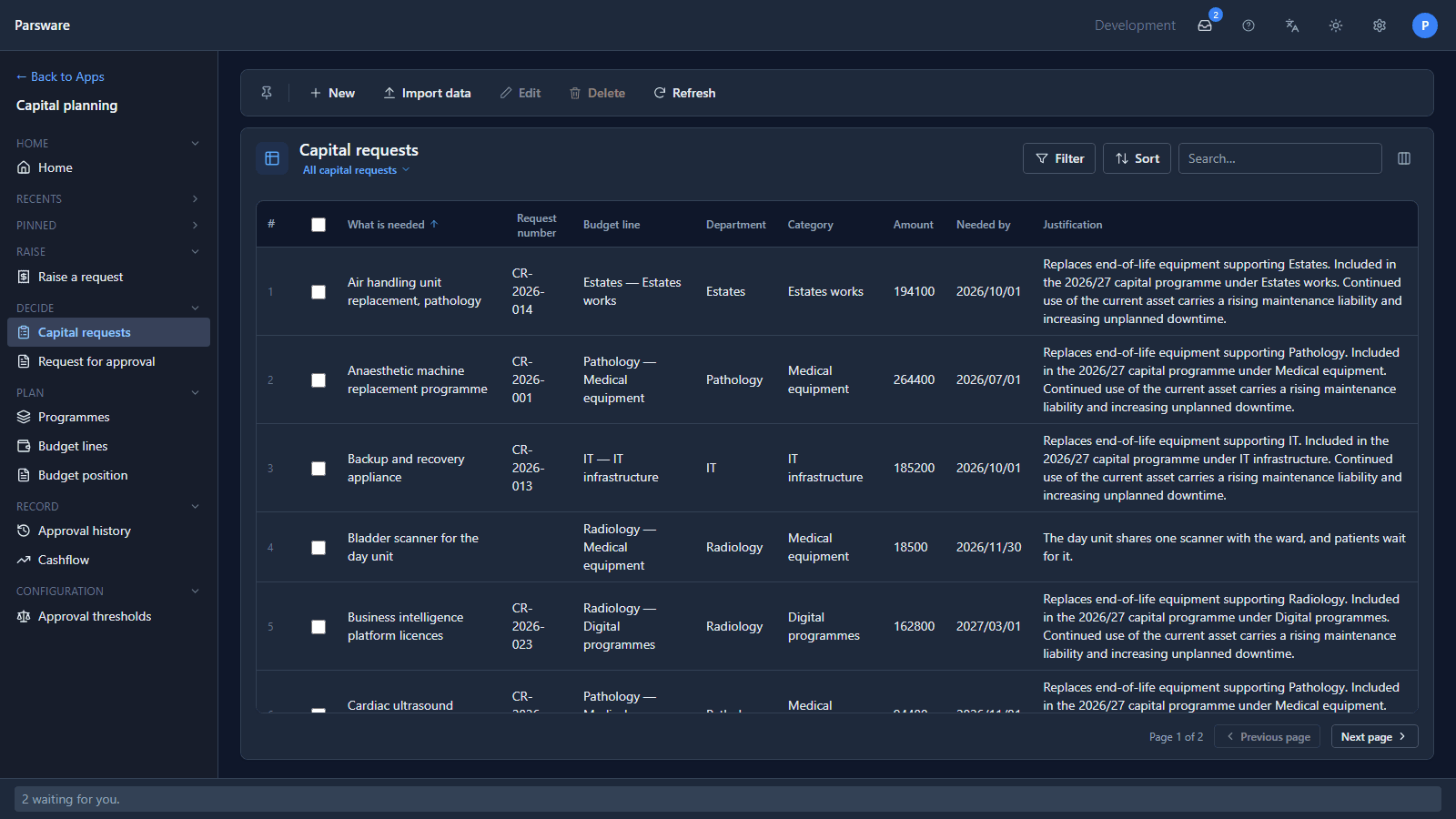
Every screen has the same two buttons in the top bar: the sun or moon switches between dark and light, and the gear opens Appearance settings. Here's the view as it starts, dark, in the Slate theme with a blue accent:
Font and size
The Font tab picks a typeface and a size:
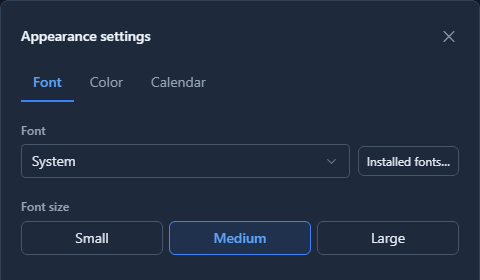
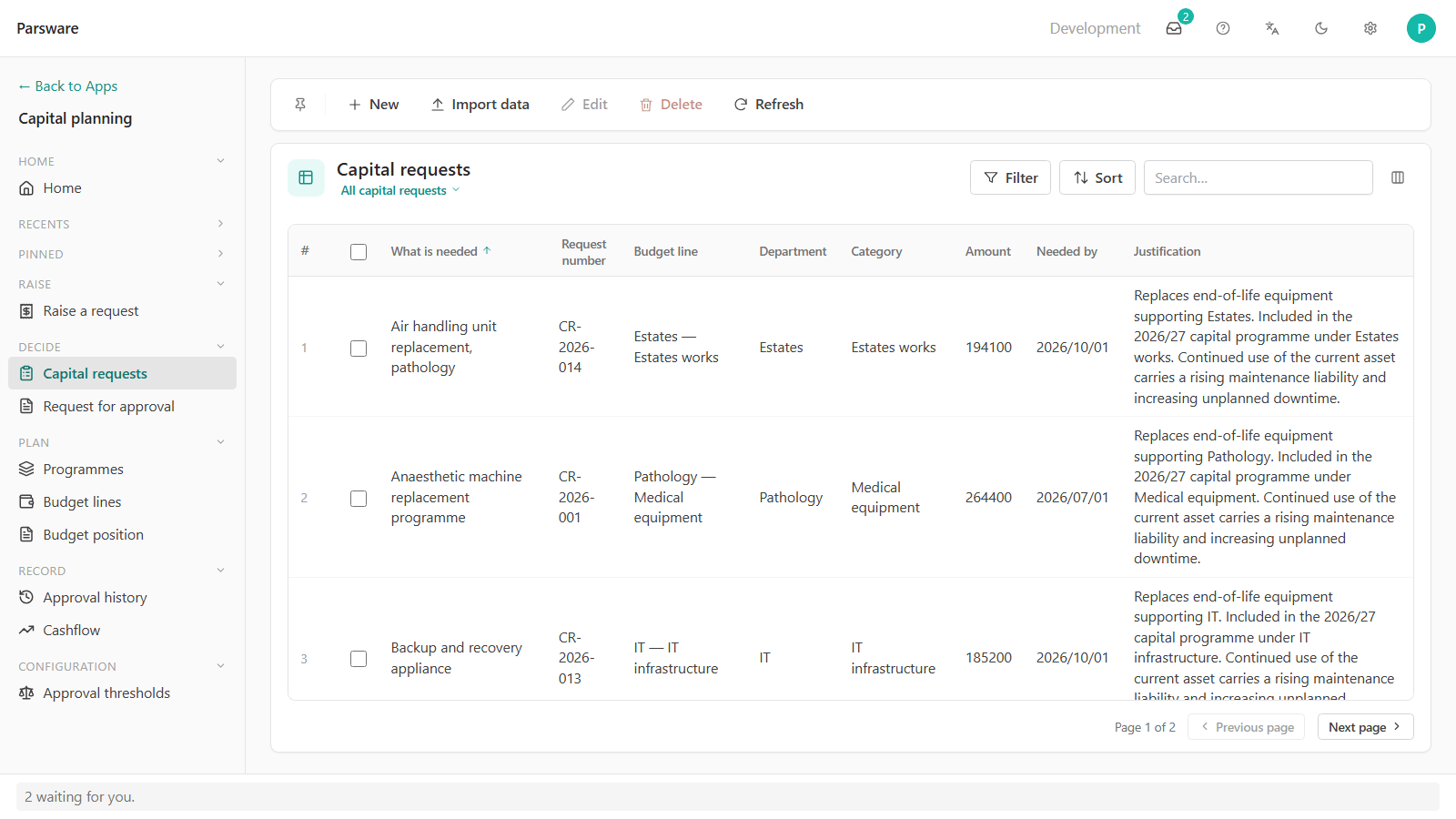
Five typefaces are built in. Installed fonts… asks the browser for the ones on your computer, where the browser allows it, and lists them under their own heading. Small, Medium and Large scale everything, not just the text: buttons, rows and gaps grow with it, so nothing overlaps.
Theme and accent
The Color tab has two choices. The theme is the family of greys the product is drawn in, Slate (cool, a little blue) or Graphite (neutral). Each option shows its light and dark ground side by side, because that's what you're choosing. The accent is the one colour used for what you can press and what's selected:
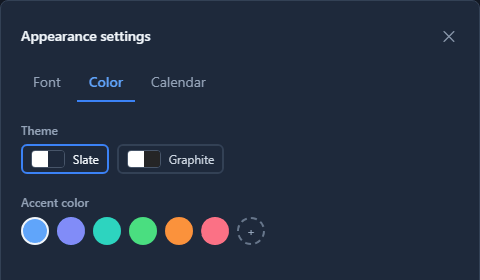
The + takes any colour you like. The platform builds the lighter and darker shades it needs from it, so hover and pressed states still work.
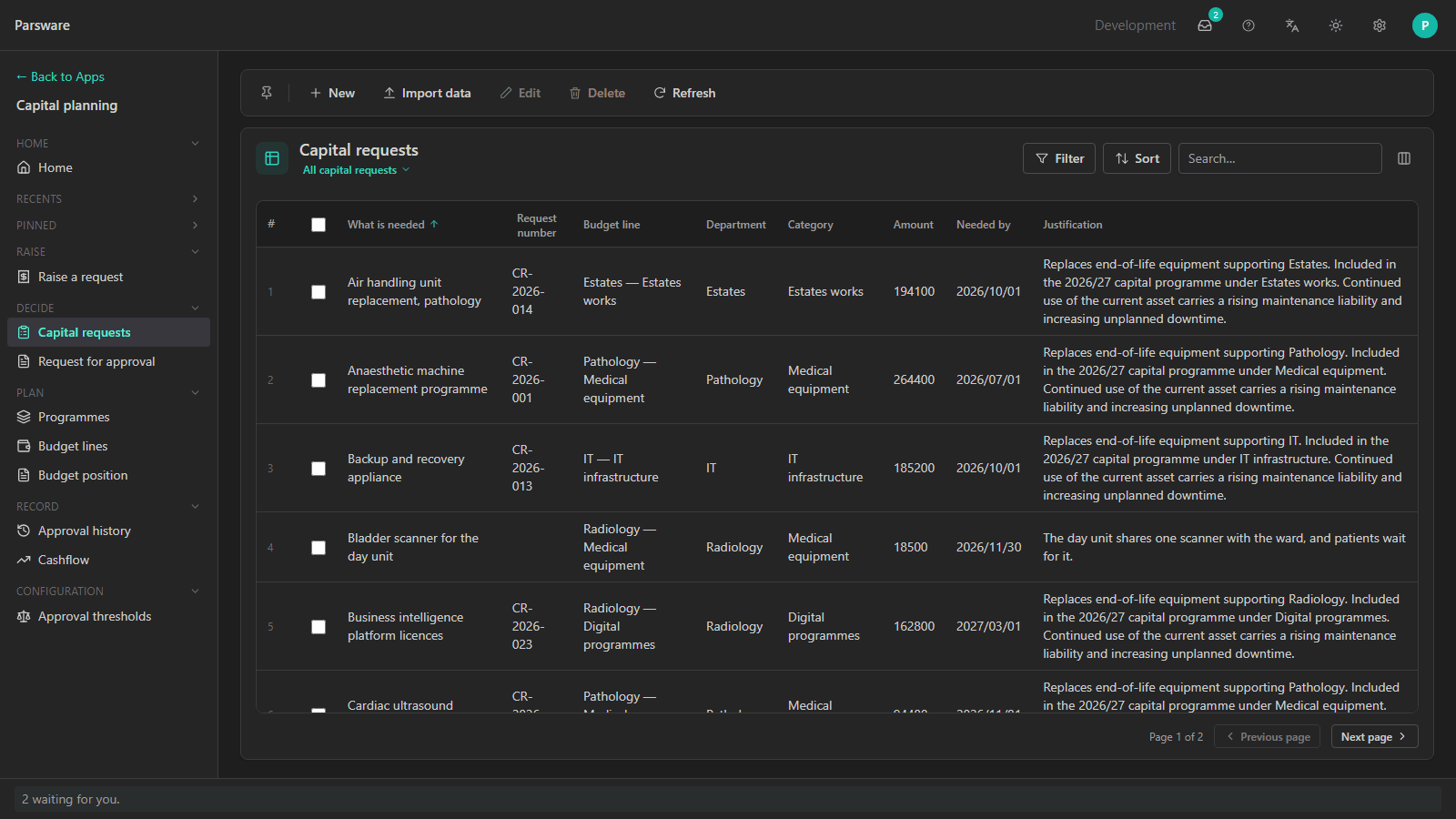
Graphite with a teal accent:
Light
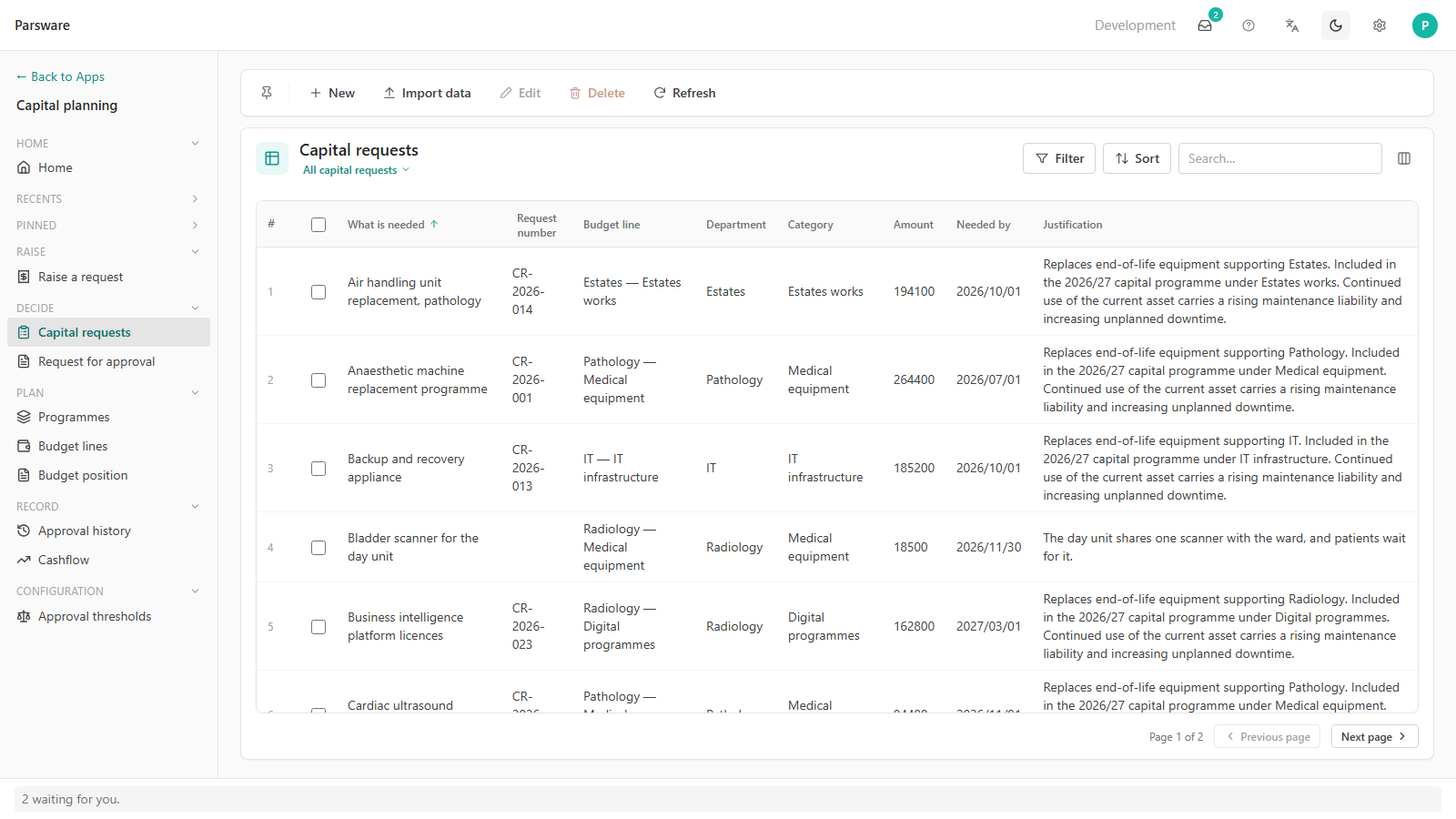
The sun button switches the same choices to light. The theme and accent stay; only the ground changes:
Large text
And Large:
What follows the settings
Everything the platform draws: the maker portal, the Platform Shell, forms, views and the designers. A drawn Studio screen follows the dark or light choice too, wherever its maker used the design tokens rather than fixed colours. A report doesn't: it's printed on white paper, so its canvas stays light.
Settings are stored on the browser, so they apply to the person on that computer and browser; on another computer you choose them again.
What we fixed
- The font list was the browser's own dropdown. It was the last one left in the dialog and didn't match the rest of the product. It's the platform's dropdown now, with your installed fonts in their own group.
Try it
Open any app, press the gear, and work through Font, Color and the sun button. Try the + under Accent color with your organisation's own colour.
Next: Help on every screen.