Parsware Platform
A customer portal on your own data
A portal is a Studio app published at an address of its own, for people outside your organisation: customers, partners, the public. It reads only through Custom APIs, its visitors are portal users rather than platform users, and a rule on the table decides whose rows each one sees. We published the service desk sample, signed up as a customer, started a company, raised a case, and saw it from the inside.
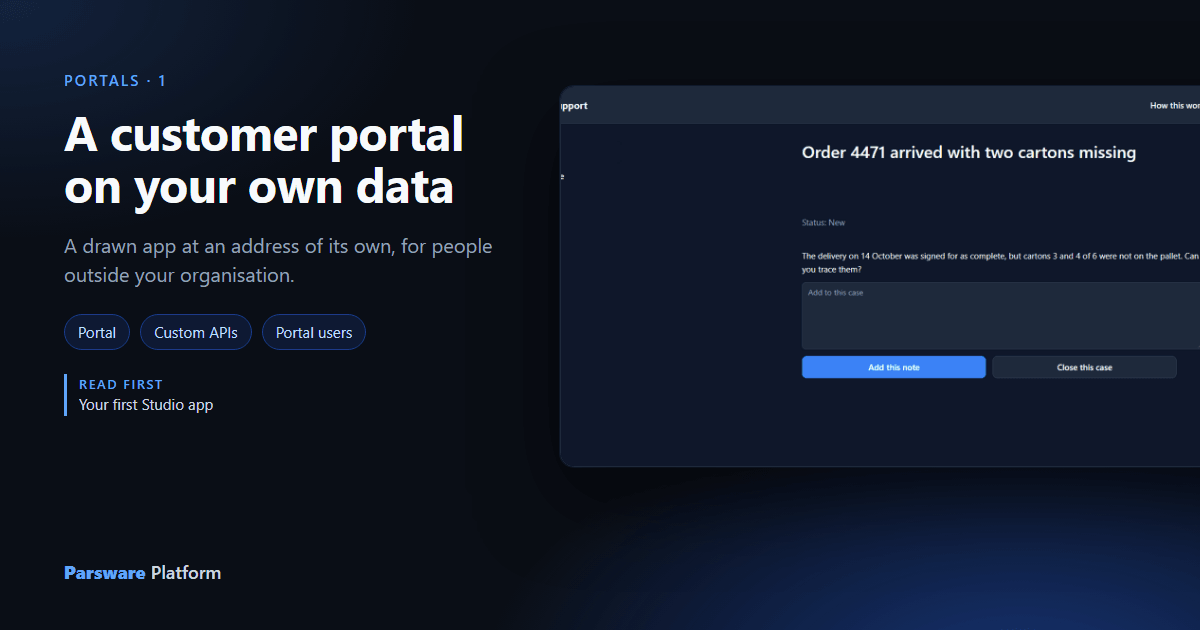
An app in the Shell is for your own people: they sign in to the platform, and their security roles decide what they see. A portal is for everyone else: customers, partners, applicants, the public. It's a Studio app published at a web address of its own, with nothing of the platform around it, because everything a visitor sees is drawn.
Three rules make that safe, and they don't vary:
- A portal reads and writes only through Custom APIs. Never a table directly. A Custom API is a contract somebody wrote on purpose, so drawing a screen can't put a table on the internet by accident.
- Its visitors are portal users, not platform users: a separate account, scoped to that portal, with no platform role.
- A rule on the table decides whose rows they see, so every contract, including one added next year, is narrowed the same way.
We'll follow the Portal service desk sample, from samples/solutions/portal-service-desk: a support desk where a customer raises cases and follows them.
Publish it
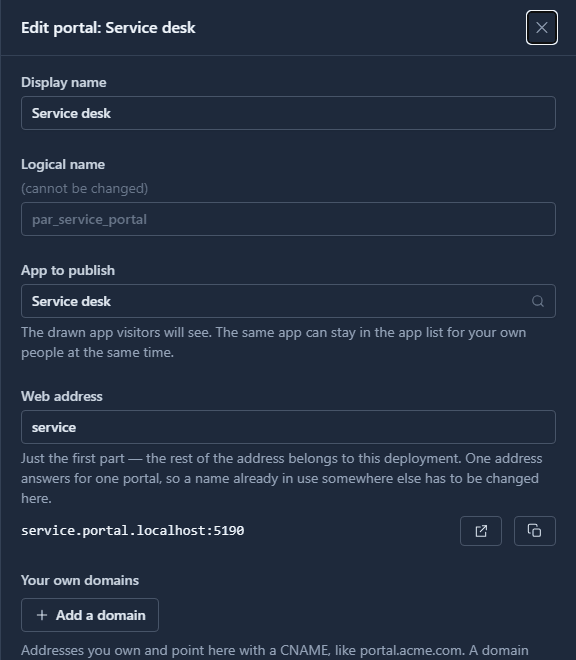
The sample's solution has a Portals page. Its one portal, Service desk, names the app to publish, the first part of its address, and who can open it:
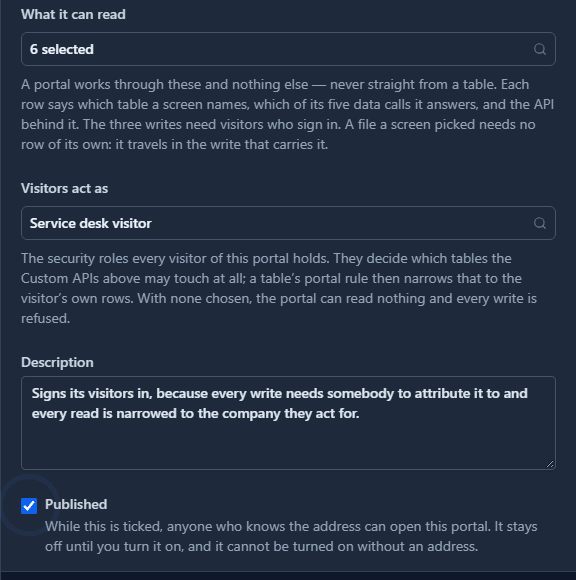
Further down it lists what it can read (the six Custom APIs it may call), the role every visitor acts as, and Published. Tick it and save, and the address starts answering:
A visitor signs up
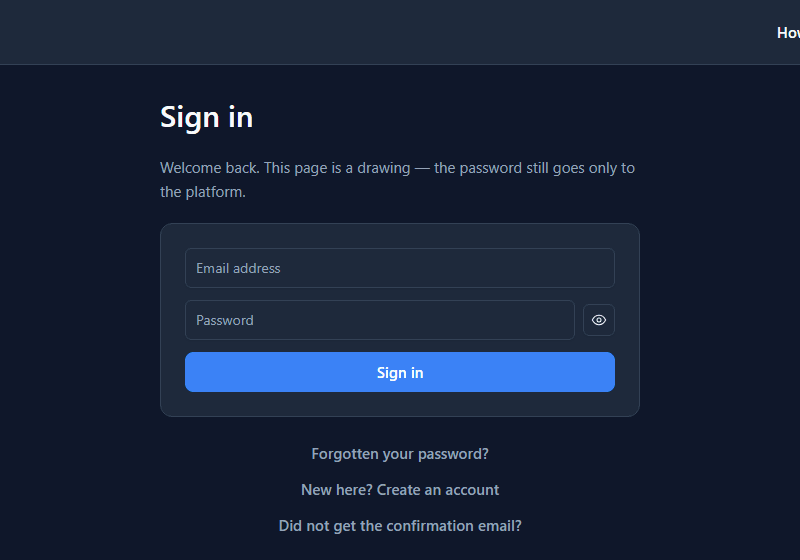
Avery Brooks works at Proseware, a Northwind customer. The address opens on the portal's sign-in page. It's a drawing too, but the password goes only to the platform:
Avery creates an account, confirms the address from the email, and signs in. A case belongs to a company, so the next stop is Your company, where Avery starts Proseware and becomes its first Owner:
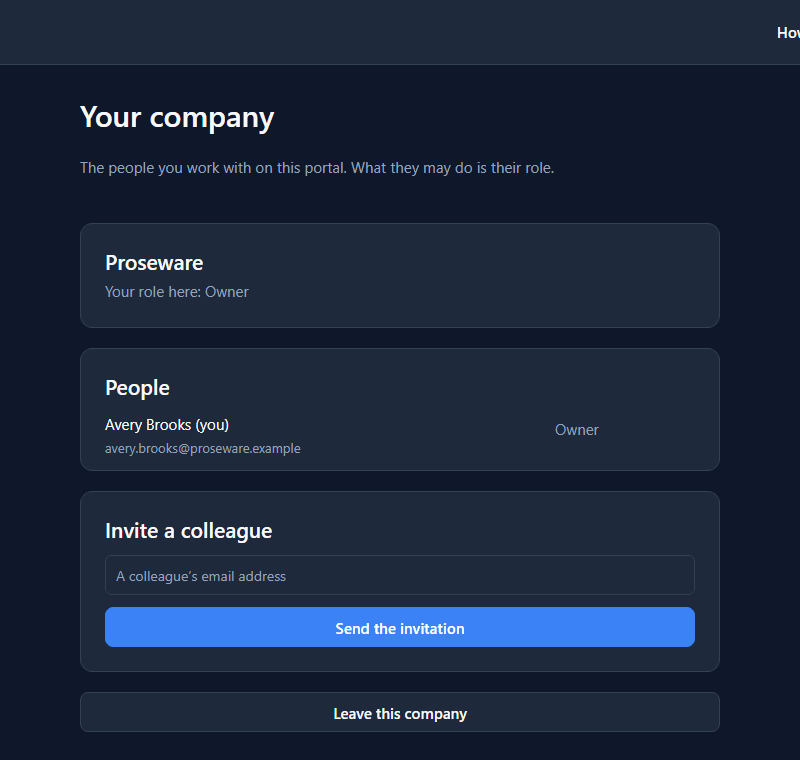
From here an Owner invites colleagues, and everyone they invite sees the same cases.
Raise a case
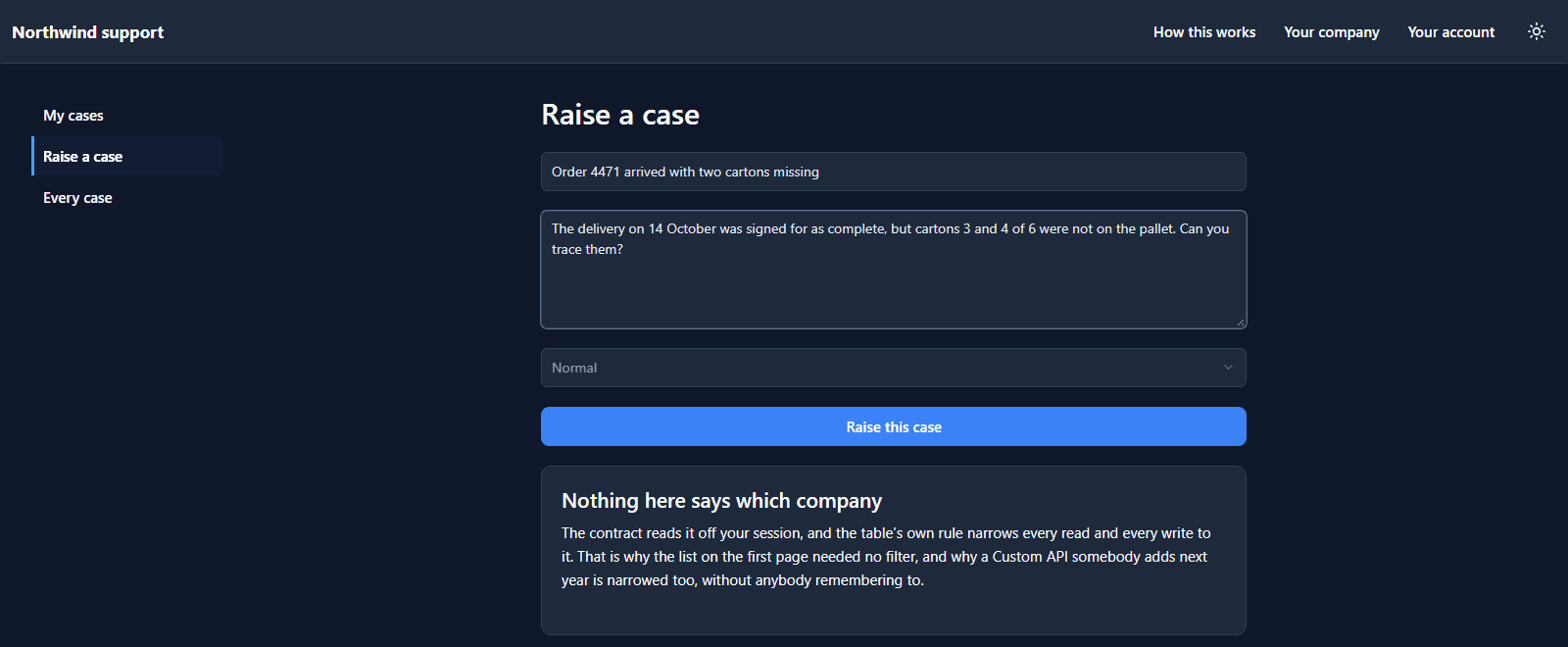
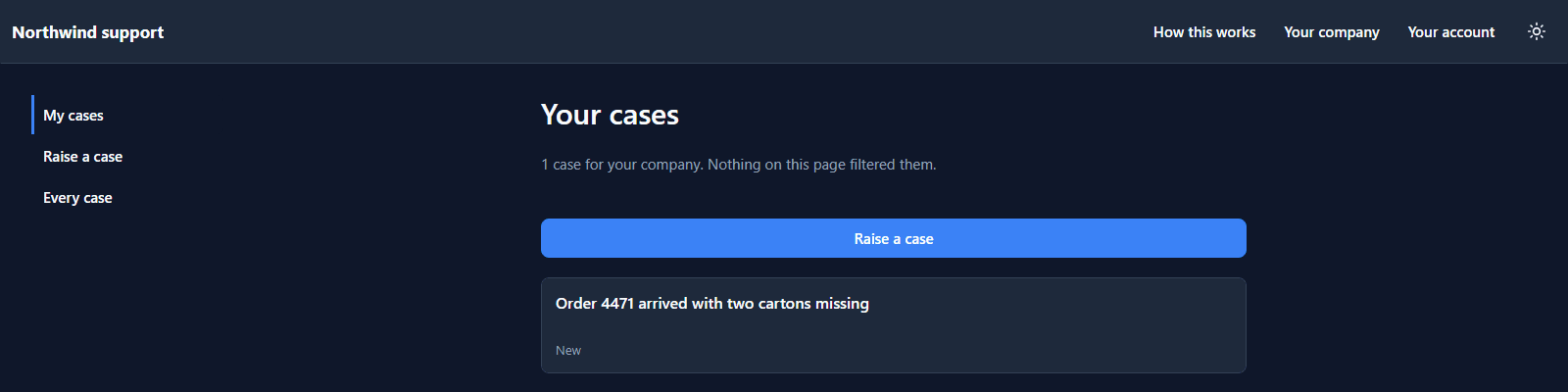
The form doesn't ask which company. The Custom API behind it reads that from Avery's session and refuses any attempt to send it. The case lands in My cases:
Opening it shows its status and its text, and lets Avery add a note or close it:
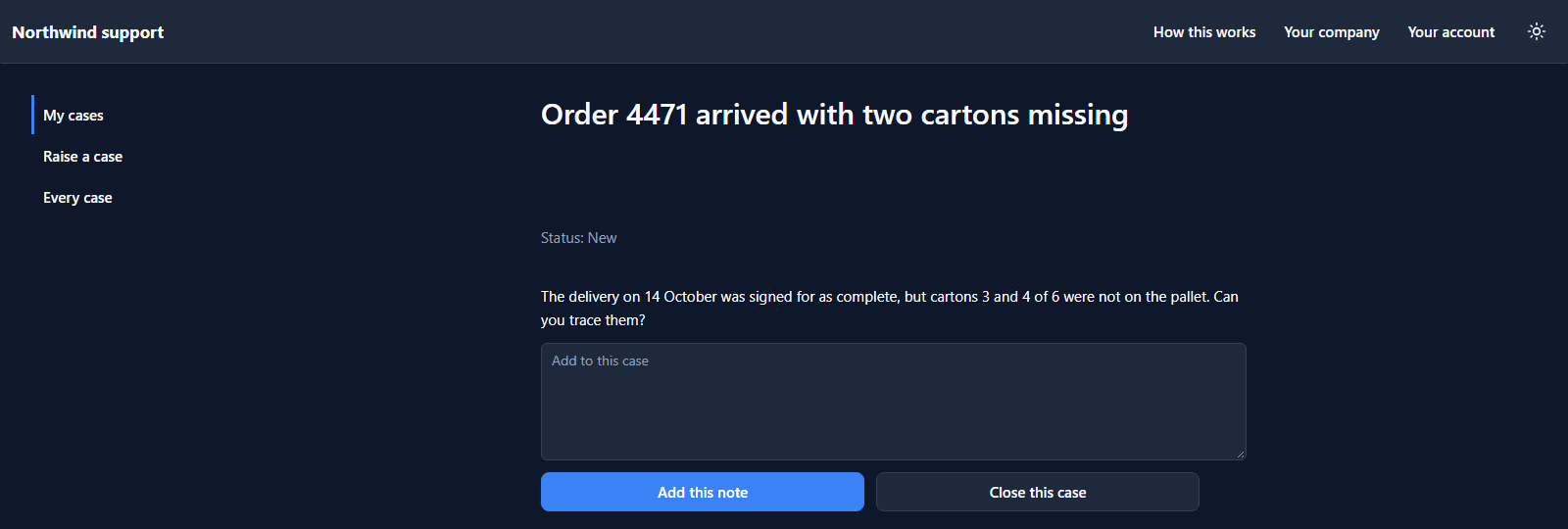
That's all four record operations (create, read, update, delete), each through its own contract. Close this case is a delete as far as the page knows; the contract behind it sets the status instead, because a customer withdrawing a case isn't a customer erasing one.
Another company sees none of it
Jordan Lee from Fabrikam signs in to the same portal:

The list asks for every case, with no filter of any kind. One line on the par_case table does
the narrowing, for reads and writes alike:
Record.par_customer == Portal.CustomerId
Because it's on the table, not in a script, no contract can forget it.
And from the inside
Northwind's support team works the same rows in an ordinary model-driven app in the Shell:
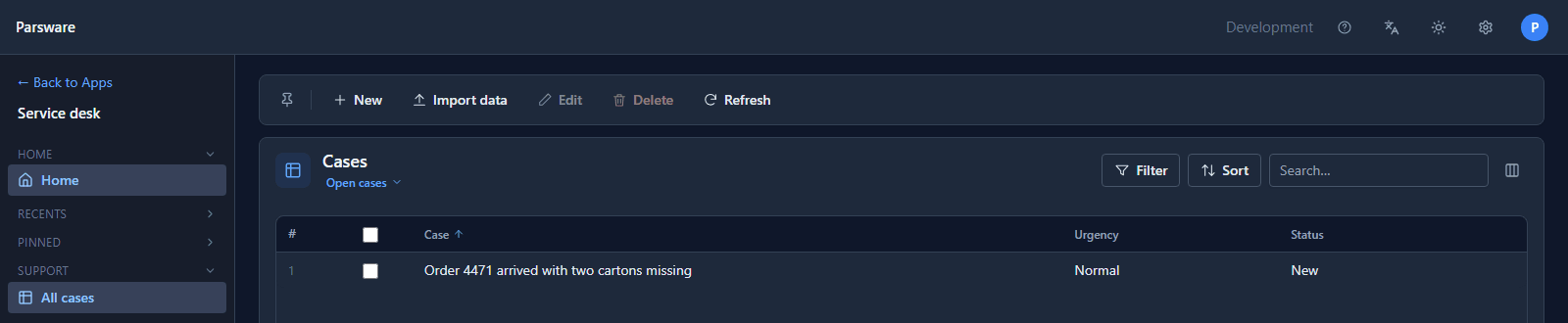
One table, two front doors: the app for your people, with their roles; the portal for your customers, through contracts.
Portal or app?
| App in the Shell | Portal | |
|---|---|---|
| Who | Your organisation's users | Anyone you let in, or anyone at all |
| Signs in with | A platform account | A portal account, or none |
| Reads data through | Tables, forms and views, under security roles | Custom APIs only |
| Narrowed by | Roles and record access | The table's portal rule |
| Looks like | The platform | Whatever you draw |
What we fixed
- Starting a company didn't show it. After Start my company, the company was created but the card stayed on "Start a company" until the page was reloaded. A component writes its answers through its properties; five actions, including the one that reloads the company, kept the property's name instead of following it to the screen's field. They now follow it.
- A refusal reached the visitor with code in front of it. Trying to leave a company as its last Owner showed A binding on "co_card_leave" could not run: leaveCompany failed: before the platform's own sentence. Visitors now get the sentence alone, the way sign-in refusals already worked.
- Email links went nowhere on a test stack. Confirmation, invitation and password-reset links
always began
https://, even where portals are served at another address. They now use the same address as the portal's Open button. - A case didn't show what was written. The case page took notes and displayed none of them, including the description from when it was raised. It now shows the text. And 1 cases is now 1 case.
Try it
Import samples/solutions/portal-sign-in-kit and then the service desk, publish the portal, and sign up twice from two private windows with two
companies.
Next: Publish an app as a portal.