Parsware Platform
Tenants
Each customer is a tenant: its own people, environments and data. The people who run a deployment can switch a tenant's sign-in off and on again from Tenants. We deactivated Tailspin Toys while its administrator was signed in, watched the sign-in refused, and switched it back on to find everything where it was.
A tenant is one customer organisation on a Parsware deployment: its users, its environments and their data. A trial sign-up creates one. Tenants never see each other.
This article is for the people who run a deployment, not the people who use one. Tenants appears in the Admin Control Center only for someone with the SuperAdmin role in the operator's own tenant. A customer's administrator never sees it.
The list
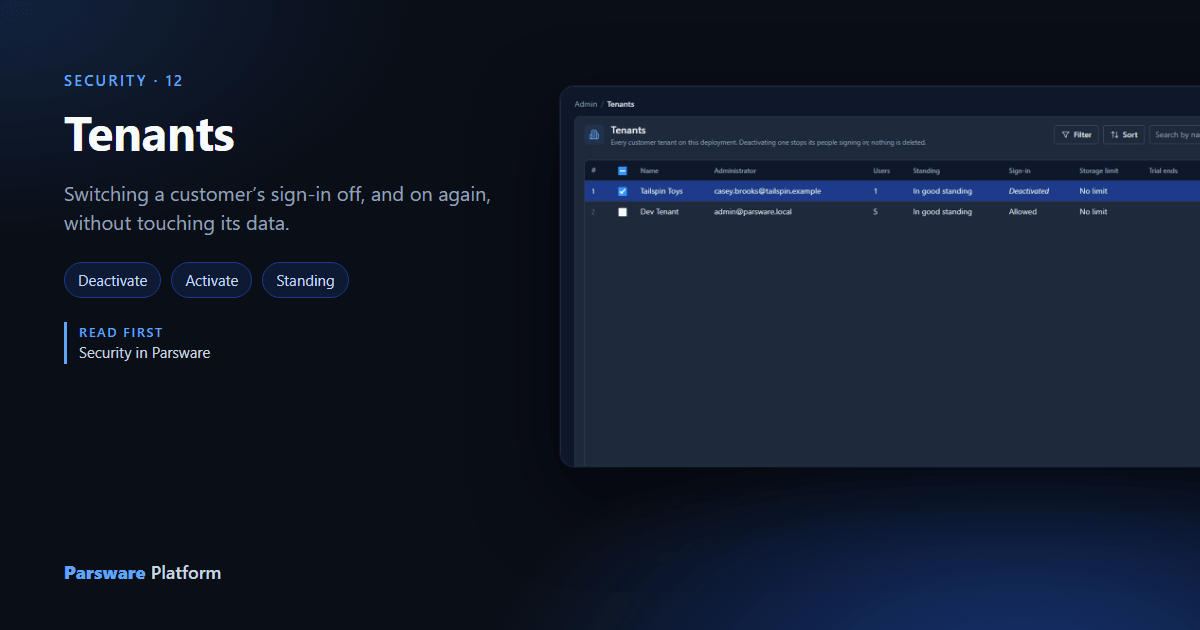
Admin → Tenants lists every tenant on the deployment:

Two columns look alike but answer different questions:
- Standing is where the tenant is in its trial: In good standing, Trial lapsed or Deleted. It changes on its own as a trial runs out, and when a customer pays. That's the subject of a later article.
- Sign-in is a switch you control: Allowed or Deactivated. Nothing changes it except someone on this screen.
Here, Tailspin Toys is deactivated. Here's how it got there.
Deactivate a tenant
Casey Brooks, Tailspin's administrator, is signed in to Tailspin's environment. Open Tailspin Toys from the list:
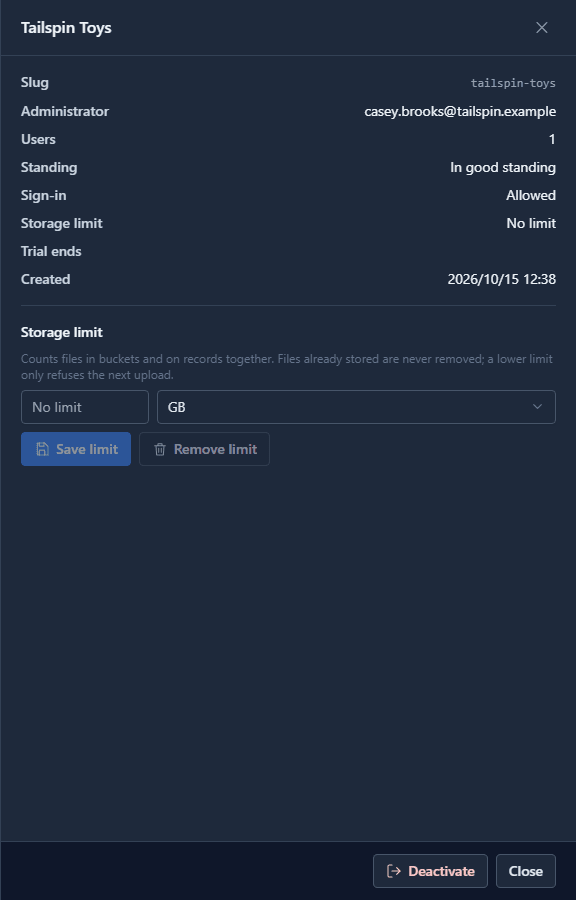
The panel shows who you're about to lock out, how many people that is, and when the tenant was created, before you do it. Select Deactivate:
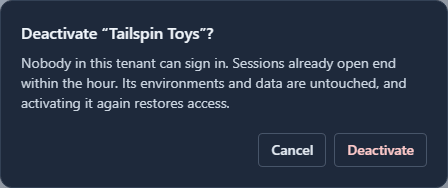
Confirm, and the list says Deactivated. If you've been signed in for more than fifteen minutes, you're asked for a code from your own authenticator app first.
What Casey sees
Casey's open tab ends at its next renewal, within the hour. Signing in again is refused:
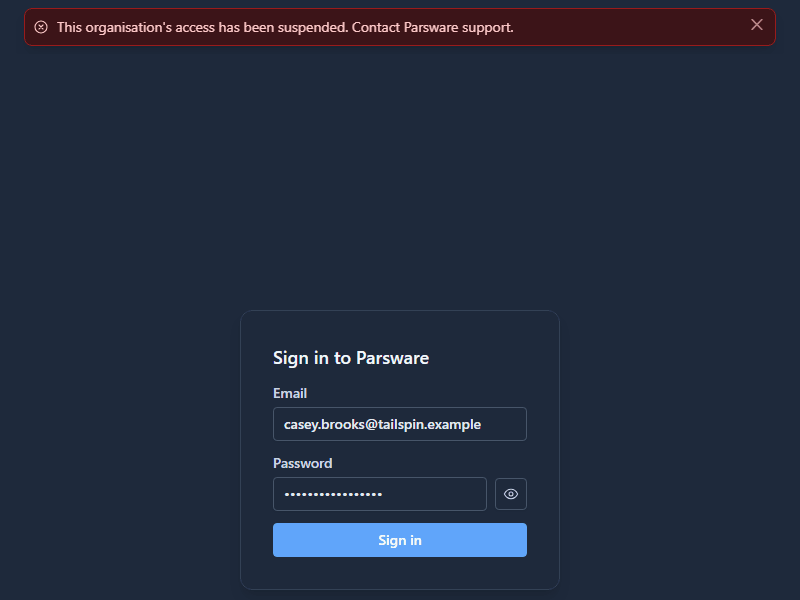
That applies to everyone in the tenant, administrators included. Nothing else changes. The environments, records, apps and users are exactly as they were.
Activate it again
Open the tenant again and select Activate. Casey signs in and everything is where it was left:
Your own tenant
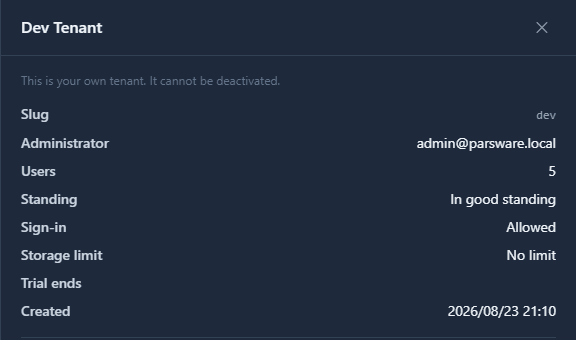
The tenant you run the deployment from can't be deactivated, because there would then be nobody left to activate it. Its panel says so and has no Deactivate button:
Good to know
- Deactivating isn't deleting. No data is removed. Deleting a lapsed trial's data happens on its own schedule, and there's no button for it here.
- A Deleted tenant can't be activated again, because its data has already gone.
- The same panel sets the tenant's storage limit, for a customer who needs more room before their plan changes. It's saved with its own button.
Try it
On a deployment where you're the operator, deactivate a test tenant, try to sign in as one of its users in a private window, then activate it again.
Next: What's in object storage.